1
Encrypted Disk, User Manual_______________________________________________5
plug-ins. If a user has a considerable number of encrypted disks, then they can be organized in
a convenient way by using a special utility called Encrypted Disk Manager.
5.1 Using Windows System Tray
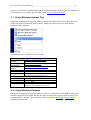
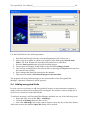
During the installation the program adds its icon into Windows System Tray. By right-click
on the icon a user can start the pull-up menu, which provides the access to all necessary
functions of the program.
The menu items are divided into four sections:
Encrypted Disk
Manager
New Encrypted
Disk Wizard
Re-encryption
Wizard
Mount
Disks
Help
About
Exit
Wizards starting
Organize existing encrypted disks
Create new encrypted disk
Re-encrypt an existing encrypted disk or change
the encrypted key for it.
Encrypted disks management
Mount one of existing encrypted disks
Access to the list of encrypted disks and
operations on them (open, unmount).
Help
Open this manual
Starts the About window
Exit
Close the program. In this case the program icon
disappears from Windows System Tray.
5.2 Using Windows Explorer
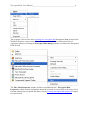
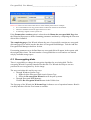
During the installation the program adds new item Encrypted Disk into the File section of the
Windows Explorer main menu and into the same section of the context-sensitive menu (if an
encrypted disk or its image file is selected). This menu allows mounting or unmounting a
selected encrypted disk.