1
OPERATION
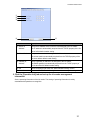
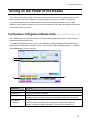
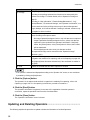
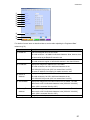
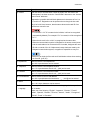
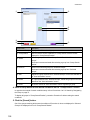
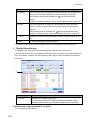
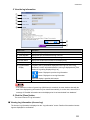
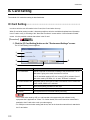
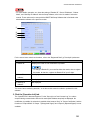
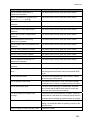
Screen Item
Description
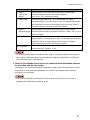
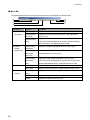
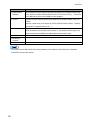
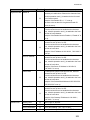
Reader ID
Displays the previous iris reader's information.
Reader Name Displays the Reader Name.
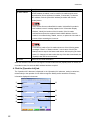
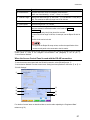
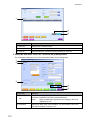
Status
Displays the status of the iris readers registered to this software for the iris readers that
matched the search conditions. Note that colour varies according to the iris reader's status.
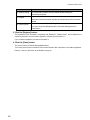
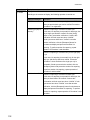
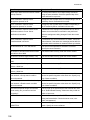
Status
Colour Description
Operating
Black
Enrollment Reader Black
Recognition iris reader is normal.
Enrollment iris reader is normal
(Operating)
Reset
Red
Stopped
Status unknown
Reader is being reset.
Reader operation has stopped.
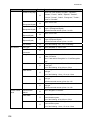
Yellow When the reader status is unknown due to a connection error,
etc.
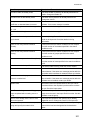
Download
Purple When the iris reader requires a Software download. Note that the
[Start], [Stop], [Download Audio File], or [Distribute] functions are
disabled.
― ―
Grey
When the iris reader has not received a MAC address. Note that
the [Start], [Stop], [Download Software], [Download Audio File],
[Download] or [Distribute] functions are disabled.
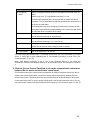
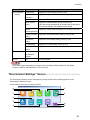
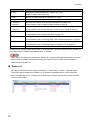
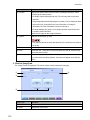
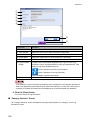
Operation
Displays the setting for “Recognition Mode” under the “Card Reader” tabscreen on the
Mode
"Reader Setting Details" screen.
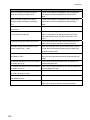
No Card Reader
An iris reader with which no card reader is connected.
Card and Iris Recognition
An iris reader with which a card reader is connected and the
method of recognition is “Card and Iris Recognition”.
Card Recognition Only
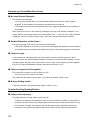
Enrollment
An iris reader with which a card reader is connected and the
method of recognition is “Card Recognition only”.
Displays “No. of Persons (having iris readers) to whom the Iris Data are Actually
Distributed/No. of Persons to whom the Iris Data are Distributed” at the searched iris reader.
Displays “0/0” when the iris reader setting is for “Server Certification Only” or “Iris on Card”.
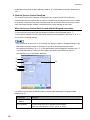
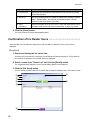
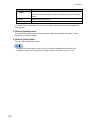
・The actual reader status may differ from the status saved in this software (iris server). Refer to Checking
Reader Status on page 91 for details on how to get an iris reader's current status.
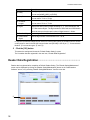
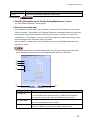
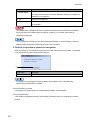
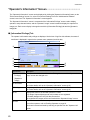
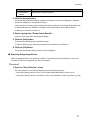
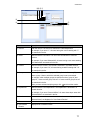
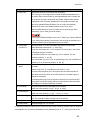
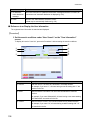
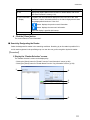
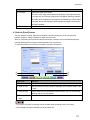
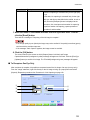
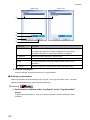
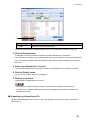
■ Reference to and Display the Reader Information
Retrieves the information of the enrollment iris reader and displays the detailed data.
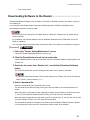
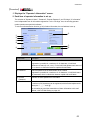
【Procedure】
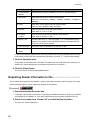
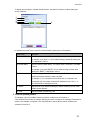
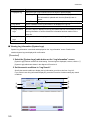
1. Set the search conditions under “Reader Search” on the "Reader
Setting/Maintenance" screen.
69