1
Section 7.2
Architecture
Chapter 7
VSM Architecture and Data Files
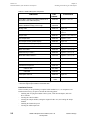
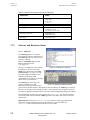
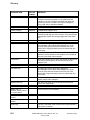
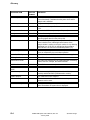
Table 7-1. Software files required to operate the VSM option
7.2.3
DIRECTORY
FILES
C:\Qdppms\vsm\System
VsmMultiVu.dll
Vsm.ini
Vsm.reg
*.fcf
C:\Qdppms\vsm\Calibration
VSMCoil-xxx.cfg
C:\Qdppms\vsm\LogFiles
VsmLog.txt
ScanData.dat
ScanFriction.dat
Windows System
CANComm.dll
PpmsComm.dll
Windows
cancomm.ini
Software and Hardware Status
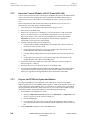
7.2.3.1 VSM LOG
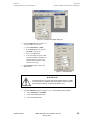
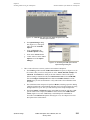
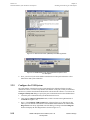
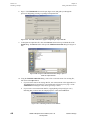
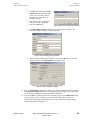
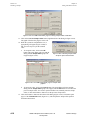
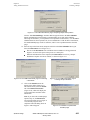
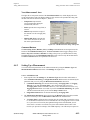
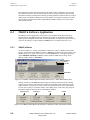
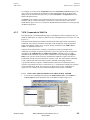
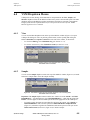
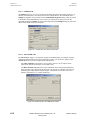
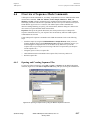
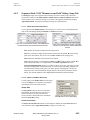
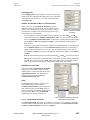
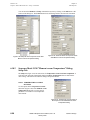
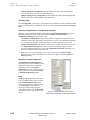
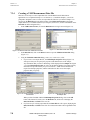
The VSM Log (Figure 7-1) captures
status messages from the VSM option. If
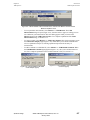
the VSM Log window is closed, you can
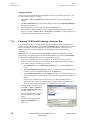
open it by selecting
View >> VSM Status Log from the
MultiVu dropdown menus
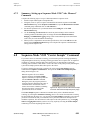
(e.g., Figure 7-2).
The log is a scrolling list of the messages
that appear one-by-one in the VSM
Status area at the bottom of the VSM
Control Center (e.g., Figure 7-6). The
log captures high-level hardware and
software activity during VSM
measurements as well as test results from
checks of the system hardware.
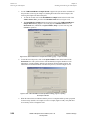
Figure 7-1. Example of a VSM Log
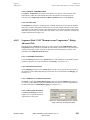
The VSM Log (or "status log") also
captures warnings, errors, and
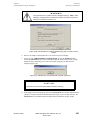
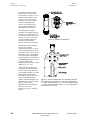
Figure 7-2. Opening the VSM Log window
informational messages that have been
generated since the last time the VSM option was activated. Hence, the VSM Log is a status log
that frees you for other activities during a sequence run or hardware test. Using this record, you
can check for important information about your measurements and potential equipment problems.
The information in the status log is also written to the VSMLog.txt file. This file contains a
record of all VSM sessions, while the VSM Log window only displays the results of the active
VSM session.
Important: Monitor the size of VSMLog.txt if you want to save the logged information,
because the software automatically trims the file when its size exceeds 5 MB. Save
VSMLog.txt under a different name when the size nears 5 MB.
7-2
PPMS VSM Option User’s Manual, Rev. A3
January 2008
Quantum Design