1
Setting Up Church Manager
Before you start entering Member data, there are three other pieces of information you should enter:
1.
2.
3.
Church Information
Services
Funds
Church Information
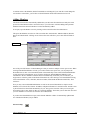
Church Information stores the Church Name, Address, Pastor Names, Active Year, and a Bitmap graphic
to appear on reports.
Church Name and address appears on report headers. Be sure to enter this. Pastor names can be entered but
are not used elsewhere in the program as yet. This is optional. Active year will be used in determining
some report dates. Be sure to set this to the current year. Finally, a bitmap image can appear in the upper
right hand header of reports. To place a bitmap here, use whatever program you use for bitmap work.
Windows Paint program works fine and is part of your operating system.
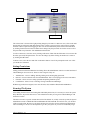
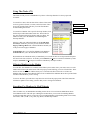
Select the bitmap you want and then copy to the clipboard. Open Church Manager (if not already open)
and choose Tools/Church Info from the main menu. Tab over to Preferences. There you will find a bitmap
box. Click on the Paste Bitmap from Clipboard button. The bitmap in the clipboard will be pasted into the
Preferences/Bitmap box.
Click the OK button to save the bitmap and close the form. The bitmap will now appear in your reports.
Note - the bitmap is square and will size any bitmap to fit. You may need to edit the original bitmap
accordingly to achieve proper proportional results.
The bitmap will be resized no matter what size you paste in. Every time a report is drawn to a screen or
printer Church Manager will have to render it to the allowed size. Therefore, don’t make your bitmaps
extremely large or high resolution. The image will only print out to a one inch square. A normal bitmap
image for this size might be 20K - 100K. If you have an image 200K or more, you probably have a lot
more information contained in the bitmap that is necessary to render the 1 inch square image. It is
suggested you resize the bitmap using your favorite bitmap editor. This will speed up the printing and
screen drawing when previewing reports and moving from page to page.
Services
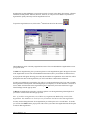
You can set up different services. This allows you to track contributions made for a given period per
service. Church Manager comes with two defined: Morning Service and Evening Service. You can add as
many as you like. You can also delete or rename the services already defined for you if they are not
suitable. You must have at least one service defined or errors could result.
Funds
Church Manager 2.0
19