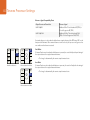
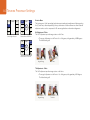
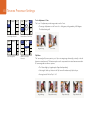
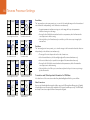
1
Installation and Operation Manual Teranex Processors Mac OS X™ Windows™ August 2015 Welcome Thank you for purchasing a Blackmagic Design Teranex converter for your facility. The Teranex converter you have purchased is an amazing quality standards converter that you will spend hours playing with to discover all the wonderful functions it has. I am still playing with it myself to see all the other things I can use it for! We have packed it with the latest SDI, HDMI and analog connections so you can use it to convert and connect anything! One of the exciting advantages of the Teranex converter is the amazing quality of the conversions. It features a powerful SIMD processor that allows more complex calculations, allowing the Teranex to do a better job at processing video, removing field movement, detecting cadence, noise reduction, timecode conversions, subtitle conversion and much more! Enjoy exploring your Teranex processor and we all hope you have many years of enjoyment out of it. Please let us know of any ideas and features you would like to see, as we are constantly updating the software so it gets better and better! Grant Petty CEO Blackmagic Design Contents Teranex Processors 5 Getting Started Audio Menu Settings Introducing Teranex 5 LCD layout in Teranex Express 5 Connecting Teranex 6 Setting your Input 6 Setting your Output 6 Applying Settings using the Control Panel 7 9 Conversion Workflows Up Conversion Output Mapping 23 Input Mapping 24 Audio Gain 25 Audio Delay 25 Audio Setup Menu 26 Dolby Encode 27 Dolby Metadata 28 Noise Reduction Menu Settings 9 23 30 Bias30 Split Screen On/Off 30 Red Overlay On/Off 30 Down Conversion 10 Cross Conversion 11 Standards Conversion 12 Ancillary Data Menu Settings 31 Up Conversion to Ultra HD using Teranex Express 13 Closed Caption Menu 31 Cadence Removal 14 Timecode Menu Settings 33 Clean Cadence 14 Video Index Menu 36 Presets15 Audio and System Status LEDs 15 16 Teranex Processor Settings System Setup Menu Settings 37 Ethernet Setup Menu 37 IP Menu 37 Subnet Mask Menu 37 LCD Menu 16 Gateway Menu 37 Video Menu Settings 16 DHCP Menu 38 Color16 Factory Reset 38 Clip17 Reference Menu Settings 38 Aspect17 Pixel Offset 40 Video Setup Menu 18 Line Offset 40 Proc Amp Menu Settings 20 Test Patterns Menu 21 3D Mode Advanced Menu Settings 21 Input42 3D Menu Settings 41 41 Contents Teranex Processors Output42 Intensity43 Depth43 Camera Align 43 48 Capture and Playback Using your Favorite Editing Software 48 DaVinci Resolve 49 Avid Media Composer 50 Apple Final Cut Pro 7 51 Apple Final Cut Pro X 52 Adobe Premiere Pro CC 53 Adobe After Effects CC 54 Adobe Photoshop CC 55 60 Format Conversion Table - Teranex 2D 61 Format Conversion Table - Teranex 3D 62 Format Conversion Table - Teranex Express 64 Aspect Ratio Conversion Table 66 DB25 Connector Pin-outs for the Teranex 2D Installing Blackmagic Teranex Software on Mac OS X 67 Installing Blackmagic Teranex Software on Windows 68 Updating the Teranex Processor Software 69 70 Using the Blackmagic Teranex Setup Utility 74 Installing Optional Blackmagic Dolby ® Encoder/Decoder 75 Installing Optional Blackmagic Fiber Optic SFP 76 Developer Information Preset90 56 Waveform Monitoring Using Blackmagic UltraScope for Waveform Monitoring 67 Installing Blackmagic Teranex Software 56 96 Help 97 Warnings 98 Warranty Getting Started 5 Getting Started Introducing Teranex Teranex 2D Processor Teranex 3D Processor Teranex Express Teranex is a powerful and easy to use video signal processor for real time conversion between video standards, frame rates and resolutions. The control panel features selection buttons for primary input and output settings, with soft menu buttons and rotary knob to navigate the LCD menus. Simply program your input settings, program your output settings and your conversion is ready for processing. It won't take you long to familiarize yourself with Teranex. You'll find yourself quickly moving between selection and soft menu buttons as you program your settings. Buttons are illuminated green for currently selected or available settings, and blue when confirmed, so it's easy to see what you're doing. Enhance the quality of your conversions using noise reduction, sharpness, cadence removal, adjustable scaling and much more. The primary functions you can perform with Teranex are: Up Conversion Converting your video to a higher resolution. For example, SD to HD. Down Conversion Converting your video to a lower resolution. For example, HD to SD. Cross Conversion Converting the video resolution or aspect ratio of your video. For example, 720p59.94 to 1080i59.94. Standards Conversion Converting your video from one frame rate to another. For example, 1080i59.94 to 1080i50 Noise Reduction Cleaning up noisy source material for higher quality conversions. Test Signals Generating known reference signals when they are needed in your work flow. 3D Performing format and/or frame rate conversion of stereoscopic inputs and for conversion of 2D sources into simulated 3D in the Teranex 3D Processor. Frame SyncSynchronizing video sources that originate outside your facility to your internal master sync generator. However, Teranex is more than a converter, it's a high end video processor. You can add enhancements to improve the video output from your equipment, your source material while editing, or even while capturing and playing back from your computer via Thunderbolt. Let's get started with Teranex! LCD layout in Teranex Express LCD layout in Teranex Express In addition to live video, the front panel display in Teranex Express provides status information which includes video format, frame rate, timecode and audio levels. E ASPECT 24 ANAM 50 LBOX PBOX 59.94 60 SMART E MENU 14:9 PRESETS AUDIO STATUS GAIN BLK 1 2 CCUT ZOOM MENU 1 SAT HUE 3 4 ADJ MENU 2 R-Y B-Y SHARP 5 6 6 Getting Started MENU FRAME RATE REF IN VIDEO 576 P 23.98 24 Connecting Teranex IN/OUT 720 1080 I 25 50 PSF 29.97 30 59.94 60 LBOX PBOX IN MENU B-Y IN ANAM REM LOCK PRESETS ASPECT Y/NTSC/PAL IN 486 PANEL LOCK SYSTEM STATUS ASPECT FORMAT VIDEO HOME R-Y IN Y/NTSC/PAL OUT B-Y OUT R-Y OUT 14:9 HOME CCUT LOOP ZOOM OUT VIDEO GAIN PRESETS BLK 1 AUDIO STATUS PANEL LOCK 2 Getting with Teranex is as easy as plugging in power, plugging in your video inputs and connecting SAT started HUE 3 4 your output destinations. R-Y MENU REM MENU 1 OUT SYSTEM STATUS 2K 1080 FORMAT DIO IN/OUT VIDEO AUDIO DOLBY METADATA SDI EMBED PTICAL FRAME 486 720 2K SMART HDMIRATE IN 25 ASPECT B-Y IN R-Y IN ANAM 14:9 LBOX IN B PBOX 50 IN A CCUT LOOP A ZOOM Y/NTSC/PAL OUT Step 1. MENU HDMI OUT SD/HD/3G-SDI RATE REF IN Y/NTSC/PAL IN 23.98 24 1 IN ULTRA HD B-Y 2 ASPECT SD/HD/3G-SDI FORMAT FRAME REMOTE IN/OUT 576 P 1080 ADJ B-Y OUT R-Y OUT STEREO IN TIMECODE IN L OUT A OUT B 29.97 30 PSF 59.94 60 SMART R ADJ HDMI Step 2. SD/HD/3G-SDI Step 3. IN A 12G-SDI IN B 6G-SDI LOOP A 12G-SDI LOOP B 6G-SDI OUT A 12G-SDI OUT B 6G-SDI OUT/IN OPTICAL Connect your video source and destination equipment to your Teranex processor. IN 6 LOCK You can power your Teranex processor by connecting an IEC cable to the AC power socket. The Teranex 3D has two internal AC power supplies for redundancy. The Teranex 2D has one internal PUSH AC power PUSHsupply, and you can use the 12V DC port for external battery power and/or a “brick” DC adapter in case one supply fails or is accidentally disconnected. The DC power supply is an optional purchase. MENU TIMECODE OUT HOME PRESETS VIDEO AUDIO IN 1 GAIN BLK PRESETS AUDIO IN 2 AUDIO OUT 1 1 2 MENU 1 SAT HUE 3 4 MENU 2 R-Y B-Y SHARP 5 6 AUDIO STATUS AUDIO OUT 2 PANEL LOCK SYSTEM STATUS OUT REF IN 5 VIDEO IN/OUT REMOTE PUSH LOOP B SHARP VIDEO AUDIO FORMAT FRAME RATE ASPECT SDI EMBED 486 576 P 23.98 24 ANAM 14:9 HDMI AES 720 1080 I 25 50 LBOX PBOX CCUT ZOOM ANLG ANLG 2K 1080 PSF 29.97 30 59.94 60 VIDEO AUDIO REM LOCK Connect your camera, deck or other video source to the video inputs on your Teranex. Connect the video output connectors to a video destination, such as a disk recorder or video monitor. All video outputs are simultaneously active so you can connect more equipment if needed. Setting your Input After connecting your equipment, verify your input signal using the control panel buttons, soft menu buttons and LCD. Step 1. Press the 'in' button on the control panel. Step 2. Using the 'video' buttons, select your SDI, HDMI, Analog or Optical video input, depending on your model. If selecting analog, confirm component or composite by turning the rotary knob. When your input is selected, you will see the image displayed on the built-in LCD. The Teranex processor will automatically detect your input format and illuminate the corresponding buttons. MENU VIDEO PRESETS AUDIO STATUS HOME GAIN BLK 1 2 MENU 1 SAT HUE 3 4 MENU 2 R-Y B-Y SHARP 5 6 PANEL LOCK SYSTEM STATUS OUT FORMAT FRAME RATE SMART ADJ ASPECT MENU Press the IN button to display the video input format. In this example, the format is 1080i50 via SDI with embedded audio. IN OUT FORMAT AUDIO SDI EMBED 486 576 P 23.98 24 ANAM 14:9 HDMI AES 720 1080 I 25 50 LBOX PBOX CCUT ZOOM ANLG ANLG 2K 1080 PSF 29.97 30 59.94 60 VIDEO AUDIO FRAME RATE RATE ASPECT SMART MENU ADJ ASPECT Press the OUT button and select a format to convert to. In this example, the conversion is set to: 720p50, embedded SDI and HDMI audio, plus analog audio. REM LOCK PRESETS Select your Embedded, AES or Analog audio input type using the 'audio' buttons. If selecting Analog, confirm your connection as either 'DB25' or 'RCA' using the soft menu buttons. Setting your Output VIDEO FORMAT FRAME Step 3. VIDEO VIDEO PRESETS AUDIO STATUS Now select your desired output settings using the control panel buttons, soft menu buttons and LCD. Step 1. HOME GAIN BLK 1 MENU 1 SAT HUE 3 4 MENU 2 R-Y B-Y SHARP 5 6 PANEL LOCK 2 Press the 'out' button on the control panel. SYSTEM STATUS REM LOCK Step 2. Press the 'format', 'frame', 'rate' and 'aspect' buttons to set your desired output format, frame type, frame rate and aspect ratio. When using AES or analog audio outputs on the Teranex 3D, select the desired type in the 'audio' button section. Step 3. Using the soft menu buttons, select 'change' to confirm your settings. The video and audio output buttons will illuminate blue, indicating the active outputs. MENU VIDEO PRESETS The converted video output will now be seen on the LCD, and sent to your connected video equipment. 7 Getting Started ASPECT MENU ANAM 14:9 LBOX PBOX CCUT ZOOM SMART ADJ Video System Setup Main Menu Audio Reference Noise Reduction 3D Applying Settings using the Control Panel VIDEO HOME GAIN PRESETS AUDIO STATUS BLK 1 2 SHARP 5 6 PANEL Use the control panel LCD, soft menu buttons and rotary LOCK knob to navigate through the menus and make your selections. For example, when setting timecode, the cursor is moved forward or backward through MENU SAT HUE 3 4 1 the timecode register using the soft menu buttons. Timecode digits are adjusted using the rotary knob. SYSTEM STATUS Pressing the rotary knob returns parameters to their default value. R-Y MENU REM Ancillary Data B-Y 2 ASPECT MENU Use the control panel LCD, soft menu buttons and rotary knob to navigate the menus and apply your settings. LOCK ProgramVIDEO your conversionPRESETS settings by pressing the buttons on the control panel. Buttons are illuminated so you can quickly check the status of your audio and video connections and output settings. Explore the Teranex menus and experiment with conversion workflows. You'll find examples of common workflows on the following pages. Below is an overview of control panel features. 1 IN 3 VIDEO AUDIO SDI EMBED HDMI OUT 4 AES ANLG ANLG VIDEO AUDIO 5 6 FORMAT 486 720 576 1080 2K 1080 FORMAT 7 FRAME P RATE 23.98 I PSF 8 FRAME ANAM 50 29.97 30 59.94 60 RATE 2 11 ASPECT 24 25 10 12 13 MENU Video 14:9 LBOX PBOX CCUT ZOOM SMART ADJ Main Menu System Setup Audio Reference Noise Reduction 3D VIDEO 15 PRESETS 17 AUDIO STATUS HOME GAIN BLK 1 2 MENU 1 SAT HUE 3 4 MENU 2 R-Y B-Y SHARP 5 6 PANEL LOCK SYSTEM STATUS Ancillary Data ASPECT MENU 9 14 9 VIDEO REM LOCK PRESETS 16 18 19 2. OUT - Press to display and change current output settings. 8. ASPECT - Press to select video input and output aspect ratio settings. 14. PRESETS - Press to save or recall custom system configurations. 3. VIDEO - Press to select video input type, and displays all video outputs. 9. SOFT MENU BUTTONS - Press to navigate the LCD menus and apply settings. 15. AUDIO STATUS - Displays available input and output audio channels. 4. AUDIO - Press to select audio input type, and displays available audio outputs. 10. LCD - Displays the video input and output, and menu settings. 16. SYSTEM STATUS - Displays input, output and control status information. 5. FORMAT - Press to select the video output format, and displays the video input format. 11. ROTARY KNOB - Turn to adjust menu settings. Press to return settings to default. 17. PANEL LOCK - Press and hold to lock the control panel to prevent accidental changes. Press and hold to unlock. 6. FRAME - Press to select the video output frame type, and displays video input frame type. 12. MENU - Press to toggle the LCD between main menu and live video. MENU 1 and MENU 2 are programmable as page shortcuts. 18. REM LOCK - Press and hold to prevent a remote device from controlling the Teranex via Ethernet. Press and hold to unlock. 13. VIDEO - Press to activate video proc amp settings. 19. POWER - Press to power ON. Press and hold to power OFF. 1. IN - Press to display current input settings. 7. RATE - Displays video input frame rate as frames or fields per second. Press to select video output rate. 8Using GettingYour Started Teranex Converter Conversion Workflows 9 Conversion Workflows VIDEO AUDIO SDI EMBED 486 576 P 23.98 24 ANAM 14:9 HDMI AES 720 1080 I 25 50 LBOX PBOX CCUT ZOOM ANLG ANLG 2K 1080 PSF 29.97 30 59.94 60 VIDEO AUDIO IN FORMAT FRAME RATE ASPECT Up Conversion MENU HOME VIDEO GAIN PRESETS BLK 1 AUDIO STATUS PANEL LOCK 2 Up Conversion is the process of converting your video to a higher resolution. For example, you may need to insert an NTSC SD source into an HD production. The NTSC clip can be converted to many 720 and 1080 HD output formats and frame rates, depending on your project’s requirement. Teranex processors employ high quality de-interlacing and up conversion algorithms, assuring outstanding results. In this example, 486i59.94 component analog video is converted to 1080p29.97 using zoom aspect ratio and RCA analog audio inputs on the Teranex 2D or 3D. MENU 1 SAT HUE 3 4 MENU 2 R-Y B-Y SHARP 5 6 SYSTEM STATUS OUT FORMAT FRAME SMART RATE ADJ ASPECT MENU Pressing the IN button displays the input format on the control panel buttons. In the above illustration, the input format is 486i59.94 via analog component with analog audio. FORMAT FRAME RATE REM LOCK PRESETS Power your Teranex Processor and connect your inputs and outputs. VIDEO AUDIO SDI EMBED 486 576 P 23.98 24 ANAM 14:9 HDMI AES 720 1080 I 25 50 LBOX PBOX CCUT ZOOM ANLG ANLG 2K 1080 PSF 29.97 30 59.94 60 SMART ADJ VIDEO AUDIO IN VIDEO ASPECT MENU VIDEO HOME GAIN MENU 1 MENU 2 PRESETS AUDIO STATUS BLK 1 2 SAT HUE 3 4 R-Y B-Y SHARP 5 6 PANEL LOCK Setting your Input Step 1. Press the 'in' button on the control panel and select 'anlg' video. The 'analog input' menu will be displayed on the LCD. SYSTEM STATUS OUT FORMAT FRAME RATE ASPECT Press the OUT button to select your output settings. In the above illustration the output is set to 1080p29.97 with pillarbox aspect ratio. FORMAT 86 576 ORMAT 20 1080 RATE P FRAME 1080 576 2K 080 FRAME P I 23.98 I RATE 23.98 PSF 25 25 ASPECT 24 ANAM 50 29.97 LBOX PBOX 30 MENU VIDEO Step 2. Using the rotary knob, select 'component' as your analog input type. Press the 'in' button to display your input video on the LCD. Teranex automatically detects the input format and illuminates the corresponding buttons on the control panel. Step 3. Press the 'anlg' audio button. Using the rotary knob, select RCA as your analog audio input type. ASPECT MENU 24 ANAM 14:9 50 LBOX PBOX CCUT ZOOM SMART ADJ 14:9 59.94 CCUT ZOOM 60 REM LOCK PRESETS VIDEO PRESETS Setting your Output HOME GAIN BLK 1 2 Step 1. Press the 'out' button on the control panel. On the Teranex 2D, all output buttons will be illuminated blue. On the Teranex 3D, the 'embed' audio button will be blue. Select the 'AES' or MENU MENU VIDEO AUDIO STATUS SAT HUE 3 4 'anlg' button. AES/EBUPRESETS and analog audio outputs 1 share the XLR connectors. On the Teranex PANEL HOME GAIN BLK 1 2 Express, the 'embed' audio button will be blue. LOCK Step 2. R-Y MENU 5 6 SHARP SAT HUE 3 4 Press the '1080' button. Select the 'p' button for 2progressive B-Youtput, and the '29.97/30' button MENU 1 SYSTEM STATUS FORMAT ORMAT PSF FRAME 59.94 29.97 30 60 FRAME RATE RATE SMART ADJ to selectR-Yyour frame rate. The format, frame and rate buttons are now illuminated green, MENU VIDEO PRESETS ready REM 5 6 SHARP B-Y LOCK for you to accept your conversion set up or make changes. MENU VIDEO PRESETS ASPECT MENU 2 ASPECT Aspect ratios are set using the Aspect buttons on the control panel. Step 3. Using the soft menu buttons, select 'change'. The output video is now displayed on the LCD and sent to all output connectors. The buttons will also illuminate blue to confirm your settings. Setting your Aspect Ratio Press the 'ccut/zoom' button to set your aspect ratio to 'zoom'. For more information on aspect ratio conversion see pages 17 and 67-68. Your Teranex Processor is now ready to up convert your video. AUDIO STA SYSTEM ST 10 Conversion Workflows IN VIDEO AUDIO SDI EMBED 486 FORMAT 576 FRAME P 23.98 RATE 24 ANAM ASPECT 14:9 HDMI AES 720 1080 I 25 50 LBOX PBOX CCUT ZOOM ANLG ANLG 2K 1080 PSF 29.97 30 59.94 60 VIDEO AUDIO Down Conversion MENU HOME VIDEO GAIN PRESETS BLK 1 AUDIO STATUS PANEL LOCK 2 Down Conversion allows you to convert your video to a lower resolution. For example, you may need to distribute a PAL SD version of a 1080i50 HD program master to a client. Once again, high quality de-interlacing, down-sampling and anti-aliasing algorithms will assure outstanding down conversion results. In this example, 1080p25 video via SDI is converted to 576i50 (PAL) with letterbox aspect ratio. Audio is embedded in the input SDI signal. MENU 1 SAT HUE 3 4 MENU 2 R-Y B-Y SHARP 5 6 SYSTEM STATUS OUT FORMAT FRAME SMART RATE ADJ ASPECT MENU Pressing the IN button displays the input format on the control panel buttons. In the above illustration, the input format is 1080p25 via SDI with embedded audio. IN VIDEO AUDIO SDI EMBED HDMI FORMAT 486 AES 720 ANLG ANLG 2K 1080 VIDEO AUDIO 576 1080 FRAME P RATE 23.98 I 25 50 PSF 29.97 30 59.94 60 ANAM LBOX PBOX REM LOCK PRESETS Power your Teranex Processor and connect your inputs and outputs. ASPECT 24 VIDEO Setting your Input Step 1. Press the 'in' button on the control panel and select 'SDI' video. Teranex will display the input video on the LCD, automatically detect the input format and illuminate the corresponding buttons. MENU 14:9 CCUT ZOOM VIDEO PRESETS AUDIO STATUS HOME GAIN BLK 1 2 MENU 1 SAT HUE 3 4 MENU 2 R-Y B-Y SHARP PANEL LOCK SYSTEM STATUS OUT FORMAT FRAME SMART RATE ADJ Step 2. ASPECT Press the OUT button to select your output settings. In the above illustration the output is set to 576i50 with letterbox aspect ratio. Select 'embed' as the audio input format. MENU VIDEO 5 6 REM LOCK PRESETS Setting your Output Step 1. Press the 'out' button on the control panel. On the Teranex 2D, all output buttons will be illuminated blue. On the Teranex 3D, the 'embed' audio button will be blue. Select the 'AES' or 'anlg' button. AES/EBU and analog audio outputs share the XLR connectors. On the Teranex Express, the 'embed' audio button will be blue. Step 2. Press the '576' button. The button will illuminate green. Note that the 'I' button and the '50' button are also illuminated green. This is because interlaced video and 50 fields per second are the only selections available for a PAL 576 output. Step 3. Using the soft menu buttons, select 'change'. The output video is now displayed on the LCD and sent to all output connectors. The buttons will also illuminate blue to confirm your settings. Setting your Aspect Ratio Press the 'lbox/pbox' button to set your aspect ratio to letterbox. For more information on aspect ratio conversion see pages 17 and 67-68. Your Teranex Processor is now ready to down convert your video. 16:9 Ratio Image 4:3 Ratio Display Setting the LBOX/PBOX button on your SD output fits the 16:9 image inside the 4:3 frame. The 4:3 conversion will have black bars top and bottom and the correct widescreen geometry will be maintained. 11 Conversion Workflows IN VIDEO AUDIO SDI EMBED 486 FORMAT 576 FRAME P 23.98 RATE 24 ANAM ASPECT 14:9 HDMI AES 720 1080 I 25 50 LBOX PBOX CCUT ZOOM ANLG ANLG 2K 1080 PSF 29.97 30 59.94 60 VIDEO AUDIO Cross Conversion MENU HOME VIDEO GAIN PRESETS BLK 1 AUDIO STATUS PANEL LOCK 2 Cross Conversion allows you to change the video resolution and/or aspect ratio of your program material. Cross conversions between 1080 and 720 HD formats are accomplished using a high quality de-interlacing algorithm that permits all conversions to be performed in the progressive domain. In SD formats, aspect ratio conversions between 4:3 and 16:9 are also easy to perform. In this example 486i59.94 with 16:9 aspect ratio is cross converted to letterbox 4:3 via SDI with embedded audio. MENU 1 SAT HUE 3 4 MENU 2 R-Y B-Y SHARP 5 6 SYSTEM STATUS OUT FORMAT FRAME SMART RATE ADJ ASPECT MENU Press the IN button to see the format of the video signal that you are converting. In this example, the format is 486i59.94 over SDI with embedded audio. IN VIDEO AUDIO SDI EMBED 486 FORMAT 576 FRAME P 23.98 RATE 24 ANAM ASPECT 14:9 HDMI AES 720 1080 I 25 50 LBOX PBOX CCUT ZOOM ANLG ANLG 2K 1080 PSF 29.97 30 59.94 60 VIDEO AUDIO VIDEO REM LOCK PRESETS Power your Teranex Processor and connect your inputs and outputs. Setting your Input Step 1. Press the 'in' button on the control panel and select 'SDI' video. Teranex will display the input video on the LCD, automatically detect the input format and illuminate the corresponding buttons. MENU VIDEO PRESETS AUDIO STATUS HOME GAIN BLK 1 2 MENU 1 SAT HUE 3 4 MENU 2 R-Y B-Y SHARP PANEL LOCK SYSTEM STATUS OUT FORMAT FRAME SMART RATE ADJ ASPECT Press the OUT button to select your output settings. In the above illustration the output is set to 486i59.94 with letterbox aspect ratio. Step 2. Select 'embed' as the audio input format. MENU VIDEO 5 6 REM LOCK PRESETS Setting your Input Aspect Ratio Press the 'lbox' button to select letterbox, indicating that the input aspect ratio is 16:9. Setting your Output Step 1. Press the 'out' button on the control panel. On the Teranex 2D, all output buttons will be illuminated blue. On the Teranex 3D, the 'embed' audio button will be blue. Select the 'AES' or 'anlg' button. AES/EBU and analog audio outputs share the XLR connectors. On the Teranex Express, the 'embed' audio button will be blue. Step 2. Press the '486' button. The button is illuminated green. Note that the 'I' button and the '59.94/60' button are also illuminated green. This is because interlaced video and 59.94 fields per second are the only selections available for an NTSC 486 output. Step 3. Using the soft menu buttons, select 'change'. The output video is now displayed on the LCD and sent to all output connectors. Setting your Output Aspect Ratio Press the 'lbox/pbox' button to set your aspect ratio to letterbox. For more information on aspect ratio conversion see pages 17 and 67-68. Your Teranex Processor is now ready to cross convert your video. 16:9 Ratio Image 4:3 Ratio Display Setting the LBOX/PBOX button on your SD output fits the 16:9 image inside the 4:3 frame. The 4:3 conversion will have black bars top and bottom and the correct widescreen geometry will be maintained. 12 Conversion Workflows IN VIDEO AUDIO SDI EMBED 486 FORMAT 576 FRAME P 23.98 RATE 24 ANAM ASPECT 14:9 HDMI AES 720 1080 I 25 50 LBOX PBOX CCUT ZOOM ANLG ANLG 2K 1080 PSF 29.97 30 59.94 60 VIDEO AUDIO Standards Conversion MENU HOME VIDEO GAIN PRESETS BLK 1 AUDIO STATUS PANEL LOCK 2 Standards Conversion, also known as Frame Rate Conversion, is the process of converting one video frame rate another, such as converting NTSC at 59.94 fps to PAL at 50 fps. The powerful Teranex linear interpolation algorithm analyzes pixels between and within frames, calculating new pixels in real time to create the new output frame rate. In this example 1080i59.94 video is converted to 1080i50 via SDI with embedded audio on the Teranex 2D or 3D. MENU 1 SAT HUE 3 4 MENU 2 R-Y B-Y SHARP 5 6 SYSTEM STATUS OUT FORMAT FRAME RATE SMART ADJ ASPECT MENU Pressing the IN button displays the input format on the control panel buttons. In the above illustration, the input format is 1080i59.94 via SDI with embedded audio. IN FORMAT FRAME RATE VIDEO REM LOCK PRESETS Power your Teranex Processor and connect your inputs and outputs. VIDEO AUDIO SDI EMBED 486 576 P 23.98 24 ANAM ASPECT 14:9 HDMI AES 720 1080 I 25 50 LBOX PBOX CCUT ZOOM ANLG ANLG 2K 1080 PSF 29.97 30 59.94 60 SMART ADJ VIDEO AUDIO Setting your Input Step 1. Press the 'in' button on the control panel and select 'SDI' video. Teranex will display the input video on the LCD, automatically detect the input format and illuminate the corresponding buttons. MENU VIDEO HOME GAIN MENU 1 MENU 2 PRESETS AUDIO STATUS BLK 1 2 SAT HUE 3 4 R-Y B-Y SHARP 5 6 PANEL LOCK SYSTEM STATUS OUT FORMAT FRAME RATE ASPECT Press the OUT button to select your output settings. In the above illustration the output is set to 1080i50. System Setup Color Audio Reference Clip Test Patterns Noise Reduction 3D Aspect Advanced Video Main Menu Ancillary Data Setup Main Menu>Video Clean Cadence Scene Detect Video FRC Aperture 0 (Drama) 1 Video>Advanced Source Type FRC Aperture 2 3 (Sport) Advanced>FRC Aperture Proc Amp Step 2. Select 'embed' as the audio input format. MENU VIDEO REM LOCK PRESETS Setting your Output Step 1. Press the 'out' button on the control panel. On the Teranex 2D, all output buttons will be illuminated blue. On the Teranex 3D, the 'embed' audio button will be blue. Select the 'AES' or 'anlg' button. AES/EBU and analog audio outputs share the XLR connectors. Step 2. Press the '1080' button. The button will illuminate green. Select the 'I' button for interlaced output and the '50' button to set the frame rate. These buttons will also illuminate green. Step 3. Using the soft menu buttons, select 'change'. The output video is now displayed on the LCD and sent to all output connectors. The buttons will also illuminate blue to confirm your settings. Setting your Frame Rate Conversion Aperture When converting frame rates you'll need to set the appropriate frame rate aperture. Select your settings from 0 (Drama) to 3 (Sport) depending on the amount of motion in your video. These settings are adjusted using the soft menu buttons and rotary knob. Step 1. Press the 'home' button. Step 2. Using the soft menu buttons, select Video>Advanced>FRC Aperture. Step 3. Using the rotary knob, select the aperture setting most suited to your video. Setting your Aspect Ratio Because this standards conversion maintains an HD video format, only the 'adj' aspect ratio button will be available. If converting HD 1080i59.94 to SD 576i50, all aspect ratio settings would be available. For more information on aspect ratio conversion see pages 17 and 67-68. Your Teranex Processor is now ready to convert your 1080i59.94 video to 1080i50. 13 Conversion Workflows IN VIDEO AUDIO SDI EMBED OPT FORMAT FRAME RATE ASPECT Up Conversion to Ultra HD using Teranex Express MENU 486 576 P 23.98 24 ANAM 14:9 720 1080 I 25 50 LBOX PBOX CCUT ZOOM PSF 29.97 30 59.94 60 HOME VIDEO GAIN PRESETS BLK 1 AUDIO STATUS PANEL LOCK 2 The Teranex Express model supports up conversion to Ultra HD and down conversion from Ultra HD. Teranex Express features 12G-SDI connections that support multi rate switching to 6G-SDI, 3G-SDI, regular HD-SDI and standard definition SDI. This means you can convert between SD, HD and Ultra HD formats easily. MENU 1 SAT HUE 3 4 MENU 2 R-Y B-Y SHARP 5 6 SYSTEM STATUS 2K OUT UltraHD SMART ADJ MENU Pressing the IN button displays the input format on the control panel buttons. In the above illustration, the input format is 1080i59.94 via SDI with embedded audio. IN VIDEO AUDIO SDI EMBED OPT FORMAT FRAME RATE VIDEO REM LOCK PRESETS In this example, 1080i59.94 SDI input video is being converted to Ultra HD 2160p59.94 with embedded audio. Power your Teranex Express Processor and connect your inputs and outputs. ASPECT MENU 486 576 P 23.98 24 ANAM 14:9 720 1080 I 25 50 LBOX PBOX CCUT ZOOM 2K UltraHD PSF 29.97 30 59.94 60 SMART ADJ VIDEO PRESETS AUDIO STATUS Setting your Input Step 1. Press the 'in' button on the Teranex Express control panel and select 'SDI' video. Teranex Express will automatically detect the input format, display the input video on the LCD and illuminate the corresponding buttons. HOME GAIN BLK 1 2 MENU 1 SAT HUE 3 4 MENU 2 R-Y B-Y SHARP 5 6 PANEL LOCK SYSTEM STATUS OUT MENU Press the OUT button to select your output settings. In the above illustration the output is set to Ultra HD 2160p59.94. Step 2. VIDEO REM LOCK PRESETS 'Embed' will be illuminated as the audio input type. Setting your Output Step 1. Press the 'out' button on the control panel. On the Teranex Express, the 'SDI' and the 'embed' audio buttons will be illuminated blue. If the optional optical fiber module is installed, the 'opt' button will also be blue. Step 2. Press the 'Ultra HD' button. Select the 'p' button for progressive output, and the '59.94/60' button to select your frame rate. The format, frame and rate buttons are now illuminated green, ready for you to accept your conversion set up or make changes. Step 3. Using the soft menu buttons, select 'change'. The output video is now displayed on the LCD and sent to all output connectors. The buttons will also illuminate blue to confirm your settings. Setting your Aspect Ratio Because this conversion maintains a 16:9 aspect ratio, no aspect ratio buttons will be illuminated. Your Teranex Processor is now ready to up convert your HD video to a 12Gb/s UltraHD single link output via OUT A. If you need dual link 6Gb/s output instead, select this mode via the Dual Link Output menu and use outputs A and B for 6 Gb/s dual link UltraHD connections. 14 Conversion Workflows IN VIDEO AUDIO SDI EMBED 486 FORMAT 576 FRAME P 23.98 RATE 24 ANAM ASPECT 14:9 HDMI AES 720 1080 I 25 50 LBOX PBOX CCUT ZOOM ANLG ANLG 2K 1080 PSF 29.97 30 59.94 60 VIDEO AUDIO Cadence Removal MENU HOME VIDEO GAIN PRESETS BLK 1 AUDIO STATUS PANEL LOCK 2 Cadence Removal involves the removal of the 3:2 pulldown sequence. 3:2 pulldown is applied when a telecine transfers film at 24 frames per second to video at 59.94 fields per second. The Teranex 2D and 3D will remove cadence automatically when converting video with a 3:2 pulldown to 24 frames per second. MENU 1 SAT HUE 3 4 MENU 2 R-Y B-Y SHARP 5 6 SYSTEM STATUS OUT FORMAT FRAME RATE SMART ADJ ASPECT Cadence Removal is applied automatically when converting from an NTSC frame rate to a film frame rate. For example, 59.94fps to 23.98fps. Proc Amp Clean Cadence Clip Test Patterns Scene Detect Aspect Advanced Color Video Advanced On Off Source Type FRC Aperture VIDEO REM LOCK PRESETS Clean Cadence Clean Cadence in the Teranex 2D and 3D removes broken, non standard and mixed cadences and creates a clean 3:2 pulldown. A 3:2 cadence is found in 59.94 program material, so clean cadence is only available when working with 59.94 frame rates. In this example, we will perform a cross conversion to clean the cadence on a 1080i59.94 video signal via SDI with embedded audio. For more information on clean cadence settings, see page 21. Power your Teranex and connect your inputs and outputs. Setup Main Menu>Video Menu>Advanced MENU Advanced Menu>Clean Cadence Setting your Input Step 1. Press the 'in' button on the control panel and select 'SDI' video. Teranex will display the input video on the LCD, automatically detect the input format and illuminate the corresponding buttons. Step 2. Select 'embed' as the audio input format. Setting your Output Step 1. Press the 'out' button on the control panel. All active video output buttons are illuminated blue. Step 2. Press the '1080' button. The button is now illuminated green. Select the 'I' button for interlaced output and the '59.94/60' button to set the frame rate. These buttons will also illuminate green. Step 3. Using the soft menu buttons, select 'change'. The output video is now displayed on the LCD and sent to all output connectors. The buttons will also illuminate blue to confirm your settings. Step 4. In this example aspect ratio is locked to 16:9. However, if you wish to adjust it manually press the 'adj' button and adjust your aspect ratio settings using the soft menu buttons and LCD. Step 5. Press the 'home' menu button, then select Video>Advanced>Clean Cadence. Use the rotary knob or soft button to set clean cadence to 'on'. The 1080i59.94 output format will now contain a clean 3:2 cadence. Remember to set clean cadence to 'off' after completing your conversion. Setting your Aspect Ratio The 'adj' adjustable aspect ratio button is available for custom aspect ratio settings. For more information on aspect ratio conversion see pages 17 and 67-68. Your video output will now have a clean cadence applied. 15 Conversion Workflows MENU VIDEO HOME MENU PRESETS 1 VIDEO GAIN BLK 1 MENU SAT /PAL IN N HUE B-Y IN 3 R-Y IN R-Y LOOP B-Y 5 VIDEO 2 SAT HUE 3 4 AUDIO STATUS SHARP B-Y OUT R-Y OUT PANEL 5 PANEL LOCK 6 SYSTEMRecall STATUSpreset 1? REM LOCK OUT Cancel Recall OUT The Preset buttons are used to HDMI easily save and recall SD/HD/3G-SDI conversion settings. REMOTE IN/OUT R-Y OUT PRESETS 1 3 MENU PANEL LOCK 4 HOME VIDEO PRESETS SYSTEM STATUS 1 GAIN BLK SAT HUE AUDIO STATUS 2 REMOTEREM IN/OUT HDMI OUT 5 MENU 1 6 3 4 PRESETS MENU 2 MENU PANEL LOCK LOCK SYSTEM STATUS R-Y B-Y SHARP VIDEO 5 REM LOCK 6 B-Y OUT OUT OUT SD/HD/3G-SDI R-Y OUT HDMI OUT REMOTE IN/OUT Audio and System Status LEDs Audio Type Teranex 2D Teranex 3D Teranex Express Embedded 16 16 16 AES/EBU 8 4 0 Analog 4 2 0 PRESETS Status LEDs are located on the right side of the control panel. Y/NTSC/PAL OUT To RECALL a preset: Press the desired 'preset' button and select 'recall' using the soft menu button. Once recalled, the 'preset' button will illuminate until settings are changed. Depending on the preset settings, recalling a preset may momentarily disrupt the output video and audio. An example would be a format conversion preset. A preset that only changes 'proc amp' or 'aspect ratio' settings will not typically cause a loss of output. Be sure to test your presets prior to using them. While performing your conversions, keep an eye on the Status LEDs. Illuminated LEDs display signals and communications that are present. For example, indicators tell you which channels contain audio, what power connections are being used, if an external reference signal is present and more. The maximum number of channels supported for each audio type is as follows: AUDIO STATUS 2 To SAVE a preset: REM desired 'preset' button for three seconds. The button flashes to indicate the preset was saved Hold the LOCK and remains illuminated until a setting is adjusted. SYSTEM STATUS 6 OUT Presets LOCK Use the six 'preset' buttons to save and recall your conversion settings. PRESETS VIDEO PRESETS SD/HD/3G-SDI UT 1 4 Y/NTSC/PAL OUT SHARP AUDIO STATUS BLK R-Y B-Y MENU 22 PRESETS GAIN REMOTE IN/OUT System Status LEDs indicate the following: VID Input video is present REF External Reference is selected and External Reference Input is present PS1 Power Supply 1 is operational PS2 Power Supply 2 is operational (not applicable to Teranex Express) TC Timecode is present in input or output video CC Closed Captions are present in input or output video <--> Ethernet communication is present Thunderbolt™ communication is present (not applicable to Teranex Express) The 'audio', 'timecode', and 'close caption' status lights show the presence of these parameters in either the input or output video, depending on the selection of 'in' or 'out'. Teranex Processor Settings 16 Teranex Processor Settings ASPECT ANAM MENU Video 14:9 LBOX PBOX CCUT ZOOM SMART ADJ Main Menu System Setup Audio Reference Noise Reduction 3D LCD Menu VIDEO HOME GAIN MENU 1 SAT MENU 2 R-Y B-Y PRESETS BLK 1 AUDIO STATUS PANEL LOCK 2 The LCD menu is controlled by 8 soft buttons used to make your selections. The 8 buttons are called HUEbuttons 3 because 4 soft their function changes with each menu displayed. SYSTEM STATUS Ancillary Data ASPECT MENU The REM by turning clockwise or counterclockwise. If a parameter SHARProtary5 knob 6adjusts parameter values LOCK 'default' setting exists, press the rotary knob to quickly reset it. VIDEO PRESETS Home Button The 'home' button toggles the LCD between the video display and the main menu. Menu 1 and Menu 2 Buttons These buttons save shortcuts to frequently used menu pages and settings. To store a menu page: Step 1. Navigate to the menu page you want to save. Step 2. Press and hold 'menu 1' or 'menu 2' for 3 seconds. The button will illuminate to indicate a saved page. Thereafter, when the button is pressed, the LCD will switch directly to the saved page. System Setup System Setup Video Audio Reference Audio Reference Noise Reduction 3D Noise Reduction 3D Video Main Menu Ancillary Data Main Menu>Video Proc Amp Red Clip Test Patterns Green Aspect Advanced Blue Video Setup Main Menu>Video Menu Video Menu Settings The 'video menu' controls settings that adjust your video output, such as color, clipping, aspect ratio and more. Color Ancillary Data Main Menu Color Main Menu Color 0 Reset All Main Menu>Video Menu To adjust your Red, Green and Blue Gain settings, turn the rotary knob on each color channel. The Range of each color control is -200 to +200. The default is 0. 17 Teranex Processor Settings Proc Amp Luma Low Clip Test Patterns Luma High Aspect Advanced Color Video 4 Chroma Low Chroma High Video Menu>Clip Video Clip Test Patterns Aspect Advanced Adjust Aspect Aspect Fill Zoom Crop Setup Video Menu>Aspect Menu Horizontal Vertical Both Size 0 Reset All Horizontal>Size Aspect Menu Size Horizontal Position Vertical Trim Position 0 Size Position Trim Reset All Horizontal>Position Horizontal Vertical Both To adjust luminance and chrominance clipping on your output video, go to Main Menu>Video>Clip. Adjust high and low ranges using the rotary knob. To adjust the aspect ratio settings of your Teranex output video, go to Main Menu>Video>Aspect>Adjust Aspect, or simply press the 'adj' button in the front panel. 'Fill' defines a color for the letterbox or pillar box bars. Clip Menu Proc Amp Clip Aspect Reset All Setup Color Clip Trim 0 Reset All Horizontal>Trim Size Position Trim Adjust Aspect To customize the aspect ratio size, position and trim settings, use the soft menu buttons and rotary knob. Size – The 'size' setting adjusts the horizontal and/or vertical image size. The range is approximately -50 to +200 percent. Position – Position allows you to move the input image within the output frame. The range of adjustment is dependent on the current image size. Trim – Trim masks the edges of your input image horizontally and/or vertically. Horizontal – Used for horizontal sizing, positioning and trimming. Vertical – Used for vertical sizing, positioning and trimming. Both – Links horizontal and vertical controls together. For example, when changing the input image size, linking both controls maintains the proper aspect ratio. Reset All – Press to return all settings to their default values. 18 Teranex Processor Settings Adjust Aspect Aspect Fill Luma Zoom Crop Fill Cb Cr 64 Zoom/Crop Zoom/crop is used to mask potential video disturbances that may appear at the top, bottom, left or right edges of your source image. This is performed by trimming your conversion slightly. Turning zoom/ crop on will instantly zoom the converted image vertically by 3 lines and horizontally by 3 pixels, then crop the image by the same amount. Zoom/crop will not effect your adjustable aspect ratio settings. Reset All Aspect Menu>Aspect Fill Adjust Aspect Zoom Crop On Off Aspect Fill>Luma Fill Video Setup Menu Zoom Crop The 'video setup' menu lets you select your analog video input and output. You can also set colorbars or black video to be output when no input video is detected. No Input Menu Use this menu to select black or colorbars to be output when no video is detected. The default setting is black. Aspect Menu>Zoom/Crop Proc Amp No Input Clip Test Patterns Analog Input Aspect Advanced Analog Output Color Video Setup Black Colorbar 75% Video Sampling Dual Link Output Setup Video Menu>Setup Aspect Fill To define the color of the bars used in pillarbox and letterbox aspect ratios, adjust the 'luminance', and 'cb' and 'cr' chroma values using the rotary knob. Setup Menu>No Input No Input Analog Input Setup Component Composite Video Sampling Dual Link Output Analog Output Setup Menu>Analog Input Analog Input Video Setup Menu In the Teranex 2D and 3D Processors, this menu lets you set the analog video input type. Component – Sets the analog input BNC connections as component Y, R-Y and B-Y. Composite – Sets the analog Y/NTSC/PAL input BNC connector as composite. The default setting is 'component'. 19 Teranex Processor Settings Proc Amp No Input Clip Test Patterns Analog Input Aspect Advanced Analog Output Color Video Setup Component Composite Video Sampling Dual Link Output Setup Video Menu>Setup Setup Menu>Analog Output No Input Analog Input Analog Output Setup 4:2:2 YUV 4:4:4 YUV Video Sampling Dual Link Output 4:4:4 RGB Setup Menu>Video Sampling No Video Input Single Link Video Sampling No Video Input Analog Input Out A SDI Output Analog Input Analog Output Analog Output Use this for Single Link SD or HD Video Menu>Setup>SDI Output>Single Link Output No Video Input Single Link SDI Output Out A 3G SDI Output Use this for Single Link HD or UHD Video Menu>Setup>SDI Output>Single Link Dual Link Out A Out B Video Sampling SDI Output Use this for Dual Link HD Video Menu>Setup>SDI Output>Dual Link Output No Video Input Dual Link Out A Out B SDI Output 3G SDI Output Use this for Dual Link HD or UHD Video Menu>Setup>SDI Output>Dual Link Analog Output Video Setup Menu In the Teranex 2D and 3D Processors, this menu lets you set the analog video output type. Component – Sets the analog output BNC connections as component Y, R-Y and B-Y. Composite – Sets the analog Y/NTSC/PAL output BNC connector as composite. The default setting is 'component'. Video Sampling Menu (for Teranex 3D Processor only) The 'video sampling' menu allows selection of the following sampling types for the Teranex 3D Processor. 4:2:2 – YUV 4:4:4 – YUV 4:4:4 – RGB SDI Output Menu (for Teranex 3D Processor only) This menu allows you to select between Single Link or HD Dual Link Outputs. Press the Dual Link Output button, or use the front panel knob to toggle between the Single Link and Dual Link output types. Single Link SDI supports data rates from 270 Mb/s to 3 Gb/s. In Single Link mode, the Teranex 3D provides redundant SDI outputs on Outputs A and B. Dual Link SDI supports Level B 1080p at 3 Gb/s (2x 1.5 Gb/s) on SDI Outputs A and B. You may use the Video Sampling Menu to choose between 4:2:2 YUV, 4:4:4 YUV and 4:4:4 RGB. SDI Output Menu (for Teranex Express Processor only) This menu lets you select between single link, dual link or quad HD outputs for your chosen output format. Press the 'SDI output' button, or use the front panel knob to toggle between 'single link', 'dual link' and 'quad HD SDI' outputs. Single Link SDI supports SDI data rates from 270 Mb/s to 12Gb/s. 'Output A' supports single link outputs up to 12Gb/s, while 'output B' supports single link outputs up to 6Gb/s. Dual Link SDI supports 3G (2x 1.5Gb/s), 6G (2x 3Gb/s), and 12G (2x 6Gb/s) video formats on SDI Outputs A and B. 20 Teranex Processor Settings No Video Input Quad HD Out A Out B Loop A Loop B Quad HD SDI in the Teranex Express supports Ultra HD output formats in the square division method as outlined in SMPTE 435-1 (4x1080p). To provide the required four SDI outputs, Teranex Express utilizes the two SDI outputs and repurposes the two SDI Input Loop connectors as outputs. The quad HD outputs are assigned as follows: SDI Output A: Sub image 1 SDI Output B: Sub image 2 SDI Input Loop A: Sub image 3 SDI Input Loop B: Sub image 4 SDI Output 3G SDI Output Use this for UHD and Video Walls Video Menu>Setup>SDI Output>Quad HD No Video Input Setup Level A Level B 3G SDI Output Menu (for Teranex Express Processor) Select 'level A' or 'level B' depending on your output requirements for 3G SDI signals. This setting affects only the output, as 3G SDI level A and level B mapping on the input is autodetected. SDI Output 3G SDI Output Proc Amp Menu Settings Use the 'proc amp' menu to adjust gain, saturation, hue, sharpness and more. The 'proc amp' menu is accessed via the 'video' menu. A quicker way to reach this menu is by pressing one of the 'proc amp' video buttons on the control panel. Turn the rotary knob to adjust your settings. Video Menu>Setup>3G SDI Output Proc Amp Gain Clip Test Patterns Saturate Aspect Advanced R-Y / B-Y Color Video Setup Video Menu>Proc Amp Proc Amp 0 Reset All Proc Amp Menu>Gain Black Hue Sharp After adjustment, the associated button will illuminate white to indicate a non-default setting. To reset to its default setting, select the parameter via the 'proc amp' menu or control panel button and then push the rotary knob. To easily return all parameters to their default settings, go to the 'proc amp' menu and select 'reset all'. Gain – Range: -60 to +60. Default: 0 Saturate (Saturation) – Range: -60 to +60. Default: 0 Black – Range: -30 to +30. Default: 0 Hue – Range: -179 to +180. Default: 0 degrees R-Y and B-Y – Range: -200 to +200. Default: 0 Sharp (Sharpness) – Range: -50 to +50. Default: 0 Reset All – Resets all Proc Amp parameters to their default values 21 Teranex Processor Settings Color Video Proc Amp Color Off Clip Test Patterns Clip Aspect Advanced Aspect Proc Amp Video Colorbar 75% Test Patterns Black Grid Advanced Test Patterns Menu The internal test signal generator provides a black output and test patterns. You can add audio test tones via 'output mapping' in the 'audio main menu'. For more information on output mapping, see the 'audio menu settings' section in this manual. SMPTE 75% Setup Setup Video Menu>Test Patterns Res Chart Test Patterns Menu SMPTE 75%. Colorbar 75%. Res Chart. Grid. Above are test patterns available via the 'video/test patterns' menu. Proc Amp Clean Cadence Clip Test Patterns Scene Detect Aspect Advanced Color Video Advanced On Off Source Type FRC Aperture Advanced Menu Settings The Teranex 2D and 3D provide the following advanced cadence correction features: Clean Cadence Creates a clean 3:2 pull down sequence in your 59.94 output video. Setup Video Menu>Advanced Advanced Menu>Clean Cadence Setting Clean Cadence Turn 'clean cadence' on or off using the soft menu buttons and rotary knob. On – Selects the 'clean cadence' mode Off – Selects the 'normal video' mode The default mode is 'off' Use the 'clean cadence' mode when you are certain your source material was originated with a 3:2 pulldown sequence, such as film transferred to video by a telecine. If 'clean cadence' is used on video without 3:2 pulldown, unwanted artifacts may be seen. 'Clean cadence' is available for the following format conversions: 486i59.94 to 486i59.94 486i59.94 to 1080i59.94 1080i59.94 to 486i59.94 1080i59.94 to 1080i59.94 22 Teranex Processor Settings Proc Amp Clean Cadence Clip Test Patterns Scene Detect Aspect Advanced Color Video Advanced On Off Source Type FRC Aperture On – Enables Scene Cut Detection Off – Disables Scene Cut Detection The default mode is 'on' Setup Video Menu>Advanced Advanced Menu>Scene Detect Clean Cadence Scene Detect Advanced Auto Video Most video is fine with 'scene detect on', but some video sequences may “stutter” due to the momentary change in temporal resolution. Video with a text crawl at the bottom of the picture may show this effect. Be sure to turn 'scene detection off' if you see this “stutter” effect. Source Type FRC Aperture Film Scene Detect FRC Aperture 0 (Drama) 1 2 3 (Sport) Advanced Menu>FRC Aperture Setting Source Type Source Type sets processing based on the type of input video being received. The default mode is 'auto', but if you want to select 'film' or 'video' modes, you can select them in the menu. Auto – This mode will look for film and video based material and select the appropriate processing algorithm. This mode should be used in most instances. Film – Select this mode when you're sure the source material contains a 3:2 pulldown cadence. Video – Select this mode when you're sure the source material does not contain a 3:2 pulldown cadence. Advanced Menu>Source Type Clean Cadence Scene Detect Scene change detection minimizes field blending between cuts for a cleaner looking output. This prevents fields from previous scenes mixing with new scenes. Source Type FRC Aperture Frame Rate Conversion Aperture FRC Aperture adjusts processing based on the amount of motion in your source image. A setting of 0 is typically used for dramatic scenes with little motion and will produce a sharper image with potential for judder in motion areas. A setting of 3 is typically used for scenes with faster motion, such as sporting events, and produces a softer image with less motion judder. 23 Teranex Processor Settings System Setup Output Mapping Audio Reference Audio Gain Noise Reduction 3D Audio Delay Video Main Menu Ancillary Data Reset All Output Mapping Channel 1 Source Next Prev Input 1 Input 2 Input 2 Input 3 Input 3 Input 4 Input 4 Reset All Output Mapping Channel 13 Source Next Input 5 Prev Output Mapping Channel 1 Source Tone .75 kHz Dolby 1 Tone 1.5 kHz Dolby 2 Tone 3 kHz Dolby 3 Output Mapping Channel 16 Source Output Mapping Teranex processors provide up to 16 channels of output audio, depending on the output audio type in use. In its default configuration, the input channels are mapped one to one from the selected inputs to up to 16 outputs. The 'output mapping' menu allows you to route incoming audio channels, decoded Dolby channels or internally generated test tones to any output channel. You may also mute individual audio channels. Step 1. On the front panel, select your audio input source, either 'embed', 'AES' or 'anlg'. In Teranex 2D, you may also use the 'input mapping' menu to select from your input audio sources. Step 2. Go to the 'output mapping' menu, then press the 'prev' or 'next' buttons to select the desired output channel. The current audio input associated with the selected output will be displayed in the drop-down list as you step through the output channels. Step 3. Once the desired output channel has been selected, turn the knob to select the input source to map to that output channel. As you turn the knob, you will progress through each group of sources: Next Dolby 4 Mute Reset All 3 kHz tone mapped to Output 13 Prev Next Input 1 mapped to Output 4 Tone 6 kHz Reset All Output Mapping Channel 4 Source Input 1 Input 5 Audio Menu Settings The 'audio' menu permits output mapping of input audio channels, offers control of audio gain and delay and provides access to certain setup parameters. In Teranex 2D, an 'input mapping' menu is available, permitting simultaneous selection of channels from the embedded, AES and/or analog input sources. Audio Menu>Output Mapping Output Mapping Menu Prev Input Selection Setup Main Menu>Audio Prev Audio Dolby 5 Inputs 1-16 – This is a list of available audio input channels from your selected input audio source: SDI, AES, or Analog. Dolby 1 mapped to Output 1 Dolby Decoded Channels – If the optional Blackmagic Dolby decoder is installed, Dolby D (Dolby 1-6) or Dolby E (Dolby 1-8) will appear in the list. Next Dolby Encoded Channels – If the optional Blackmagic Dolby D or E encoder is installed, Encode 1 and Encode 2 will appear in the list. Tone .75 kHz Tone 1.5 kHz Tone 3 kHz Test Tones – Select from internally generated tones: 0.75 kHz, 1.5 kHz, 3 kHz, 6 kHz. Tone 6 kHz Reset All Mute Output 16 is muted Above are examples of output mapping choices. Mute – Mutes the specific output channel. Step 4. Pressing the knob will return the current output channel to its default input. Pressing the 'reset all' button will return all output channels to their default settings, i.e. Input 1 to Output 1, Input 2 to Output 2, etc. 24 Teranex Processor Settings Prev Input Mapping Input 1/2 Source Next Prev Embedded 1/2 AES 5/6 Embedded 5/6 AES 7/8 Embedded 7/8 Reset All Embedded 1/2 mapped to Input 1/2 Source Next AES 3/4 Embedded 3/4 Embedded 9/10 Input Mapping Input 3/4 Source ANLG-DB25 1/2 Reset All ANLG-DB25 3/4 ANLG-DB25 1/2 mapped to Input 3/4 Source Input Mapping Teranex 2D models have multiple audio input types including embedded SDI and HDMI audio, plus separate analog and AES/EBU audio inputs. This means you can map the audio from any of these inputs into Teranex 2D independent of the video source selected. Use the 'input mapping' functionality in Teranex 2D to select the audio inputs you would like for your audio source. You can even map different audio input types to various audio output channels for extremely flexible audio control. ‘Input mapping’ is available via the front panel LCD menus and the ‘audio’ tab in the Teranex setup application. When audio input sources are selected, the corresponding front panel buttons ‘embed’, ‘AES’ and/or ‘anlg’ will illuminate to indicate that audio has been selected from those sources. Analog audio via RCA and DB25 inputs are available simultaneously via the ‘input mapping’ menu. Pressing any ‘audio’ input source button on the front panel will reset the ‘input mapping’ menu to the default mapping configuration for that input. The current input mapping will be lost. Pressing ‘factory reset’ will set the input selection to ‘embed’. ‘Presets’ may be used to save input mapping configurations for later recall. Also, if power is lost, the ‘power on’ preset will save the mapping for use when power is restored. Only one embedded audio source is available at any given time. The embedded audio source in use is determined by your selection of SDI or HDMI video inputs. If your video source is ‘anlg’, you may only use the audio from the ‘AES’ and/or ‘anlg’ input connectors. Embedded audio channels from the SDI or HDMI inputs may not be used. If Dolby encoded audio is present on your ‘AES’ input, you cannot mix ‘AES’ with other audio input types. In this situation, you should select ‘AES’ as your input type. 25 Teranex Processor Settings Video Main Menu Audio Gain System Setup Audio Reference Noise Reduction 3D The 'audio gain' control allows you to vary the output from -32 to +16 dB in 0.1 dB increments. Turn the knob to adjust. Pressing the knob will return the 'gain' to zero. Audio Delay Ancillary Data Main Menu>Audio Output Mapping Audio Input Mapping Audio Gain Audio Gain 0.0 Audio Delay Setup Audio Menu>Audio Gain Output Mapping Audio Input Mapping Audio Gain Turn knob to adjust gain Time Delay Frame Delay Audio Delay Audio Delay 0.000 Setup Audio Menu>Audio Delay Turn knob to adjust Time Delay Time Delay Frame Delay Audio Delay 0.0 Turn knob to adjust Frame Delay The maximum audio delay is 1 second. In the menu, you may chose between a 'time delay' or 'frame delay' adjustment. Time is resolved to millisecond resolution, while frame delay is expressed in one-half frame increments. In addition, audio may be advanced by up to 1 frame. Turn the knob to adjust. Pressing the knob will return the 'delay' to zero. 26 Teranex Processor Settings System Setup Output Mapping Audio Reference Audio Gain Noise Reduction 3D Audio Delay Video Main Menu Ancillary Data Main Menu>Audio Audio Input Mapping Audio Menu>Setup Setup Analog Input 0.0 Setup Turn the knob to adjust. The range of adjustment is -12 to +12dB. Pressing the knob will return the level to zero. Analog Input Menu The 'audio setup' menu lets you select between the analog audio inputs. The choices for Teranex 3D are RCA Phono or XLR. The choices for Teranex 2D are RCA Phono or DB25. Setup Menu>Analog In Level Analog In Level The 'audio setup' menu in the Teranex 2D and 3D processors includes analog audio input reference level adjustment and analog input type selection. Analog In Level Teranex 2D and 3D processors are factory set to analog audio input reference levels of +4dBu = -20dBFS. If you are using a different analog input reference level, you may adjust the 'level' control to compensate. Please note that this setting will not affect the RCA audio input level. Setup Analog In Level Audio Setup Menu Analog Input RCA XLR Setup Menu>Analog Input RCA – Stereo RCA Phono connectors (L/R) - Default for the Teranex 2D and 3D processors. DB25 (Teranex 2D) – Balanced analog audio input via the DB25 connector. XLR (Teranex 3D) – Balanced analog audio input via the XLR connectors. 27 Teranex Processor Settings System Setup Output Mapping Audio Reference Audio Gain Noise Reduction 3D Audio Delay Video Main Menu Ancillary Data Main Menu>Audio Audio Dolby Encode Dolby Metadata Setup Audio Menu>Dolby Encode Prev Dolby Encode Channel 1 Source Next Input 1 Input 2 Input 3 Input 4 Reset All Input 5 Select sources for Dolby encoder channels When a Dolby Digital or Dolby E encoder is installed in the Teranex 3D, two additional selections will appear in the Audio Menu: Dolby Encode The 'dolby encode' menu will allow you to select your source for each channel to be encoded. For Dolby Digital encoding, you may select up to 6 channels to be encoded. For Dolby E, you may select up to 8 channels. You may select from discrete audio channels, Dolby decoded channels (if a Dolby decoder is also installed), test tones or mute. This menu is similar to the 'output mapping' menu, but you should understand that the sources selected in the 'dolby encode' menu will be mapped to two Dolby encoded channels, which may later be mapped to your output. As an example, let’s say that you need to encode input channels 3 through 10 to Dolby E and you want your Teranex to provide Dolby E encoded audio outputs on SDI channels 9 and 10. First, you would use the 'dolby encode menu to route 'input 3' as the source for Dolby Encode Channel 1. Press the 'next' button on the menu to move to Dolby Encode Channel 2 and route 'input 4' to it. Continue this process until you have routed the remaining input channels 5-10 to Encoder channels 3-8. The 8 input sources routed to the Dolby E encoder module will result in two encoded output channels. Using the 'output mapping' menu in the 'audio menu settings' section of this manual, you would map the two Dolby E encoded channels, which we call Encode 1 and Encode 2, to your SDI output channels 9 and 10. 28 Teranex Processor Settings System Setup Output Mapping Audio Reference Audio Gain Noise Reduction 3D Audio Delay Video Main Menu Ancillary Data Main Menu>Audio Audio Dolby Encode Dolby Metadata Setup Audio Menu>Dolby Metadata Dolby Metadata Dolby Metadata Pass-Thru External Stereo 5.1 Dolby Metadata Menu Dolby Metadata Dolby Metadata describes the encoded audio and conveys information to control downstream equipment. Metadata is usually carried in the Dolby Digital or Dolby E bitstream, but can also be carried as a serial data stream between Dolby E and/or Dolby digital equipment. In Teranex 3D, Dolby metadata may be derived from incoming Dolby audio, if a Dolby decoder is installed, and may also be input as serial data via the 9-pin Dolby metadata connector on the rear of the Teranex 3D. You may also generate your own metadata in the Teranex 3D by using one of the two commonly used configurations provided in the 'dolby metadata' menu, 'stereo' and '5.1'. See the configurations assigned by each in the table below. The variations between the two configurations are shown by bold text. The 'dolby metadata' menu provides for: Pass-Thru - If your Teranex 3D also contains a 'dolby decoder' module, any metadata derived from the decoded Dolby stream will be reinserted in the Dolby encoded output. External - To add metadata from an external metadata generator to your Dolby encoded output, connect the generator to the '9 pin dolby metdata' connector on the rear panel. Stereo - Pre-configured metadata for stereo output. 5.1 - Pre-configured metadata for 5.1 encoding, typically used with Dolby digital encoding. Metadata Parameter Stereo 5.1 Program Configuration 4x2 5.1+2 Program Description Text (Not programmed) (Not programmed) Frame Rate (Set by Conversion) (Set by Conversion) Bitstream Mode Complete Main Complete Main Channel Mode 2/0(L/R) 3/2(L,C,R,Ls,Rs) Center Downmix Level -3 dB -3 dB Surround Downmix Level -3 dB -3 dB Dolby Surround Mode Not Indicated Not Indicated LFE Channel LFE Off LFE On Dialogue Normalization 27 27 Audio Production Information No No Mix Level 0 0 29 Teranex Processor Settings Metadata Parameter Stereo 5.1 Room Type Not Indicated Not Indicated Copyright Bit Yes Yes Original Bitstream Yes Yes Extended Bitstream Info 1 Yes Yes Preferred Stereo Downmix Not Indicated Not Indicated Lt/Rt Center Downmix Level -3 dB -3 dB Lt/Rt Surround Downmix Level -3 dB -3 dB Lo/Ro Center Downmix Level -3 dB -3 dB Lo/Ro Surround Downmix Level -4.5 dB -4.5 dB Extended Bitstream Info 2 Yes Yes Dolby Surround EX Mode Not Indicated Not Indicated Dolby Headphone Not Indicated Not Indicated A/D Converter Type Standard Standard DC Filter Enabled Enabled Lowpass Filter Enabled Enabled LFE Lowpass Filter Disabled Enabled Surround Phase Shift Disabled Enabled Surround 3 dB Attenuation Disabled Enabled RF Mode Compression Info None None RF Mode Compression Profile Film Standard Film Standard Line Mode Compression Info None None Line Mode Compression Profile Film Standard Film Standard 30 Teranex Processor Settings Video Main Menu System Setup Audio Reference Noise Reduction 3D Enable Bias Noise Reduction On Off Split Screen Red Overlay Ancillary Data Main Menu>Noise Reduction Noise Reduction Menu Enable Bias Set Value 0 Split Screen Red Overlay Noise Reduction Menu Settings The 'noise reduction' algorithm in Teranex processors looks at each pixel in an image and processes it based on motion and types of noise. Spatial noise reduction is applied to still areas of the picture and temporal recursive noise reduction is applied to moving areas. Using both types provides higher quality results. To enable noise reduction, go to Main Menu>Noise Reduction and select 'on' using the soft menu buttons and rotary knob. Please note that 'noise reduction' is not available while performing frame rate conversions, such as 486i59.94 to 576i50 (NTSC to PAL) or 1080i59.94 to 1080i50. Bias Adjust the 'bias' level to set the amount of noise reduction. The higher the 'bias' value, the more aggressive the noise reduction. Noise Reduction Menu>Bias Enable Bias Split Screen On Off Split Screen Red Overlay Noise Reduction Menu>Split Screen Enable Bias Red Overlay On Off Noise Reduction Menu>Red Overlay The Bias range is -6 to +6. The default value is 0. Split Screen On/Off Split Screen divides the LCD, one half with noise reduction and one half without. This lets you compare your noise reduction settings to the original image. To enable 'split screen', go to Main Menu>Noise Reduction>Split Screen and select 'on' using the soft menu buttons and rotary knob. Red Overlay On/Off In Red Overlay mode, pixels in motion will be colored red. Temporal recursive noise reduction will not be applied to these pixels. Turning the 'red overlay' on will also allow you to see the effect of noise reduction 'bias' adjustments. Split Screen Red Overlay To enable 'red overlay', go to Main Menu>Noise Reduction>Red Overlay and select 'on' using the soft menu buttons and the rotary knob. The red overlay helps to show which parts of the image have temporal recursive noise reduction applied. 31 Teranex Processor Settings System Setup Closed Caption Audio Reference Timecode Noise Reduction 3D Video Main Menu Ancillary Data Video Index The 'ancillary data' menu provides access to closed caption, timecode and video index features. Closed Caption Menu The 'closed caption' menu lets you configure closed captions for CEA-608B and CEA-708B standards. CEA-608B is the closed captioning reference standard for SD NTSC analog and SD-SDI. Captions are encoded on line 21 of the vertical blanking interval. CEA-708B is the standard for HD-SDI, typically encoding captions on line 9. Ancillary Data Main Menu>Ancillary Data Closed Caption Ancillary Data Video Index Timecode Ancillary Data Menu CC Enable Analog In Line Closed Caption On Off Analog Out Line Reset All Ancillary Data Menu>Closed Caption Ancillary Data Menu Settings Closed Caption Menu>CC Enable Service 2 Source Service 1 Language Service 2 Language The Teranex Processor automatically detects digital captions in both SD and HD video formats. If digital captions are not present in an SD signal, the processor will look for analog captions on line 21. If the program has captions on line 21 but you’re not seeing them, set the 'analog in line' menu to look for captions on lines 20 or 22. Closed caption processing also supports up conversion of 608 CC2 and CC3 secondary language services to 708 Service 2 (S2) via the 'service 2 source' menu. The 'closed captioning' menu offers the following selections and adjustments: CC Enable – Turns Closed Captions ON or OFF in the output video. Analog In Line – Allows you to select the Analog Closed Caption Input Line. Analog Out Line – Allows you to select the Analog Closed Caption Output Line. Service 2 Source – Allows you to select between CC2 and CC3 as the Closed Caption Service 2 Source. Service 1 Language – Allows you to select the language used for Service 1. Service 2 Language – Allows you to select the language used for Service 2. CC Enable CC Enable is 'off' by default. To enable closed captioning, go to Main Menu>Ancillary Data>Closed Caption>CC Enable and select 'on' using the soft menu buttons or rotary knob. Disabling captions may be helpful if the incoming closed caption data is incorrect or corrupt. The CC status LED on the front panel is tied to the 'in' or 'out' selection. When 'in' is selected, the CC status LED will illuminate when closed captioning is detected in the input video. When 'out' is selected, the CC status LED will illuminate when closed captioning data is present in the output video. 32 Teranex Processor Settings Closed Caption Ancillary Data Video Index Timecode CC Enable Analog In Line Analog Out Line Closed Caption 21 Service 2 Source Service 1 Language Service 2 Language Reset All Ancillary Data Menu>Closed Caption Closed Caption Menu> Analog In Line CC Enable Analog In Line Analog Out Line Closed Caption 21 Service 2 Source Service 1 Language Service 2 Language Reset All Closed Caption Menu> Analog Out Line CC Enable Analog In Line Set Value CC 2 CC 3 Analog Out Line Service 2 Source Service 1 Language Service 2 Language Reset All Closed Caption Menu> Service 2 Source CC Enable Analog In Line Analog Out Line Reset All Select Language English French German Service 2 Source Service 1 Language Service 2 Language Italian Spanish Closed Caption Menu> Service 1 Language Analog In Line Analog In Line identifies the line on which closed caption information is located in the incoming video. This menu applies only to sources with analog closed captions. If your captions are digital, they will be automatically detected. The range of adjustment is lines 20 to 22. The default setting is line 21. Analog Out Line Analog Out Line identifies the line on which closed caption information is located in the output video. This menu applies only to analog SD output. The range of adjustment is lines 20 to 22. The default setting is line 21. Service 2 Source Service 2 Source allows you to select CEA-608 CC2 or CC3 for up converting to CEA-708, Service 2. The choices are CC2 and CC3. The default setting is CC2. Service 1 Language Service 1 Language is used to select the language for that Service in CEA-708 closed captions. The language choices are: English French German Italian Spanish The default language is English. 33 Teranex Processor Settings Closed Caption Ancillary Data Video Index CC Enable Analog In Line Timecode Analog Out Line Reset All Ancillary Data Menu>Closed Caption Closed Caption Ancillary Data Timecode Video Index Select Language English French German Service 2 Source Service 1 Language The language choices are: English French German Italian Spanish Service 2 Language Italian Spanish Closed Caption Menu> Service 2 Language Prev Timecode Generator Set Timecode Timecode Off Input Input Regen Next Start Start Source Generate Setup Ancillary Data Menu> Timecode Service 2 Language Service 2 Language is used to select the language for that Service in CEA-708 closed captions. Jam Sync Timecode Menu Prev Timecode Generator Set Timecode Timecode Off Input Input Regen Generate Setup Jam Sync Timecode Generator Menu>Input The default language is English. Timecode Menu Settings Teranex lets you send incoming timecode to the output, strip incoming timecode completely or generate new timecode. Similar to broadcast decks, you can select the desired timecode mode, such as 'input regen' and 'jam sync', or set specific timecode data. To enable timecode processing, go to Main Menu>Ancillary Data>Timecode and choose your desired timecode mode. Next Start Start Source Timecode Generator The Timecode Generator menu lets you choose from four available timecode modes, or disable manual timecode processing. Off Input Select 'input' mode to feed the input timecode directly to the output. This is useful if you want to preserve your source timecode and your input and output frame rates are the same. It’s important to make sure that the 'drop frame' mode in the 'timecode setup' menu is set to 'auto' to ensure the output timecode will match the input timecode. Please note, if you want to ensure the output timecode matches your input timecode, do not use an external reference. The external reference can cause a dropped or duplicated frame in the output, which will affect your timecode count. No timecode data will be inserted into the output video (default). To set the Reference menu to Input, go to Main Menu>Setup>Reference and select 'input'. 34 Teranex Processor Settings Closed Caption Ancillary Data Timecode Video Index Prev Timecode Generator Set Timecode Next Timecode Off Input Input Regen Start Ancillary Data Menu> Timecode 'Input regen' mode should only be used when your Teranex processor is locked to your input video. 'Drop frame' and 'non drop frame' modes are both supported in 23.98, 29.97 and 59.94 frame rates. However, in a conversion where the source timecode is drop frame and the output format is non drop frame timecode, the output timecode will be automatically converted to non drop frame. Start Source Generate Setup Input RegenThe 'input regen' mode synchronizes the input timecode to the output timecode and is often used when performing frame rate conversions, such as1080i50 to 1080i59.94. Jam Sync Timecode Menu>Input Regen Prev Timecode Generator Set Timecode Next Timecode Off Input Input Regen Start Start Source Generate Setup Generate The timecode generator will generate free running output timecode appropriate for the selected output format, even if timecode is not present on your video input signal. Jam Sync Timecode Menu>Generate Prev Timecode Generator Timecode Start Value Input Set Timecode Next Start Start Source Generate>Start Source Prev Timecode Next Timecode Generator Start Value 00:00:00:00 Start Start Source Setup Set Timecode Menu. Use the Rotary knob to set your values, and the Previous and Next buttons to move the cursor left and right. Start Source = “Input” If the 'start source' menu is set to 'input', the 'set timecode' menu will show 'input' as the start value' for the generator. When you press the 'start' button, the generator will capture the current input timecode value and use that value to start outputting free running timecode. If no timecode is present on your input video source, the generator will begin counting at 00:00:00:00. Setup Set Timecode The 'set timecode' menu options you will have are determined by the selection you make in the 'start source' menu. Set Timecode Start Source = “Start Value” If the 'start source' menu is set to 'start value', the 'set timecode' menu will display an eight-character register that allows the entry of a specific starting value for the generator. Turn the rotary encoder to adjust the timecode generator values and use the 'previous' and 'next' buttons to move the cursor left or right. When you press the 'start' button the timecode generator will immediately output timecode from your 'start value' entry. 35 Teranex Processor Settings Prev Timecode Generator Set Timecode Timecode Off Input Input Regen Next Prev Timecode Next Start Timecode Generator Start Value Input Start Start Source Set Timecode Jam Sync 00:00:00:00 Start Source Generate Setup Jam Sync Timecode Menu>Jam Sync Setup Jam Sync>Set Timecode Jam Sync The 'jam sync' mode is similar to the 'generate' mode. However, when you press the 'start' button, 'jam sync' mode allows you to hold the output timecode generator until a pre-determined timecode point is reached in your input video, called the Jam Sync value. The Jam Sync value must be entered via the 'set timecode' menu. The 'set timecode' menu options you will have are determined by the selection you make in the 'start source' menu. Start Source = “Input” If the 'start source' menu is set to 'input', the 'set timecode' menu will show 'input' as the 'start value' for the timecode generator. When you press the 'start' button, the generator will start looking for a timecode match to the Jam Sync value you have entered. When the match occurs, the generator will use that 'input' timecode as the start value to generate free running output timecode. Set Timecode Start Source = “Start Value” If the 'start source' menu is set to 'start value', the 'set timecode' menu will display an eight-character register that allows the entry of a specific starting value for the generator. When you press the 'start' button the generator will look for a timecode match to the Jam Sync value you have entered. When the match occurs, the generator will use the start value you entered to generate free running output timecode. 36 Teranex Processor Settings Closed Caption Ancillary Data Video Index Index Reaction On Timecode Ancillary Data Menu> Video Index Index Reaction Off AFD Insertion AFD Insert Line Video Index Menu>Index Reaction Video Index Menu The 'video index' menu enables or disables reaction to video indexing signals that may be embedded in your source video. The three video indexing modes that are supported are Active Format Description (AFD), Wide Screen Signaling (WSS) and SMPTE RP186. If the 'video index mode' is turned 'on', the Teranex Processor will be set to react to incoming video indexing signals. The processor will automatically scan for the presence of video index packets and will react to them if found. AFD indexing takes precedence over the WSS, which takes precedence over RP186. The default setting is 'off'. Please note the Processor will not pass or insert WSS or RP186 codes. It will only react to them if they are present on the input. Index Reaction Video Index Off Auto AFD Insertion AFD Insert Line Bypass AFD Insertion Menu This menu allows you to select the desired AFD code that will be inserted in the output video. The output line on which the code will be inserted can be selected in the AFD Insert Line menu. Settings include: Off – No AFD code will be inserted in the output ancillary data space. Auto – The appropriate code will be inserted based on the current video output format. Bypass – Any code present in the incoming video stream will be passed through to the output. AFD codes 0000 – 1111 – These codes are manual selections which may be used as needed. 0000 0001 Video Index Menu>AFD Insertion The default setting is 'off'. Index Reaction Video Index 11 AFD Insertion AFD Insert Line Video Index Menu>AFD Insert Line AFD Insert Line Menu If AFD Insertion is enabled in the 'AFD insertion' menu above, the 'AFD insert line' menu allows you to select the line on which the AFD code will be inserted in the ancillary data space of the output video signal. The range of adjustment is dependent on the current output video format: For SD formats, the range is lines 10 to 19. The default value is line 15. For HD 1080 formats, the range is lines 9 to 20. The default value is line 11. For HD 720 formats, the range is lines 9 to 25. The default value is line 11. Press the rotary encoder to go back to the default value. 37 Teranex Processor Settings Video Main Menu System Setup Audio Reference Noise Reduction 3D Ethernet System Setup Prev IP Ethernet 192.168.10.50 Subnet Mask Next Gateway DHCP Save and Restart System Setup Menu>Ethernet>IP Menu Prev IP Ethernet 255.255.255.0 Subnet Mask Next Gateway DHCP Save and Restart System Setup Menu>Ethernet>Subnet Mask Menu Prev IP Subnet Mask Ethernet 190.168.15.1 Next Gateway DHCP Save and Restart System Setup Menu>Ethernet>Gateway Menu System Setup Menu Settings The 'system setup' menu provides access to 'ethernet' and 'factory reset' menus. Ethernet Setup Menu Ancillary Data Main Menu>System Setup Factory Reset System Setup Menu>Ethernet The 'ethernet setup' menu allows you to display the current settings and assign new settings for Static IP address, Subnet address and IP Gateway. This menu also permits you to turn DHCP 'on' or 'off'. When DHCP is 'on', the IP, 'subnet mask' and 'gateway' menus will display the addresses currently assigned to the chassis by the DHCP server. These values may not be adjusted unless DHCP is 'off'. IP Menu To set a static IP address for the Teranex processor, DHCP must be 'off'. The IP menu will display a four-field register allowing you to enter specific IP address values. Adjust the selection highlighted by the cursor by turning the rotary encoder. Use the 'prev' and 'next' buttons to move the cursor to the left or right, respectively. If you change this setting, press the 'back' button, then press the 'save and restart' button to power cycle the chassis and establish the new setting. Subnet Mask Menu The 'subnet mask' menu will display a four-field register allowing you to enter specific values. Adjust the selection highlighted by the cursor by turning the rotary encoder. Use the 'prev' and 'next' buttons to move the cursor left or right, respectively. If you change this setting, press the 'back' button, then press the 'save and restart' button to power cycle the chassis and establish the new setting. Gateway Menu The 'gateway' menu will display a four-field register allowing you to enter specific values. Adjust the selection highlighted by the cursor by turning the rotary encoder. Use the 'prev' and 'next' buttons to move the cursor left or right. To establish new settings, press the 'back' button, then 'save and restart'. Your Teranex will power cycle and apply the new settings. 38 Teranex Processor Settings Prev IP On Off Subnet Mask DHCP Menu The DHCP menu enables or disables the assignment of an IP address to the chassis using Dynamic Host Configuration Protocol (DHCP). You can press the DHCP soft button or turn the rotary encoder to turn DHCP 'on' or 'off'. If you change this setting, press the 'save and restart' button to power cycle the chassis and establish the new IP address. Next Ethernet Gateway DHCP Save and Restart ON – The Teranex Processor will accept an IP address assigned by your network router. OFF – The previous Static IP address of the unit will be used if one was previously assigned. Setup Menu>Ethernet> DHCP Menu If you press the IP button with 'DHCP' 'on' and see an IP address of 0.0.0.0, this indicates that the processor was unsuccessful in obtaining an IP address from the DHCP server. Please check your Ethernet network connections. Ethernet System Setup Factory Reset Factory Reset Select 'factory reset' to restore conversion setup settings to their factory defaults. The following settings will not be affected: Reset all settings to factory default? Cancel System Setup>Factory Reset Video Main Menu System Setup Audio Reference Noise Reduction 3D Reset Press Reset to restore factory settings, or Cancel to abort. Type Reference Input External Ancillary Data Main Menu>Reference Reference Menu>Type Pixel Offset Line Offset Presets. Output video settings, e.g., Format, Frame, Rate. Aspect selection; however, any adjustable aspect ratio settings will be reset to their default values. Ethernet IP address settings. Reference Menu Settings The 'reference' menu lets you synchronize your video output to an input video source or external reference. Input – Selects the current input video source as the reference. External – Selects the external reference (REF) input. Teranex auto-detects a valid reference source, but it must be compatible with the output format. The table on the following page shows which reference signals are acceptable for each output video format and frame rate. 39 Teranex Processor Settings Reference Signal Compatibility Chart: Output Format and Frame Rate Reference Signal 480i59.94 Blackburst 59.94 576i50 Blackburst 50 720p50 Blackburst 50 or Tri-level Progressive 50 (TRI-P) 720p59.94 Blackburst 59.94 or Tri-level Progressive 59.94 (TRI-P) 1080p23.98 Tri-level Progressive 23 (TRI-P) 1080PsF23.98 Tri-level Progressive 23 (TRI-P) 1080p24 Tri-level Progressive 24 (TRI-P) 1080PsF24 Tri-level Progressive 24 (TRI-P) 1080p25 Blackburst 50 or Tri-level Interlaced 50 (TRI-I) 1080PsF25 Blackburst 50 or Tri-level Interlaced 50 (TRI-I) 1080p29.97 Blackburst 59.94 or Tri-level Interlaced 59.94 (TRI-I) 1080PsF29.97 Blackburst 59.94 or Tri-level Interlaced 59.94 (TRI-I) 1080i50 Blackburst 50 or Tri-level Interlaced 50 (TRI-I) 1080p50 Blackburst 50 or Tri-level Interlaced 50 (TRI-I) or Trilevel Progressive 50 (TRI-P) 1080i59.94 Blackburst 59.94 or Tri-level Interlaced 59.94 (TRI-I) 1080p59.94 Blackburst 59.94 or Tri-level Interlaced 59.94 (TRI-I) or Tri-level Progressive 59.94 (TRI-P) 2K1080p23.98 Tri-level Progressive 23 (TRI-P) 2K1080PsF23.98 Tri-level Progressive 23 (TRI-P) 2K1080p24 Tri-level Progressive 24 (TRI-P) 2K1080PsF24 Tri-level Progressive 24 (TRI-P) UHD 2160p23.98 Tri-level Progressive 23 (TRI-P) UHD 2160p24 Tri-level Progressive 24 (TRI-P) UHD 2160p25 Blackburst 50 or Tri-level Interlaced 50 (TRI-I) UHD 2160p29.97 Blackburst 59.94 or Tri-level Interlaced 59.94 (TRI-I) 40 Teranex Processor Settings Reference Signal Compatibility Chart: Output Format and Frame Rate Reference Signal UHD 2160p50 Blackburst 50 or Tri-level Interlaced 50 (TRI-I) or Tri-level Progressive 50 (TRI-P) UHD 2160p59.94 Blackburst 59.94 or Tri-level Interlaced 59.94 (TRI-I) or Tri-level Progressive 59.94 (TRI-P) If external reference is selected and a valid reference signal is detected, the 'REF status' LED on the front panel will illuminate. If the external reference is removed or lost, the processor will go into a free run condition until reference is restored. Video Main Menu System Setup Audio Reference Noise Reduction 3D Type Pixel Offset 0 Pixel Offset Line Offset The 'range' is determined by the current output format selection. Ancillary Data Main Menu>Reference Reference Menu>Pixel Offset Type Line Offset 0 Pixel Offset If 'external' has been selected and a valid reference is present, this control will adjust the pixel timing of the output relative to the supplied external reference. Pixel Offset Line Offset Reference Menu>Line Offset Line Offset If 'external' has been selected and a valid reference is present, this control will adjust the line timing of the output relative to the supplied external reference. The 'range' is determined by the current output format selection. 41 Teranex Processor Settings Video Main Menu System Setup 3D Mode Audio Reference Input Noise Reduction 3D Output Convert 2D to 3D Intensity Depth Camera Align 3D Align Ancillary Data Main Menu>3D 3D Off Input Output 3D Off Convert 2D to 3D The 3D menu is available only in the Teranex 3D Processor model. This menu enables the dual internal processors of the Teranex 3D Processor for format or frame rate conversion of stereoscopic inputs and for conversion of 2D sources into simulated 3D outputs. 3D Mode 3D Menu>3D Mode 3D Mode 3D Menu Settings In the 3D Mode menu, 'off' implies normal 2D processing. The following selections are available to enable 3D processing: Intensity Depth Camera Align 3D Align Convert – This mode enables processing of stereoscopic left and right eye inputs, which may be input via the SDI or HDMI inputs. This mode will also synchronize the incoming stereoscopic signals, which means that two non-synchronous inputs may be input to the Teranex 3D Processor and the outputs will be synchronized. Connect your 'left and right eye' signals to SDI input A and B, respectively. 3D Menu>3D Mode> 3D Convert 3D Mode Input Output 3D Off Convert 2D to 3D 2D to 3D – This mode enables the 2D to 3D conversion algorithm. Any 2D video signal may be converted into a simulated 3D output. Intensity Depth Camera Align 3D Align 3D Menu>3D Mode> 2D to 3D 3D Mode Input Output 3D Off Convert 2D to 3D If you’re using an SDI input, connect your 2D source to 'SDI Input A'. When 2D to 3D is selected, the 'intensity' and 'depth' buttons will become available. Descriptions for these settings are provided a bit later in this manual. 3D Align – This mode enables the 3D alignment tools, including image flip, horizontal and vertical positioning, axial rotation and toe-in. Connect your 'left and right eye' signals to SDI input A and B, respectively. Intensity Depth Camera Align 3D Align Main Menu>3D>3D Mode> 3D Align 42 Teranex Processor Settings 3D Mode Input Output Output Full Frame Side by Side Top / Bottom Intensity 3D Mode Depth Input Camera Align Output Line by Line 3D Menu>3D Input Output Full Frame Side by Side Top / Bottom Line by Line 3D Menu>3D Output Intensity Depth Camera Align Input The 3D Input menu allows you to define the input formatting of your 3D source. Full Frame – Full resolution inputs for left and right eye images on SDI inputs A and B, respectively, or from an HDMI frame packed signal if using the HDMI input. Side by Side – Decodes a 'side by side' encoded input via SDI input A or the HDMI input. Top/Bottom – Decodes a 'top and bottom' encoded input via SDI input A or the HDMI input. Line by Line – Decodes a 'line by line' encoded input via SDI input A or the HDMI input. Output The 3D Output selection determines the output formatting for your 3D image. Full Frame Left Eye Full Frame Right Eye Side by Side Top/Bottom Encoding Line by Line Encoding Full Frame – Provides full resolution outputs for left and right eyes on SDI outputs A and B respectively, while simultaneously providing a frame packed signal on the HDMI output. Side by Side – Enables 'side by side' output encoding. SDI outputs A and B and the HDMI output will provide identical side by side output signals. Top / Bottom – Enables top and bottom output encoding. SDI outputs A and B and the HDMI output will provide identical top/bottom output signals. Line by Line – Enables 'line by line' output encoding. SDI outputs A and B and the HDMI output will provide identical line by line output signals. 43 Teranex Processor Settings 3D Mode Input Output 3D Off Convert 2D to 3D Intensity 3D Mode Depth Input Camera Align Output Intensity +15 Intensity Depth Camera Align 3D Align 2D to 3D mode must be active to adjust Intensity and Depth. 3D Menu>2D to 3D>Intensity Intensity The 'intensity' selection will not be available until 2D to 3D has been selected in the '3D mode' menu. The 'intensity' setting allows you to control the overall amount of the 3D effect. The range of adjustment is -40 (image is in front of the screen) to +40 (image is behind the screen). The default setting is +15. A setting of 0 provides a flat, 2D output image. Depth The 'depth' selection will not be available until 2D to 3D has been selected in the '3D mode' menu. 3D Mode Input Output 3D 0 Intensity Depth Camera Align The 'depth' setting pushes the overall image deeper. This can add to the 3D effect but in most cases should be left at the default value. The range of adjustment is -12 to +12. The default setting is 0. Camera Align 3D Menu>2D to 3D>Depth 3D Mode Input Output 3D Off Convert 2D to 3D Intensity Position Depth Rotation Camera Align Flip 3D Align Vertical Position 0 Zoom Trim Default Settings – As with other menus in the Teranex Processors, you may push the rotary encoder to return the current parameter to its default setting. Use the 'reset all' menu button to return all controls in the current menu to their default settings. Reset All 3D Menu>Camera Align Horizontal Camera Align Camera Align Menu Left Eye Horizontal Right Eye Vertical Both Eyes Reset All Camera Align >Left Eye Horizontal The 'camera align' button will be enabled only when you select '3D align' in the '3D mode' menu. The camera alignment application performs a variety of processing adjustments to a stereoscopic stream, including image zoom, flip, horizontal & vertical positioning and axial rotation adjustment. Adjustments may be made to the individual eyes or you may link the left and right eye images and simultaneously adjust both eyes of the stereoscopic image by the same amount. Position 0 Reset All Camera Align >Left Eye Vertical Left Eye Right Eye Both Eyes Position Menu The 'position menu' provides for horizontal and vertical position adjustment of each image. You may individually select the left or right eyes, or adjust both eyes simultaneously. The range of values shown in the positioning dial will change depending on the output format you have chosen; however, the range will always be -50% to +50% of the picture size, horizontally and vertically. For 1080 outputs, the range of positioning is -959 to +959 pixels horizontally and -539 to +539 lines vertically. For 720 outputs, the range is-639 to +639 pixels and -359 to +359 lines. A positive horizontal value indicates a shift to the right. A negative horizontal value indicates a shift to the left. A positive vertical value indicates a shift upward. A negative vertical value indicates a shift downward. 44 Teranex Processor Settings Position Rotation Camera Align Zoom Roll Z Trim Tilt X Flip Toe-in Y Reset All Reset All Camera Align>Rotation Rotation 0.00 Left Eye Right Eye Both Eyes Rotation Menu>Roll Z Axis Roll Z Tilt X Toe-in Y Rotation 0.0 Left Eye Rotation Menu The 'rotation menu' of the 'camera align' application permits axial rotation adjustment of the image along the X, Y, and Z axis, either independently or in any combination of the three dimensions. Axial rotational adjustment can be used to compensate for 3D camera rigs that have mechanical misalignments. Roll Adjustment - Z Axis The 'roll Z' adjustment provides image rotation on the Z axis. The range of adjustment on the Z axis is -8 to +8 degrees, with a granularity of 0.02 degrees. The default setting is 0. Right Eye Both Eyes Reset All Rotation Menu>Tilt X Axis Original Image Roll Z Axis Tilt Adjustment - X Axis The 'tilt X' adjustment provides image rotation on the X axis. The range of adjustment on the X axis is -8 to +8 degrees, with a granularity of 0.2 degrees. The default setting is 0. Original Image Tilt X Axis 45 Teranex Processor Settings Position Camera Align Rotation Zoom Roll Z Trim Tilt X Flip Toe-in Y Reset All Reset All Camera Align>Rotation Position Camera Align Rotation Zoom Camera Align>Flip 0.0 Left Eye Right Eye Both Eyes Toe-In Adjustment - Y Axis The 'toe-in Y' adjustment provides image rotation on the Y axis. The range of adjustment on the Y axis is -8 to +8 degrees, with a granularity of 0.2 degrees. The default setting is 0. Rotation Menu>Toe In Y Axis Flip Flip Off Trim Horizontal Vertical Flip Reset All Rotation Reset All Left Eye Right Eye Both Eyes Original Image Toe-in Y Axis Both Flip Menu>Left Eye / Horizontal Flip Menu The 'camera align flip' menu permits you to flip an incoming image horizontally, vertically or in both dimensions simultaneously. This feature may be used to compensate for inverted cameras mounted in 3D camera rigs that use mirrors or prisms. The 'left and right eye' signals may be flipped independently. Selecting the 'both eyes' button in the 'flip' menu will simultaneously flip both eyes. Pressing 'reset all' will set 'flip' to 'off'. Original Image Flipped Horizontally Flipped Vertically Flipped Both H & V 46 Teranex Processor Settings Position Camera Align Rotation Zoom Horizontal Trim Vertical Flip Both Reset All Reset All Camera Align Menu>Zoom Horizontal Vertical Both Zoom 0 Horizontal Right Eye Vertical Both Eyes Both Camera Align Rotation Zoom Horizontal Trim Vertical Both Reset All Reset All Camera Align Menu>Trim Both Both Eyes Zoom 0 Left Eye Right Eye Both Eyes Zoom Menu>Both Flip Vertical Right Eye Reset All Zoom Menu>Vertical Horizontal 0 Left Eye Zoom Menu>Horizontal Left Eye Reset All Position Zoom Trim 0 Reset All Trim Menu>Vertical Trim 0 Left Eye Right Eye Both Eyes Trim Menu>Horizontal Left Eye Horizontal Right Eye Vertical Both Eyes Both Trim 0 Reset All Trim Menu>Both Left Eye Right Eye Both Eyes Zoom Menu The 'camera align zoom' menu permits you to zoom the left and right images in the horizontal and vertical directions independently, or in both directions simultaneously. A negative parameter indicates zooming out on the image, while a positive parameter indicates zooming in on the image. Pressing 'both will link the horizontal and vertical zoom parameters, which will maintain the correct aspect ratio while zooming. Selecting 'both eyes' will simultaneously zoom both eyes of the stereoscopic image by the same amount. Trim Menu The 'camera align trim' menu permits you to trim the image in the horizontal and vertical directions independently or in both directions simultaneously. The range of the trim is dependent on the video format in use. In the horizontal direction, the left and right edges will be trimmed simultaneously. In the vertical direction, the top and bottom edges will be trimmed simultaneously. Pressing 'both' will link the horizontal and vertical trim parameters, which will maintain the correct aspect ratio while trimming. Selecting 'both eyes' will allow you to simultaneously trim both eyes of a stereoscopic image by the same amount. Connections and Other Important Information for 3D Modes Let’s detail some of the connections and ancillary data handling that will affect your workflows. Video Connections Stereoscopic left and right video inputs should be connected to SDI inputs A and B respectively. Similarly, left and right processed outputs will be available at SDI outputs A and B respectively. The HDMI input and output connections support full frame 'frame packed' signals. 47 Teranex Processor Settings Video Formats Supported The 2D to 3D feature supports SD and HD inputs, and converts to an HD output. The '3D convert and 3D camera align' features support all 3D-centric video formats that are supported by the Teranex 3D. For '3D align', both input streams, left and right, must be of the same format and frame rate. The following video format conversions are supported: Pass-through, where the output format is the same as the input format. 1080i 50/59.94 to 1080p/sf 23.98/24/25/29.97 1080p/sf 23.98/24/25/29.97 to 1080i 50/59.94 1080i 50/59.94 to 1080i 59.94/50 (Frame Rate Conversion) 1080i 50/59.94 to 720p 50/59.94 720p 50/59.94 to 1080i 50/59.94 720p 50/59.94 to 720p 59.94/50 (Frame Rate Conversion) Independent Channel Processing Image alignment for each video channel is possible via the 'camera align' application. Proc amp, timecode and noise reduction settings are applied simultaneously to both video streams. Audio Support Embedded, AES and Analog audio is supported for 'channel A'. When selecting 'embed', the embedded audio on input A will be processed and outputted via output A. Ancillary Data Support Ancillary data such as timecode and AFD is supported on input A and output A only. External Reference The output streams may be synchronized to either Input A or to an external reference of black burst or Tri-level sync supplied to the REF connector. Select the type of reference, internal or external, using Home>Reference>Type. When using an external reference, the user interface controls both channel A and B, enabling both output streams to remain pixel locked, even when adjusted relative to the selected reference source. Capture and Playback 48 Capture and Playback Using your Favorite Editing Software When your Teranex 2D or 3D Processor is connected to a computer with Thunderbolt technology it can be used as a powerful editing solution for video capture, conversion and playback. The Teranex software installs Blackmagic system preferences for your favorite video editing software on Mac OS X and Windows computers. Video Capture When an application is capturing video, the Teranex LCD will show the word 'capture' followed by the video format of the input signal. For example, 'capture: 1080p24'. Applications including DaVinci Resolve, Avid Media Composer, Apple Final Cut Pro 7, Adobe Premiere Pro CC and Adobe Photoshop CC can all capture video from your Teranex Processor. Teranex captures the converted video output. Press the 'out' button on your Teranex and check your project or capture preferences match the video format, frame type and frame rate shown by the illuminated buttons. Batch captures with RS-422 deck control may not be exactly frame accurate because of the conversion processing delay. Accordingly, it is a good idea to use an offset or add handles to your captures. Of course you can also capture without deck control. Video Playback When any video application is in playing back a clip, the Teranex Processor LCD will show the word 'playback' followed by the video format. For example, 'playback: 1080p24'. The only illuminated buttons will be those that match the video format being played. All other buttons will be unlit and unavailable as the playback format is set by the clip and so no conversions are allowed. Some applications including Adobe After Effects and Apple Final Cut Pro X are always in playback mode. The Teranex Installer software installs the Blackmagic Design Desktop Video Control Panel in Mac OS X and Windows. 49 Capture and Playback DaVinci Resolve You can use DaVinci Resolve to capture both video and audio from your Teranex processor. For example, you could use Teranex to upconvert an old analog videotape and simultaneously capture the HD output with Resolve. Once the clips are captured into Resolve's Media Pool, it's easy to use the powerful editing and color grading tools to further enhance your material. Setting Up DaVinci Resolve From Preferences select the "Video I/O and GPU" tab and select your Teranex from the “For capture and playback use” option. Step 1. Launch 'resolve' and from the 'preferences' menu, select the 'video I/O and GPU' tab and select your Teranex from the 'for capture and playback use' option. Save your preferences and restart Resolve to apply your changes. Step 2. Start a project and from within the 'project settings' window, set the resolution and frame rate to match the output format of your Teranex. Step 3. In the 'project settings' window, go to the 'deck capture and playback' tab and select your desired format from the 'video capture and playback' menu. Step 4. If you are capturing audio, be sure to tick the 'enable audio input' box. Step 5. Use the 'save clips to' option and browse to a location to save your captured media. Capture Step 1. From within the Media page, click on the 'capture icon' which is located to the left of the transport controls underneath the Viewer. Step 2. Within the Metadata Editor window, enter a name for your clip in the 'file name prefix' section. If necessary you can also enter additional information such as Roll/Card, Reel Number, Clip Number, Program Name or Good Take. Step 3. To begin capturing click the 'capture now' button which is located at the bottom of the Metadata Editor window. Click the button again to stop the capture. Playback To playback your clips from the Media page, click the playback icon which is located immediately to the left of the capture icon. Click on a clip that you have captured to display it in the Viewer. Select your desired format from the "Video capture and playback" menu. Editing and Color Grading Once you've captured your clips, simply click the 'edit' page to begin using Resolve's extensive editing features. Then jump to the 'color' page to apply that killer grade. You can refer to the DaVinci Resolve manual for detailed information on these features. 50 Capture and Playback Avid Media Composer Avid Media Composer captures and plays back standard definition and high definition video and audio with Teranex Processor hardware and also supports RS-422 deck control. Blackmagic plug-ins for Media Composer are automatically installed if Media Composer is installed before the Desktop Video software. For this example, the converted output from Teranex will be 1080i59.94 and we will be capturing from a non-controllable device. Setting Up Avid Media Composer Step 1. Launch Media Composer and the 'select project' window will appear. Click the 'new project' button. Step 2. In the 'new project' window, name your project. Step 3. Go to the 'format' dropdown menu and select 1080i/59.94. Step 4. Go to the 'color space' dropdown menu and select YCbCr 709. Step 5. Go to the 'raster dimension' dropdown menu and select 1920x1080. Click OK. Capture If using a single computer monitor with Media Composer, open the Blackmagic Design system preferences and choose to send Black when not playing video. Step 1. Choose Tools > Capture to open the capture tool. Step 2. Click the 'toggle source' button so that the button's icon of a deck shows a red circle-slash symbol. Step 3. Set the 'video and audio' input menus to "Blackmagic". Step 4. Select your video and the audio source tracks. Step 5. Use the 'bin' menu to select a target bin. Step 6. From the 'res' dropdown menu, choose your codec. Step 7. Select the 'disk storage' for your captured video and audio. Step 8. Click the 'tape name' button and select the desired tape and click 'OK'. Step 9. Ensure your video and audio source is ready or playing and then click the 'capture' button. Step 10. Click the 'capture' button again to stop capturing and close the 'capture' tool. Playback You can use the Avid Media Composer timeline to display video on a monitor or TV connected to the output of your Teranex Processor. Output Video can be toggled on and off by using the 'toggle client monitor' button which is located at the bottom of the timeline window. Type a project name and set the project options. 51 Capture and Playback Apple Final Cut Pro 7 'Easy setups' for Final Cut Pro 7 are automatically installed if Final Cut Pro is installed before the Desktop Video software. Blackmagic video hardware is fully compatible with Apple’s RT Extreme™ real time effects. For this example, the converted output from the Teranex will be 1080i50 and we will be capturing from a non-controllable device. Setting Up Apple Final Cut Pro 7 Step 1. Launch Final Cut Pro 7 and select File>New Project. Step 2. Select File>Save Project As... and name your project. Step 3. From the Final Cut Pro menu, select 'easy setup'...to open the Easy Setup window. Step 4. Choose 'HD' for the 'format' and '25.00 fps' for the 'rate'. Select 'Blackmagic HDTV 1080i 50 - 10 bit' from the 'use' menu. Click 'setup' to close the window. Step 5. From the Final Cut Pro menu, select 'system settings' and with the 'scratch disks' tab highlighted, select 'set' and choose the drive or drives for your scratch disks. Click 'OK'. Capture Select a Blackmagic Easy Setup Step 1. Choose File > Log and Capture to open the 'log and capture' window. Step 2. Press 'play' on your video source and then press the 'now' button which is under the 'capture' heading to begin the capturing. Step 3. Press the ‘esc’ key at the top left of your keyboard to stop capturing. Step 4. Choose File > Log and Capture to close the window. Playback You can use the Final Cut Pro timeline to display video on a monitor or TV connected to the output of your Teranex Processor. If you can’t see any video on your Blackmagic output, check the connections again and ensure you have the correct output settings configured within Final Cut Pro by going to the View > External Video and ensuring 'all frames' is selected. 52 Capture and Playback Apple Final Cut Pro X If you want to use Final Cut Pro X to play back video on an external video monitor or TV, you can use the broadcast monitoring feature of Final Cut Pro X 10.0.4 and newer to output your video through Teranex Processor hardware. For this example, clips are Uncompressed 10 bit 4:2:2 1080i59.94 with 2 channels of audio. Setting Up Step 1. Open the 'system preferences' and click on the 'Blackmagic Desktop Video' icon. Click on the round 'setup' icon to open the 'desktop video settings' screen. Set the 'output format' to HD 1080i59.94 and click 'save'. Step 2. Launch Final Cut Pro X and go to the 'menu' bar and select 'file/new project'. A window will open containing the project setting parameters. Step 3. Name your project and click the 'use custom settings' button. Step 4. Under 'video properties', select the 'custom' radio button and set the following: 'format' to HD 1080i, 'resolution' to 1920x1080 and 'rate' to 29.97. Step 5. Set the 'audio and render properties', by selecting the 'custom' button and set the following: 'audio channels' to stereo, 'audio sample rate' to 48kHz and 'render format' to uncompressed 10 bit 4:2:2. Click 'OK'. Step 6. Go to the Final Cut Pro menu, choose 'preferences' and then click the 'playback' tab. Ensure the 'A/V output' menu has selected 'Blackmagic' and the same video standard as your project. Close the 'preferences'. Step 7. Go to the 'window' menu and select 'A/V output' to enable video output via your Teranex Processor. Final Cut Pro X Set the Output Format in System Preferences to match your Final Cut Pro X project. Playback Set the Audio and Render Properties to Custom. Step 1. Import clips into your new project. Step 2. You can now use the Final Cut Pro X timeline to display video on the monitor or TV connected to the output of your Teranex processor. 53 Capture and Playback Adobe Premiere Pro CC For this example, the converted output from the Teranex will be 1080i50 and we will be capturing from a non-controllable device. Setting Up Premiere Pro CC (2015). Step 1. Launch Premiere Pro CC. In the Welcome window select 'create new/new project'. A window will open containing project settings. Step 2. Name your project. Choose the location for your project by clicking 'browse' and selecting your desired folder. Step 3. If your graphics card is supported by Premiere Pro CC's Mercury Playback Engine, the 'renderer' option will be available and you should switch it to Mercury Playback Engine GPU Acceleration. Step 4. Set the 'capture format' to 'Blackmagic capture' and click on the 'settings' button. Set 'video standard' to 1080i50 and select a 'video format' according to your requirements. Click 'OK'. Capture Step 1. Select File > Capture. Step 2. Click the 'red record' button to begin capture. Step 3. Click the 'stop' button to stop capture. Playback Step 1. Playback settings need to be selected each time a new project is created. Go to Preferences > Playback and under 'video device', enable the checkbox for 'Blackmagic playback' and ensure the other checkboxes are empty. Step 2. For audio playback, select 'Blackmagic playback' from the 'audio device' dropdown menu. Step 3. Click on a clip and you should now see the image on your Teranex Processor. Set preferences for Playback. 54 Capture and Playback Adobe After Effects CC How to use Blackmagic as a preview output frame buffer To display your composition in real-time through your Blackmagic hardware, go to Preferences > Video Preview. Mercury Transmit must be enabled in order to use your Blackmagic hardware with After Effects CC. Under Video Devices, select 'Blackmagic playback'. You can now use a broadcast monitor to view your After Effects compositions in the correct video colorspace. You will always see the correct color and interlace when working, and you don’t have to wait until your composition is rendered to see what it looks like when output as video. If you also want to listen to audio through your Teranex Processor, set the 'default device' to 'Blackmagic audio' in Preferences > Audio Hardware and Preferences > Audio Output Mapping. Rendering After Effects CC (2015). When you have completed your composition, you will need to render to a pixel format supported by your Teranex Processor hardware. You can render to a DPX image sequence or any of the following supported codecs: QuickTime codecs on Mac OS X Blackmagic RGB 10 bit (uncompressed) Apple Uncompressed YUV 10 bit 4:2:2 Apple Uncompressed YUV 8 bit 4:2:2 Apple Photo - JPEG (compressed) Apple DV - NTSC (compressed) Apple DV - PAL (compressed) Other codecs including ProRes and DVCPRO HD will be available if you have Final Cut Pro installed. 'Video Preview' preferences AVI codecs on Windows Blackmagic 10 bit 4:4:4 (uncompressed) Blackmagic 10 bit 4:2:2 (uncompressed) Blackmagic HD 8 bit 4:2:2 (uncompressed) Blackmagic SD 8 bit 4:2:2 (uncompressed) Blackmagic 8 bit MJPEG (compressed) Other codecs including DVCPRO HD and DVCPRO50 will be available if you have Premiere Pro CC installed. QuickTime codecs on Windows Blackmagic RGB 10 bit (uncompressed) Blackmagic 10 bit (uncompressed) Blackmagic 8 bit (uncompressed) 'Output Module Settings' rendering options Apple Photo-JPEG (compressed) Apple DV - NTSC (compressed) Apple DV - PAL (compressed) 55 Capture and Playback Adobe Photoshop CC How to grab and output video frames Import an image into Photoshop Step 1. From Photoshop select File > Import > Blackmagic Image Import. Step 2. Select the 'video input format' and the 'image bit depth' and then click 'import image'. Export an image from Photoshop Step 1. Select File > Export > Blackmagic Image Export. Photoshop CC (2015). Step 2. Select 'video output format' and then click 'output image'. Once you have set the options in the 'import' or 'export' windows, each subsequent 'import' and 'export' will not display the window, so you can grab and output frames much faster. However if you would like to change your import or export formats, hold the Option [Mac] or Ctrl [Win] key, when selecting import or export. Image Capture Image Export Waveform Monitoring 56 Waveform Monitoring Using Blackmagic UltraScope for Waveform Monitoring With the Teranex 2D and 3D Processors, you get the incredible features of Blackmagic UltraScope which you can even use with compatible Mac OS X and Windows notebook computers using Thunderbolt technology! Blackmagic UltraScope software is installed by the Teranex Processor Installer. Blackmagic UltraScope is perfect for quality control checks of your converted output no matter which SDI, HDMI, component analog or composite analog video input you use. Simply connect a Thunderbolt cable between your Teranex Processor and your computer and launch Blackmagic UltraScope! Installation Requirements Blackmagic UltraScope - Full Screen View The Blackmagic UltraScope software interface requires a computer display with a minimum resolution of 1280 x 800 pixels to view two scopes simultaneously. Blackmagic Design recommends viewing all 6 scopes simultaneously by using a computer display resolution of 1920 x 1200 or 1920 x 1080 pixels. Please see the support pages at www.blackmagicdesign.com for a comprehensive list of the latest minimum system requirements for Blackmagic UltraScope. Understanding Blackmagic UltraScope Views Blackmagic UltraScope has two different views available depending on your workflow needs and screen resolution. You have the choice of viewing six displays in 'full screen' view, or for more compact viewing, choose any 2 displays in '2-up' view. The display view can be selected from the 'view' menu. 2-Up view Choose 'full screen' to enter full screen view. If this option is unchecked, 2-up view will be displayed. You can quickly switch between full screen view and '2-up' view by using the hot key CMD-F on Mac OS X. In '2-up' view, select the desired left and right scopes by opening the 'view' menu or by right-clicking anywhere in the UltraScope window. Make your selections from the 'left view' and 'right view' menu options. If you want the scopes to swap sides, select the left or right view and set it to be the same as the other view. The scopes will swap sides because the 2-up view never displays the same scope in both the left and right views. Screen Resolution Requirements for Display Views Full Screen view: 1920 x 1200 pixels or 1920 x 1080 pixels. If your monitor doesn’t support these resolutions, then Full Screen view will not be available. 2-up view: minimum resolution of 1280 x 800 pixels. 57 Waveform Monitoring Blackmagic UltraScope Displays Blackmagic UltraScope software is a great tool for maintaining accurate broadcast legal video and audio levels from your Teranex's converted output. Scopes used to monitor your levels include RGB Parade, Waveform, Vectorscope, Histogram and Audio Metering Display. RGB Parade Display RGB parade displays the red, green and blue channels of your converted output. If one of the color channels appears taller, it usually indicates the presence of a color cast. This may not be desirable and you may want to try minimizing the color cast during post production using color correction software, such as Blackmagic DaVinci Resolve. RGB Parade Display Waveform Display The waveform is great for seeing your black and white levels and overall image contrast. An image with good contrast will display information from 0 IRE to 100 IRE. An image with poor contrast will have the majority of information centered in the display, with little information in the top or bottom areas. If you are seeing 'milky' or 'gray blacks' on your video display, then they will appear elevated above the 0 IRE line. To adjust the black level, press the 'blk' button on the front of the Teranex and use the rotary knob to lower the black level. If you lower the black level below 0 IRE you will "crush" the image and you risk eliminating shadow detail. Adjust the black level and observe the change on both the monitor and the waveform. Waveform Display Likewise, if your highlights appear muted or dull, they will appear below the 100 IRE line. To adjust the white level, press the 'gain' button on the front of the Teranex and use the rotary knob to increase the white level. If you raise the level above 100 IRE you will "clip" the image and you risk eliminating highlight detail. Adjust the white level and observe the change on both the monitor and the waveform. 58 Waveform Monitoring Vectorscope Display The Vectorscope is useful for monitoring the color balance and saturation of your Teranex’s converted video output. For instance, if your signal has a dominant green color cast then the majority of image information will be located towards the green area of the vectorscope. In comparison, an image with a neutral color balance will have information evenly distributed around the center. The center of the vectorscope represents zero saturation. The further an object is from the center, the more saturated it appears. If your material appears under or over saturated, press the 'sat' button on your Teranex Processor and use the rotary knob to either increase or decrease saturation. Vectorscope Display Teranex's 'hue' button can be used if the overall image color appears skewed. As you turn the rotary knob you will see the color information rotate around the vectorscope's center point. Unless the original image has a dramatic color skew, small adjustments will usually be better. Histogram Display Using the Histogram is another way to check image contrast. The horizontal axis represents the luminance range with black on the left (0 in a 10 bit image) and white on the right (1023 in a 10 bit image). An image with good contrast will display information covering the entire horizontal axis, whereas a low contrast image will display information predominantly in the middle. Use your Teranex Processor's 'blk' and 'gain' button settings to make the necessary adjustments. Audio Metering Display Histogram Display Audio metering display shows you the audio levels from your Teranex Processor. The audio is displayed in either dBFS or VU format. dBFS is essentially a meter of the overall digital audio signal and is common on modern digital equipment. The VU meter shows average signal levels, is easy to use and very common on older equipment. To monitor your audio levels, watch the VU meter and ensure the levels never peak above 0dB. Peaking above 0dB means your audio is clipping. You can also monitor audio phase and balance using the audio metering display. Audio Metering Display 59 Waveform Monitoring Error Logging Display Error Logging records errors in video and audio and is indispensable for unattended operation, such as during long conversions. Errors may be logged for color, brightness or audio threshold levels as well as loss of video signal, change of video format or audio silence. After setting the parameters which define when an error should be logged, you can choose to start or stop error logging, save the log to a file, or clear the log. These functions can be selected from the buttons in the 'error logging display' or from the 'error logging' pulldown menu. Errors are recorded against timecode and time of day to make them easy to find. If the timecode is not present, errors can be found by reviewing the time of day at which they were recorded. In the 'full screen' view, 'histogram' and 'error logging displays' share the same area of the UltraScope interface. Select the 'logging' button, below the 'histogram display', to switch to 'error logging display'. Select the 'histogram' button to switch back to the 'histogram display'. From the Histogram Display, select the Logging button to switch to the Error Logging Display. In 2-up view, 'histogram' and 'error logging displays' can be viewed on two panels simultaneously. Select the 'start' button to commence logging. In 'full screen' view, you can switch back to the 'histogram display' and UltraScope will continue to perform error logging until you choose to stop it. When error logging is being performed, the 'stop' button replaces the 'start' button. When the 'stop' button has been selected, you can choose to start again and any new errors will be appended to the existing log. When error logging stops, you can choose to save the log to a CSV file or alternatively clear the log. If no errors have been recorded, the 'save' and 'clear' buttons will not appear. The CSV file can be analyzed in many applications including spreadsheet and database software. By default, error logging is performed using the EBU-R103 standard set by the European Broadcasting Union. This standard is popular worldwide and is commonly used as a template for making new error logging profiles. Format Conversion Table - Teranex 2D 1080PsF25 1080p29.97 1080PsF29.97 1080p30 1080PsF30 1080i50 1080p50 1080i59.94 1080p59.94 1080i60 • • • • • • • • • • • • • • • • • • • • • • • • • • • • • • • • • • • • • • • 1080p60 2k1080p23.98 2k1080PsF23.98 2k1080p24 2k1080PsF24 • • • • • • • • • • • • • • • • • • • • • • • • • • • • • • • • • • • • • • • • • • • • • 1080p25 • • 2k1080PsF24 1080p25 2k1080p24 1080PsF24 2k1080PsF23.98 1080p24 • • • • • • • • • • • • • • • • 2k1080p23.98 1080PsF23.98 • • • • • • • • • • • • • • • • 1080p60 1080p23.98 • • • • • • • • • • • • • • • • 1080i60 720p60 • • • • • • • • • • • • • • • • • • • • • • • • • • • • • • • • • • • • • • • • • • • • • • • • • • • • • • • • • • • • • • • • • • • • • • • • • • • • • • • • • • • • • • • • • • • • • • • • • • • • • • • • • • • • • • • • • • • • • • • • • • • • • • • • • • • • • • • • • • • • • • • • • • • • • • • • • • • • • • • • • • • • • • • • • • • • • • • • • • • • • • • • • • • • • • • • • • • • • • • • • 1080p50 720p59.94 • • • • • • • • • • • • • • • • 1080i50 720p50 • • • • • • • • • • • • • • • • • • 1080p59.94 • • • • • • • • • • • • • • • • 1080i59.94 1080PsF24 • • • • • • • • • • • • • • • • 1080PsF30 1080p24 • • • • • • • • • • • • • • • • • • • • • • • • • • • • • • • • • • 1080p30 1080PsF23.98 • • • • • • • • • • • • • • • • • • • • • • • • • • • • • • • • • • 1080PsF29.97 1080p23.98 • • • • • • • • • • • • • • • • 720p50 576i50 • • • • • • • • • • • • • • • • 576i50 480i59.94 480i59.94 IN 1080p29.97 720p60 • • • • • • • • • • • • • • • • OUT 1080PsF25 720p59.94 60 Format Conversion Table - Teranex 2D • • • • • • • • • • • • • • • • • • • • • • • • • • • • • • • • • • • • • • • • • • • • • • • Format Conversion Table - Teranex 3D 480i59.94 576i50 720p50 720p59.94 720p60 1080p23.98 1080PsF23.98 1080p24 1080PsF24 1080p25 1080PsF25 1080p29.97 1080PsF29.97 1080p30 1080PsF30 1080i50 1080p50 1080i59.94 1080p59.94 1080i60 1080p60 2k1080p23.98 2k1080PsF23.98 2k1080p24 2k1080PsF24 61 Format Conversion Table - Teranex 3D • • • • • • • • • • • • • • • • • • • • • • • • • • • • • • • • • • • • • • • • • • • • • • • • • • • • • • • • • • • • • • • • • • • • • • • • • • • • • • • • • • • • • • • • • • • • • • • • • • • • • • • • • • • • • • • • • • • • • • • • • • • • • • • • • • • • • • • • • • • • • • • • • • • • • • • • • • • • • • • • • • • • • • • • • • • • • • • • • • • • • • • • • • • • • • • • • • • • • • • • • • • • • • • • • • • • • • • • • • • • • • • • • • • • • • • • • • • • • • • • • • • • • • • • • • • • • • • • • • • • • • • • • • • • • • • • • • • • • • • • • • • • • • • • • • • • • • • • • • • • • • • • • • • • • • • • • • • • • • • • • • • • • • • • • • • • • • • • • • • • • • • • • • • • • • • • • • • • • • • • • • • • • • • • • • • • • • • • • • • • • • • • • • • • • • • • • • • • • • • • • • • • • • • • • • • • • • • • • • • • • • • • • • • • • • • • • • • • • • • • • • • • • • • • • • • • • • • • • • • • • • • • • • • • • • • • • • • • • • • • • • • • • • • • • • • • • • • • • • • • • • • • • • • • • • • • • • • • • • • • • • • • • • • • • • • • • • • • • • • • • • • • • • • • • • • • • • • • • • • • • • • • • • • • • • • • • • • • • • • • • • • • • • • • • • • • • • • • • • • • • • • • • • • • • • • • • • • • • • • • • • • • • OUT IN 480i59.94 576i50 720p50 720p59.94 720p60 1080p23.98 1080PsF23.98 1080p24 1080PsF24 1080p25 1080PsF25 1080p29.97 1080PsF29.97 1080p30 1080PsF30 1080i50 1080p50 1080i59.94 1080p59.94 1080i60 1080p60 2k1080p23.98 2k1080PsF23.98 2k1080p24 2k1080PsF24 Format Conversion Table - Teranex Express 480i59.94 576i50 720p50 720p59.94 720p60 1080p23.98 1080PsF23.98 1080p24 1080PsF24 1080p25 1080PsF25 1080p29.97 1080PsF29.97 1080p30 1080PsF30 1080i50 1080p50 1080i59.94 1080p59.94 1080i60 1080p60 2k1080p23.98 2k1080PsF23.98 2k1080p24 2k1080PsF24 UHD 2160p23.98 UHD 2160p24 UHD 2160p25 UHD 2160p29.97 UHD 2160p30 UHD 2160p50 UHD 2160p59.94 UHD 2160p60 62 Format Conversion Table - Teranex Express 480i59.94 • • • • • • • • • • • • • • • • • • • • • • • • • • • • • • • • • 576i50 • • • • • • • • • • • • • • • • • • • • • • • • • • • • • • • • • 720p50 • • • • • • • • • • • • • • • • • • • • • • • • • • • • • • • • • 720p59.94 • • • • • • • • • • • • • • • • • • • • • • • • • • • • • • • • • 720p60 • • • • • • • • • • • • • • • • • • • • • • • • • • • • • • • • • 1080p23.98 • • • • • • • • • • • • • • • • • • • • • • • • • • • • • • • • • 1080PsF23.98 • • • • • • • • • • • • • • • • • • • • • • • • • • • • • • • • • 1080p24 • • • • • • • • • • • • • • • • • • • • • • • • • • • • • • • • • 1080PsF24 • • • • • • • • • • • • • • • • • • • • • • • • • • • • • • • • • 1080p25 • • • • • • • • • • • • • • • • • • • • • • • • • • • • • • • • • 1080PsF25 • • • • • • • • • • • • • • • • • • • • • • • • • • • • • • • • • 1080p29.97 • • • • • • • • • • • • • • • • • • • • • • • • • • • • • • • • • 1080PsF29.97 • • • • • • • • • • • • • • • • • • • • • • • • • • • • • • • • • 1080p30 • • • • • • • • • • • • • • • • • • • • • • • • • • • • • • • • • 1080PsF30 • • • • • • • • • • • • • • • • • • • • • • • • • • • • • • • • • 1080i50 • • • • • • • • • • • • • • • • • • • • • • • • • • • • • • • • • 1080p50 • • • • • • • • • • • • • • • • • • • • • • • • • • • • • • • • • 1080i59.94 • • • • • • • • • • • • • • • • • • • • • • • • • • • • • • • • • 1080p59.94 • • • • • • • • • • • • • • • • • • • • • • • • • • • • • • • • • 1080i60 • • • • • • • • • • • • • • • • • • • • • • • • • • • • • • • • • 1080p60 • • • • • • • • • • • • • • • • • • • • • • • • • • • • • • • • • 2k1080p23.98 • • • • • • • • • • • • • • • • • • • • • • • • • • • • • • • • • OUT IN 480i59.94 576i50 720p50 720p59.94 720p60 1080p23.98 1080PsF23.98 1080p24 1080PsF24 1080p25 1080PsF25 1080p29.97 1080PsF29.97 1080p30 1080PsF30 1080i50 1080p50 1080i59.94 1080p59.94 1080i60 1080p60 2k1080p23.98 2k1080PsF23.98 2k1080p24 2k1080PsF24 UHD 2160p23.98 UHD 2160p24 UHD 2160p25 UHD 2160p29.97 UHD 2160p30 UHD 2160p50 UHD 2160p59.94 UHD 2160p60 63 Format Conversion Table - Teranex Express 2k1080PsF23.98 • • • • • • • • • • • • • • • • • • • • • • • • • • • • • • • • • 2k1080p24 • • • • • • • • • • • • • • • • • • • • • • • • • • • • • • • • • 2k1080PsF24 • • • • • • • • • • • • • • • • • • • • • • • • • • • • • • • • • UHD 2160p23.98 • • • • • • • • • • • • • • • • • • • • • • • • • • • • • • • • • UHD 2160p24 • • • • • • • • • • • • • • • • • • • • • • • • • • • • • • • • • UHD 2160p25 • • • • • • • • • • • • • • • • • • • • • • • • • • • • • • • • • UHD 2160p29.97 • • • • • • • • • • • • • • • • • • • • • • • • • • • • • • • • • UHD 2160p30 • • • • • • • • • • • • • • • • • • • • • • • • • • • • • • • • • UHD 2160p50 • • • • • • • • • • • • • • • • • • • • • • • • • • • • • • • • • UHD 2160p59.94 • • • • • • • • • • • • • • • • • • • • • • • • • • • • • • • • • UHD 2160p60 • • • • • • • • • • • • • • • • • • • • • • • • • • • • • • • • • OUT IN Aspect Ratio Conversion Table 64 Aspect Ratio Conversion Table Up Conversion Input 4:3 Output 16:9 PBOX (Pillarbox) Displays a 4:3 SD image inside an HD 16:9 frame. Black bars feature on the sides. ZOOM Zooms into an SD 4:3 image until it completely fills the HD 16:9 frame. A portion of the top and bottom is lost. 14:9 A compromise between Pillarbox and Zoom. Minimal black bars with a slight crop on the top and bottom. SMART Incrementally stretches the sides to fit 16:9 without distorting the main action of the 4:3 image. ANAM (Anamorphic) Horizontally stretches the 4:3 SD image into a 16:9 HD frame. Down Conversion Input 16:9 Output 4:3 LBOX (Letterbox) Scales the entire 16:9 HD image into a 4:3 SD frame leaving black bars on the top and bottom. ANAM (Anamorphic) Horizontally squeezes the 16:9 HD image into a 4:3 SD frame. CCUT (Center Cut) Cuts a 4:3 SD frame from the 16:9 HD image. 14:9 A compromise between Letterbox and Center Cut. Minimal black bars with a slight edge crop. 65 Aspect Ratio Conversion Table Widescreen 16:9 SD Conversion to 4:3 SD While most standard definition programming utilizes a 4:3 aspect ratio, some SD sources may have been recorded in widescreen 16:9. To process SD widescreen inputs properly, the Teranex Processor must be configured to recognize the source as a 16:9 signal. Step 1. Press the 'in' button on the front panel. Step 2. In the 'aspect' section, press the 'lbox' button to define your SD input as 16:9 widescreen. Step 3. Press the 'out' button on the front panel. Step 4. T o output a letterbox version of your widescreen SD source, press the 'lbox' button. To output a center cut from the your widescreen SD source, press the 'ccut' button. SD to SD Conversion Input is Widescreen SD Output 4:3 Input LBOX with Output LBOX Scales the entire 16:9 SD image into a 4:3 frame leaving black bars on the top and bottom. Input LBOX with Output CCUT Cuts a 4:3 SD frame from the 16:9 SD image. 4:3 Letterbox SD Conversion to 16:9 SD or HD A 4:3 standard definition source with an letterboxed 16:9 image can be converted to a full 16:9 output aspect ratio by extracting the 16:9 letterbox and expanding it to a full 16:9 image. The output format can be SD or HD in the Teranex 2D or 3D, as well as UHD in the Teranex Express. Step 1. Press the 'in' button on the front panel. Step 2. In the 'aspect' section, press 'ccut'. Step 3. Press the 'out' button on the front panel and select the desired output video format. Step 4. In the 'aspect' section, press 'ccut' to output a full 16:9 image. For an SD output, the front panel LCD will display an anamorphic 4:3 image. For HD formats, the image will be 16:9. 4:3 LBOX to 16:9 Conversion Input CCUT with Output CCUT Input is Letterbox SD Output 16:9 Expands the 16:9 letterbox to a full 16:9 aspect ratio DB25 Connector Pin-outs for the Teranex 2D 66 DB25 Connector Pin-outs for the Teranex 2D 13 12 10 8 7 6 5 4 3 2 Analog Audio Inputs/Outputs 1 Two methods of connecting analog audio are available in the Teranex 2D: a DB-25 multi-pin connector for connecting 4 channels of balanced analog audio In and Out. a pair of RCA phono connectors for stereo left and right input. 25 24 23 22 21 20 19 18 17 16 15 14 DB-25 pin outs also compatible with Yamaha™, Mackie™, Sony™ and Apogee™ connectors. Analog Audio Ch. Hot Pins (+) Cold Pins (–) Ground Pins 1 IN 1 14 10 2 IN 2 15 12 3 IN 3 16 13 4 IN 4 17 22 1 OUT 5 18 23 2 OUT 6 19 24 3 OUT 7 20 25 4 OUT 8 21 25 Teranex 2D Processor analog audio pin connections. 13 12 10 8 7 6 5 4 3 2 1 25 24 23 22 21 20 19 18 17 16 15 14 Hot Pins (+) Cold Pins (–) A DB-25 connector is used for connection of 4 input channels and 4 output channels of balanced analog audio to the Teranex 2D Processor. An optional breakout cable is required, which is a standard Yamaha format cable for balanced XLR connections. This inexpensive breakout cable may be purchased through many vendors, or may be fabricated using off the shelf connectors and cable. AES/EBU Audio Inputs/Outputs Press the 'AES' button on the Teranex 2D front panel to select the AES/EBU digital audio input. The AES/EBU output is always active. A DB-25 connector is used for connecting up to 8 input channels (4 pairs) and 8 output channels (4 pairs) of balanced, AES/EBU digital audio to the Teranex 2D Processor. An optional breakout cable is required, which is a standard Yamaha format cable for balanced XLR connections. This inexpensive breakout cable may be purchased through many vendors, or may be fabricated using off the shelf connectors and cable. DB-25 pin outs also compatible with Yamaha™, Mackie™, Sony™ and Apogee™ connectors. AES/EBU Audio Ch. When you select the 'anlg' button on the front panel as the audio input type, a menu page will appear on the front panel LCD allowing you to choose which of the two analog audio sources you want to use. Ground Pins 1&2 IN 1 14 10 3&4 IN 2 15 12 5&6 IN 3 16 13 7&8 IN 4 17 22 1&2 OUT 5 18 23 3&4 OUT 6 19 24 5&6 OUT 7 20 25 7&8 OUT 8 21 25 Teranex 2D Processor AES/EBU audio pin connections. Installing Blackmagic Teranex Software 67 Installing Blackmagic Teranex Software Installing Blackmagic Teranex Software on Mac OS X The Blackmagic Teranex installer ensures your computer has all the drivers and software needed to get the most out of your Teranex Processor. It's a good practice to regularly check the Blackmagic website for any updates to the Teranex installer, or for any new internal software using the Teranex Setup utility via USB. To install your Teranex software for the first time, or if you have just downloaded an updated installer from the Blackmagic website: Step 1. Double click on the 'Blackmagic Teranex installer' application from the disc or downloaded disk image to launch the 'Blackmagic Teranex Installer'. Step 2. Click the Continue, Agree, and Install buttons and the software will be installed on your computer. Step 3. Now restart your computer to enable the new software drivers. On Mac OS X, all the files needed to run your Teranex Processor will be installed into a folder called Blackmagic Teranex in the Applications folder. The folder contains the Teranex Setup utility which allows you to update the internal software via USB, and the instruction manual, which can be found in the Documents subfolder together with other Teranex information. Launch the Blackmagic Teranex Installer and follow the install prompts. The Blackmagic Teranex folder includes the Blackmagic Teranex Setup utility, an uninstaller for when updating previous Teranex software to a newer version, plus a Documents folder containing the user manual and other Teranex information. Blackmagic Media Express, Disk Speed Test, Live Key and UltraScope are also installed and can be located in the Blackmagic Design System Preferences or Applications folder. Blackmagic Media Express allows your Teranex 2D or 3D Processor to capture and playback video when connected to a computer via Thunderbolt. The Thunderbolt connection also allows you to perform waveform monitoring of your video input using Blackmagic UltraScope software. 68 Installing Blackmagic Teranex Software Installing Blackmagic Teranex Software on Windows If a 'Blackmagic Teranex Installer' has been previously installed on your computer for an earlier version of software, you must uninstall the application before attempting to install the new version. Launch the Blackmagic Teranex Installer and follow the install prompts. Step 1. Ensure you have the very latest software. Visit www.blackmagicdesign.com/support. Download the latest Teranex software update and unzip the windows MSI file. Step 2. Double click the 'MSI filename' to launch the installer program. Click 'next' to start the Blackmagic Teranex Setup Wizard. After reading the Blackmagic Teranex Information page, click 'next'. 'Accept' the End User License Agreement and click 'next'. Step 3. Click 'install' on the 'Ready to install Blackmagic Teranex' page. The 'Installing Blackmagic Teranex' page with status bar will appear and installation of the software will begin. An alert will appear asking your permission to install software on the computer. Click 'yes' to continue. Step 4. Click 'finish' on the 'Completed the Blackmagic Teranex Setup Wizard' page. Step 5. Restart your computer to complete the installation. Once the computer has restarted, all the Blackmagic Teranex software applications will be installed and can be accessed from Start > Programs > Blackmagic Design. You'll now need to check if your Teranex processor requires updating using the Blackmagic Teranex Setup utility, which is located in the Blackmagic Teranex folder in Start > All Programs > Blackmagic Design. Refer to the 'Updating the Teranex Processor Software' section on the next page for more instructions. The Blackmagic Design folder also contains Blackmagic Media Express, which allows the Teranex 2D and 3D Processors to capture and playback video via a Thunderbolt connection. Blackmagic UltraScope software allows you to perform waveform monitoring using the Thunderbolt connection. 69 Installing Blackmagic Teranex Software Updating the Teranex Processor Software Occasionally, the internal software in your Teranex Processor will need to be updated. Updates to internal software can provide new features, bug fixes, compatibility with new hardware, and support for new formats. After you have installed the latest software on your Mac OS X or Windows computer using the instructions on the previous page, follow the steps below to update the internal software: After connecting your Teranex via USB and clicking on the setup icon under your Teranex Processor's name, Teranex Setup will automatically check if the unit needs an update. If an update is required, a window will appear prompting you to update your Teranex. Click on the Update button to install the software. Step 1. Connect your computer to the Teranex processor via USB. Step 2. Launch the 'Blackmagic Teranex Setup utility'. Any Teranex processors connected to your network will automatically be displayed. Step 3. Select the Teranex Processor that is connected via USB. The USB connection icon will be displayed next to the Teranex Processor name. Click the 'round setup' icon below the processor’s name to establish a connection. Step 4. The utility will inform you if an update is required. If an update is required, click the 'update' button and the software will install. Make sure you don't unplug the Teranex Processor while the update is in progress. Step 5. Click the 'close' button when the update is finished and disconnect your USB cable. Using the Blackmagic Teranex Setup Utility 70 Using the Blackmagic Teranex Setup Utility Blackmagic Teranex Setup Utility The Blackmagic Teranex Setup utility offers an intuitive way to view the status of your Teranex Processor and provides remote control from any location on your Ethernet network. This convenient application allows you to install your Teranex Processors in another room, while providing remote operation from a control room or office. Getting to Know the Interface When you launch Blackmagic Teranex Setup utility, you'll first see the log in pane. From here you can see all your connected Teranex Processors on your Ethernet network, and you can add more Teranex Processors if you need to. Open the Setup utility by clicking on the 'setup' icon below the name of your Teranex Processor. Resizing the Interface Click and drag the bottom right corner of the log in pane to proportionally resize the interface to best fit your screen size. Alternatively, drag a window edge to resize either vertically or horizontally. Selecting a Teranex Processor The Teranex Setup utility will automatically locate your Teranex processor on your Ethernet network and will display it by model name in the log in pane. If more than one Teranex Processor is found, each will be displayed in a separate window. Simply click the arrows in the right and left screen margins to select the desired processor, then click the icon below the processor’s name to establish a connection. If your Teranex Processor did not automatically appear, you can add the unit manually using its IP address. The IP address of your Teranex Processor can be found via the unit's front panel in the 'system setup menu'. If you need to establish a new IP address, either static or via DHCP, this can also be done from the front panel. Please refer to the 'system setup menu' section of this manual for details. To add a Teranex Processor using Teranex Setup: To manually add a Teranex Processor, click the "+" icon on the log in pane to open the 'Add a Teranex' window, then enter the IP address of your Teranex Processor. Step 1. Press the + (add device) button at the bottom left corner of the login pane. Step 2. Type in the IP address and press 'add'. Step 3. The Teranex Processor will appear as another controllable device on your network. 71 Using the Blackmagic Teranex Setup Utility Blackmagic Teranex Processor Control at a Glance The screen layout of the Blackmagic Teranex Setup utility is easy to use, providing a title bar, six major functional pages and a settings gear. Title bar shows the processor's network name and Teranex model name. Function page bar. This section displays the settings for each function selected in the function page bar. Various parameters are selectable via drop-down lists, buttons, direct entry or slider controls. Click the settings gear icon to save and recall settings presets. Cancel closes the settings page and discards any new changes. Save confirms any new settings and closes the Teranex Setup settings page. 72 Using the Blackmagic Teranex Setup Utility Menus and Buttons Explained Most of the remote control functions and parameters in the interface are very intuitive, especially if you are familiar with the front panel operation of the Teranex Processors. Function Page Bar Setup and operational controls are separated by function into six pages. Setup Selection of video and audio input sources, output video format, external reference and other functions. Unlike the front panel mode of operation, a change of output format is immediately processed and does not require confirmation. Processing Access to Video Proc Amp and Color Correction controls, as well as noise reduction and other advanced functions. Aspect Choice of aspect ratio, including fixed aspect ratios, variable aspect ratio controls and choice of color fill for PBOX/LBOX aspect ratios. Data Ancillary data parameters, including timecode, closed captions and video indexing. Audio Audio gain, delay and mapping functions. Configure Displays the name and IP address of the Teranex you are controlling. You can assign a unique name to the unit so you can identify it when you have multiple Teranex units in your system. Simply click in the 'name' field and enter a new name for the device. The name will be seen when you are selecting a Teranex via the Teranex Setup utility and will also be displayed in the utility’s header once connected. You can also assign descriptive names for each preset to make it easier to identify the owner, purpose or settings saved in the preset. Slider Adjustments To make adjustments, click and drag a slider with your mouse. Another way to adjust a slider is to use the directional keys on your keyboard. The 'up' and 'right' arrows will increment the slider by 1 unit, while the 'left' and 'down' arrows will decrement the value. You can also click in the value box to enter a slider value directly. When needed, you can simultaneously reset all parameters within a section to their default values by clicking the circular back arrow icon. 73 Using the Blackmagic Teranex Setup Utility Settings Menu Clicking on the 'settings gear' icon reveals the settings menu used for saving or recalling presets. You may also save the current Teranex settings to a computer, load settings back into the Teranex, or transfer the settings to other Teranex processors within your facility. Saving and Recalling Presets There are six user defined presets available in your Teranex. The settings menu lets you save and recall them as needed. Click 'save' or 'recall' for the desired 'preset' number and confirm your selection in the dialog box. In the 'configure' tab, you can also assign descriptive names for each preset to make it easier to identify the owner, purpose or settings saved in the preset. Using an External Computer to Save or Load Current Settings Through the Teranex Setup application, you can use an external computer to manage the settings of your Teranex. Simply click on the 'settings gear' icon and select either 'save current settings' or 'load current settings' from the menu. This feature enables you to quickly transfer a Teranex configuration from one Teranex to other units within your facility. Save Current Settings: This command will export the current settings of your Teranex to a special '.tnx' settings file on your computer. A 'save settings' dialog box will open and prompt you to name the file and choose the desired folder to save it for future use. Click the 'settings gear' icon to reveal the menu. Load Current Settings: This command enables you to load a previously saved '.tnx' settings file from your computer to your Teranex. Make sure that you are connected to the desired target Teranex on your network, click on the 'settings gear' icon and select the 'load current settings' command. A 'load settings' window will open on your computer. Select the desired '.tnx' settings file, click 'open' and the settings will immediately upload to your Teranex. 74 Installing Optional Blackmagic Dolby® Encoder/Decoder Installing the optional Blackmagic Dolby Encoder or Decoder Module in your Teranex 3D Processor WARNING Installation requires removing the lid from your Teranex 3D Processor’s chassis to access the motherboard and should only be performed by qualified individuals. Precautions should be taken to reduce the risk of electrostatic discharge while installing the module. Installing the Module By installing a Blackmagic Dolby encoder or decoder module in your Teranex 3D Processor you can input and output Dolby Digital or Dolby E audio. When installed you can output discrete Dolby channels via SDI, analog or AES/EBU. By installing the Dolby encoder, audio can be output via SDI, analog or AES/ EBU using the Dolby Digital or Dolby E encoded signal. Holding the Blackmagic Dolby encoder or decoder module by the top edges, align the module’s keyway to the SIMM slot key and gently insert the module until it is firmly seated. The Blackmagic Dolby encoder and decoder are 72 pin SIMM modules that are easily installed into the empty SIMM slots on your Teranex 3D’s motherboard. To install the Blackmagic Design Dolby encoder or decoder module: Step 1. Ensure the power is unplugged. Step 2. Unscrew all Teranex 3D’s 12 lid screws using a T10 Torx screwdriver. Carefully remove the lid, keeping the earth lead secured. Step 3. Hold the Dolby encoder or decoder module with its contacts facing the empty SIMM slot labelled 'encode' or 'decode' respectively. The SIMM’s keyway needs to be aligned with the slot key or the SIMM will not seat. Step 4. Gently insert the module into the SIMM slot until the contacts are firmly seated. Lean the Blackmagic Dolby encoder or decoder module towards the rear of the chassis until the metal clips fasten to both sides. Step 5. Lean the module towards the rear of your Teranex 3D until the metal clips fasten to each side of the module. Step 6. Replace the lid and screw in all lid screws. After installation, place the supplied Dolby sticker on the lid near the back panel so you can easily verify the Dolby module or modules have been installed. Confirming Dolby Audio To output Dolby audio from your Teranex 3D, map your Dolby audio output channels using the control panel LCD menus. For instructions, refer to 'output mapping' in the 'audio menu settings' section of this manual. SE S 75 Installing Optional Blackmagic Fiber Optic SFP Installing the optional Blackmagic Fiber Optic SFP in your Teranex Express Processor WARNING Precautions should be taken to reduce the risk of electrostatic discharge while installing the SFP module. Installing or removing the Module The Blackmagic Design Fiber Optic SFP module has a clasp to assist you in removing or installing the module. The module is “hot-pluggable,” meaning that it may be installed or removed without powering down the Teranex Express. Blackmagic Design SFP Module The Blackmagic Design SFP supports single mode optical fiber cable. It is bi-directional, supporting video formats up to Ultra HD at 6Gb/s. CA RIS U 10 0-2 SH K O T I O F 40 V 1 CK ELE ON .7A - DOCTR 50 NOIC ! -6 T 0H z F OPE uze N T5 AL USE RE F IN ON LY To install the Blackmagic Design SFP Module: Step 1. Close the clasp before inserting the SFP module. CA UTI ON ! RIS 100 K OF -24 SHO 0V CK ELE 1.7 A 50- DOCTRIC NO 60H T z Fuz OPE e T5AN L 250 V FUS ES IN RE F IN A IN A IN IN B LO OP B OP OP Step 2. Remove the cage cover from the optical module cage on the rear of the Teranex Express. A LO LO B OU TA OU A TB LO OP OU B T/I 6G N -SD I OU OP TA TIC AL OU TB OU T/I 6G N -SD I OP TIC AL Step 3. Line up the SFP module with the optical module cage and slide it into the cage. Verify that the SFP module is completely seated and secured in the cage by firmly pushing on the SFP module. Step 4. If a dust protector is present on the SFP module, leave it in place until you are ready to install your fiber optic cables. To remove the Blackmagic Design SFP Module: Step 1. Disconnect all fiber optic cables from the SFP. Installing the SFP Module into the Teranex Express. Step 2. Open the clasp on the SFP module with your index finger or a small, flat-blade screwdriver. Step 3. Grasp the SFP module and carefully remove it from the cage. Step 4. Immediately place the SFP module in a static shielding bag. Step 5. Insert an SFP module cage cover into the optical module cage of the Teranex Express when no SFP module is installed. Developer Information 76 Developer Information Developing Custom Software using Blackmagic Design Hardware The DeckLink SDK is available for developers to control Blackmagic video hardware with their own custom software and supports the Teranex, UltraStudio, DeckLink, Multibridge and Intensity families of products. The SDK provides both low level control of hardware and high level interfaces to allow developers to easily perform common tasks. The DeckLink SDK supports the following technologies: Apple QuickTime Apple Core Media Microsoft DirectShow DeckLink API Downloading the Free Blackmagic Design SDK The DeckLink SDK can be downloaded from the ‘capture and playback’ section of the Blackmagic Design support center at www.blackmagicdesign.com/support Joining the Blackmagic Design Software Developers Forum If you’re looking for answers, feedback or suggestions regarding technologies used by Blackmagic Design, such as codecs, core media, APIs, SDK and more, visit the Blackmagic Design Software Developers forum. The forum is a helpful place for you to engage with both Blackmagic Design support staff and other forum members who can answer developer specific questions and provide further information. The Software Developers forum can be found within the Blackmagic Design Forum at: forum.blackmagicdesign.com Contacting Blackmagic Design Developer Assistance If you wish to ask questions outside of the Blackmagic Design Software Developers forum, please contact us at: [email protected] 77 Developer Information Blackmagic Teranex Ethernet Protocol v1.3 Protocol Details Overview The Blackmagic Teranex Ethernet Protocol is a line-oriented, text-based protocol. Lines from the Teranex Ethernet server will be separated by an ASCII CR LF sequence. Messages from the user may be separated by LF or CR LF. New lines are represented in this document by the “ ↵ “ symbol. Connection The Blackmagic Teranex Ethernet Server listens on TCP port 9800. In a Telnet session, type in “telnet” and a space, followed by the IP address of your Teranex, another space and “9800”. For example: telnet 192.168.90.236 9800 Legend ↵ carriage return … and so on Orange text Grey Text Client generated Server generated Version 1.3 of the Blackmagic Teranex Ethernet Protocol was released with Teranex 3.2 software. Connection Response Upon connection, the Teranex Server sends a complete dump of the state of the device. The Teranex Server sends information in blocks, with each having an identifying header in all-caps, followed by a full-colon. A block spans multiple lines and is terminated by a blank line. Each line in the protocol is terminated by a newline character. The protocol preamble block is always the first block sent by the Teranex Server, followed by the device block: PROTOCOL PREAMBLE:↵ Version: 1.3↵ ↵ TERANEX DEVICE:↵ Model name: Teranex 2D↵ ↵ After the initial status dump, status updates are sent each time the status changes in the Teranex device. 78 Developer Information Command Syntax To initiate a change, the user should send the appropriate block header, followed by a full-colon and LF, which is then followed by the specific command requested, a full-colon, the value required, a LF, followed by a blank line. For example, to change the output video format to 1080i59.94, the user should send the following block of commands: VIDEO OUTPUT:↵ Video mode: 1080i5994↵ ↵ Response Syntax If the command is accepted by the Teranex Server, it will respond with an ACK message. If the request was not understood, it will respond with a NACK message. After a positive response, the user should expect to see a status update from the Teranex Server showing the status change. This is likely to be the same as the command that was sent, sometimes followed by other blocks providing data specific to the change. For the above example, the following response might be displayed: VIDEO OUTPUT:↵ Video mode: 1080i5994↵ ↵ VIDEO ADJUST:↵ Luma low: 4↵ Luma high: 1019↵ ... ↵ ANCILLARY DATA:↵ AFD output line: 11↵ CC enabled: false↵ ... ↵ VARIABLE ASPECT RATIO:↵ Variable Aspect Ratio size X left: 0.000000↵ Variable Aspect Ratio size X right: 0.000000↵ ... ↵ The asynchronous nature of the responses means that a user should never rely on the desired update actually occurring and must simply watch for status updates from the Teranex Server and use only these to update its local representation of the server state. 79 Developer Information Timecode Syntax Timecode values are expressed as HH:MM:SS:FF. Checking Connection Status While the connection to the Teranex Server is established, a user may send a special no-operation command to check that the Teranex Server is still responding. In this case, a blank line is not required following the command: PING:↵ If the Teranex Server is responding, it will respond with an ACK message as it does for any other recognized command. Closing Connection To end a Telnet session in Mac, Windows or Linux, press and hold the Control (Ctrl) key and press the ‘]’ right bracket key, release the Control key, type quit and press the ‘Enter’ key. For example: <CNTL>+] quit↵ Status Updates When any parameter in the Teranex device is changed on the Teranex Server by any user, the Teranex Server resends the applicable status block, containing only the items that have changed. For example. if the output aspect ratio is changed to CentreCut, the following block will be sent: VIDEO OUTPUT:↵ Aspect ratio: CentreCut↵ ↵ Requesting a Status Dump The user may request that the Teranex Server resend the complete state of any status block by sending the header of the block, a LF, followed by a blank line. In the following example, the user requests the Teranex Server resend the Video Output status: VIDEO OUTPUT:↵ ↵ ACK↵ ↵ VIDEO OUTPUT:↵ Video mode: 1080i5994↵ Aspect ratio: Anamorphic↵ Video demux mode: SingleLink↵ 80 Developer Information Video pixel format: YCbCr422↵ Analog output: Component↵ ↵ Retrieving Device Information The “Teranex Device” command returns information about the connected device: TERANEX DEVICE:↵ ↵ The server will respond with: TERANEX DEVICE: Model name: Teranex 2D Protocol Commands Align The Align commands are available in the Teranex 3D only. They may be used to adjust the alignment between 3D stereoscopic left and right eye signals. In the Teranex 3D LCD menus, these functions are included in the “Camera Align” menus. Size (Zoom), Position and Trim commands are included in this block. Other Camera Align functions, Flip and Rotation, are found in the Mode3D command block. To use the Align commands, the Teranex 3D must be receiving left and right eye video signals and must be in the 3D Align mode. Enter the commands below and then proceed with adjustments via the Align commands. MODE3D:↵ 3D mode: 3DModeAlign↵ ↵ ACK↵ ↵ MODE3D:↵ 3D mode: 3DModeAlign↵ ... ↵ Size (Zoom), Position and Trim Commands The commands below permit you to adjust the left and right eye signals independently. For example, the “Align pos X left:” adjusts the horizontal position of the left eye , whereas “Align pos X right:” adjusts the horizontal position of the right eye. For example, to move the position of the left eye 20 pixels to the right enter: 81 Developer Information ALIGN:↵ Align pos ↵ ACK↵ ↵ ALIGN:↵ Align pos Align pos Align pos Align pos ↵ X left: -20↵ X X Y Y left: -20.000000↵ right: 0.000000↵ left: 0.000000↵ right: 0.000000↵ Command Command Description Align size X left: 0.000000 Set the Horizontal Size (X) (Zoom) value for the Left Eye. Negative values decrease size; positive values enlarge the image. Default = 0 Align size X right: 0.000000 Set the Horizontal (X) Size (Zoom) value for the Right Eye. Negative values decrease size; positive values enlarge the image. Default = 0 Align size Y left: 0.000000 Set the Vertical (Y) Size (Zoom) value for the Left Eye. Negative values decrease size; positive values enlarge the image. Default =0 Align size Y right: 0.000000 Set the Vertical (Y) Size (Zoom) value for the Right Eye. Negative values decrease size; positive values enlarge the image. Default =0 Align pos X left: 0.000000 Set the Horizontal (X) Position value for the Left Eye. Negative values move the image to the right; positive values move the image to the left. Default = 0 Align pos X right: 0.000000 Set the Horizontal (X) Position value for Right Eye. Negative values move the image to the right; positive values move the image to the left. Default = 0 Align pos Y left: 0.000000 Set the Vertical (Y) Position value for the Left Eye. Negative values move the image down; positive values move the image up. Default = 0 Align pos Y right: 0.000000 Set the Vertical (Y) Position value for the Right Eye. Negative values move the image down; positive values move the image up. Default = 0 82 Developer Information Command Command Description Align trim X left: 0 Set the Horizontal (X) Trim value for the Left Eye; performs symmetrical adjustment on the right and left sides of the image. Default = 0 Align trim X right: 0 Set the Horizontal (X) Trim value for the Right Eye; performs symmetrical adjustment on the right and left sides of the image. Default = 0 Align trim Y left: 0 Set the Vertical (Y) Trim value for the Left Eye; performs symmetrical adjustment on the top and bottom of the image. Default = 0 Align trim Y right: 0 Set the Vertical (Y) Trim value for the Right Eye; performs symmetrical adjustment on the top and bottom of the image. Default = 0 Ancillary Data Teranex processors support closed captions, timecode and video indexing in the ancillary data. Closed Captions Command Command Description CC enabled: Enable Closed Caption processing. True=ON; False=OFF; (Default = False) CC input line: Analog CC input line selection. Range is 20 to 22. Default = 21 CC output line: Analog CC output line selection. Range is 20 to 22. Default = 21 CC service2 source: CC Service 2 selection; Values are CC2 (default) or CC3 CC service1 language: Service 1 Language selection. Values are: English (default), French, German, Italian, Spanish CC service2 language: Service 2 Language selection. Values are: English (default), French, German, Italian, Spanish 83 Developer Information Timecode Timecode mode: Select the mode of the timecode generator. Values are: Off, Input, InputRegen, Generate, JamSync Timecode input line: Set the line on which the input timecode is located. The valid range of values is format dependent. To set the unit to the default automatic input detection mode, enter 0. NTSC: lines 10-20 PAL: lines 6-22 1080 HD: lines 9-20 720 HD: lines 9-25 Timecode output line: Set the line on which the output timecode is located. The valid range of values is format dependent. To set the unit to the default output line, enter 0. NTSC: lines 10-20 (Default = 14) PAL: lines 6-22 (Default = 19) 1080 HD: lines 9-20 (Default = 9) 720 HD: lines 9-25 (Default = 9) Timecode drop frame mode: Change the drop frame mode in valid output formats. Values are: DF, NDF. Timecode source: This command is only needed for the Teranex 3D. Values are: VITC, LTC. Timecode generate value: Set the start time of the output timecode generator, expressed as HH:MM:SS:FF Timecode jam sync value: Set the search value for the Jam Sync generator, expressed as HH:MM:SS:FF Timecode start source: Set the source of the timecode number used by the generator. Values are: Input, User (where “User” is equivalent to “Start Value” in the LCD Menu tree). Video Indexing Index reaction: Values are: On, Off (Default = Off) AFD insert type: Values are: Off, Auto, Bypass, or AFD codes 0000 - 1111. For details, see the AFD Insertion Menu topic in the user manual. AFD output line: Range is format dependent. For details, see the AFD Insert Line Menu topic in the user manual. 84 Developer Information Audio Audio output selections and adjustments are made in the Audio block. Please note, however, audio input selection is made in the Video Input block via the Audio source: command. In Teranex 2D, audio input mapping is available, permitting audio from 'embed', 'AES' and 'anlg' inputs simultaneously, with certain limitations. For details, see 'input mapping' in the 'audio menu settings' section of this manual. Setup Command Command Description AES output select: Select between AES or Analog audio output on the Teranex 3D XLR connectors. True=AES; False=Analog Analog input ref level: Set the Analog Input Reference Level for Teranex 2D and 3D. Values are: -24 to +24. Default =0. The operational range in dB is -12 to +12dB. e.g. For +4db, enter a value of 8. Level (Gain) and Delay AudioUserDelay0: Set audio delay for all channels to same value. Enter value as a whole number in milliseconds. Range is -28 to +1000 msec. Default =0. In the Teranex 2D and Express: AudioInLevel0: Set audio level (gain) for ALL channels to same value. Enter the value as a whole number of gain in dB times 10 (e.g. For +4dB, enter a value of 40). Range is -32dB (-320) to +16dB (160). Default =0. In the Teranex 3D, you can adjust the level of each channel independently: AudioInLevel0: Set audio level (gain) for Channel 1 AudioInLevel1: Set audio level (gain) for Channel 2 AudioInLevel2: Set audio level (gain) for Channel 3 AudioInLevel3: Set audio level (gain) for Channel 4 AudioInLevel4: Set audio level (gain) for Channel 5 AudioInLevel5: Set audio level (gain) for Channel 6 AudioInLevel6: Set audio level (gain) for Channel 7 AudioInLevel7: Set audio level (gain) for Channel 8 85 Developer Information AudioInLevel8: Set audio level (gain) for Channel 9 AudioInLevel9: Set audio level (gain) for Channel 10 AudioInLevel10: Set audio level (gain) for Channel 11 AudioInLevel11: Set audio level (gain) for Channel 12 AudioInLevel12: Set audio level (gain) for Channel 13 AudioInLevel13: Set audio level (gain) for Channel 14 AudioInLevel14: Set audio level (gain) for Channel 15 AudioInLevel15: Set audio level (gain) for Channel 16 Enter the value as a whole number of gain in dB times 10 (e.g. For +4dB, enter a value of 40). Range is -32dB (-320) to +16dB (160). Default =0. Output Mapping You may choose any active audio input channel, Dolby-decoded channel, test tone or mute to be mapped to each discrete audio output channel or Dolby-encoded output channel. Dolby encoding and decoding require optional Dolby modules, which can be installed in the Teranex 3D only. Available source values are: Inputs: AudioIn1 through AudioIn16 Dolby decoded inputs: AudioDD1 through AudioDD8 Test tones: TT750 (750kHz), TT1500 (1.5 kHz), TT3000 (3kHz), TT6000 (6kHz), TTMute Please note: AudioOut0: refers to output channel 1, AudioOut1: refers to output channel 2, etc. Command Command Description AudioOut0: Select source to be mapped to output Ch 1. AudioOut1: Select source to be mapped to output Ch 2. AudioOut2: Select source to be mapped to output Ch 3. AudioOut3: Select source to be mapped to output Ch 4. AudioOut4: Select source to be mapped to output Ch 5. AudioOut5: Select source to be mapped to output Ch 6. AudioOut6: Select source to be mapped to output Ch 7. 86 Developer Information AudioOut7: Select source to be mapped to output Ch 8. AudioOut8: Select source to be mapped to output Ch 9. AudioOut9: Select source to be mapped to output Ch 10. AudioOut10: Select source to be mapped to output Ch 11. AudioOut11: Select source to be mapped to output Ch 12. AudioOut12: Select source to be mapped to output Ch 13. AudioOut13: Select source to be mapped to output Ch 14. AudioOut14: Select source to be mapped to output Ch 15. AudioOut15: Select source to be mapped to output Ch 16. AudioEncode0: Select source to be mapped to Ch 1 of Dolby Encoder AudioEncode1: Select source to be mapped to Ch 2 of Dolby Encoder AudioEncode2: Select source to be mapped to Ch 3 of Dolby Encoder AudioEncode3: Select source to be mapped to Ch 4 of Dolby Encoder AudioEncode4: Select source to be mapped to Ch 5 of Dolby Encoder AudioEncode5: Select source to be mapped to Ch 6 of Dolby Encoder AudioEncode6: Select source to be mapped to Ch 7 of Dolby Encoder AudioEncode7: Select source to be mapped to Ch 8 of Dolby Encoder Input Mapping for Teranex 2D You may choose audio pairs from embedded, AES, analog DB25 or analog RCA inputs to be mapped to the 16 input channels of the Teranex 2D. You may also mute audio pairs. Available source values are: Inputs: EmbedPair1 through EmbedPair8 AESPair1 through AESPair4 DB25Pair1 through DB25Pair2 RCAPair MutePair 87 Developer Information Please note: AudioInPair0: refers to input pair 1, AudioInPair1: refers to input pair 2, etc. Command Command Description AudioInPair0: Select source to be mapped to input pair 1 AudioInPair1: Select source to be mapped to input pair 2 AudioInPair2: Select source to be mapped to input pair 3 AudioInPair3: Select source to be mapped to input pair 4 AudioInPair4: Select source to be mapped to input pair 5 AudioInPair5: Select source to be mapped to input pair 6 AudioInPair6: Select source to be mapped to input pair 7 AudioInPair7: Select source to be mapped to input pair 8 Metadata Commands for Teranex 3D Command Command Description Metadata channel mode: Values are: 32 (3/2 (L,C,R,Ls,Rs)), 20 (2/0 (L/R)) Metadata lfe select: Enables LFE. False=OFF; True=ON Genlock Command Command Description Type: Select the Genlock (Reference) of the device. Values are: Input, External. Line offset: Set line timing adjustment for external genlock. Values are within the range set by the current output video format. (Default = 1) Pixel offset: Set pixel timing adjustment for external genlock. Values are within the range set by the current output video format. (Default = 0) Signal locked: Provides the status of the external reference lock. The value reported by the device is either True, where device is locked to the external reference signal, or False, where it is not. Cannot be changed by the user. 88 Developer Information MODE3D The MODE3D commands are available in the Teranex 3D only. See the “3D Menu Settings” section of this user manual for details. Example: MODE3D:↵ 3D MODE: 3DModeAlign↵ ↵ ACK↵ ↵ MODE3D:↵ 3D mode: 3DModeAlign↵ 3D roll left: 0↵ ... ↵ ALIGN:↵ Align size X left: 0.000000↵ Align size X right: 0.000000↵ ... ↵ Mode, Input and Output Commands Command Command Description 3D mode: Enable the 3D processing modes of the Teranex 3D. Values are: 3DModeOff, 3DModeConvert, 3DMode2Dto3D, 3DModeAlign 2D3D intensity: Adjust the Intensity level when 3D Mode is set to 2D to 3D. Range is --40 to +40. (Default = 15) 2D3D depth: Adjust the Depth level when 3D Mode is set to 2D to 3D. Range is -12 to +12. (Default = 0) 3D output: Select the 3D output signal format: Values are: 3DFullFrame, 3DSideBySide, 3DTopBottom, 3DLinebyLine 3D input: Select the 3D input signal format: Values are: 3DFullFrame, 3DSideBySide, 3DTopBottom, 3DLinebyLine 89 Developer Information Rotation and Tilt Commands The commands below may be used to adjust the alignment between the left and right eye signals of a 3D stereoscopic source. In the Teranex 3D LCD menus, these functions are part of the “Camera Align” menu. Rotation (Roll, Tilt and Toe-in) and Flip commands are included in this block. Other Camera Align functions, Size, Position and Trim, are found in the Align block. First, enter the “MODE3D:” block command, then use the “3D mode:” command to select “3DModeAlign” and proceed with the adjustment commands below. Example: MODE3D:↵ 3D roll left: 20↵ ↵ ACK ↵ ↵ MODE3D: ↵ 3D roll left: 20 ↵ 3D roll right: 0 ↵ ↵ Command Command Description 3D roll left: Adjust the Left Eye Z axis image rotation. Range is -400 to +400 units. (Default = 0) 50 units = 1 degree. (1 unit = 0.02 degree) 3D roll right: Adjust the Right Eye Z axis image rotation. Range is -400 to +400 units. (Default = 0) 50 units = 1 degree. (1 unit = 0.02 degree) 3D tilt left: Adjust the Left Eye X axis image tilt. Range is -40 to +40 units. (Default = 0) 5 units = 1 degree. (1 unit = 0.2 degree) 3D tilt right: Adjust the Right Eye X axis image tilt. Range is -40 to +40 units. (Default = 0) 5 units = 1 degree. (1 unit = 0.2 degree) 3D toeIn left: Adjust the Left Eye Y axis image toe-in. Range is -40 to +40 units. (Default = 0) 5 units = 1 degree. (1 unit = 0.2 degree) 90 Developer Information Command Command Description 3D toeIn right: Adjust the Right Eye Y axis image toe-in. Range is -40 to +40 units. (Default = 0) 5 units = 1 degree. (1 unit = 0.2 degree) 3D flip left: Flip the Left Eye image. Values are: Off, Horizontal, Vertical, Both 3D flip right: Flip the Right Eye image. Values are: Off, Horizontal, Vertical, Both Network Config Command Command Description Friendly name: Displays the current user-defined name assigned to the device. Command is used to assign a new name to the device. Noise Reduction Command Command Description Enabled: Enable Noise Reduction. False = OFF; True = ON Bias: Adjust the Bias level. Range is -3 to +3 Split screen: Enable NR before/after split screen. False = OFF; True = ON Red overlay: Enable NR Red Overlay. False = OFF; True = ON Ping Determine if the Teranex Server is responding. Preset Please note: PresetName0: refers to Preset 1, PresetName1: refers to Preset 2, etc. Command Command Description PresetName0: Displays the current user-defined name assigned to Preset 1. Command is used to assign a new name to Preset 1. PresetName1: Displays the current user-defined name assigned to Preset 2. Command is used to assign a new name to Preset 2. 91 Developer Information Command Command Description PresetName2: Displays the current user-defined name assigned to Preset 3. Command is used to assign a new name to Preset 3. PresetName3: Displays the current user-defined name assigned to Preset 4. Command is used to assign a new name to Preset 4. PresetName4: Displays the current user-defined name assigned to Preset 5. Command is used to assign a new name to Preset 5. PresetName5: Displays the current user-defined name assigned to Preset 6. Command is used to assign a new name to Preset 6. Protocol Preamble The Teranex Server will respond with the current protocol version. Teranex Device The Teranex Server will respond with the model name of the Teranex. Test Pattern Command Command Description Output: Enable video output Test Pattern. Values are: None, Black, SMPTEBars, Bars, Multiburst, Grid No signal: Define whether Black or Colorbars will be output when there is a loss of input video. Values are Black, Bars Variable Aspect Ratio The Variable Aspect Ratio block performs the functions of the ADJ menu in the Teranex LCD menu. Ranges for these numeric values are defined by the current output video format. Horizontal values are expressed in pixels; vertical values are in lines. The Variable Aspect Ratio commands ending in “left” will affect the conventional 2D outputs of the Teranex Express, Teranex 2D and Teranex 3D, while the “right” commands perform no operation. When these commands are used in a Teranex 3D set to 3DModeConvert or 3DMode2Dto3D, the “left” commands will affect the Left Eye output, while the “right” commands will affect the Right Eye output. 92 Developer Information Command Command Description Variable Aspect Ratio size X left: Adjust horizontal image size. Negative values decrease size; positive values enlarge the image. Default = 0 Variable Aspect Ratio size X right: Adjust horizontal image size of the Teranex 3D right eye output. Negative values decrease size; positive values enlarge the image. Default = 0 Variable Aspect Ratio size Y left: Adjust vertical image size. Negative values decrease size; positive values enlarge the image. Default = 0 Variable Aspect Ratio size Y right: Adjust vertical image size of the Teranex 3D right eye output. Negative values decrease size; positive values enlarge the image. Default = 0 Variable Aspect Ratio pos X left: Adjust horizontal position of the image. Negative values move the image to the left; positive values, to the right. Default = 0 Variable Aspect Ratio pos X right: Adjust horizontal position of the Teranex 3D right eye output. Negative values move the image to the left; positive values, to the right. Default = 0 Variable Aspect Ratio pos Y left: Adjust vertical position of the image. Negative values move the image upward; positive values, downward. Default = 0 Variable Aspect Ratio pos Y right: Adjust vertical position of the Teranex 3D right eye output. Negative values move the image upward; positive values, downward. Default = 0 Variable Aspect Ratio trim X left: Trim the sides of the image. Default = 0 Variable Aspect Ratio trim X right: Trim the sides of the Teranex 3D right eye output. Default = 0 Variable Aspect Ratio trim Y left: Trim the top and bottom of the image. Default = 0 Variable Aspect Ratio trim Y right: Trim the top and bottom of the Teranex 3D right eye output. Default = 0 Variable Aspect Ratio zoom/crop: Enables Zoom/Crop. False=OFF; True=ON (Default = False) 93 Developer Information Video Adjust Command Command Description Red: Set value of Red color correction control. Range is -200 to +200 (Default = 0) Green: Set value of Green color correction control. Range is -200 to +200 (Default = 0) Blue: Set value of Blue color correction control. Range is -200 to +200 (Default = 0) Luma low: Set luminance low level value to clip undershoots. Range is 4 to 1018 (Default = 4) Luma high: Set luminance high level value to clip overshoots. Range is 5 to 1019 (Default = 1019) Chroma low: Set chrominance low level value to clip undershoots. Range is 4 to 1018 (Default = 4) Chroma high: Set chrominance high level value to clip overshoots. Range is 5 to 1019 (Default = 1019) Aspect fill luma: Set luminance (Y) value for letterbox or pillarbox fill color. Range is 64 to 940 (Default = 64) Aspect fill Cb: Set B-Y value for letterbox or pillarbox fill color. Range is 64 to 960 (Default = 512) Aspect fill Cr: Set R-Y value for letterbox or pillarbox fill color. Range is 64 to 960 (Default = 512) Video Advanced Command Command Description Clean cadence: Enable Clean Cadence processing. False = OFF; True = ON (Default = False) Scenecut detect: Enable scene cut detection. False = OFF; True = ON (Default = True) Source type: Values are: Auto, Video, Film FRC aperture: Values 0, 1, 2, 3. Processing mode: Processing Mode cannot be changed from its default value of Normal. 94 Developer Information Video Input Command Command Description Auto detection enabled: Provides auto-detection of the input video format. Must ALWAYS be set to True. A setting of False will produce incorrect operation of the device. Auto detection prefer PsF: Cannot be changed by the user. Video source: Select the video input type. Values are: SDI, HDMI, Composite, Component, Optical. Video mode: Displays the current input video format. Cannot be changed by the user. Audio source: Select the audio input type. Values are: Embedded, AES, RCA, DB25. (DB25 indicates analog source.) Signal present: Indicates presence of input video. Cannot be changed by the user. Timecode present: Indicates presence of timecode. Cannot be changed by the user. Closed captioning present: Indicates presence of closed captions. Cannot be changed by the user. Wide SD aspect: Values are: True or False. False indicates the SD source is 4:3. True indicates the SD source is widescreen and should be displayed in an SD output in a Letterbox mode. Optical module present: Indicates the presence of an installed fiber optic SFP module. True=Installed; False=Not installed Video pixel format: Displays input pixel format, e.g. YCrCb422. Cannot be changed by the user. 95 Developer Information Video Output Command Command Description Video mode: The Video Mode value may be set for any output video format available in the device, e.g. NTSC, 720p5994, 2K1080p24 or UHDp2997. Decimals are not permitted in the format value. Aspect ratio: The Aspect Ratio value may be set to an aspect ratio appropriate for the current conversion. Values are based on availability in the device and the current conversion: Anamorphic, Letterbox, CentreCut, 14x9, Smart. Video demux mode: The Video demux mode applies to the Teranex 3D and Teranex Express. Values are: SingleLink, DualLink, QuadLink. Output SDI mode: Select the 3G SDI output type. Values are LevelA, LevelB Video pixel format: The Video pixel format applies to the Teranex 3D only. Values are: YCbCr422, RGB422, RGB444. Analog output: Select the analog video output type. Values are: Composite, Component Video Proc Amp Command Command Description Gain: Set the output video level. Range is -60 to +60 (Default = 0) Black: Set the black level of the video output. Range is -30 to +30 (Default = 0) Saturation: Set the saturation of the video output. Range is -60 to +60 (Default = 0) Hue: Set the hue of the video output. Range is -179 to +180 (Default = 0) RY: Set the R-Y color difference level of the video output. Range is -200 to +200 (Default = 0) BY: Set the R-Y color difference level of the video output. Range is -200 to +200 (Default = 0) Sharp: Set the sharpness of the video output. Range is -50 to +50 (Default = 0) Help 96 Help Getting Help The fastest way to obtain help is to go to the Blackmagic Design online support pages and check the latest support material available for your Teranex Processor hardware. Blackmagic Design online support pages The latest manual, software and support notes can be found at the Blackmagic Design support center at www.blackmagicdesign.com/support. Contacting Blackmagic Design support If you can't find the help you need in our support material, please use the "Send us an email" button on the support page to email a support request. Alternatively, click on the "Find your local support team" button on the support page and call your nearest Blackmagic Design support office. Checking the version currently installed To check which version of Blackmagic Teranex software is installed on your computer, open the About Teranex Setup utility window. On Mac OS X, open the Blackmagic Teranex Setup utility from the Applications folder. Select About Blackmagic Teranex Setup from the title bar to reveal the version number. On Windows 7, open Blackmagic Teranex Setup from your Start menu. Click on the Help menu and select About to reveal the version number. On Windows 8, open Blackmagic Teranex Setup from the Blackmagic Teranex tile on your Start page. Click on the Help menu and select About to reveal the version number. How to get the latest updates After checking the version of Blackmagic Teranex software installed on your computer, please visit the Blackmagic Design support center at www.blackmagicdesign.com/support to check for the latest updates. While it is usually a good idea to run the latest updates, it is wise to avoid updating any software if you are in the middle of an important project. Warnings 97 Warnings Caution: Risk of Electric Shock On the Teranex Processor enclosure you will see a yellow warning label marked ‘Caution: Risk of Electric Shock’. This is intended to warn users that there may be the presence of uninsulated “dangerous” voltage within the Teranex Processor enclosure which may be of sufficient magnitude to constitute a risk of electric shock to the user. Blackmagic Design advises you not to open the Teranex Processor unit, but rather contact your nearest Blackmagic Design service center should assistance be required. Any devices that connect to the data ports must comply with clause 4.7 of AS/NZS 60950.1. Caution label Warnetikett Avertissement Achtung: Stromschlaggefahr Auf dem Teranex Processor-Gehäuse befindet sich ein gelbes Warnetikett mit der Aufschrift 'Caution: Risk of Electric Shock’. Dieses warnt den Benutzer vor einer möglichen, nicht isolierten, "gefährlichen" Spannung innerhalb des Teranex Processor-Gehäuses, die einen Elektroschock verursachen kann. Blackmagic Design empfiehlt das Gehäuse des Teranex Processor nicht selbst zu öffnen, sondern bei Hilfebedarf das nächstgelegene Blackmagic Design Servicecenter zu kontaktieren. Alle Geräte, die an die Datenports angeschlossen werden, müssen der Norm AS/NZS 60950, Kausel 4.7 entsprechen. Attention: Risque de choc électrique Sur le boîtier du Teranex Processor, vous verrez une étiquette d’avertissement de couleur jaune sur laquelle est inscrit « Attention : Risque de choc électrique ». Cette mise en garde est destinée à avertir les utilisateurs de la présence possible d’une tension « dangereuse » non isolée à l’intérieur du boîtier du Teranex Processor, laquelle tension pouvant avoir une amplitude suffisante pour constituer un risque de choc électrique à l’utilisateur. Blackmagic Design vous déconseille donc d’ouvrir l’unité Teranex Processor, et vous recommande de contacter votre centre de service Blackmagic Design le plus proche en cas de nécessité. Tout matériel connecté à des ports de données doit être conforme à la clause 4.7 de la norme AS/NZS 60950. Warranty 98 Warranty 12 Month Limited Warranty Blackmagic Design warrants that the Teranex family products will be free from defects in materials and workmanship for a period of 12 months from the date of purchase. If a product proves to be defective during this warranty period, Blackmagic Design, at its option, either will repair the defective product without charge for parts and labor, or will provide a replacement in exchange for the defective product. In order to obtain service under this warranty, you the Customer, must notify Blackmagic Design of the defect before the expiration of the warranty period and make suitable arrangements for the performance of service. The Customer shall be responsible for packaging and shipping the defective product to a designated service center nominated by Blackmagic Design, with shipping charges pre paid. Customer shall be responsible for paying all shipping changes, insurance, duties, taxes, and any other charges for products returned to us for any reason. This warranty shall not apply to any defect, failure or damage caused by improper use or improper or inadequate maintenance and care. Blackmagic Design shall not be obligated to furnish service under this warranty: a) to repair damage resulting from attempts by personnel other than Blackmagic Design representatives to install, repair or service the product, b) to repair damage resulting from improper use or connection to incompatible equipment, c) to repair any damage or malfunction caused by the use of non Blackmagic Design parts or supplies, or d) to service a product that has been modified or integrated with other products when the effect of such a modification or integration increases the time or difficulty of servicing the product. THIS WARRANTY IS GIVEN BY BLACKMAGIC DESIGN IN LIEU OF ANY OTHER WARRANTIES, EXPRESS OR IMPLIED. BLACKMAGIC DESIGN AND ITS VENDORS DISCLAIM ANY IMPLIED WARRANTIES OF MERCHANTABILITY OR FITNESS FOR A PARTICULAR PURPOSE. BLACKMAGIC DESIGN’S RESPONSIBILITY TO REPAIR OR REPLACE DEFECTIVE PRODUCTS IS THE WHOLE AND EXCLUSIVE REMEDY PROVIDED TO THE CUSTOMER FOR ANY INDIRECT, SPECIAL, INCIDENTAL OR CONSEQUENTIAL DAMAGES IRRESPECTIVE OF WHETHER BLACKMAGIC DESIGN OR THE VENDOR HAS ADVANCE NOTICE OF THE POSSIBILITY OF SUCH DAMAGES. BLACKMAGIC DESIGN IS NOT LIABLE FOR ANY ILLEGAL USE OF EQUIPMENT BY CUSTOMER. BLACKMAGIC IS NOT LIABLE FOR ANY DAMAGES RESULTING FROM USE OF THIS PRODUCT. USER OPERATES THIS PRODUCT AT OWN RISK. © Copyright 2015 Blackmagic Design. All rights reserved. ‘Blackmagic Design’, ‘DeckLink’, ‘HDLink’, ‘Workgroup Videohub’, ‘ Videohub’, ‘DeckLink’, ‘Intensity’ and ‘Leading the creative video revolution’ are registered trademarks in the US and other countries. All other company and product names may be trade marks of their respective companies with which they are associated. Thunderbolt and the Thunderbolt logo are trademarks of Intel Corporation in the U.S. and/or other countries.