1
Agresso User Manual – Web Requisitioning
Section 2C.1.1: Requisition Entry Tab – Mandatory
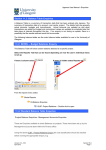
The following fields must be populated on this screen (highlighted fields are most relevant):
1. Requisition Number
This appears once all the Requisition details have been entered and the
Requisition has been saved.
2. Requisitioner
This will automatically populate with the Staff ID and Name of the person
raising the Requisition. This will appear on the Purchase Order as ‘Our
Reference’.
3. Status
This will show the Status of the Requisition:
Active – The requisition is currently being raised or processed.
Closed – The Requisition has been manually closed
Parked – The requisition has been parked – Will not go to be approved
Template – The requisition is used for templates.
Finished – The requisition has been converted to a Purchase Order
4. External Ref
This field is optional and will be appear printed in ‘Your Reference’
field on the Purchase Order. Enter the required information that you
would like to appear on the Purchase Order e.g. quote number,
supplier customer reference/ number/contact, etc…
5. Message
This field is optional and can be used to pass on information
regarding the Requisition. This information will not be printed on the
Purchase Order.
For CHEMISTRY DEPARTMENT STORES enter in the Supplier ID
40200
6. Supplier ID
7. Contact (NOT REQUIRED)
Click on the drop-down box to choose the address to which
the order is to be sent. If there is only one line, then this will be the
default address for the supplier.
8. Project Code
Enter the a project code that costs of the purchase will be allocated
against. This can be split against different projects at a later stage.
9. FacRef
If your requisition is all against one Facref, it can be entered here. If
not the Facref can be entered at a later stage against each line of the
required goods.
NB: This field is only used by specific School. If your School does not
use them you do not need to fill out this field.
10. Invoice Address
This is the address to which the invoices will be sent. This will
automatically default to the Finance Office. This cannot be amended
Version 4.0 – 553
November 2010
Section 2C
Page 2