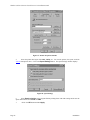
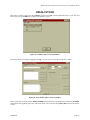
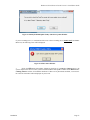
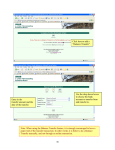
1
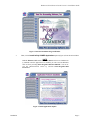
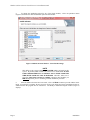
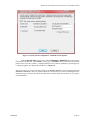
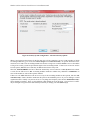
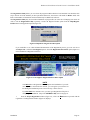
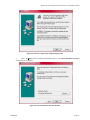
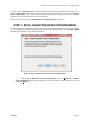
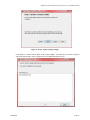
Windows GUI & Character-based Version 7.4 Installation Guide Networks Supported: Windows 2000/XP/2003/Vista/Windows 7 and most other “Share” compatible networks. Microsoft SQL Server 2005 / 2008 NOTE Other Local Area Networking products are “known” to work with Infinity POWER Windows products. However, since they have not been officially certified by Data Pro Accounting Software and documented for in-house support, no warranty or guarantee of support can be made. Data Pro Accounting Software will attempt to provide billable support for these products, but no warranty can be made on them, or other products supporting the Windows 32-bit application mode, at this time. Vendors seeking officially supported status should contact the Data Pro Development Group directly. SETUP.EXE (FOR WINDOWS GUI AND CHARACTER-BASED INSTALLATION) This function pertains to initial installations and update/upgrade installations. You MUST have a Registration File to complete the installation of your software. If you are connected to the Internet, you can register your software online during the installation process. If you do not have Internet access, you must request a Registration File be sent to you Prior to Installation. If your accounting server is NOT connected directly to the Internet where this Registration File may be downloaded during the installation process on-line, you may use the “GETREG Utility” on another PC that does have Internet access to download the file and save it to a floppy disk, CD-ROM or networked drive so that it is available during the installation procedure. See the special section on the GETREG Utility on how to use this feature. Page 2 1. Place the CD-ROM into your CD drive on your computer system. The Presentation should begin automatically. If it does not, from Windows, click on Start>Run from the Task Bar. In the Open text box, enter the drive letter for your CD (i.e. F:\intro.exe) or you may click on the Browse… button to search for the file on the CD ROM. The installation program launches (Figure 1). 2. Select the Install Applications option from the left menu tabs. Installation