1
Windows GUI & Character-based Version 7.4 Installation Guide
Standard Security
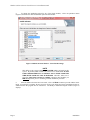
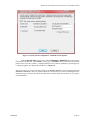
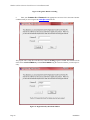
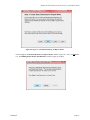
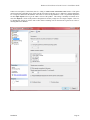
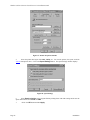
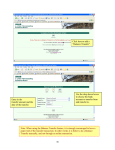
If you select Standard Security as the “Security Type” as shown above (Figure 19), this means that all
users will be allowed to enter the accounting system and will be provided with COMPLETE access to every option in every accounting module that is installed. No advanced setup of users is required and no
passwords are even required unless you decide to have them prompted for a password by clicking on the
“Password Prompt” box in the center of the screen. In other words, you can keep security to the system
to a bare minimum with this option.
All a user would have to do is enter their “User Name” to enter the accounting system, if you desired. If
you click on the “Standard Security Options” section in the middle of the screen for “Auto-Add New
User,” the system will automatically add a new user id to the system each time someone attempts to enter
the accounting system with a name/id if the name/id does not exist.
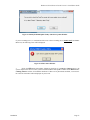
For example, if this is a new install and “Mary” has never been into the accounting system before, the first
time she attempts to enter the software she will be prompted for a User Name/Login ID. If she enters
“Mary” and it does not exist, she will be prompted that it does not exist and allowed to add it or change her
entry. It’s just that simple.
If you <click> off the box in the center of the screen “Auto-Add New User,” the system will restrict access to the accounting system from those users with no prior setup. Therefore, only the SYSADM user will
have the ability to add new users in the software and will control who has the ability to enter the accounting
software system. The SYSADM user must login first and load the Security System module to set up the
valid users you wish to allow access to the system. Because you have defined Standard Security in this
setup, any new user added will be allowed full access to ALL programs and options once they are added
and logged into the software.
The key is the software has tracked “Mary” as one of the valid “logged in” users in the software at this
point in time. Regardless of which variation of the System Administrator module that is installed, the user “Mary” counts towards the available user counts that are being maintained.
If, as the Administrator or Owner of the company, you would like “Mary” to have to enter a “Password”
to gain access to the accounting system, then click on the box just below titled “Password Prompt.” This
will force all users in the Standard Security mode to have to enter a password along with their user
name/id.
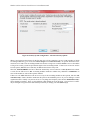
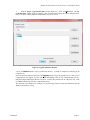
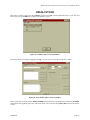
All implementations of Standard Security and Advanced Security will have one default System Administrator user id in the company called “SYSADM.” It comes standard with the system and has rights to all
options. The boxes on the right side of the screen allow you to set the SYSADM password. IT IS VERY
IMPORTANT TO REMEMBER THIS PASSWORD. If you click on the box just below the password
called “Clear Old Password,” this option will allow you to remove the prior SYSADM password on a
subsequent installation or running of WINSTALL. This ONLY works for the Standard Security implementation and does not work for the Advanced Security implementation. Otherwise, if you install the
Advanced Security feature and forget the SYSADM password, you have a major problem and it is not
easy to fix. Your only solution will be to contact Data Pro Support Services at that point at 727-8031550. Therefore, whoever is in charge of implementing the system, regardless of which version is being
implemented, should write down the SYSADM password and make sure it is secure and available for future access.
Once installation of the software is complete, it is important to set up additional user ids so that the SYSADM user is not used in day to day accounting functions by staff members.
Installation
Page 21