1
Orealia|DESIGNER
QuickStart (beginner)
2. Create an interactive scenario
Clicking on the phone screen will trigger the scenario.
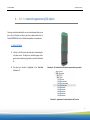
1. To do this, select the geometry representing the screen in 3D
view (see chapter Select a 3D object).
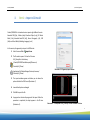
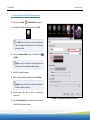
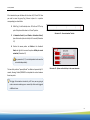
2. Select Create >
Create Scenario (Illustration 14)
3. Select On click to trigger the scenario by clicking on the object
selected (here the screen); then click on Create.
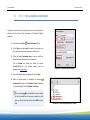
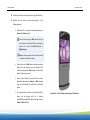
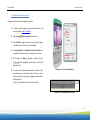
4. In Scenario Control (menu Window > Scenario Control) let us
now place the slider animation in the scenario just created.
5. The animation (or Clip) clip_Top_Mid is listed on the left
. With a drag&drop, you can place it on the right
(Illustration 15).
6. The scenario has now been created with an animation. Now,
Illustration 14 – Create Scenario window
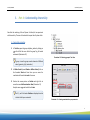
place the cursor over the phone screen in 3D view, and the
hand icon will tell you that you can trigger the scenario with a
double right click.
In this case, this would open or close the phone slider.
Illustration 15 – Positioning a clip in a scenario
11