1
FLUOstar1" OPTIMA Software User Manual
BMG Labtechnologies
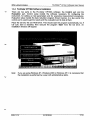
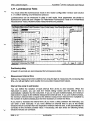
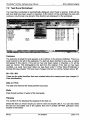
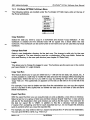
New / Save
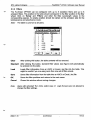
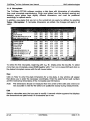
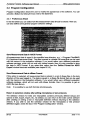
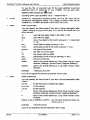
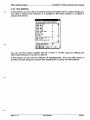
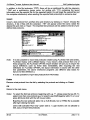
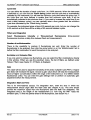
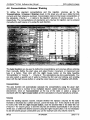
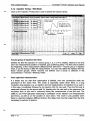
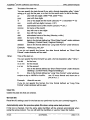
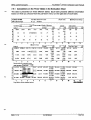
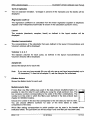
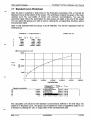
Click on 'New' and enter the user name and desired password. Select the directory for the
user's data and test protocols. For directory options, click on the far right side under
'Directory' and a button appears [...]. After clicking this button, a user path dialog box
appears where you can select the drive, directory, etc (see section 3.6). After the
information is entered, click on 'Save' and the information is stored in the user data base.
When the information is saved, two new folders are automatically created in the new user's
directory: one for storing test protocols and one for storing data (see User Directories
below).
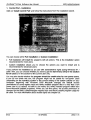
Delete
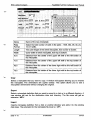
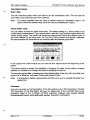
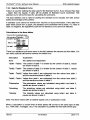
When an existing user entry needs to be deleted, highlight this entry and click 'Delete'.
Cancel
If you click 'Cancel' without clicking 'Save', all changes made after the last save will be
discarded.
W
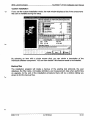
Run
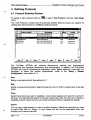
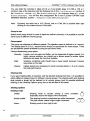
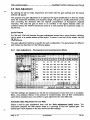
After clicking 'Run', the FLUOstar OPTIMA software will start using the test protocol and
measurement results paths of the selected user. For all users other than the default user
'USER', you need to enter the password first.
Mote;
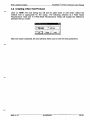
Exporting the user table into a XLS (Excel), text or HTML file is possible after right
clicking on the table. The passwords will only be visible when the export function is
used by the administrator.
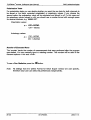
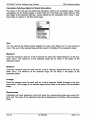
2.1.1 User Directories
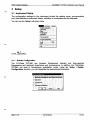
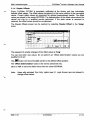
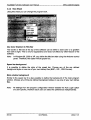
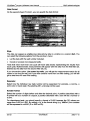
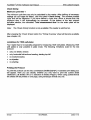
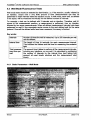
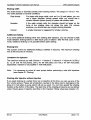
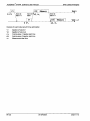
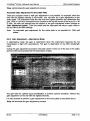
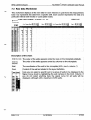
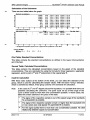
After the initial login for a new user, two directories will be automatically created:
<Username>
Data
Definit
Definit:
The test protocols are stored in this directory.
Data:
The measurement data is stored in this directory. You will find here
'<number>.dbf (raw data) files and the file 'Measure.dbf (test runs overview file).
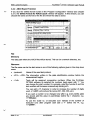
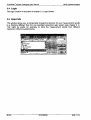
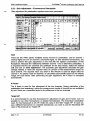
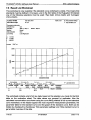
It is possible, at any time, to redirect the path of the data and to store the information in
another directory. You can do this in the FLUOstar OPTIMA control software by selecting
'Setup' and then 'Path' or 'Login' (see also Path and Login section 3.4).
2002-11-15
0413F0003A
13/123