1
TE-UHH2_Layout 1 6/8/15 12:50 PM Page 2
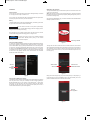
OPERATION
Powering On/Off
To turn on the unit, press and hold the power button. Wait approximately 15 seconds
for it to fully power on. Swipe to unlock the unit.
To turn off the unit, either press and hold the power/sleep button and press Power
Off when prompted on the LCD or press the reset button.
Mobile Meter® App Operation
The Dwyer Mobile Meter® app is located in the top left of the unit’s main screen. Click
on the icon to open the app.
(Note: When the app is opened, an error message will pop up. This can be bypassed
by pressing OK, and can be permanently stopped by adding a Google Play® account
in the device’s settings menu.)
Upon opening the Mobile Meter® app, you will see “Get Started” if the Wireless Mobile
Gateway is paired to the device.
Battery
The Model UHH2 utilizes an internal rechargeable battery. The battery symbol in the
top right of the screen shows the status of the battery.
NOTICE
When the UHH2 is received, it will only have a partial charge.
Use the included USB charging cable and charging block to
charge the unit to full battery before using.
When the battery is low, the battery symbol will turn red. When this occurs, use the
included USB charging cable and charging block to charge the unit.
NOTICE
The UHH2 comes factory paired to the included UHH-BTG
Wireless Mobile Gateway. Before pairing a new wireless
gateway, the current one should be unpaired.
Pairing to the Mobile Gateway
In order to pair the Model UHH2 to the Model UHH-BTG Wireless Mobile Gateway,
first turn on the gateway by pushing the power button (See Figure 1). Next, either
open the Mobile Meter® app or go directly to the Bluetooth menu in the settings menu
on the device. The bridge is automatically discoverable once it is turned on. Select
the device named PROBEBRIDGE followed by the serial number of your gateway.
If prompted for a pass code, type in 0000. Once the gateway is paired to the UHH2,
the blue LED on the gateway will flash when communications are transmitted
between the UHH2 and UHH-BTG.
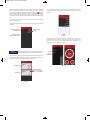
Touch to
go to
Bluetooth
menu
Touch to get started
Figure 3
The app also has a demo mode which can be selected at this time, which allows
users to familiarize themselves with the app and its functions before connecting their
own instruments. To leave demo mode and enter measurement mode, press the
back button until the main screen is up, then press Get Started and press No on the
box that pops up.
Touch to enter
demo mode
Touch to enter
measurement mode
Figure 4
Figure 2
Pairing Probes or Modules to Gateway
The wireless probes and modules automatically become discoverable to the gateway
when they are turned on if they are not already connected to another gateway or
Model UHH/UHH2 base unit. You must be in the Mobile Meter® or other Dwyer
Instruments, Inc. approved app to see which probes are paired. The blue LED on
the gateway and the green LED on the probe will flash rapidly when there is
communication between the probe and the gateway.
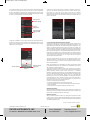
During the first time using the app, no probes will be paired yet. It will prompt to go
to the probe set up menu to find available probes. If they aren’t already, turn on the
probes or modules at this time to make them discoverable.
Touch to
set up probes
Figure 5