1
TE-UHH2_Layout 1 6/8/15 12:50 PM Page 3
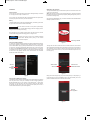
The probe list automatically refreshes to show any new probes. Select the desired
probes or modules by touching the box on the right side of the screen. The probe
in the top
selection screen can always be accessed by pressing the three lines
left of the Mobile Meter® app and going to “Setup”. The past paired probes and
modules will be stored in this list as well. Probes or modules that are currently
unavailable will be in grey, but they can still be selected to display when they become
active.
Any of the probes can be made full screen by touching the desired probe. In the full
screen view, users can scroll through the active probes by swiping the screen to the
left or right.
To delete or rename a probe in this screen, simply press and hold the probe and
click on the desired option.
Pressing the arrow next to “Setup” in the top left of the screen will return to the active
probes list.
Touch to select
probe
Touch to go back to
previous menu
Press and hold to
delete or rename probe
Figure 8
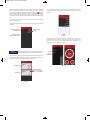
The measurements are normally displayed as a digital meter. If desired, the
measurements can be shown as an analog gauge or as a graph by touching the
three lines in the top left and choosing the desired option. Preferences and
parameters can also be adjusted in this menu.
Figure 6
NOTICE
It is recommended that only four probes be selected due to the
bandwidth limitations between the UHH2 and the gateway.
Touch to
access
parameters
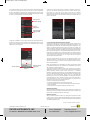
This active probe list will give the probe names and the measurement data for all of
the selected probes. Additional information such as low battery warnings of the
probes and the communication status is available on the screen.
Figure 9
Probe name
Connection status:
Green — connected
Red — not connected
Probe type
Figure 7