1
SIMUL8 User’s Manual
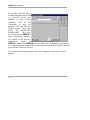
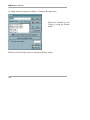
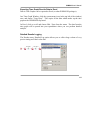
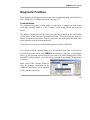
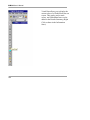
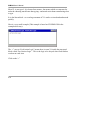
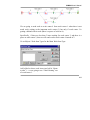
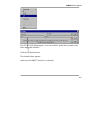
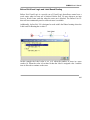
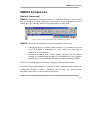
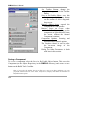
The new folder will automatically create a new toolbar housing the components
within the folder.
Component Dialogs.
Dialogs are pop-up boxes that can provide explanations, ask questions and accept
answers.
Components can be complex and may require some configuration, and dialogs are a
powerful and easy way to create this type of interface.
Tutorial 4: Adding Dialogs to Components
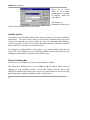
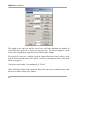
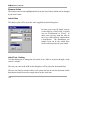
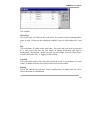
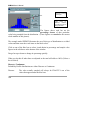
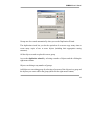
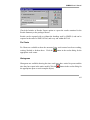
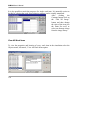
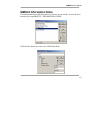
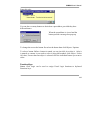
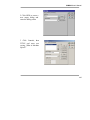
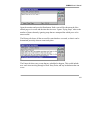
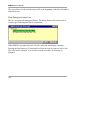
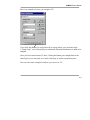
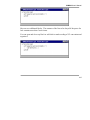
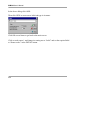
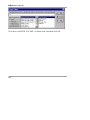
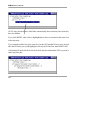
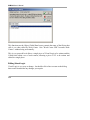
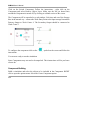
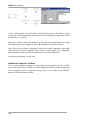
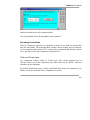
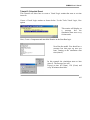
Create a Dialog using the Tools menu, Dialogs option. Use the Title option to write
"My First Dialog" onto the Dialog. Use the View option to check out the Dialog
appearance.
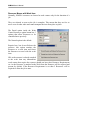
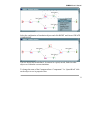
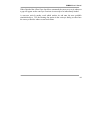
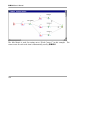
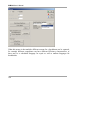
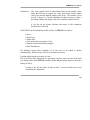
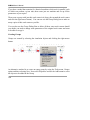
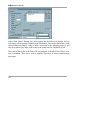
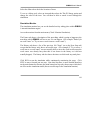
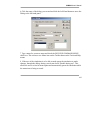
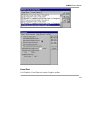
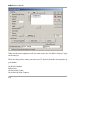
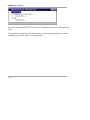
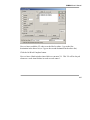
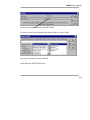
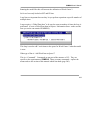
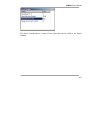
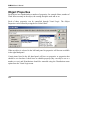
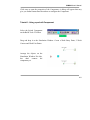
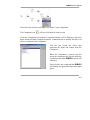
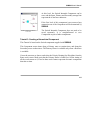
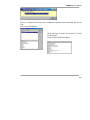
Select the Switch Test Component and click to open the Component Details. Use the
Dialog for Other Parameters drop down list at the bottom of the Component Details
screen to Add the Dialog name. Tick the Open Other Parameters Dialog Directly
check box. This opens the Dialog when the Component is clicked on.
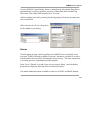
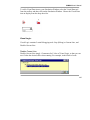
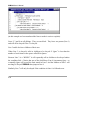
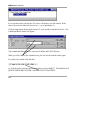
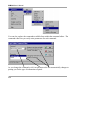
Create a further Dialog and attach this to the Inside the Switch Component. The
Dialogs will open whenever the Components are clicked upon.
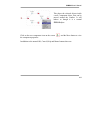
When a Dialog is displayed you can access the Component by holding down the
Control and Shift keys and clicking the Cancel button.
331