1
o
o
o
o
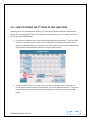
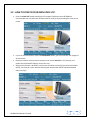
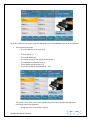
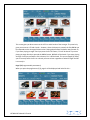
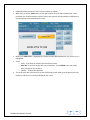
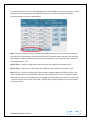
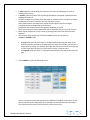
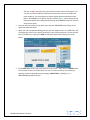
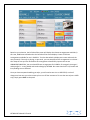
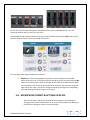
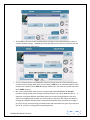
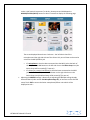
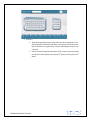
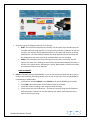
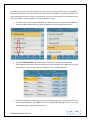
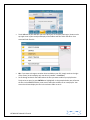
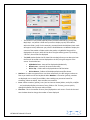
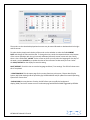
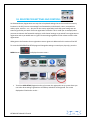
Touch the group to the right of the screen where your new voice resides (PIANO,
GUITAR). (Hint:- It will be the same group from which you started with above when you
wanted to create a new 2nd voice for your lead voice). All the user voices in that group
will now be displayed to the left of the screen.
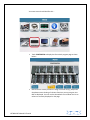
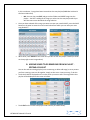
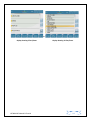
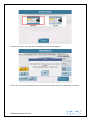
Touch your new voice to the left of the screen and play.
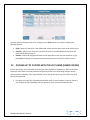
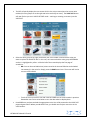
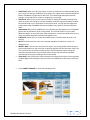
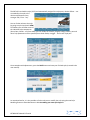
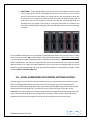
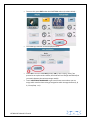
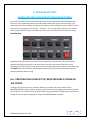
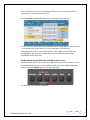
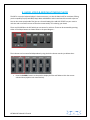
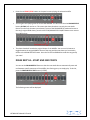
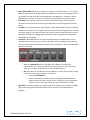
To turn on the 2nd voice (just as you did for the factory voices), simply press the 2nd voice
button on the right side of the panel. Adjust its volume using the volume slider below it.
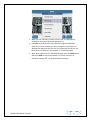
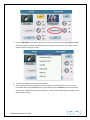
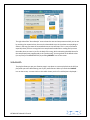
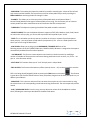
You can always go back and forth between the FACTORY VOICES (USER Voice button off
– not yellow) and the USER Voices (user voice button on – yellow) by touching the USER
voice button then selecting which voice you want to use for your performance.
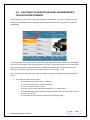
2.E - USING MORE THAN 2 LEAD SOUNDS/VOICES &
EDITING/CUSTOMIZING
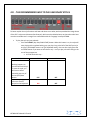
Still not satisfied with only 2 voices to play/layer on the right hand and want to layer 3-4 voices at once?
Despite all the voices found on the SD7, many want to be able to customize voices, layer with 2 or 3
voices, make changes and save as their own customized voice (USER VOICE). This is very easily done on
the SD7. Better, still, using this same tool/editor as described above for the 2nd voice, you are quickly
able to layer 2 or 3 voices and create one USER VOICE (made up of your 2-3 voices … or 4 if you include
the 2nd Voice too). This way, at the touch of the screen, you can install recall your layered/edited voice
and use them as you wish.
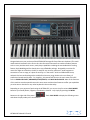
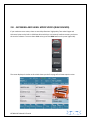
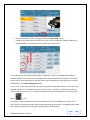
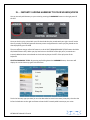
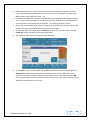
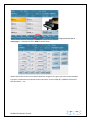
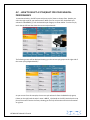
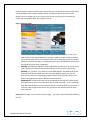
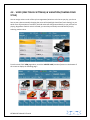
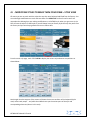
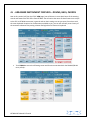
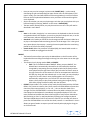
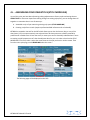
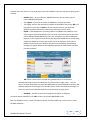
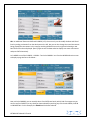
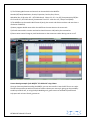
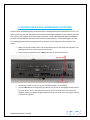
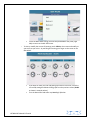
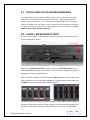
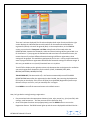
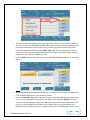
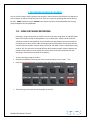
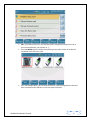
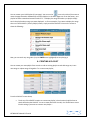
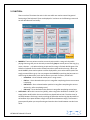
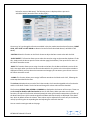
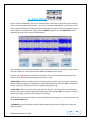
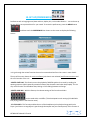
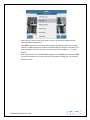
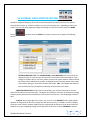
To start editing a voice, touch and hold down for 2 seconds a voice you want to edit or layer or that
comes close to the voice you wish to create to open the VOICE EDITOR. Your screen should look
something like this (in this case, the Lounge Tenor Sax was selected):-
KETRON SD7 Manual & Tutorial
12