1
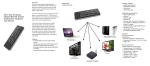
· Windows Vista, Windows CE, Windows 7,Windows 8
· Linux (Debian-3.1, Redhat-9.0 Ubuntu-8.10 Fedora-7.0 tested)
· Android OS (With standard USB interface)
Specifications
· Receiver (dongle): Nano style
· Connect port: With USB2.0 above
· RF mode: 2.4Ghz GFSK
· Transmission distance: Up to 10 meters
· Transmission Power: Less than +4db
· Power supply: Rechargeable 450mAh polymer Lithium-ion battery
· Charging voltage: 4.4V ~ 5.25V
· Charging current: 300mA
· Sleeping Current class1: 86uA
· Operation Voltage: 3.7V
· Operating Current: 22mA
· Product weight: 100g
· Product Size: 170mm*49mm*16mm
Installation
Open the gift box and pick up USB receiver.
Insert the USB Receiver into an available USB port.Turn on the keyboard.
The keyboard will be found automatically. No further actions are required – you
are now ready to use your keyboard!
NOTE:USB cable can be used for battery charging
Using Air mouse
Air mouse function relies on specific keys to activate. In the open status, the
mouse will follow your gestures in any direction, to help you perform the moving,
clicking, dragging, etc. In any status, you can use the “Lock” button to lock and
unlock the Air Mouse feature.
You will enjoy more convenience and control on-screen menu easier.
Audio Feature:(Optional)
Audio feature configuration is available for this device, including MIC, Speaker,
Headphone port, etc. Particularly, users can switch the voice broadcasting
mode between terminal and keyboard by Audio Switch. Under some systems,
the audio feature requires manual configuration.
Cursor drift correction
When used, the cursor automatically discovered drift, or do not follow the
hands-down direction cursor moves the cursor on the need for correction.
Methods of operation are:
(1) keyboard is turned on, the keyboard flat on the table.
(2) Press FN and then release the left mouse button, wait 3 seconds after the
calibration is completed