1
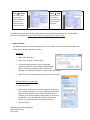
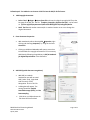
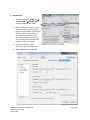
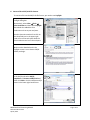
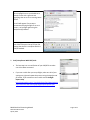
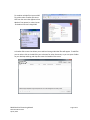
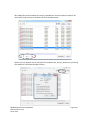
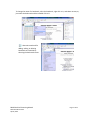
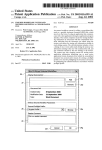
Method 3: View Tool Sets This menu allows you to switch between different tool sets or to create your own custom tool sets. Method 4: View Tools Selecting a tool set from this menu will open the set in your tool pane. For additional help and tutorial information about how to use Adobe Acrobat Pro v.11, see the Adobe Acrobat Pro User Manual: http://helpx.adobe.com/en/pdf/acrobat_reference.pdf 1. Make thumbnail: Use Adobe Acrobat Pro to extract a page and save it as a JPG file. Then open the JPG file in Microsoft Office Picture Manager and make it smaller. Adobe Pro • Open a PDF document • Select Tools Pages Extract page • In the dialog box that opens, enter the PDF page number you want for your thumbnail image (typically page 1). Leave both checkboxes blank and click OK. The page you specified will appear in a new Acrobat Pro window. • Select File Save As and change the file type from PDF to JPG. Microsoft Office Picture Manager • Open the JPG file • Select Picture Resize and resize the thumbnail to 90 pixels on its longest dimension (To resize an image that results in 90 pixels on the longest dimension in Microsoft Office Picture manager, enter a custom width x height of 90 x 90. Note that thumbnail size may vary depending on dimensions of the original, e.g. a panorama may need a larger pixel size) • Save the JPG file. MNHS Archival Processing Manual PDFA Procedures.docx April 8, 2014 Page 2 of 11