1
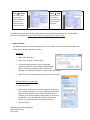
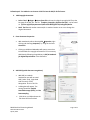
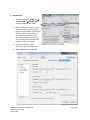
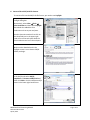
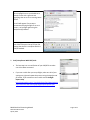
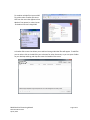
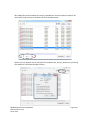
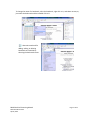
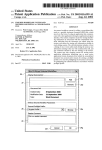
Follow Steps 2-7 in Adobe Pro to Convert a PDF File into the PDF/A-1b file format. 2. Add Copyright Statement: • Select Tools Pages Insert from File and insert the digital copyright PDF file as the last page of the PDF file. The file: Template_Copyright_digitalversion.pdf can be found at: \\mnhs.org\DFS\Departments\Collections Management\FindingAids\Drafts • SAVE The File with another name and/or in another location so as not to change the original document! 3. Enter Document Properties: • Add metadata by either selecting FileProperties, right clicking and choosing Properties, or, using the shortcut Control+D. • Clicking on Additional Metadata will open a screen that includes fields for copyright information. Fill in necessary XMP data by following the guidelines in PDF/A Standards for Digital Reproductions in the CMToolkit. 4. Add OCR (optical character recognition): • Add OCR (as needed = handwritten text will not need OCR) Select Tools (right hand side of screen) Text Recognition AA In This File • A dialog box will appear. The settings should be: English, Searchable Image (Exact), and No Downsampling. • Click OK to run OCR and save the file when OCR has finished. MNHS Archival Processing Manual PDFA Procedures.docx April 8, 2014 Page 3 of 11