1
GradePoint 2020 Installation and User Guide
Creating a Note
Please be aware that variances in the date and time between machines may cause the online
notebooks to not function properly.
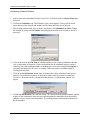
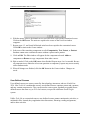
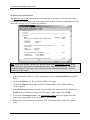
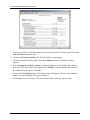
1. Select a class to be scheduled from the GradePoint 2020 Main Menu screen’s Selected Class
drop-down list.
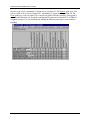
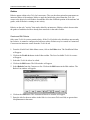
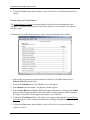
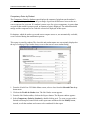
2. Click on the Student Journal icon. The Student Journal window appears. The list of students
in the class appears in the list pane.
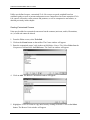
3. Select one or more students to distribute the note to from the Students List pane by checking
each box to the left of the student's name. Use the Select All button to check all the students
and use the Clear All button to clear all the selections.
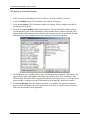
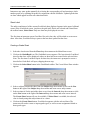
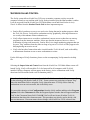
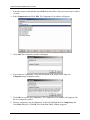
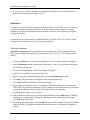
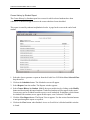
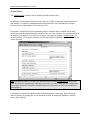
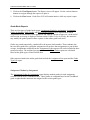
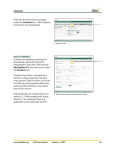
4. Click on the Note to Group button in the Journal toolbar. The Add Note to Student Group
window appears.
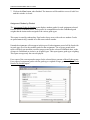
5. In the Add Note window, enter a heading for the note in the Title field.
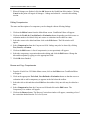
6. Type the entry in the Note field or cut and paste the message from a text file into the Note
field. Use Ctrl+Tab to place a tab within the note.
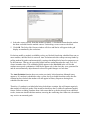
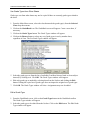
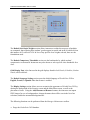
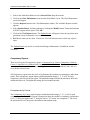
7. Select a duration mode from the Duration drop-down list. If selecting a locked mode, select
a date to end deletion protection from the Calendar drop-down list to the right.
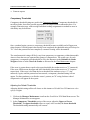
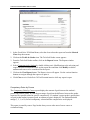
8. Click on the OK button to send the note. This button will not be available until the entry has
both a title and content. The window will close. The Student Journal window returns.
55