1
•
2.2
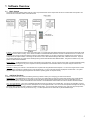
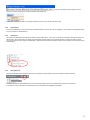
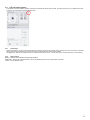
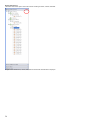
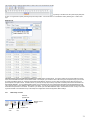
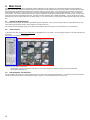
Tool Bar (outlined in green) which provides convenient access to commonly used tools
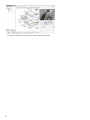
Viewing Panel
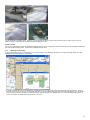
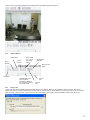
The viewing panel can be configured to show from one to 32 cameras in various configurations.
2.2.1
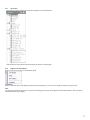
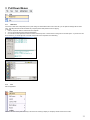
Layout Buttons
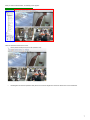
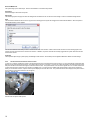
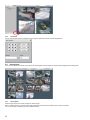
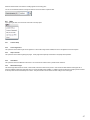
The layout buttons at the top of the viewing panel allow you to control the number of cameras displayed. Click on the 4 camera grid and it displays the
first four cameras.
Click on the desired layout icon, and the viewing panel changes to reflect the new viewing configuration.
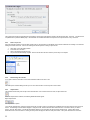
You can also create any number of custom views and select the layout to display on startup. To create custom layouts, please see the Setup and
Configuration manual.
2.2.2
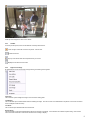
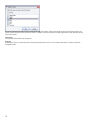
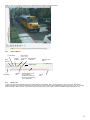
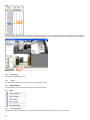
Camera Image
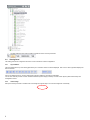
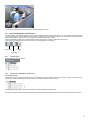
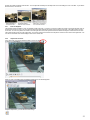
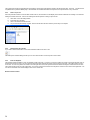
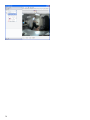
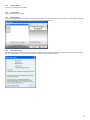
Each pane in the layout shows a consistent view of the image and supports easy to use icons and “Right Click” functionality.
8