1
The Integrated Physical Synthesis Flow
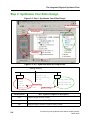
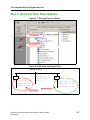
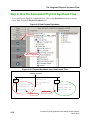
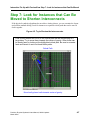
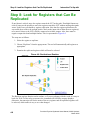
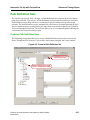
The illustrations on the left show the general sequence of steps required to synthesize your
design with Precision. Complete information on Compiling, Setting Constraints, and
Synthesizing can be found in the Precision RTL Synthesis User’s Manual starting on page 2-1.
Information on how to setup a project using a Tcl script can be found on page 2-17.
Eliminating Relaxed Constraints
If the constraints you specify in RTL synthesis are too tight and impossible for Place and Route
(PAR) to meet, the ISE tools will report an error and fail to finish. To prevent this from
happening, Precision has an option that will automatically relax an impossible constraint and
allow PAR to finish. The tradeoff is that a relaxed constraint may cause true critical paths to be
ignored. It is important to turn off this Precision option if you are using physical synthesis. As
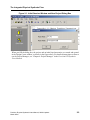
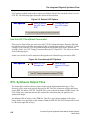
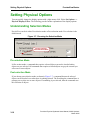
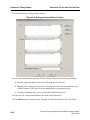
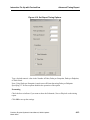
shown below, after you select the Xilinx technology, use the pulldown menu Tools > Set
Options >ISE 6.1 > Generate Vendor Constraint File dialog to disable the option.
Figure 2-4. Generate Vendor Constraints
1. Select
2. Click Off
Use UCF Timing Constraints from the Input UCF File
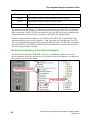
Precision will automatically generate and manage your constraints files. The designer can read
in existing SDC constraint files, which can be edited in the GUI, or all constraints can be
produced in the GUI. In either case, an output SDC file is created and maintained by the tool.
This allows you to use this standard file for other downstream tools. Additionally, when timing
optimization is run, the timing report is generated and this file is managed along with other
project data.
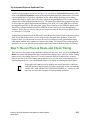
The Precision Physical tool also lets you use a UCF input file to determine timing constraints.
You can select this option from the Generate Constraints File dialog shown in Figure 2-4. The
Precision Physical Synthesis Users Manual, 2003c Update1
March 2004
2-5