1
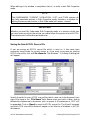
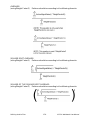
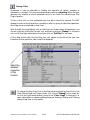
tool bar. Positioning the mouse over a particular tool bar icon will cause a label to
be displayed, indicating the function of that tool bar icon. Click on the icon to
activate the function.
Finally, keyboard shortcuts are available for the most common functions. These are
discussed in Appendix C.
ACCOL Workbench status messages appear, periodically, in the Status Bar.
2
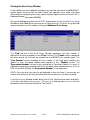
ACCOL Workbench allows you to have multiple windows open, allowing you to view
different sections of the same ACCOL source file, or more than one ACCOL source
file, simultaneously, and to switch between them quickly.
Methods For Creating An ACCOL Source File
There are two basic methods available to create an ACCOL source file.
Method 1:
Open an existing ACCOL source (ACC) file, and save it under a
different name. Then edit the ACCOL source file to fit your particular
application, either with ACCOL Workbench, or with any ASCII text
editor.
NOTE: If you intend to modify an ACC file from an earlier version of ACCOL Tools
(Version 5.13 or earlier), this may generate syntax or parsing errors when brought
into ACCOL Workbench. Please review the instructions in ’Appendix A - Upgrading
Old ACCOL Source Files’ for details.
Method 2:
Create an all new ACCOL source file using ACCOL Workbench. This
process is discussed in detail in the sections that follow. Experienced
ACCOL programmers may wish to read the ’Quickstart For
Experienced Users’ (Chapter 4) which provides a quick overview of
using ACCOL Workbench. Other users who are unfamiliar with the
syntax rules for ACCOL source files should start with ’Creating,
Editing, and Saving A New ACCOL Source File’ (Chapter 5). That
chapter, and the chapters that follow it, describe in detail the syntax
rules for each part of the ACCOL Source File.
IMPORTANT NOTE FOR EITHER METHOD
The output files (.ACO, .ACC) created by ACCOL Workbench ARE
INCOMPATIBLE with DOS-based versions of the ACCOL Tools (AIC5, ABC5,
REV5, etc.)
2
If desired, either the Tool Bar, Status Bar, or both, may be removed from the screen by de-selecting
them on the View pull down menu.
Starting ACCOL Workbench
3-2
ACCOL Workbench User Manual