1
Oxygen XML Editor | Tools | 1031
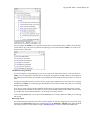
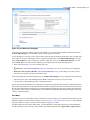
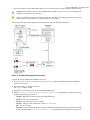
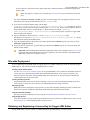
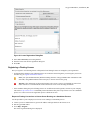
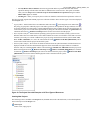
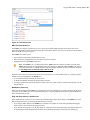
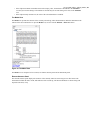
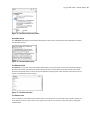
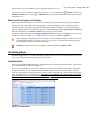
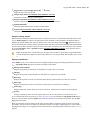
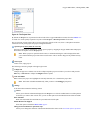
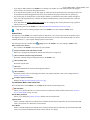
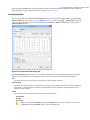
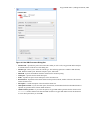
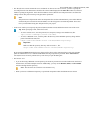
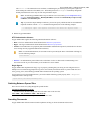
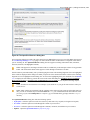
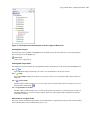
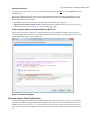
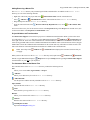
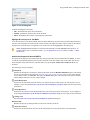
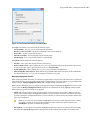
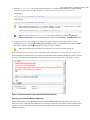
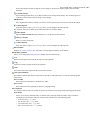
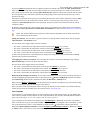
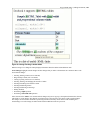
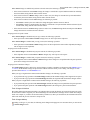
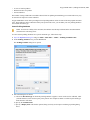
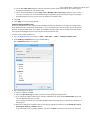
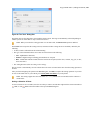
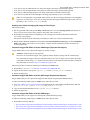
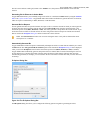
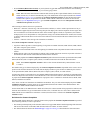
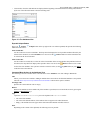
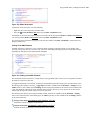
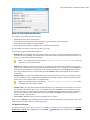
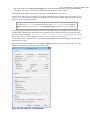
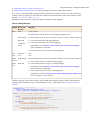
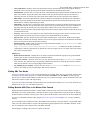
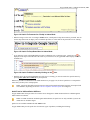
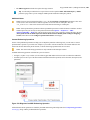
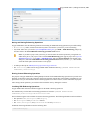
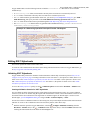
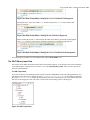
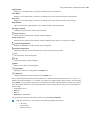
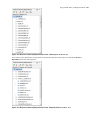
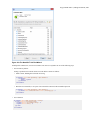
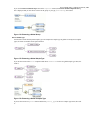
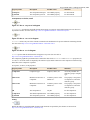
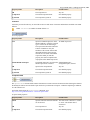
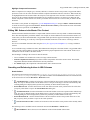
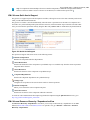
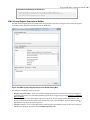
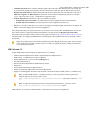
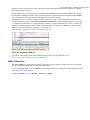
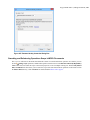
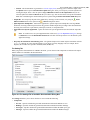
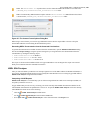
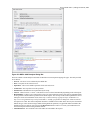
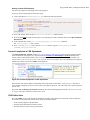
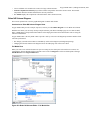
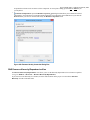
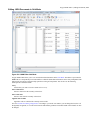
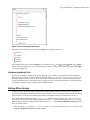
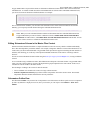
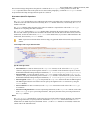
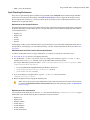
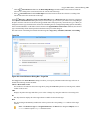
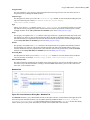
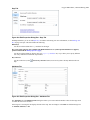
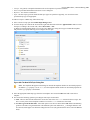
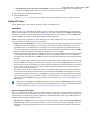
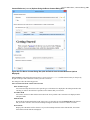
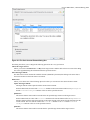
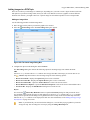
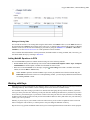
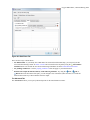
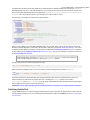
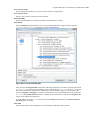
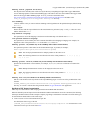
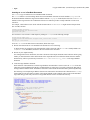
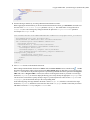
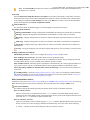
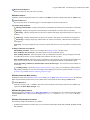
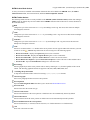
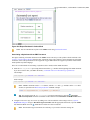
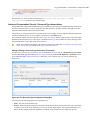
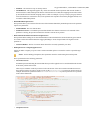
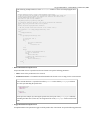
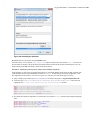
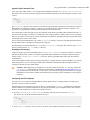
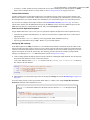
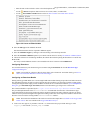
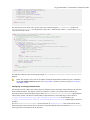
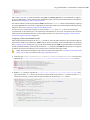
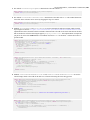
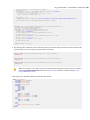
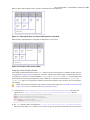
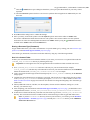
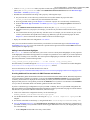
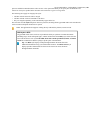
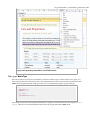
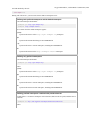
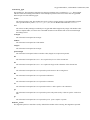
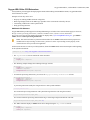
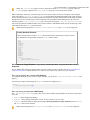
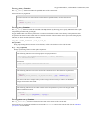
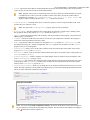
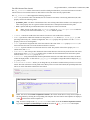
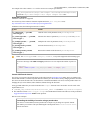
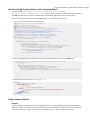
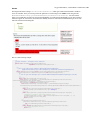
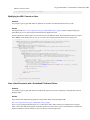
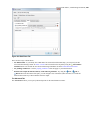
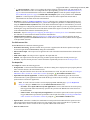
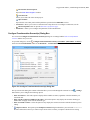
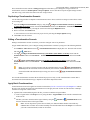
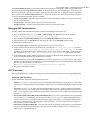
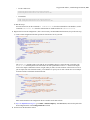
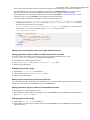
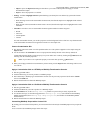
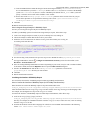
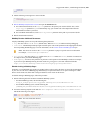
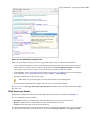
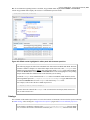
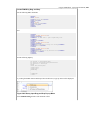
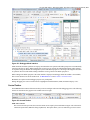
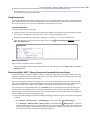
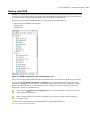
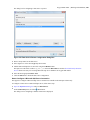
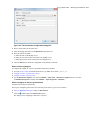
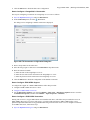
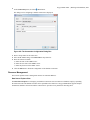
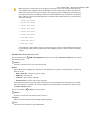
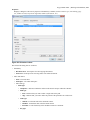
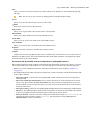
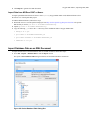
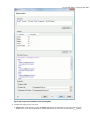
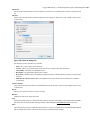
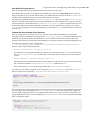
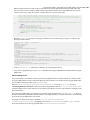
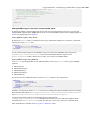
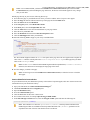
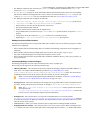
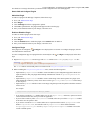
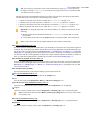
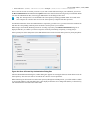
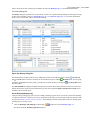
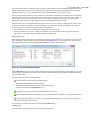
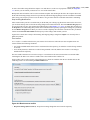
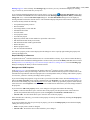
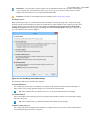
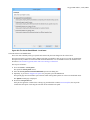
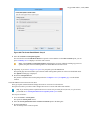
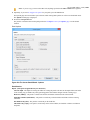
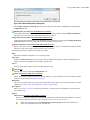
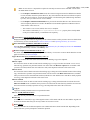
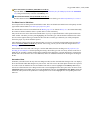
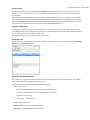
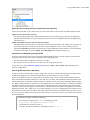
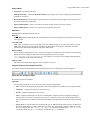
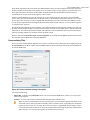
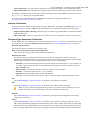
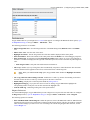
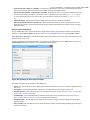
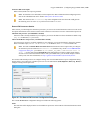
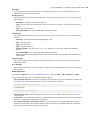
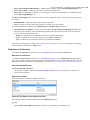
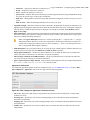
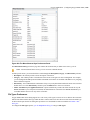
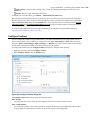
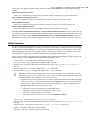
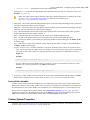
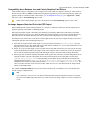
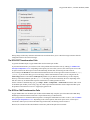
Figure 402: Add SVN Repository Dialog Box
If the Validate repository connection option is selected, the URL connection is validated before being added to
the Repositories view.
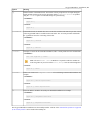
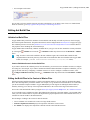
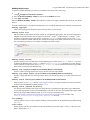
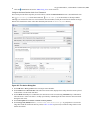
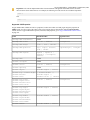
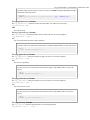
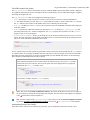
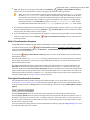
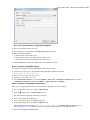
Edit Repository Location (Ctrl Alt E (Meta Alt E on OS X))
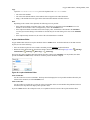
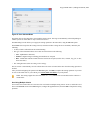
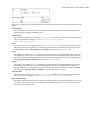
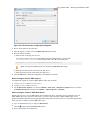
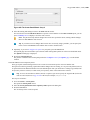
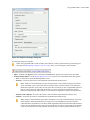
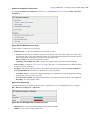
Context-dependent action that allows you to edit the selected repository location using the Edit SVN Repository
dialog box. It is active only when a repository location root is selected.
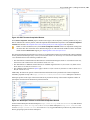
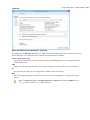
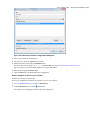
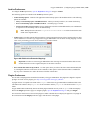
Change the Revision to Browse (Ctrl Alt B (Meta Alt B on OS X))
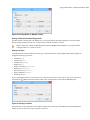
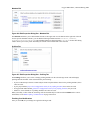
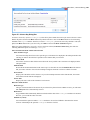
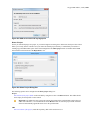
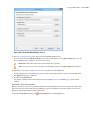
Context-dependent action that allows you to change the selected repository revision using the Change the Revision
to Browse dialog box. It is active only when a repository location root is selected.
Remove Repository Location (Ctrl Alt R (Meta Alt R on OS X))
Allows you to remove the selected repository location from the view. It shows you a confirmation dialog box before
removal. It is active only when a repository location root is selected.
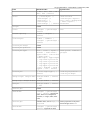
Refresh (F5)
Refreshes the resource selected in the Repositories view.
Check out (Ctrl Alt O (Meta Alt O on OS X))
Allows you to create a working copy from a repository directory, on your local file system. To read more about this
operation, see the section Check out a working copy.
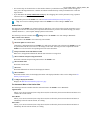
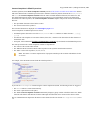
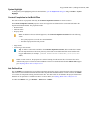
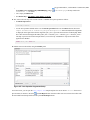
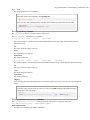
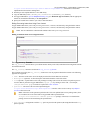
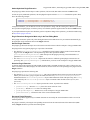
Export
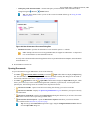
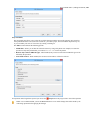
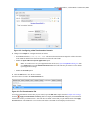
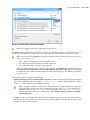
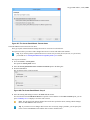
Opens the Export dialog box that allows you to configure options for exporting a folder from the repository to the
local file system.
Import:
Import folder (Ctrl Shift L (Meta Shift L on OS X))
Allows you to import the contents of a specified folder from the file system into the selected folder in a repository.
To read more about this operation, see the section Importing resources into a repository.
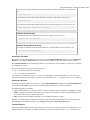
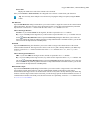
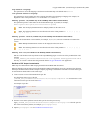
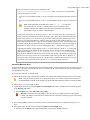
Note: The difference between the Import folder and Share project actions is that the latter also
converts the selected directory into a working copy.
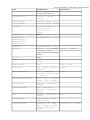
Import Files (Ctrl Shift I (Meta Shift I on OS X))
Imports the files selected from the files system into the selected folder in the repository.
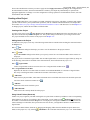
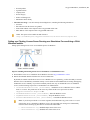
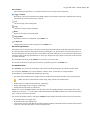
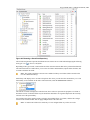
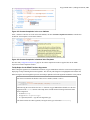
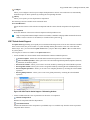
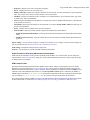
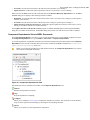
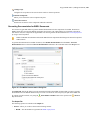
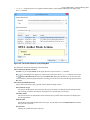
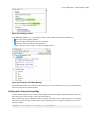
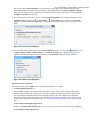
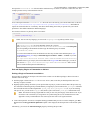
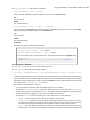
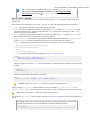
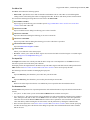
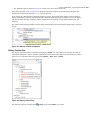
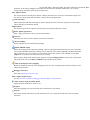
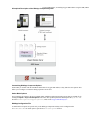
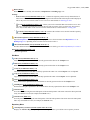
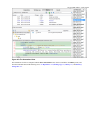
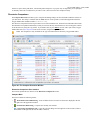
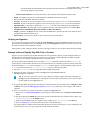
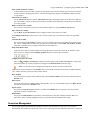
Working Copy Menu
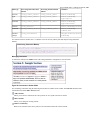
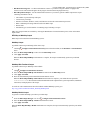
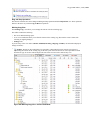
( on OS X)Working Copies Manager
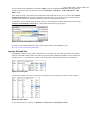
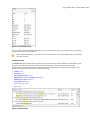
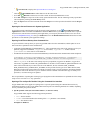
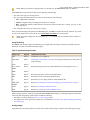
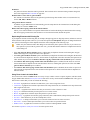
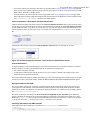
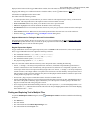
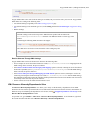
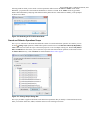
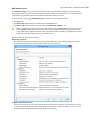
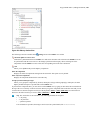
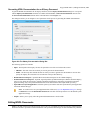
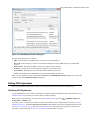
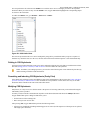
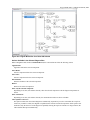
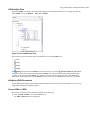
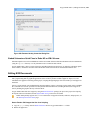
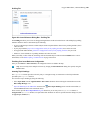
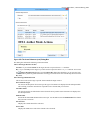
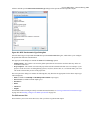
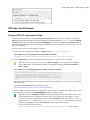
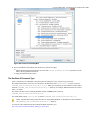
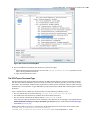
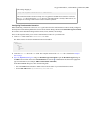
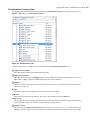
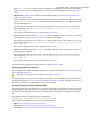
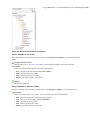
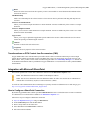
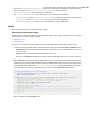
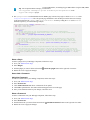
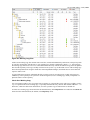
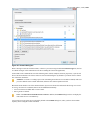
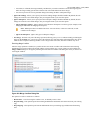
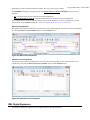
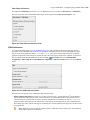
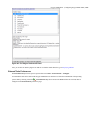
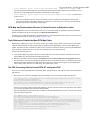
Opens a dialog box with a list of working copies that the Apache Subversion™ client is aware of. In this dialog box
you can add existing working copies or remove those that are no longer needed.
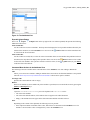
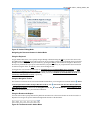
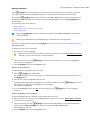
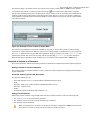
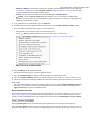
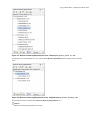
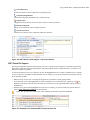
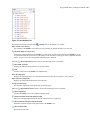
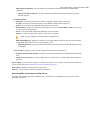
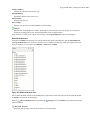
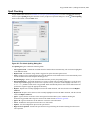
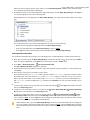
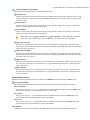
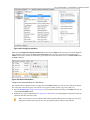
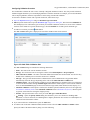
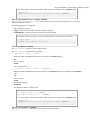
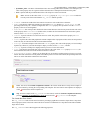
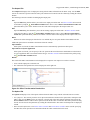
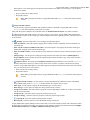
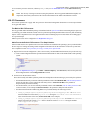
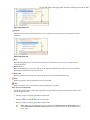
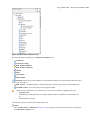
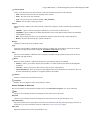
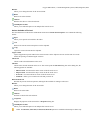
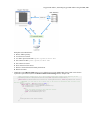
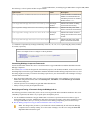
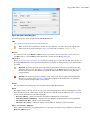
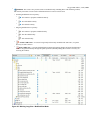
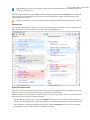
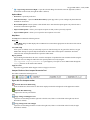
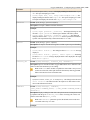
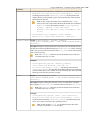
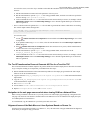
Switch to
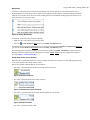
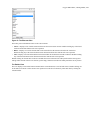
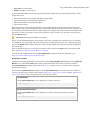
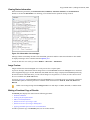
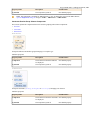
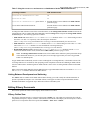
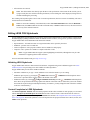
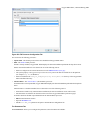
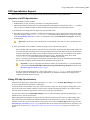
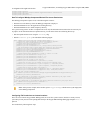
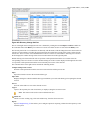
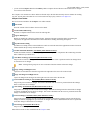
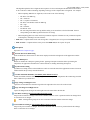
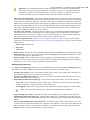
Selects one of the following view modes:
Conflicts.
All Files,
Modified,
Incoming,
Outgoing, or
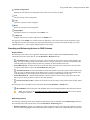
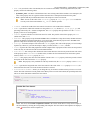
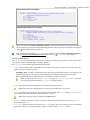
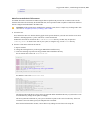
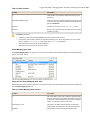
Refresh (F5)
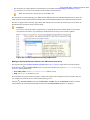
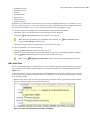
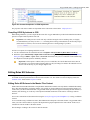
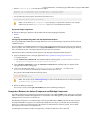
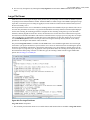
Refreshes the state of the selected resources or of the entire working copy (if there is no selection).