1
Oxygen XML Editor | Editing Modes | 75
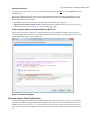
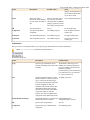
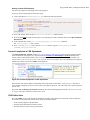
Moving Files and Folders
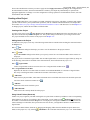
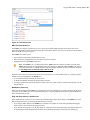
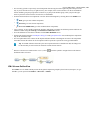
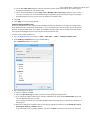
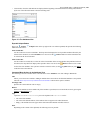
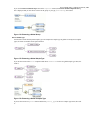
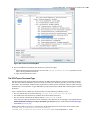
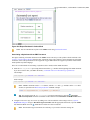
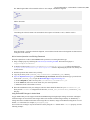
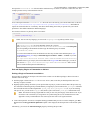
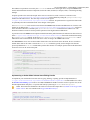
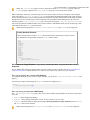
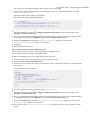
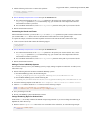
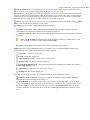
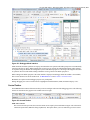
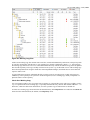
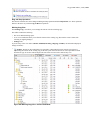
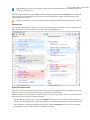
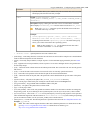
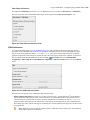
You can move the resources of the project with drag and drop operations on the files and folders of the tree.
You can also use the usual
Cut,
Copy, and
Paste actions to move resources in the Project view.
Renaming Files and Folders
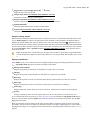
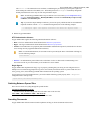
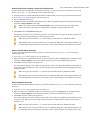
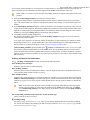
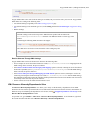
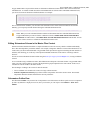
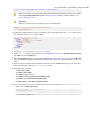
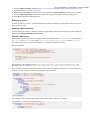
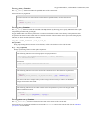
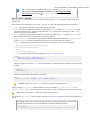
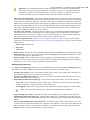
There are three ways you can rename an item in the Project view. Select the item in the Project view and do one of the
following:
•
•
•
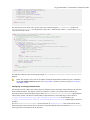
Invoke the Rename action from the contextual menu.
Press F2 and type the new name.
Click the selected item and type the new name.
To finish editing the item name, press Enter.
Note: The Rename action is also available on logical files.
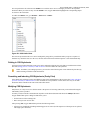
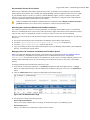
Locating and Opening Files
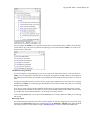
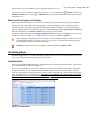
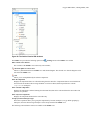
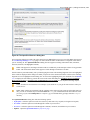
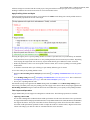
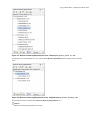
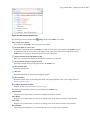
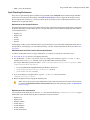
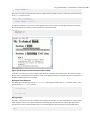
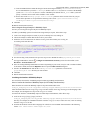
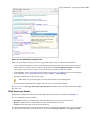
If a project folder contains a lot of documents, a certain document can be located quickly in the project tree by selecting
the folder containing the desired document and typing the first few characters of the document name. The desired
document is automatically selected as soon as the typed characters uniquely identify its name in the folder.
The selected document can be opened by pressing the Enter key, by double-clicking it, or with one of the Open actions
from the contextual menu. The files with known document types are opened in the associated editor, while binary files
are opened with the associated system application. To open a file with a known document type in an editor other than
the default one, use the Open with action. Also, dragging and dropping files from the project tree to the editor area
results in the files being opened.
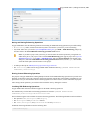
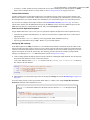
Saving the Project
The project file is automatically saved every time the content of the Project view is saved or modified by actions such
as adding or removing files and drag and drop.
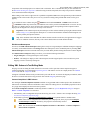
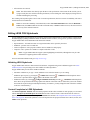
Validate Files
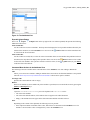
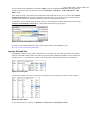
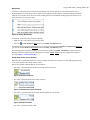
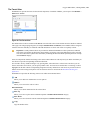
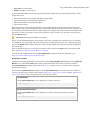
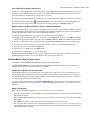
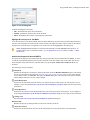
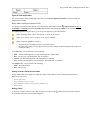
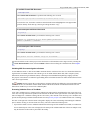
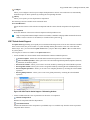
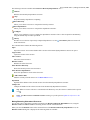
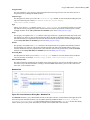
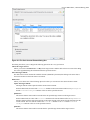
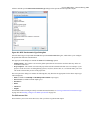
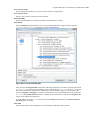
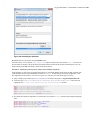
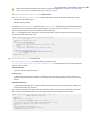
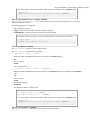
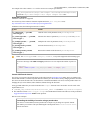
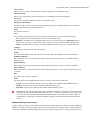
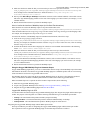
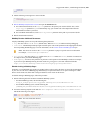
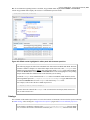
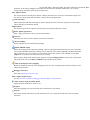
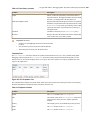
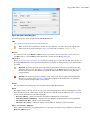
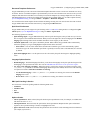
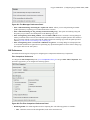
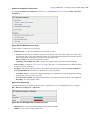
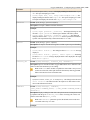
The currently selected files in the Project view can be checked to be XML well-formed or validated against a schema
(DTD, XML Schema, Relax NG, Schematron or NVDL) with one of the following contextual menu actions found in
the Validate sub-menu:
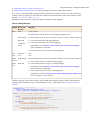
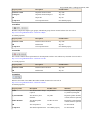
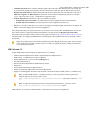
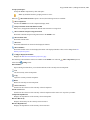
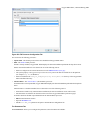
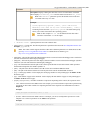
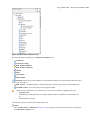
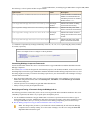
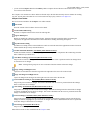
Validate >
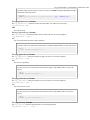
Check Well-Formedness
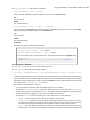
Checks if the selected file or files are well-formed.
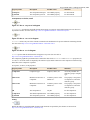
Validate
Validate
Validates the selected file or files against their associated schema. EPUB files make an exception, because this
action triggers a Validate and Check for Completeness operation.
ValidateValidate with Schema
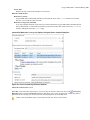
Validates the selected file of files against a specified schema.
Validate
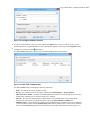
Configure Validation Scenario(s)
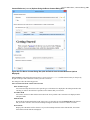
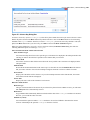
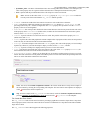
Allows you to configure and run a validation scenario.
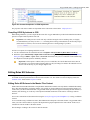
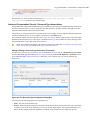
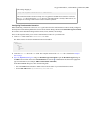
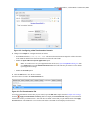
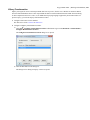
Applying Transformation Scenarios
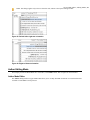
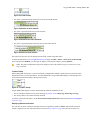
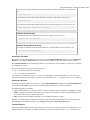
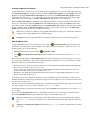
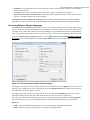
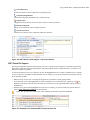
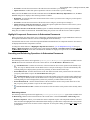
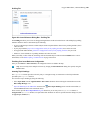
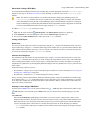
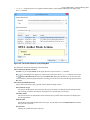
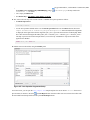
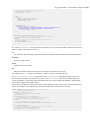
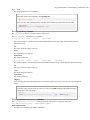
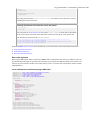
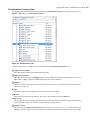
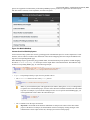
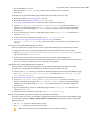
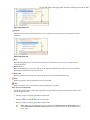
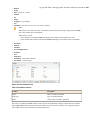
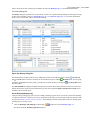
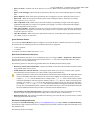
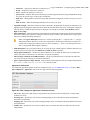
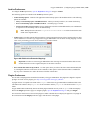
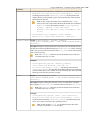
The currently selected files in the Project view can be transformed in one step with one of the following actions available
from contextual menu in the Transform sub-menu:
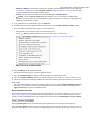
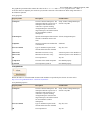
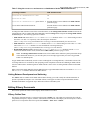
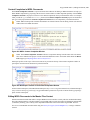
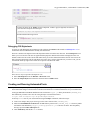
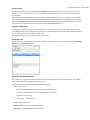
Transform >
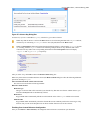
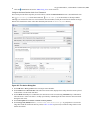
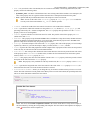
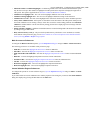
Apply Transformation Scenario(s)
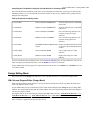
Obtains the output with one of the built-in scenarios.