1
Oxygen XML Editor | Configuring Oxygen XML Editor | 1169
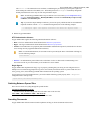
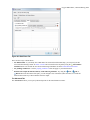
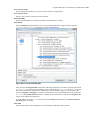
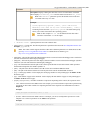
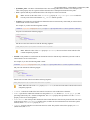
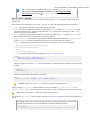
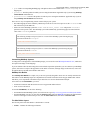
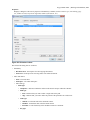
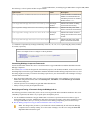
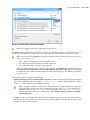
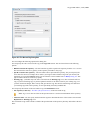
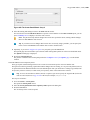
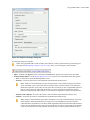
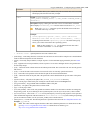
Note: This option also applies to the DITA maps opened in the DITA Maps Manager.
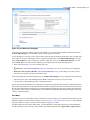
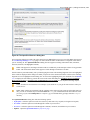
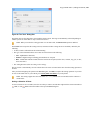
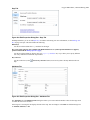
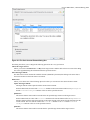
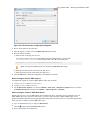
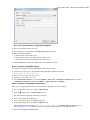
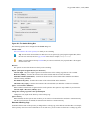
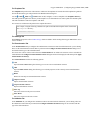
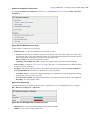
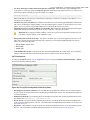
The entire document
The Save operation applies formatting to the entire document regardless of the nodes that were modified in
Author mode.
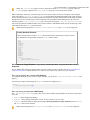
Also apply 'Format and Indent' action as in 'Text' edit mode
If this option is enabled, the content of the document is formatted by applying the Format and Indent rules
from the Editor/Format/XML option page. In this case, the result of the Format and indent operation will
be the same as when it is applied in Text editing mode.
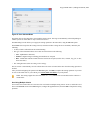
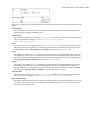
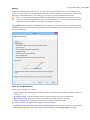
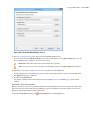
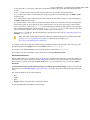
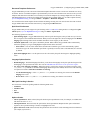
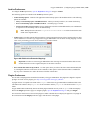
Compatibility with other tools
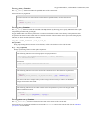
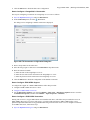
Use this option to control how line breaks are handled when a document is serialized. This will help to obtain
better compatibility with other tools. You can choose between the following:
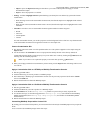
•
•
None - The default formatting is used.
Do not break lines, do not indent - Choose this option to avoid breaking lines after element start or end
tags and indenting will not be used.
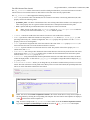
Note: New lines that are added by the user in elements where the xml:space attribute is set to
preserve (such as pre elements in HTML, or codeblock elements in DITA) are still inserted.
Also, selecting this option automatically disables the Also apply 'Format and Indent' action as
in 'Text' edit mode option, since the formatting from Text mode does not take the CSS styles into
account.
•
Break lines only after elements displayed as blocks, do not indent - Choose this option to instruct Oxygen
XML Editor to insert new lines only after elements that have a CSS display property set to anything other
than inline or none (for example, block, list-item, table, etc.) and indenting will not be used.
When selecting this option, the formatting is dictated by the CSS.
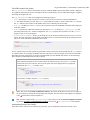
Note: New lines that are added by the user in elements where the xml:space attribute is set to
preserve (such as pre elements in HTML, or codeblock elements in DITA) are still inserted.
Also, selecting this option automatically disables the Also apply 'Format and Indent' action as
in 'Text' edit mode option, since the formatting from Text mode does not take the CSS styles into
account.
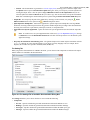
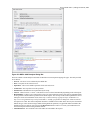
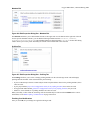
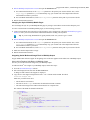
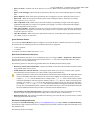
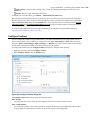
Tags Section
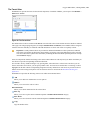
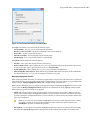
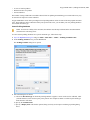
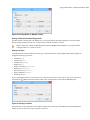
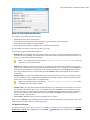
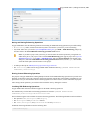
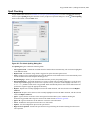
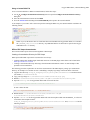
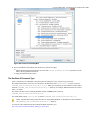
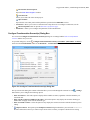
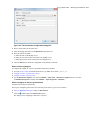
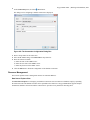
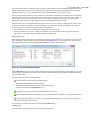
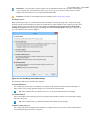
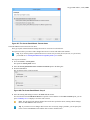
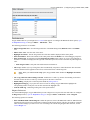
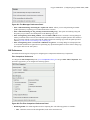
In this section you can configure the following options in regards to tags that are displayed in Author mode:
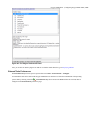
Tags display mode
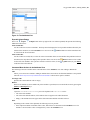
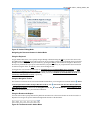
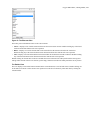
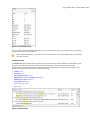
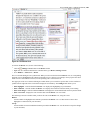
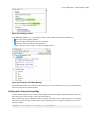
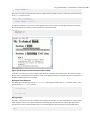
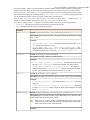
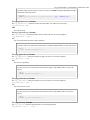
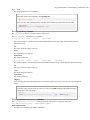
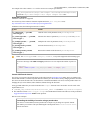
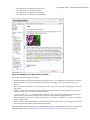
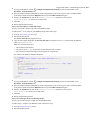
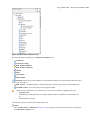
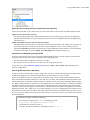
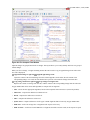
Sets the default display mode for element tags presented in Author mode. You can choose between the following:
•
•
•
•
•
•
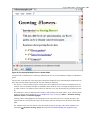
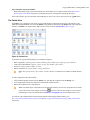
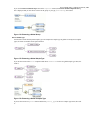
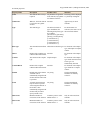
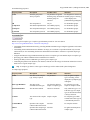
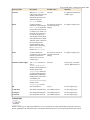
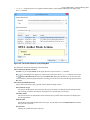
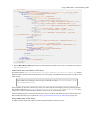
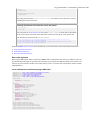
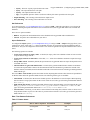
Full Tags with Attributes - All XML tags are displayed, with attribute names and values, making it easier
to transition from a Text-based editing to Author mode editing.
Full Tags - All XML tags are displayed, but without attributes.
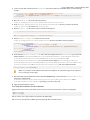
Block Tags - The XML tags that enclose block elements are displayed in full. Compact tags (no element
names) are displayed for inline elements.
Inline Tags - The XML tags that enclose inline elements are displayed in full. Block tags are not displayed.
Partial Tags - Partial tags (no names) are displayed for all elements.
No Tags - No tags are displayed. This representation is as close as possible to a word-processor view.
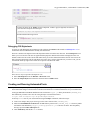
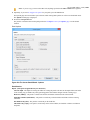
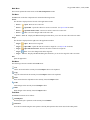
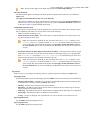
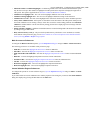
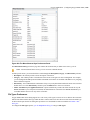
Tags background color
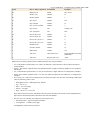
Sets the Author mode tags background color.
Tags foreground color
Sets the Author mode tags foreground color.