1
Tutorial: Using Midi WorkShop
§
6
Observation: Notice the port and channel numbers here. More about this in a moment:
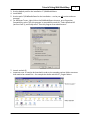
5. Go to Options > Select: Midi Device Setup.
§ Observation: This dialog lists the twenty-four possible Midi input and output ports used by
MWS. These posts can be connected to either hardware or software devices.
6. For Port Out 01. Select: MWS Virtual Port Out 01.
7. Select: Port Out 01 and rename to: EVM GM Synthesizer Module.
§ Observation: Each port listed here should be named to reflect that particular port it is being
assigned to. In this tutorial, we are assigning Port Out 01 to the GMSynth SoftSynth. More
on this in a moment.
8. Select Ok to close Midi Device Setup.
9. In MWS, go to File > Preferences File > Select: Save Default.
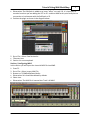
§ Observation: There is a quirk with MWS in that the name that was assigned to the MWS
Virtual Port Out 01 will not be displayed correctly until SS is closed and re-launched, as
shown in the diagram below:
10. Close and re-launch SS.
11. Open the Jesu session.
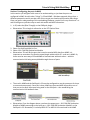
§ Observation: It is interesting to note that the Track/Channel order is saved as part of the
session edl – and I think that this is a great features set of SS. You can see this for yourself
by comparing the launch of SS with the opening of the Jesu session file and observing the
channel order for each session.
12. Section 5 is now completed.
© 2006 – 2015 Robert Lentini and RML Labs