Download LightFactory User Guide
Transcript
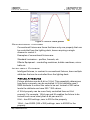
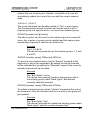
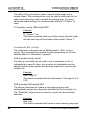
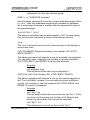
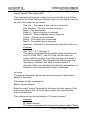
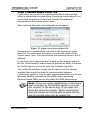
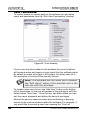
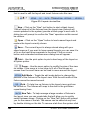
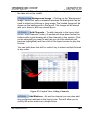
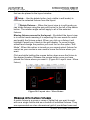
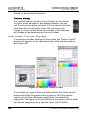
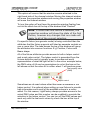
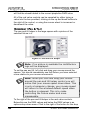
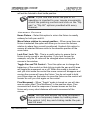
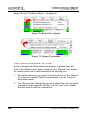
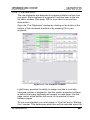
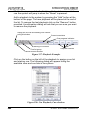
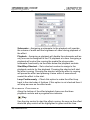
LightFactory V2 A Guide for Users Reference/Window Overview Channel Display Select channels by position The “select channels by position” menu will pop up a submenu of all of the position descriptions set in the dimmer patching window. Click on the position item to select all channels that match this patch setting. If channels are already selected this option will only select the channels matching this criteria that are already selected. This is done to allow sub selection from a previous selection. Note: Selected channels will appear green and active channels (channels where the value if greater than 0) will appear in a light blue. Control Options Once channels have been selected you can modify the channel using the control options along the top of the channel display. On Use the “on” function to turn all selected channels to the on level as determined by the system properties setting. By default the on level is 100%. The on level will be applied to all the primary dimmers of selected fixtures. This button also has a drop down menu that can be accessed by clicking to the right of the button. Use this drop down menu to for the following options: Solo – The solo function will turn the selected fixtures to the on level while simultaneously turning all fixtures that are not selected off. Full – Similar to the on function selecting “Full” will set all selected fixtures to 100%. Off Use the “off” button to set all of the selected fixtures to 0%. The on level will be applied to all the primary dimmers of selected fixtures. 148 © 2004 - 2010 Dream Solutions Ltd