Download LightFactory User Guide
Transcript
Reference/Window Overview
Command Interface
LightFactory V2
A Guide for Users
Options menu
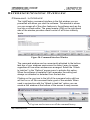
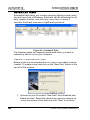
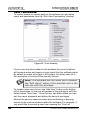
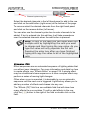
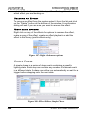
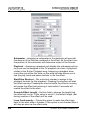
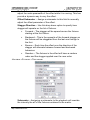
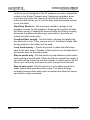
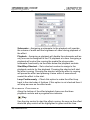
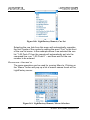
The options menu is at the bottom left of the command interface,
accessible by clicking on the word “Options” with your mouse.
There are 13 options in the file menu:
Create new blank show – Creates a new blank show file on the
hard drive and loads this as the current show.
T
Open a saved show – Opens an existing show file form the hard
drive into memory as the current show.
T
T
Open a server based show file – Opens an existing show file from
a firebird server for multi user access.
Save a copy of this show – Saves a copy current show to the
hard drive with a new name and then makes the new copy the
current show.
T
System Properties – a series of options allowing you to configure
hardware, database, default settings, and change your licensing
information.
T
T
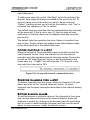
External Triggers - this feature allows you to set up shows that run
without user interaction.
T
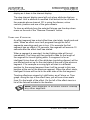
Scheduled Tasks – Virtually all functions within LightFactory can
be scheduled to execute automatically at set times.
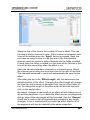
User Permission – Use this feature to control access to various
functions by a user name and password.
Language – A sub menu will appear when you click on this option.
The submenu will display a list of languages that the software can
operate in.
Open user guide – Opens this document.
Registration – Opens the system properties to the registration tab.
About LightFactory – Shows the about screen for copyright
message.
Attach to task bar – Select this option to dock and undock the
command window from the task bar.
Exit – Close LightFactory.
See the following pages for full details about each of these options.
http://www.lifact.com
87