1
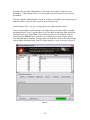
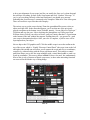
figgered out. The Predefined Searches buttons at the bottom of the window are your
friends, boys and girls.
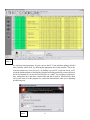
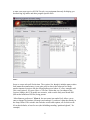
Want to show all Messiers? Just click the Messier pre-defined search button and the
Begin Search” button. Curio usly, unlike a spreadsheet sort, they are arrayed in correct
numerical order, with M11 coming after M10, and so forth. Want to look for a particular
Messier? Change the operator from > to = and from 0 to the M number of your choice on
the first line of the criteria field. Need an NGC? Click the NGC predefined search and
type an NGC number in the criteria field (you’ll have to type “NGC <space> number”).
Changing catalog numbers and clicking on the other predefined searches should make it
easy to find the objects of your desire. The search function can be frustrating at first, but
is an incredibly powerful tool.
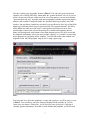
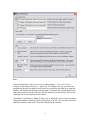
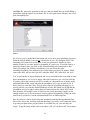
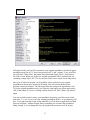
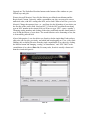
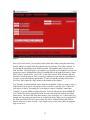
After a little practice, I was also able to use Search to do the single thing I had not been
able to do with Deepsky previously, and which had been bugging me. I was, with a little
fiddling, able to display Messiers from the single constellation of my choice by clicking
the Messier button and changing “catalog” to constellation,” and “NGC 2000” to the
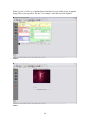
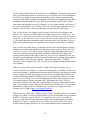
constellation of my choice (Plate 16). For many tasks, Search is actually a better tool
than the wizards and queries.
Plate 16
21