1
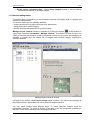
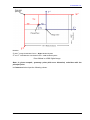
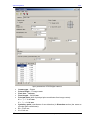
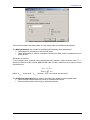
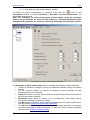
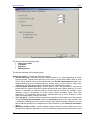
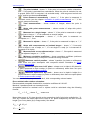
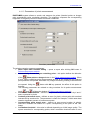
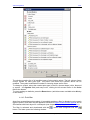
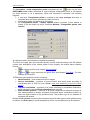
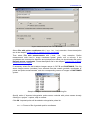
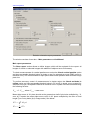
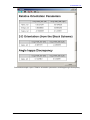
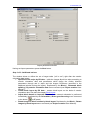
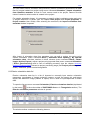
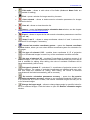
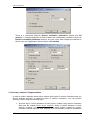
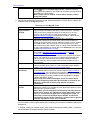
PHOTOMOD 5.21 Considering the ground pixel size (GSD), specified by a user or automatically calculated by DEM (if any). Click the Account for DEM button to specify GSD parameters. See the chapter Using DEM data for block layout creation. Warning: You should have interior and exterior (projection centers coordinates, at least) orientation parameters available to calculate GSD by DEM. Warning: When ties/GCP or adjustment results are used for block layout creation, GSD data is not considered. Considering value of terrain heights difference, specified in the project properties (see Project creation User Guide). Warning: heights difference value is considered for block layout creation only if GSD data is unavailable. 5. In order to eliminate specific issues, called by improper input data, click the More button. The Block layout (additional) window, containing the following additional parameters, is opened: Scale difference – used to specify a coefficient proportionate to acceptable scale difference between adjacent images in a strip; Curving – used to specify a coefficient proportionate to acceptable rotation angle between adjacent images in a strip; Images deformation – used to specify acceptable difference between image outline transformation in a block scheme and similarity transformation; Point rejection percent – used to specify percent of tie points, which will be not considered for block layout creation; Rotate all block by – used to specify rotation angle for block scheme in degrees. 6. For block layout creation click the Apply button in the Block layout window. Block scheme in the 2D window will be refreshed considering new parameters settings (without closing of the Block layout window). You can also use the following menu items Block | Block layout for creation/re-creation of a block layout (they are partially duplicated by buttons of the Block layout toolbar): Refresh – allows fast block layout re-creation after change of data used for block layout building (without opening of the Block layout window). Duplicates clicking of the Apply button in the Block layout window. W/o layout – allows to cancel block layout creation, i.e. rolls back to initial state of block scheme (without opening of the Block layout window). Duplicates choosing of the W/o layout mode in the Block layout window. By exterior orientation – allows to create a block layout using only exterior orientation parameters imported to PHOTOMOD system (without opening of the Block layout window). Duplicates choosing the By ext.or. mode in the Block layout window. Load – allows to load saved block layout from *.x-ini file of active profile resources to the 2D window. Save – allows to save current block layout to *.x-ini file of active profile resources. You can use the saved block layout, if after applying of new data the block layout corrupted and fails to recover. In this case you can load the block layout, delete triangulation points and measure them once more. Automatic block layout – allows to create block layout of UAV images in automatic mode. Delete auto block layout results – allows to cancel block layout, created for UAV images in automatic mode. © 2011 120