1
APPENDIX A COUNTER SETUP
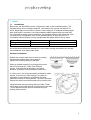
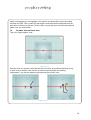
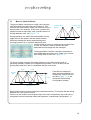
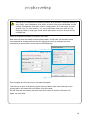
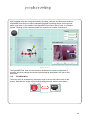
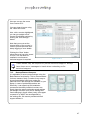
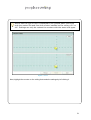
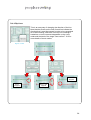
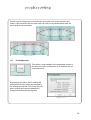
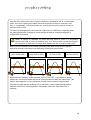
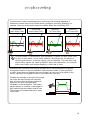
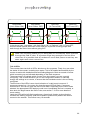
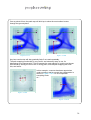
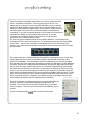
When more than one counter is installed on the ceiling, at the same entrance/doorway,
they must be positioned in such a way as to provide an overlap where the field of view
of neighbouring counters meet on the ground. This enables the counters to recognise
the same target as it disappears from one counter’s field of view and re-appears in
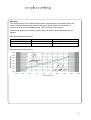
another’s. In order for this to function correctly, the mounting separation shown on the
mounting height graph should not be exceeded all counters must also be installed in
the same orientation (pointing in the same direction).
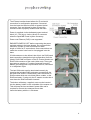
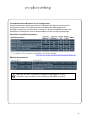
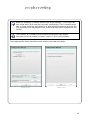
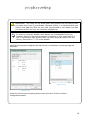
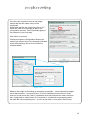
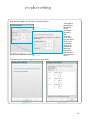
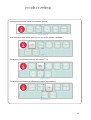
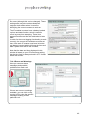
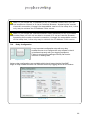
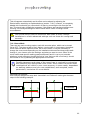
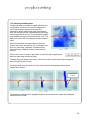
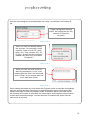
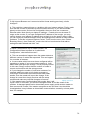
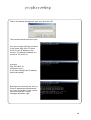
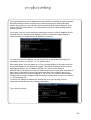
The tracking of targets in this way is handled automatically by the master counter. In
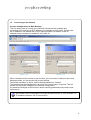
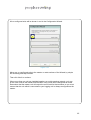
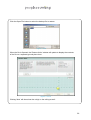
order to do this you must specify the relative positions of each counter by entering their
respective X and Y coordinates as part of the counter configuration process. If you
have only one counter installed then you can leave the X and Y coordinates as default
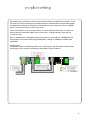
(0,0) but when two or more units are installed, you have to specify their positions. An
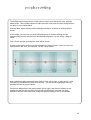
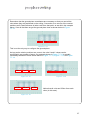
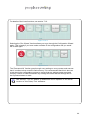
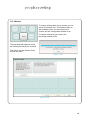
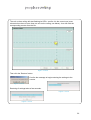
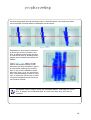
example may be that the master is positioned with one unit immediately to its right,
2.2m away, and a further unit, on the right, another 2.2m beyond that. The X and Y
coordinates of the three units would therefore be (0,0), (220,0) and (440,0). If they are
not directly in line with each other then you would need to specify the different Y values
as well.
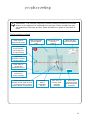
For more specific details on mounting locations, and counter installation
– including providing enough overlap between units, see page 6.
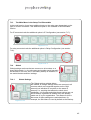
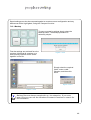
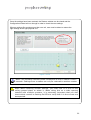
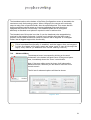
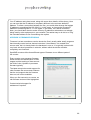
Note: When specifying X and Y coordinates, the X coordinate is relative to
left and right and the Y coordinate is the same as forward and back. Also,
it is easier to imagine looking down on the counters from above, rather
than looking up at them, when working out the X and Y values.
Note: When specifying X and Y coordinates, all entries are in centimetres
if Metric units is selected, or in Inches if Imperial units is selected. You can
switch between Metric and Imperial using the Global/Global Settings
options, see section 7.14.1.
85