1
not make a difference if you highlight the two samples or leave them both
unhighlighted.
d. Click “OK.”
e. Right click on the graph and choose “Edit Graph.”
f. Notice the available options on the tabs. Create a new title and format the
axes if needed.
g. Change program windows to the Excel project file “Thin Film Summary”
(this file is already open) and notice that the graph that was just created
has been added to the project summary.
h. Return to the Analyst program.
9. Create a bar graph that compares the Hardness of the two materials over the
defined range (this range was defined in TestWorks before exporting the data to
Excel).
a. Right click on the Word “Projects” in the left panel and select “add Bar
Chart”
b. Under the heading “Results,” select “H Average Over Defined Range.”
c. Select both samples and click “OK.”
d. Notice that once again the graph is duplicated in the Excel file
summarizing the results.
10. Create a Sample level plot for the “Load On Sample” versus “Displacement into
Surface” for each thin film sample.
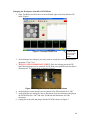
a. Right click on the sample “Thin Film Sample 1” in the left panel and
select “add X-Y Graph.”
b. Choose the appropriate quantities for the X- and Y-axes and select all of
the tests.
c. Choose “Loading Segment” for the Start Test Segment selection box in
the lower right corner; you are going to limit the graph only to the data in
the loading segment.
d. Choose “Loading Segment” for the End Test Segment selection box in the
lower right corner.
e. Click “OK.”
43