1
DES/Triple DES Encryption
Windows XP Installation
Note:
These instructions are intended for users running CQ-3770EE
under the Windows XP operating system. The Windows XP
operating system requires special dongle device driver
installation that is explained in these instructions.
1. Connect the Glenco Hardlock DES dongle to any parallel port
on your computer. If there is a printer cable attached to that
port, detach the printer cable and plug the dongle into the
port. Reconnect the printer cable to the dongle. The Glenco
Hardlock DES dongle should not affect normal printer
operation.
2. Select Start > Control Panel.
3. Find the Add Hardware icon that should appear somewhere
within the Control Panel. You may have to switch to
“classic view” or change other settings in order for the Add
Hardware icon to appear.
4. Once you have found the Add Hardware icon, select the Add
Hardware icon.
5. Select the Next button. The Add Hardware Wizard will search
for new hardware.
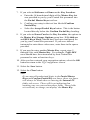
6. A question will appear asking you if you have already
connected the new hardware to your computer. Select the
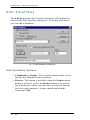
Yes, I have already connected the hardware option and
then select the Next button.
11 - 15