1
Linux Infrared HOWTO
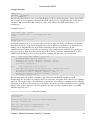
into the appendix.
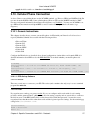
3.8. Connecting from Linux to WinCE 2.11
Submitted by Arthur Tyde and Bryan Abshier of Linuxcare Inc.
This will tell you how to set up a masqueraded PPP connection via. IrDA from WinCE to a Linux based
notebook computer. Once you are IP connected, the rest is up to you. We put this together as a guide for Sony
notebook users with Casio E−100/105 PDA's, though the procedure should work for any WinCE 2.11 device
with infrared capabilities talking to any notebook. Do all the Linux side testing signed on as root, standard
warnings apply.
Configure WinCE Configure a network connection for your WinCE device. Go into "Connections" and create
a "Direct Connection" Name it something meaningful, for device select "Infrared Port". Go into settings and
change the baud rate to 115200, this is the max for WinCE. Go to TCP/IP settings and check "Use
server−assigned IP address," and "Use software compression," and "Use IP header compression" Make sure
"Use Slip," is unchecked. For Name Servers, make sure "Use server−assigned addresses" is checked. Go to
Start, Settings, Communications, Identification and enter something for the Device Name. (I used "cetoy")
You most likely already have these values set if you have synced with a Win9x desktop using Activesynch.
Configure Linux/IrDA Set up IrDA support on your notebook (described elsewhere) and get to the point
where your notebook will discover an IrDA compliant device. A good sign is the irda0 device will show up
when you execute ifconfig. It will not have an IP address, this is ok.
Setup the Connection Test the discovery by setting an IrDA device in range of your IR port, wait 5 seconds,
and;
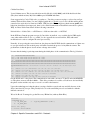
cat /proc/net/irda/discovery
For example, the Ericsson I888 World Phone with IR port enabled should immediately show something like
this;
"name:I 888 WORLD
,hint:0x9104,saddr:0x838470e5,daddr:0x152dceaa"
Your WinCE machine will not be discovered unless it's actively looking for a connection. So, if you want to
test with WinCE position your device and double tap on the network icon you created in step 2, you should
see something like this:
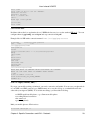
"name:mytoy,hint:0x8204,saddr:0x838470e5,daddr:0x00000b72"
The name displayed will be whatever value you have entered into the Start, Settings, Communications,
Identification as the Device Name. At this point, with basic IrDA functioning− we can move on to
establishing a PPP connection for WinCE. These scripts can also be used for serial cable connects. Create the
following files and copy them into the directory indicated.
/usr/sbin/cebox.sh − make it executable
#!/bin/sh
pppd call cebox
Because Microsoft likes to break standards, you need the following chat script. This will feed WinCE the
proper ASCII keywords it wants before allowing a PPP connection.
Chapter 3. Specific Connections and IrDA − Protocols
23