1
Chapter 11 Wikis
SharpSchool User Manual
b.
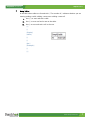
Inserting an External Image
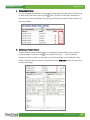
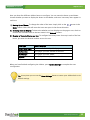
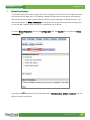
If you want to use an image that is hosted on another website, simply type the image
URL and place two brackets in front of and behind the URL.
{{http://www.photobucket.com/user/image123.jpg}}
c.
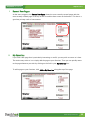
Resizing an Image
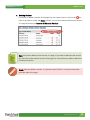
If you want to resize an image, place a | and your desired image size after the normal
code for an image. {{http://www.photobucket.com/user/image123.jpg|100x150}}
d.
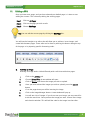
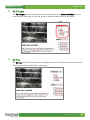
Formatting Text
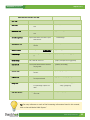
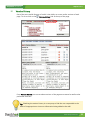
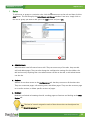
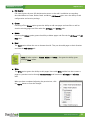
Bold: To bold text
you can click the icon or place two asterisks before and after
the text. **bold text**
Italics: To italicize text you can click the
icon or place two backslashes before and
after the text. \\italicized
text\\
Underline: To underline text
you can click the
icon or place two
underscores before and after the text. __underlined text__
Monospaced: To use monospaced text (characters with uniform spacing like this) you can click
the icon
or place two single-quotation marks before the text and two more after
the text. (‘‘monospaced text’’)
Strikethrough: To strikethrough text (like in this example) you can
click the icon or
you can place a space and a dash before and after the text -
strikethrough
textSuperscript: To use superscript text (like in this example),
click on the icon.
<sup></sup>
Subscript: To use subscript text (like in this example), click
on the icon.
<sub></sub>
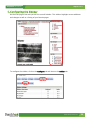
Unordered List: To create a bullet point list, click the icon or begin each line that
needs a bullet with @. @bullet point 1
Ordered List: To create a numbered list,
click the icon or begin each line with
#.
#numbered point 1
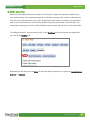
Multiple Effects: Occasionally you may wish to place multiple effects on a single piece
of text. For instance, if you have something you really want to emphasis you might
bold and underline it. This can be done by simply using both effects, either through
clicking on icons or typing the required codes **__bold and underlined text__**
www.sharpschool.com
5