1
Chapter 11 Wikis
SharpSchool User Manual
e.
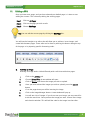
Inserting Links
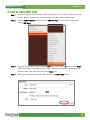
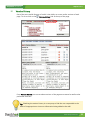
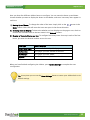
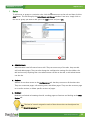
Internal Link: To insert a link to another page within your
wiki, press the icon.
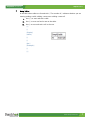
This will bring up a new window that has a list of pages within your wiki. Once you find
the page you are looking for, click Insert Link.
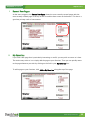
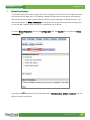
Alternatively, if you know the name of the page you want, you can just type two square
brackets, the page title and two more square brackets. [[readily accessible]]
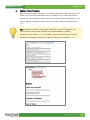
Tip: You can also use this method to add links to pages that do not exist yet. A user
who clicks the link to a non-existent page will be given the opportunity to create the
page. This can be a great aid to the collaborative process.
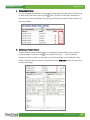
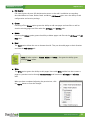
External Link: To insert a link to a page outside of your wiki, place the URL within two sets of
square brackets. [[http://www.google.com]]
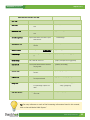
Tip: If you are adding text and you type in a URL starting with http:// the editor will
automatically convert it into an external link for you even without the square brackets.
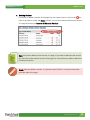
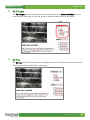
Labeled External Link: If you wish to display text rather than the website URL when you are
inserting a link, add the label you want, a dash and a greater than sign.
[[Google-> http://www.google.com]]
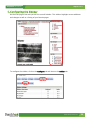
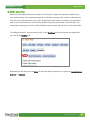
Image Link: Using an image as a link is similar to labeling an external link. Instead of typing
the label before the -> you put the code for an image including the two brackets {{}}.
[[{{http://www.photobucket.com/user/image123.jpg}}-> http://www.google.com]]
www.sharpschool.com
6