1
RTC-Bridge Mapping
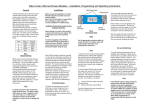
RTC-Bridge Mapping screen is located at Controls-Bridge-Mapping
When Mapping is used the RTC-Bridge will listen to the Rako Commands sent by Wall Controllers, Smart
Phones, Hand Held remotes etc . When the RTC-Bridge hears a command that matches one of its Maps
it will perform a specified Action.
In the example above the RTC-Bridge has two Maps programmed. Map 1 is being displayed.
When a Room 6, Scene 1 Command is received the RTC-Bridge will transmit a Room 11, Scene 1
command. This particular Map is active on all days of the week, but only operates at Night.
The fade rate slider and check box are only used in Rako Wired systems, so are not relevant to RTCBridge.
The Upload button must be used to write Mappings from Rasoft to the RTC-Bridge. This will overwrite
any Mappings that are already in the RTC-Bridge.
The Download button is used to read Mappings already stored in the RTC-Bridge back into Rasoft. This
will overwrite any Mappings that are already in Rasoft.
The Verify button can be used to check that the Mappings in Rasoft and those in the RTC-Bridge match
with each other.
Maps do not have to simply translate one Scenes simply into another
scene.
Maps can trigger a variety of Actions as shown here
Issue 1 October 2011
Page 7 of 19