1
Graphs
Section
6-9
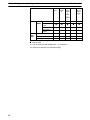
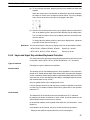
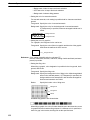
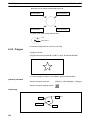
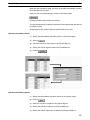
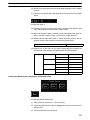
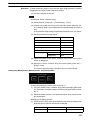
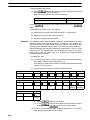
Note that specification for –100% is valid only when [Display Sign] is selected.
Guidance
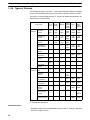
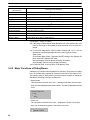
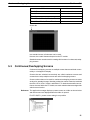
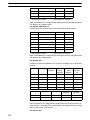
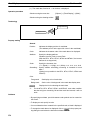
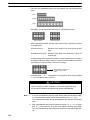
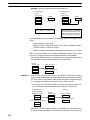
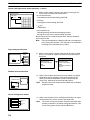
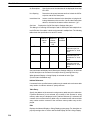
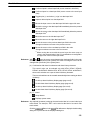
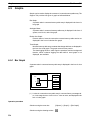
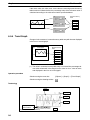
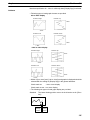
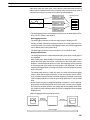
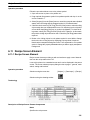
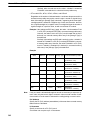
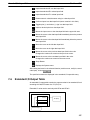
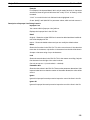
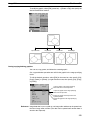
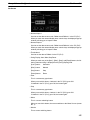
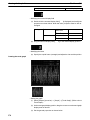
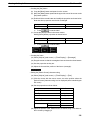
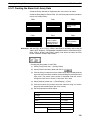
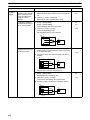
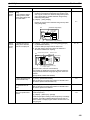
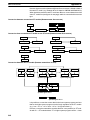
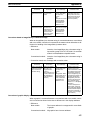
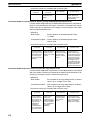
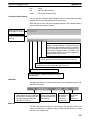
Following types of trend graph element are provided.
0% to 100% display
Direction: Right
Direction: Up
↑Time
→Time
Direction: Left
Direction: Down
↓Time
←Time
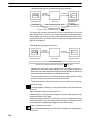
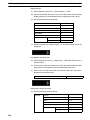
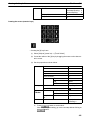
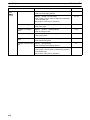
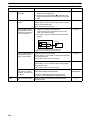
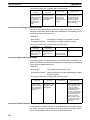
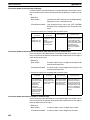
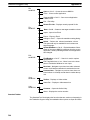
–100% to 100% display
Direction: Right
Direction: Up
↑Time
→Time
Direction: Left
Direction: Down
↓Time
←Time
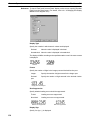
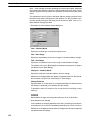
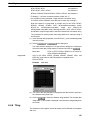
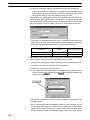
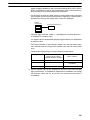
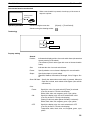
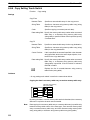
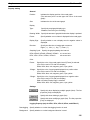
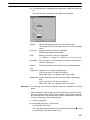
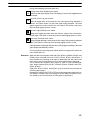
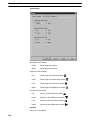
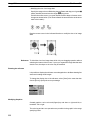
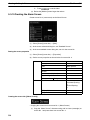
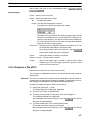
Which of [0 to 100%] and [–100 to 100%] trend graphs is displayed should be
selected with the setting for [Display Sign] in the general attributes.
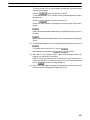
Check mark set:
–100 to 100% display
Check mark not set: 0 to 100% display
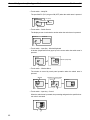
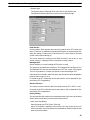
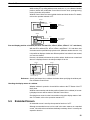
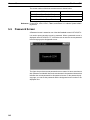
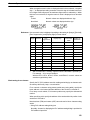
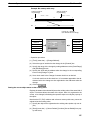
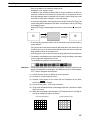
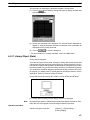
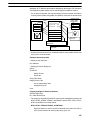
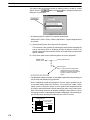
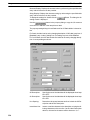
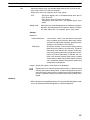
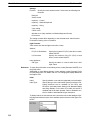
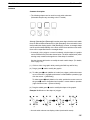
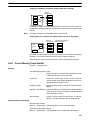
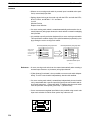
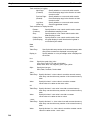
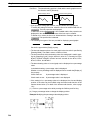
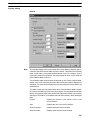
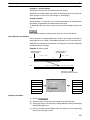
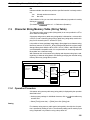
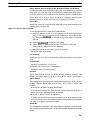
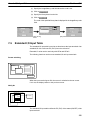
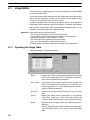
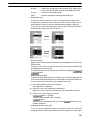
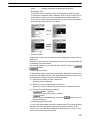
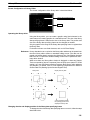
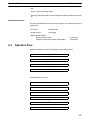
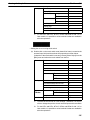
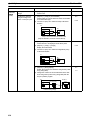
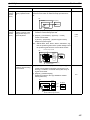
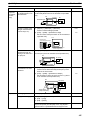
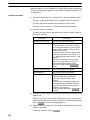
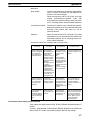
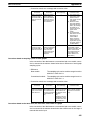
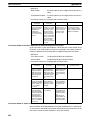
The following two types of trend graph display are provided.
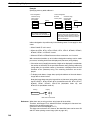
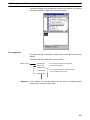
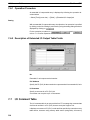
Standard:
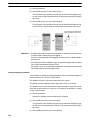
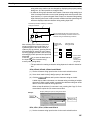
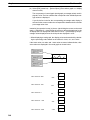
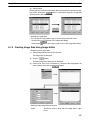
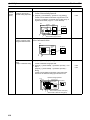
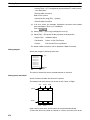
The latest drawing position moves in the direction set for [Direction].
Present
drawing
position
Next
drawing
position
245