1
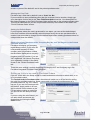
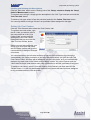
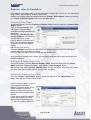
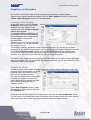
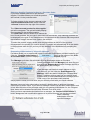
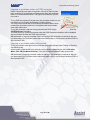
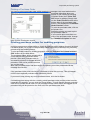
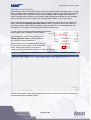
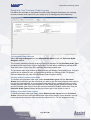
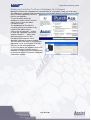
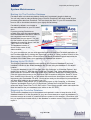
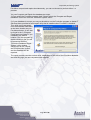
Corporate purchasing system Purchase Orders Creating a Purchase Order To create a new purchase order, click the ‘Create A Purchase Order’ button on the Main screen to open the ‘Generate A New Purchase Order’ screen. To create a purchase order you must provide PurchAce with: Your depot that the purchase order relates to and will be delivered to. Some single site companies will only have the one depot on PurchAce, but you still must select the Depot even if you only have one. If you have a large site, you may want to use the ‘Site Location’ but this can be left blank. The person who created the purchase order (this is you and can not be changed) The Supplier. If the Depots or Suppliers do not already exist on PurchAce, you can simply click on the ‘+’ buttons to open the ‘Create A Depot’ and ‘Create A Supplier’ screens. Once you have created the depot or supplier, they will appear in the pull down lists immediately back on the ‘Create A Purchase Order’ screen. Once you have selected the above items you will notice that the large button labelled ‘Click here to add a new line to the Purchase Order’ has now become enabled. If you are a manager user (or you have given all users authority to delete POs in the Setup screen), the Delete buttons to the right of the purchase order grid will also be enabled. Adding purchase order lines to the purchase order To add items to the purchase order, click the ‘Click here to add a new line to the Purchase Order’ to open the ‘Purchase Order Line’ screen. Now, type the text for the first item that you wan to add to the purchase order, the value per item, the number of items and the VAT if this has a non-standard VAT rate. You can type in the Accounts code if you know it at this point. PurchAce will automatically calculate the price inc VAT if you type the item value and VAT rate. PurchAce will automatically calculate the price before VAT if you type in the Price Inc VAT and the VAT rate. The line total is calculated when you have provided a price, VAT Rate and quantity. Click the ‘Accept This Purchase Order Item’ to add this line to the purchase order. It will then appear on the previous screen in the purchase order grid. You will notice that the Subtotal, VAT and Total values are updated to include the new line. Page 21 of 36