1
Mainframe, SDH Version
4.2.1.3
ANT-20/ANT-20E
Disabling entries
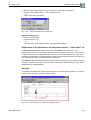
You can disable entries from the keyboard, touchscreen or trackball to prevent unintentional
operation.
⇒ Click on the “Keyboard Lock ...” command in the “Configure” menu.
– or –
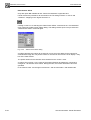
⇒ Click on the
icon in the “ANT20 - <Application Title>” (“Minibar”) window.
Entry will be disabled.
4.2.1.4
Enabling entries
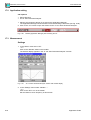
1. Press the “Alt” + “Tab” keys repeatedly until the “Minibar” is activated.
2. Press the “ESC” key.
4.2.1.5
Other important functions
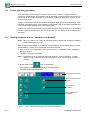
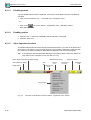
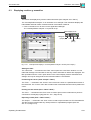
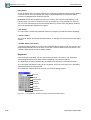
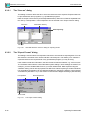
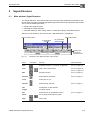
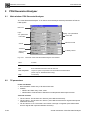
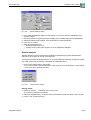
The Minibar still provides access to all major instrument functions. If you click on an area where
there are no icon buttons, a pop-up menu appears. This contains a selection of functions from
the menu bar, including functions for application management and closing the program.
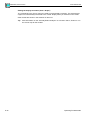
Tip:
If you want the reduced Application Manager to be always visible, select the “Always on
Top” option in the “Configure” menu (see Sec. 4.2.2.4).
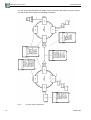
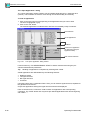
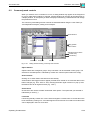
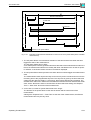
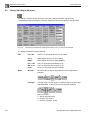
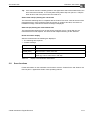
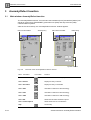
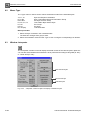
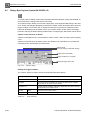
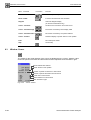
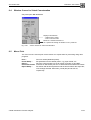
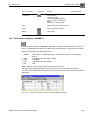
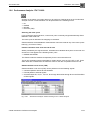
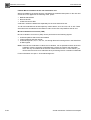
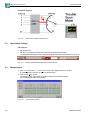
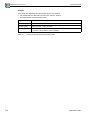
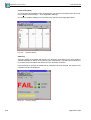
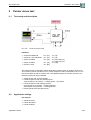
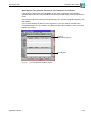
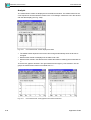
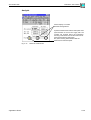
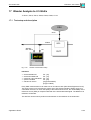
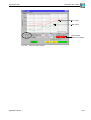
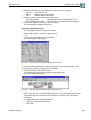
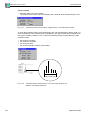
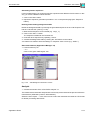
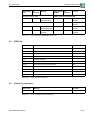
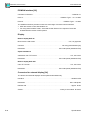
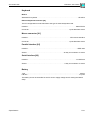
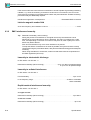
Three virtual instruments (example setting)
“Add & Remove” dialog
Toggle button
Measurement control
Start,
Elapsed
time
stop
Measurement
status
Instrument status
Set measurement time
Keyboard
lock
Pop-up menu
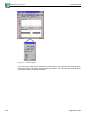
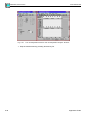
Fig. O-9
O-16
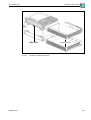
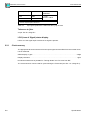
Elements of the Minibar or reduced “ANT20 - <Application Title>” window
Operating Fundamentals