1
CubeSuite+ V2.01.00
APPENDIX A WINDOW REFERENCE
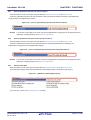
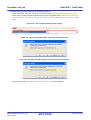
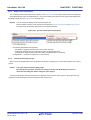
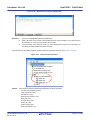
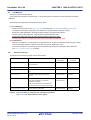
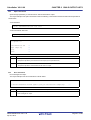
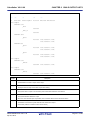
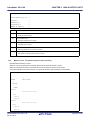
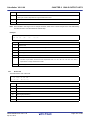
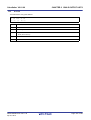
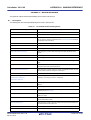
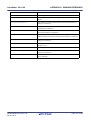
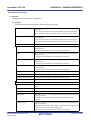
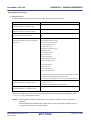
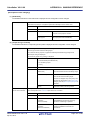
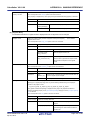
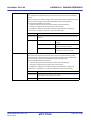
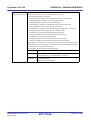
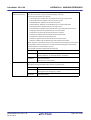
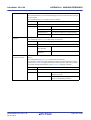
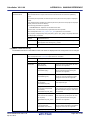
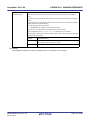
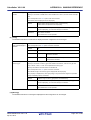
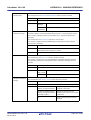
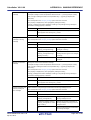
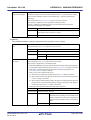
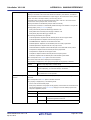
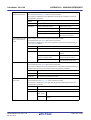
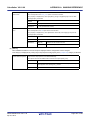
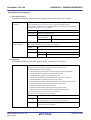
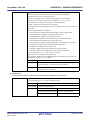
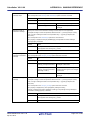
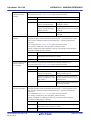
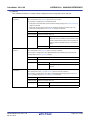
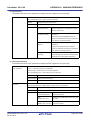
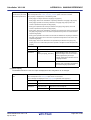
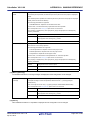
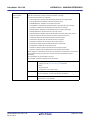
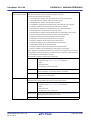
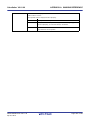
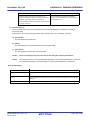
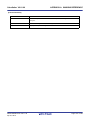
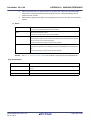
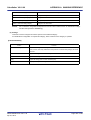
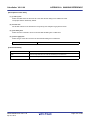
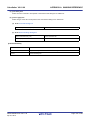
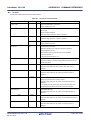
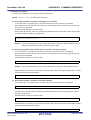
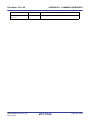
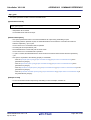
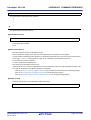
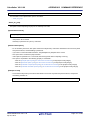
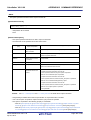
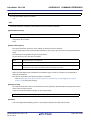
Message
Description
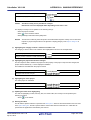
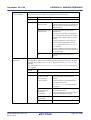
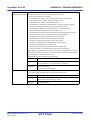
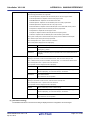
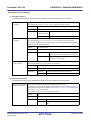
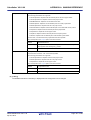
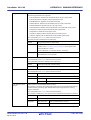
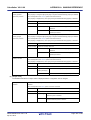
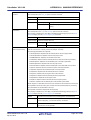
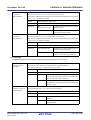
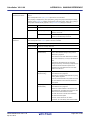
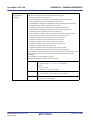
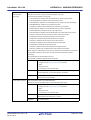
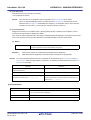
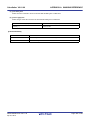
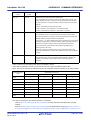
The path is too long. Specify a path with a number of
The file name including the path exceeds the
characters equal to or fewer than maximum number of
maximum number of restriction in the property that
restriction in the property that called this dialog box.
called this dialog box.
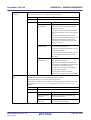
The specified path contains a folder that does not exist.
The path contains a folder that does not exist.
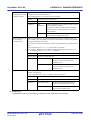
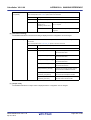
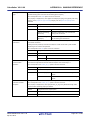
The file name or path name is invalid. The following
The file name with the invalid path is designated.
characters cannot be used: \, /, :, *, ?, ", <, >, |
The following characters cannot be used for the file
name and folder name: \, /, :, *, ?, ", <, >, |
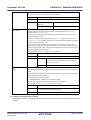
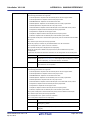
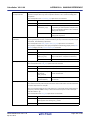
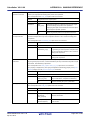
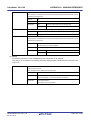
More than maximum number of paths or files specified
The number of paths or files which have been
by the caller lines cannot be specified.
entered exceeds the maximum number of restriction
in the property that called this dialog box.
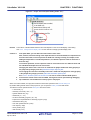
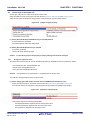
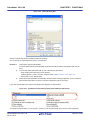
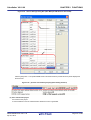
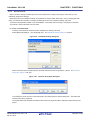
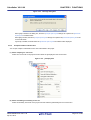
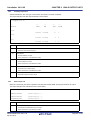
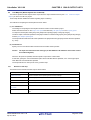
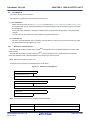
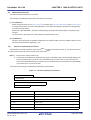
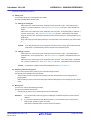
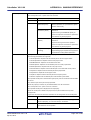
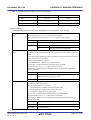
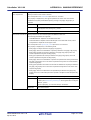
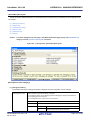
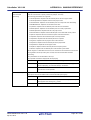
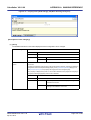
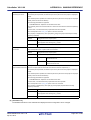
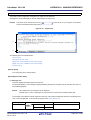
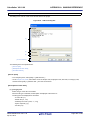
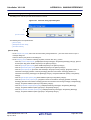
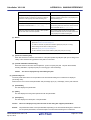
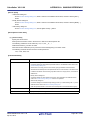
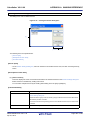
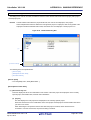
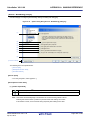
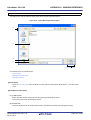
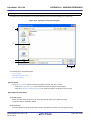
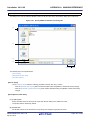
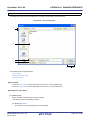
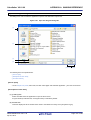
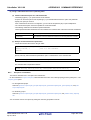
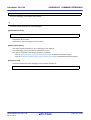
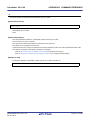
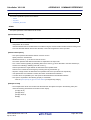
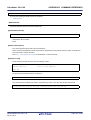
(b) Button
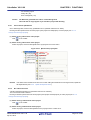
Browse...
- When adding the path
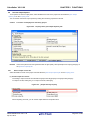
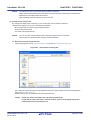
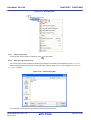
Opens the Browse For Folder dialog box.
If a folder is selected, the path will be added in [Path(One path per one line)].
- When adding the file name including the path
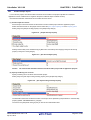
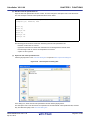
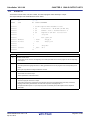
Opens the Specify Far Jump File dialog box.
If a file is selected, the file will be added in [Path(One path per one line)].
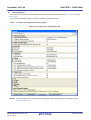
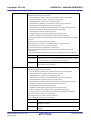
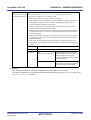
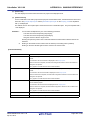
(c) [Permit non-existent path]
When this check box is selected, the existence of the path specified in [Path(One path per one line)] or the
validity of the character string specified in the path is not checked.
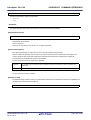
(d) [Include subfolders automatically]
Select this check box and then click the [Browse...] button to specify the path. The path will be added,
including subfolders, to [Path(One path per one line)] (up to five levels deep).
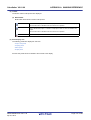
Caution
This item is displayed only when adding the path.
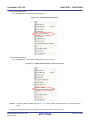
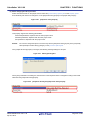
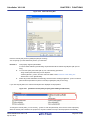
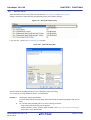
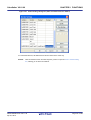
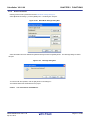
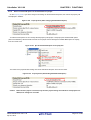
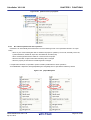
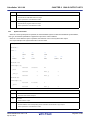
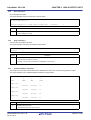
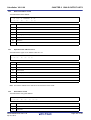
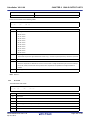
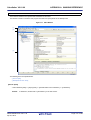
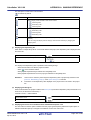
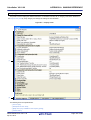
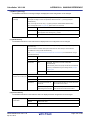
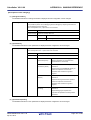
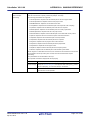
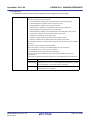
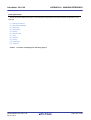
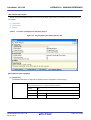
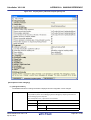
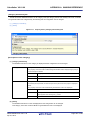
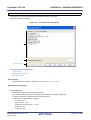
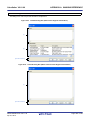
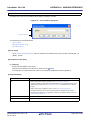
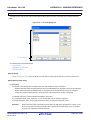
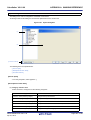
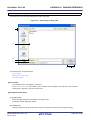
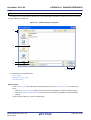
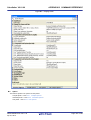
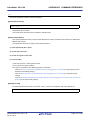
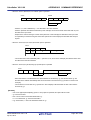
(2) [Placeholder] area
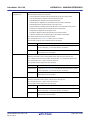
The list of placeholders which can be specified for the area that this dialog box is called from is displayed
(ascending order).
Double click a row to surround the placeholder with percentage signs ("%") and display it in the path edit area.
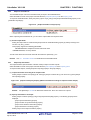
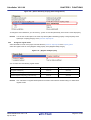
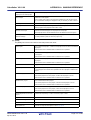
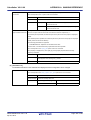
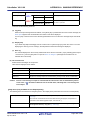
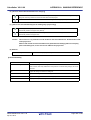
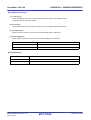
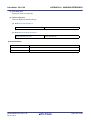
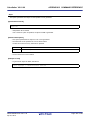
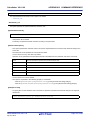
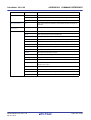
(a) [Placeholder]
This area displays the placeholder.
(b) [Value]
This area displays the string after replacement with the placeholder.
(c) [Description]
This area displays the description of the placeholder.
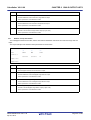
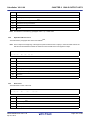
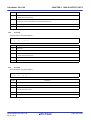
Caution
This area is displayed only when the caller of this dialog box supports placeholders.
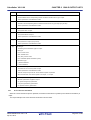
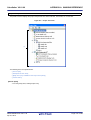
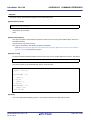
Remark
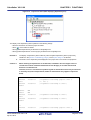
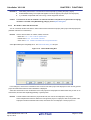
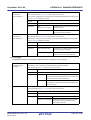
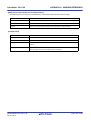
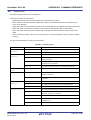
The placeholders which can be specified differ depending on the area that this dialog box is called from.
For the specific placeholder, see the description of the area that this dialog box is called from.
R20UT2585EJ0100 Rev.1.00
Apr 01, 2013
Page 271 of 485