1
Getting Started
2-3
2.5 Execution – Beginning the LIMDEP Session
Start LIMDEP as you would any other program, for example by double clicking the
LIMDEP icon ,
, on your desktop.
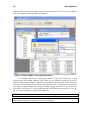
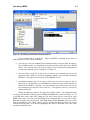
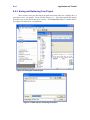
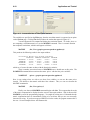
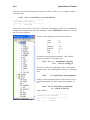
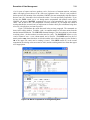
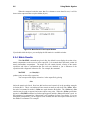
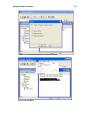
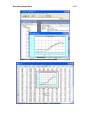
The opening window is the LIMDEP desktop, shown in Figure 2.2. At the top of the
screen, the main menu is shown above the LIMDEP toolbar. Below the toolbar is the command bar
discussed in Chapter 3. The open window is the project window. The session is identified as your
‘project,’ which will ultimately consist of your data and the various results that you accumulate.
This is where you will begin your LIMDEP session. Operation is discussed in Chapter 3.
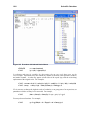
Figure 2.2 LIMDEP Desktop Window
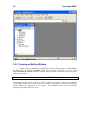
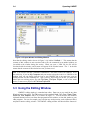
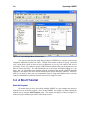
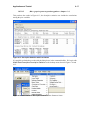
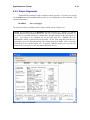
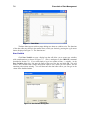
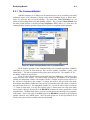
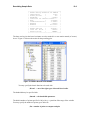
If you do not see the command bar when you first start the program, so that your initial desktop
appears as below in Figure 2.3, then select Tools in the desktop menu and Options... from the drop
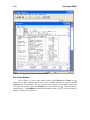
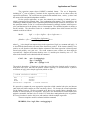
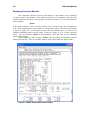
down menu. In the dialog that appears next, as shown in Figure 2.4, tick the option to “Display
Command Bar” to change the desktop menu so that it will then appear as in Figure 2.2, with the
command bar included.