1
WebCTRL v5 User Manual
4
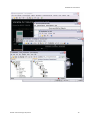
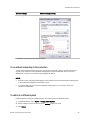
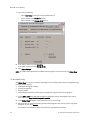
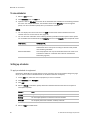
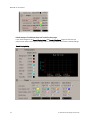
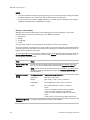
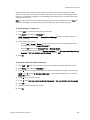
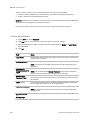
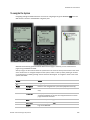
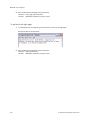
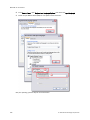
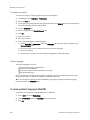
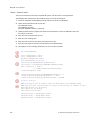
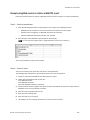
Click Save
5
Browse to the folder you want to put the file in.
6
Click Save.
7
Click Close.
8
Click Close again.
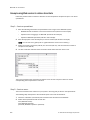
To put the edited graphic back on the server
1
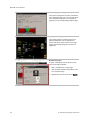
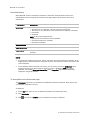
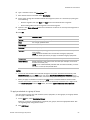
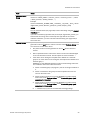
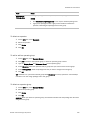
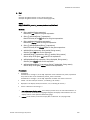
On WebCTRL's GEO tree, right-click the item that the graphic is attached to, then select Configure.
2
At the bottom of the Views section, click Add New.
3
Browse to select the .view file.
4
Click Open.
5
Click Continue.
6
Click Close.
7
Click Close again.
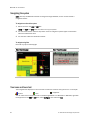
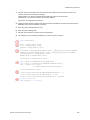
To organize multiple graphics for a tree item
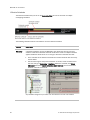
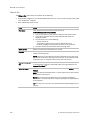
If a single tree item has multiple graphics and you want to change the default graphic that was defined
in SiteBuilder, display the graphic in WebCTRL, then run the setdefault manual command (see page
141).
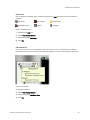
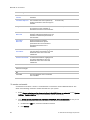
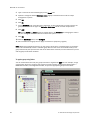
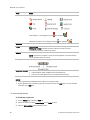
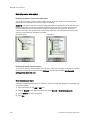
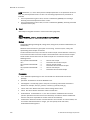
In WebCTRL, you can create categories and assign graphics to them so that the Graphics button dropdown menu has the graphics arranged by category. This is typically done in ViewBuilder or SiteBuilder.
See "To define WebCTRL navigation" in ViewBuilder Help and "To attach graphic files" in SiteBuilder
Help.
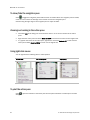
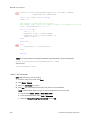
To add or edit a Graphics category in WebCTRL
1
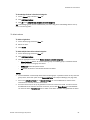
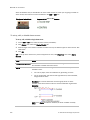
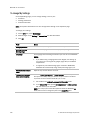
On WebCTRL's CFG tree, click the plus sign (+) to the left of the Categories folder, then select
Graphic.
2
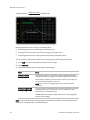
Click Add or select a category to edit.
3
Type the Category Name and Reference Name.
4
Optional: Select a privilege so that only operators with that privilege can access graphics in the
category.
5
Click OK.
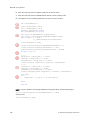
NOTE To delete a category, select the category, click Delete, then click OK.
© 2011 Automated Logic Corporation
35