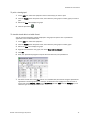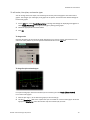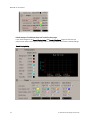
1
WebCTRL v5
User Manual
Rev. 3/28/2011
Verify that you have the most current version of this document. Go to http://accounts.automatedlogic.com, then
select Support > Download > Documents > Manuals.
Contents
Chapter 1 What's new in v5....................................................................................................... 7
What's new in WebCTRL ............................................................................................... 7
What's new in EIKON LogicBuilder .............................................................................. 10
What's new in SiteBuilder .......................................................................................... 11
What's new in ViewBuilder ......................................................................................... 12
What's new–Other tools ............................................................................................. 13
Chapter 2 What is WebCTRL? .................................................................................................. 15
A typical WebCTRL system .......................................................................................... 16
WebCTRL editions ...................................................................................................... 17
WebCTRL tools ........................................................................................................... 18
Chapter 3 Getting to know the workspace ................................................................................. 21
Navigating the system ................................................................................................ 22
Tree icons and hover text ............................................................................................ 22
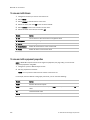
To show/hide the navigation pane .............................................................................. 24
Zooming and resizing in the action pane ..................................................................... 24
Using right-click menus .............................................................................................. 24
To print the action pane .............................................................................................. 24
Colors and status in WebCTRL .................................................................................... 25
Colors and setpoints .................................................................................................. 25
Chapter 4 Running WebCTRL Server ......................................................................................... 27
To run a system .......................................................................................................... 27
To set up a computer and browser to view WebCTRL .................................................... 27
To run without connecting to the controllers ................................................................ 29
To switch to a different system .................................................................................... 29
To send a message to logged in operators ................................................................... 30
To log off an operator.................................................................................................. 30
To shut down a system ................................................................................................ 30
Chapter 5 Working with equipment .......................................................................................... 31
Graphics pages .......................................................................................................... 33
To attach a graphic in WebCTRL ................................................................... 33
To edit a graphic on a WebCTRL client .......................................................... 34
To organize multiple graphics for a tree item ................................................ 35
Properties pages ........................................................................................................ 36
To view or edit properties ............................................................................. 36
Point types .................................................................................................. 37
Logic pages ................................................................................................................ 39
To view a Logic page .................................................................................... 39
To locate a microblock, section, or label....................................................... 39
To change properties, alarms, or trends........................................................ 39
Using a Logic page to troubleshoot .............................................................. 40
Changing multiple microblock properties .................................................................... 41
To use Global Modify ................................................................................... 41
To use Global Copy ...................................................................................... 42
Downloading to controllers ......................................................................................... 43
Download Options ....................................................................................... 44
To download from the Downloads page ........................................................ 44
To download from a Properties page ............................................................ 45
If a controller fails to download .................................................................... 46
© 2011 Automated Logic Corporation. All rights reserved throughout the world. Automated Logic Corporation, the
Automated Logic logo, WebCTRL, EIKON, BACview, SuperVision, and InterOp are registered trademarks, and Alert is a
trademark of Automated Logic Corporation. BACnet® is a registered trademark of ASHRAE. All other brand and product
names are trademarked by their respective companies.
Checking controller status .......................................................................................... 46
Status messages ......................................................................................... 47
To resolve a mismatch ................................................................................. 48
Setpoints ................................................................................................................... 49
To change programmed setpoints ................................................................ 49
Optimal Start .............................................................................................. 49
Demand Control .......................................................................................... 52
Setpoint Optimization.................................................................................. 53
Chapter 6 Schedules .............................................................................................................. 55
To view schedules ....................................................................................................... 56
Setting up schedules .................................................................................................. 56
To apply a schedule to equipment ................................................................ 56
To apply a schedule to a group of items ........................................................ 57
To edit or delete a schedule ......................................................................... 59
Effective Schedules ..................................................................................... 60
Using schedule categories .......................................................................................... 62
Creating a custom schedule category ........................................................... 62
To add a custom schedule category in WebCTRL ........................................... 62
To view, edit, or delete a schedule category .................................................. 64
Chapter 7 Trends.................................................................................................................... 65
To collect trend data for a point................................................................................... 65
Graphing data for multiple points ............................................................................... 67
To create a comparison trend graph ............................................................. 68
To edit a comparison trend graph ................................................................. 68
To delete a comparison trend graph ............................................................. 69
Using trend graphs ..................................................................................................... 69
To view a trend graph ................................................................................... 69
Tools for viewing trends ............................................................................... 70
To print a trend graph .................................................................................. 71
To transfer trend data to a table format ........................................................ 71
Customizing graph appearance .................................................................................. 72
To edit graph properties ............................................................................... 72
To edit colors, line styles, and marker types .................................................. 73
To copy a trend graph’s properties ............................................................... 75
To add, edit, or delete a trend category ........................................................ 75
Chapter 8 Alarms ................................................................................................................... 77
Viewing, acknowledging, and deleting alarms ............................................................. 78
To view alarms in WebCTRL .......................................................................... 79
To acknowledge alarms ............................................................................... 80
To delete alarms .......................................................................................... 81
To receive audible notification of alarms ...................................................... 82
Setting up alarm actions............................................................................................. 82
To assign alarm actions to alarm sources ..................................................... 82
Alarm Popup ............................................................................................... 83
Print............................................................................................................ 87
Propagate To Server .................................................................................... 88
Run External Program .................................................................................. 88
Send Alphanumeric Page ............................................................................ 89
Send E-mail ................................................................................................ 91
Send SNMP Trap ......................................................................................... 94
Write Property ............................................................................................. 95
Write to Database ....................................................................................... 96
Write to File ............................................................................................... 100
Setting up an alarm source in WebCTRL .................................................................... 101
To set up, edit, or disable alarm sources..................................................... 102
To simulate an alarm ................................................................................. 104
To view all instances of an alarm source ..................................................... 104
Customizing alarms .................................................................................................. 104
Alarm messages ........................................................................................ 104
Alarm categories ....................................................................................... 106
If you upgraded alarms from v2.0 or earlier ................................................ 107
Using field codes ...................................................................................................... 108
Format field codes..................................................................................... 108
Field Codes ............................................................................................... 110
Chapter 9 Reports ................................................................................................................ 113
To run a report .......................................................................................................... 116
To create an Equipment Summary report ................................................................... 116
To create an Equipment Values report ....................................................................... 117
To create an Trend Samples report ............................................................................ 119
To create a PDF, Excel spreadsheet, or CSV file.......................................................... 121
To edit or delete a custom report ............................................................................... 121
To organize custom reports ....................................................................................... 121
To use custom reports from v2.5 or earlier ................................................................. 122
Chapter 10 Operator access.................................................................................................. 123
Privilege sets ............................................................................................................ 124
Privileges .................................................................................................. 124
To add or edit a privilege set ...................................................................... 127
To delete a privilege set ............................................................................. 127
Operators and operator groups ................................................................................. 127
To add or edit an operator .......................................................................... 128
To delete an operator................................................................................. 129
To add or edit an operator group ................................................................ 129
To delete an operator group ....................................................................... 129
To change My Settings .............................................................................................. 130
Chapter 11 Advanced security ................................................................................................ 131
Location-dependent operator access ......................................................... 131
Recording reasons for edits (21 CFR Part 11) ............................................. 135
Advanced password policy ......................................................................... 135
Chapter 12 Cost-saving strategies .......................................................................................... 137
Advanced topics and features ............................................................................................ 139
Chapter 13 Manual commands ............................................................................................. 141
Chapter 14 Running WebCTRL's autopilot .............................................................................. 149
To set up WebCTRL's autopilot ................................................................................. 149
To run WebCTRL's autopilot ...................................................................................... 150
To run autopilot with Windows Vista .......................................................................... 150
Chapter 15 Managing files on a remote WebCTRL server .......................................................... 151
Methods for using WebDAV....................................................................................... 151
To use WebDAV with Internet Explorer ....................................................................... 151
Chapter 16 Using wireless devices with WebCTRL.................................................................... 153
Supported WebCTRL features ................................................................................... 153
To dial up a System using WAP.................................................................................. 154
To navigate the System ............................................................................................. 155
To view and edit Alarms ............................................................................................ 156
To view and edit equipment properties ...................................................................... 156
Chapter 17 Setting up a system in WebCTRL ........................................................................... 157
Editing the GEO or NET tree in WebCTRL .................................................................... 157
To import a clipping ................................................................................... 158
System Settings ....................................................................................................... 160
General tab ............................................................................................... 160
Security tab ............................................................................................... 161
Communications tab ................................................................................. 163
Scheduled Tasks tab ................................................................................. 164
Daylight Saving tab ................................................................................... 165
Web Applications tab ................................................................................ 166
To set up site properties............................................................................................ 167
To register your WebCTRL software ............................................................................ 167
To replace the license when adding features .............................................. 168
Adding links or text to WebCTRL's login page ............................................................ 169
To add links to the login page .................................................................... 169
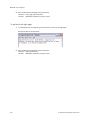
To add text to the login page ...................................................................... 170
Chapter 18 Working with control programs in WebCTRL ........................................................... 171
To select a different control program ......................................................................... 171
To edit a control program on a WebCTRL client .......................................................... 172
Chapter 19 Working with drivers in WebCTRL .......................................................................... 173
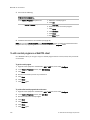
To change or upgrade a driver ................................................................................... 173
Chapter 20 Working with BACview files in WebCTRL................................................................. 175
To select a different .bacview file .............................................................................. 175
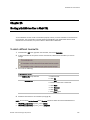
To edit a .bacview file on a WebCTRL client ................................................................ 176
Chapter 21 Running WebCTRL Server as a Windows service ..................................................... 177
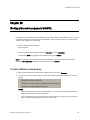
To install WebCTRL Server service ............................................................................. 177
To start WebCTRL Server as a Windows service .......................................................... 178
To set up the service for network printing ................................................................... 178
To remove WebCTRL Server service ........................................................................... 179
To determine if WebCTRL Server service is installed ................................................... 179
Chapter 22 Setting up a system for non-English languages ...................................................... 181
Installing a language pack ........................................................................................ 181
Preparing your workstation for non-English text ......................................................... 181
Creating control programs and translation files for a non-English system ................... 183
To enter a key term in EIKON LogicBuilder .................................................. 183
Translation files ......................................................................................... 183
To create and implement a translation file .................................................. 184
Creating graphics for a non-English system ............................................................... 185
Creating a non-English graphic in ViewBuilder ............................................ 185
Creating a graphic for a multi-language system using
WebCTRL extensions for FrontPage ................................................ 186
Creating a non-English system in SiteBuilder ............................................................ 187
To set language preferences ...................................................................... 187
To create your system ................................................................................ 188
System language ....................................................................................... 188
To set an operator’s language in WebCTRL ................................................................ 188
Editing translation files, control programs, or graphics for a non-English system......... 189
To edit a bundled resource ......................................................................... 189
Editing an EIKON for WebCTRL control program in EIKON LogicBuilder ........ 189
Copying translation files to another system ................................................ 190
Chapter 23 Web services ...................................................................................................... 191
Using Web services to retrieve or change data ........................................................... 191
WebCTRL privilege requirements................................................................ 192
WebCTRL data access using SOAP ............................................................. 192
Example using Web services to set a value ................................................................ 197
Step 1: Create a spreadsheet .................................................................... 197
Step 2: Create a macro ............................................................................. 197
Step 3: Run the macro .............................................................................. 199
Example using Web services to retrieve values ........................................................... 199
Step 1: Create a spreadsheet .................................................................... 199
Step 2: Create a macro ............................................................................. 200
Step 3: Run the macro .............................................................................. 201
Example using Web services to retrieve trend data ..................................................... 202
Step 1: Create a spreadsheet .................................................................... 202
Step 2: Create a macro ............................................................................. 202
Step 3: Run the macro .............................................................................. 204
Example using Web services to retrieve a WebCTRL report ......................................... 205
Step 1: Create a spreadsheet .................................................................... 205
Step 2: Create a macro ............................................................................. 205
Step 3: Run the macro .............................................................................. 206
Chapter 24 System database maintenance ............................................................................ 207
To back up a system ................................................................................................. 207
To compact and defragment ..................................................................................... 207
To minimize the database size .................................................................................. 208
Index ................................................................................................................................... 209
WebCTRL v5 User Manual
Chapter 1
What's new in v5
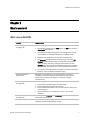
What's new in WebCTRL
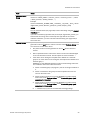
Feature
Improvement
Downloading
(see page 43)
The downloading interface and functionality has changed as follows:
•
Downloading moved from the CFG tree to the NET tree. Click the
Downloads action button.
•
The Downloads page (see page 44) was redesigned to provide
more flexibility and more feedback on the download tasks.
•
WebCTRL can download up to 5 routers simultaneously.
•
The Memory download option (see page 44) is now called All
Content and includes the names of source files (.equipment,
.view, .bacview, and .driver). Using this information, the new
Devices page can show file discrepancies between the database
and controller. This feature also accommodates Field Assistant.
•
You can see who downloaded a controller on the Controller Status
Report or on the controller's Properties page.
Improved download
performance
WebCTRL can now perform a memory download to at least 5
controllers on separate networks simultaneously and schedule
downloads to at least 10 controllers on separate networks
simultaneously.
Devices page
(see page 46)
A new management tool that allows you to:
•
•
•
•
View network/controller communication status
Resolve database/controller mismatches
View controller information such as model, address, driver, and
control program
Find ALC devices on a network that are not in your system
database
Locked values
(see page 33)
Locked values on Graphics and Properties pages have a yellow
dashed box around them.
Improved trend collection
Trend services have been improved to allow concurrent data
collection through multiple BACnet routers.
© 2011 Automated Logic Corporation
7
WebCTRL v5 User Manual
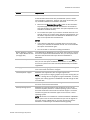
Feature
Improvement
Controller Status Report
(see page 113)
This report now includes a controller's download information, and, if
the controller has the 4.x or later driver, the serial number and Local
Access port status.
Tree display options
(see page 22)
You can display icons in the GEO tree to denote locations where items
such as schedules or alarm actions were created or assigned. You can
also turn on hover text so that when you hold the cursor over a
system, area, or equipment icon, information about the tree item is
displayed.
Schedule Group folders
(see page 57)
You can create folders and sort your groups into them to organize the
GRP tree.
WebCTRL Design Server
(see page 29)
WebCTRL Server no longer has a Normal mode and Design mode.
WebCTRL Server and WebCTRL Design Server are now 2 separate
applications on the Start Menu.
Location Audit Log and
System Audit Log reports
(see page 113)
The Audit Log report is now 2 reports, one with location-based
changes and one with system-wide changes.
Advanced Password Policy
(see page 135)
The System Settings > Security tab has 2 new options:
System Settings > Security
tab > Permissions
(see page 161)
•
•
Cannot be changed more than once every__ days
Force expiration button
When control programs, views, and bacview files are created by an
original equipment manufacturer (OEM), they cannot be used in a
WebCTRL system without the creator's permission. However, the
creator can produce a key for a system with a different license that
will grant permission to the key's recipient.
If you receive a key, you can activate it on the System Settings >
Security tab.
System Settings > Web
Applications tab
(see page 166)
You can deploy a web application from your WebCTRL system.
Alarm Notification Client (see It now has a continuous sound and silencing feature.
page 83)
You can now lock a client's Settings.
Enabling support for Alarm Popup clients moved from System
Settings > Other Applications tab to the General tab.
Edit Setpoint Tuning
Parameters privilege
(see page 124)
The permissions granted by the Edit Setpoint Parameters privilege
were split between that privilege and the new Edit Setpoint Tuning
Parameters privilege.
Remotely change the IP
configuration of a BACnet IP
controller
You can now change the IP configuration of a device in WebCTRL.
Disabling Local Access
To limit access to your system, you can disable a controller's Local
Access port from communicating with WebCTRL, Field Assistant, or
Test and Balance running on a laptop. Requires the v4.x driver.
HTTP Proxy and HTTP Tunnel These options were removed. Use Field Assistant instead.
in System Settings
8
© 2011 Automated Logic Corporation
WebCTRL v5 User Manual
Feature
Improvement
Download Source Files
Available only with a v4.x or later driver.
If Field Assistant will be used with your WebCTRL system, it needs
each controller's .equipment, .bacview, and .driver source files, plus
any .view files marked to be included in download.
•
Select the new Download Source Files option on the controller's
Properties page to have WebCTRL download the source files so
that Field Assistant can upload them. This option depends on the
controller's available memory.
•
Do not select this option if you know the controller does not have
enough memory or you want faster uploads in Field Assistant. You
will need to export the files from WebCTRL or SiteBuilder so that
they can be imported into Field Assistant.
NOTES
•
If you select this field but the controller does not have enough
memory, the download in WebCTRL will fail. You can then disable
this option and download again.
•
You can exclude a .view file from being downloaded.
System Settings > General
tab > Export All Source Files
(see page 160)
From WebCTRL or SiteBuilder, you can export source files to a .zip file
that can be imported into Field Assistant. And, you can export source
files from Field Assistant and import them into WebCTRL or
SiteBuilder.
BACnet Discovery
This feature is now a page under the Devices button on the NET tree.
And, you can now export the BACnet information to a .discovery file
that can be opened in the new Third-Party BACnet Utility or in EIKON
LogicBuilder.
WAP pages
The default WAP pages generated by WebCTRL have been redesigned
to be more useful and easier to navigate.
Internet Explorer support
WebCTRL now supports IE9, but no longer supports IE6.
NOTE If your system has legacy graphics and you are running IE9, you
may see a strange font on the graphics pages in WebCTRL. To correct,
upgrade your InterOp graphics in SiteBuilder. This will change the font
to Courier New.
Reset to Defaults
This menu option was removed from the right-click menu. You can use
the revert manual command instead.
64-bit operating system
WebCTRL has a 64-bit install for large systems that can use the
increased capability inherent in a 64-bit operating system. However,
the 64-bit install does not include Local Access support. The 32-bit
install that supports all connection types can be used on a 64-bit
operating system.
NOTE MS Access is not available on a 64-bit installation of WebCTRL.
If your system uses an Access database and you want to upgrade to
the 64-bit version of WebCTRL v5, you must migrate your Access
database to a different type of database before upgrading.
© 2011 Automated Logic Corporation
9
WebCTRL v5 User Manual
Feature
Improvement
HyperTerminal replaced by
PuTTY in Help
Windows operating systems after XP do not include the HyperTerminal
application. You can download the external application PuTTY to
communicate locally with controllers. Most HyperTerminal instructions
in Help have been replaced with PuTTY instructions. For
HyperTerminal instructions, see Communicating using HyperTerminal.
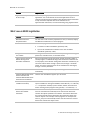
What's new in EIKON LogicBuilder
10
Feature
Improvement
Microblock Common
Properties Editor
You can view or edit common properties for the I/O, Network, Display,
and BACnet microblocks in a control program.
ZN microblock rules
A ZN control program can now have:
•
A maximum of 350 microblocks (previously 200)
•
Up to 2 PID microblocks in addition to the zone controller
microblock (previously 1 PID)
Integrator microblock is
non-volatile
The integrator microblock now retains its output magnitude through a
power loss, controller reset, or controller restart.
"Always upload" feature in
BACnet Analog Value
Parameter microblock
Using a combination of logic that writes critical parameters within a
control program to a BACnet Analog Value Parameter microblock and
a new property of the BACnet Analog Value Parameter microblock, you
can retain critical values through a power loss, through a controller
restart, and (if the reference name of the microblock is unchanged)
through a memory download.
BACnet PID microblock
This new microblock provides improved PID algorithm and BACnet
accessibility.
20-state BACnet Multi-state
Value Parameter and
20-state BACnet Multi-state
Value Status microblocks
These 2 new microblocks support up to 20 states.
OCL microblock system
variable for weekday
To be consistent with the System Variable microblock, the weekday
system variable has changed to WKDAY, where Monday = 1 to Sunday
= 7. The previous weekday system variable, WDAY, will continue to
work in existing control programs using Sunday = 1 to Saturday = 7.
Wildcard (*) instead of
Device ID in BACnet
addresses
Use an * in a Network Input or Total Analog microblock's address to
have the microblock automatically locate the nearest device that
contains the object specified in the address. This feature eliminates
the need for specific device addresses when retrieving values from
common objects. For example, control programs on a campus that
need oa_temp can automatically retrieve the value from the nearest
device that contains that object name.
© 2011 Automated Logic Corporation
WebCTRL v5 User Manual
Feature
Improvement
Edit > Third Party BACnet
Addresses
You can edit the addresses that you created with the Third-Party
BACnet Utility. Or, you can convert a control program into an
integration program by changing I/O microblocks to Network or
Display microblocks and setting the microblock addresses.
Device Alias microblock and
Device Alias field in Display
microblocks
These allow the use of Network I/O and Display microblocks in the
same program, and efficient re-use of programs for multiple instances
of third-party equipment.
Mark certain properties as
Read-only
You can right-click some properties in EIKON LogicBuilder and select
Make Editable or Make Read-Only to determine that property's
functionality in WebCTRL.
Remove all Property Page
Text
You can use this Tools menu add-on to remove property page text for
all microblocks in a control program.
Keep historical trends for
___days
You can now define this setting in EIKON LogicBuilder for I/O and Log
microblocks. Previously, this was only in WebCTRL.
Use unitary naming
You can set your control program to use unitary naming to omit __# at
the end of BACnet object names.
Immediate Triggered Write
The Immediate Triggered Write property was removed from ANO2 and
BNO2 microblocks. These microblocks automatically write their value
as soon as they are enabled.
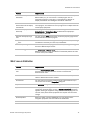
What's new in SiteBuilder
Feature
Improvement
Environmental Index source
tree
The new Environmental Index source tree allows you to drag and drop
zones that use standard reference names to calculate the
Environmental Index.
Use Server's Time Zone
A site now defaults to the WebCTRL server's time zone, but you can
select a different time zone if needed.
Find feature
You can search your system database for any information that you
can access from an item's Properties dialog box.
Replicate feature
The Replicate dialog boxes were redesigned.
Synchronize views
If multiple pieces of equipment use the same control program and you
change the attached view(s) for one, a Synchronize Views dialog box
appears showing all equipment using the same control program. You
can then easily select other equipment that requires the same view
change.
View Properties
When you attach a view in SiteBuilder, you can edit the view's
navigation properties that were defined in ViewBuilder.
Custom source trees
You can now create up to 20 custom source trees.
© 2011 Automated Logic Corporation
11
WebCTRL v5 User Manual
Feature
Improvement
Connect strings for MySQL,
Oracle, PostgreSQL, or
SQLServer databases
The connect strings were broken into fields in SiteBuilder to simplify
setup of the databases.
Support for lighting control
When adding an LX6 controller in SiteBuilder, a Panel Properties tab
appears where you select the lighting control panel's model.
Download Source Files
Available only with a v4.x or later driver.
If Field Assistant will be used with your WebCTRL system, it needs
each controller's .equipment, .bacview, and .driver source files, plus
any .view files marked to be included in download.
•
Select the new Download Source Files option to have WebCTRL
download the source files so that Field Assistant can upload them.
This option depends on the controller's available memory.
•
Do not select this option if you know the controller does not have
enough memory or you want faster uploads in Field Assistant. You
will need to export the files from SiteBuilder or WebCTRL so that
they can be imported into Field Assistant.
NOTES
•
You can set this option at the site level so that it is the default for
every new controller that you add. You can then change the
setting for individual controllers.
•
If you select this field but the controller does not have enough
memory, the download in WebCTRL will fail. You can then disable
this option on the controller's Properties page in WebCTRL and
download again.
Export and import source
files
From SiteBuilder or WebCTRL, you can export source files to a .zip file
that can be imported into Field Assistant. And, you can export source
files from Field Assistant and import them into WebCTRL or
SiteBuilder.
SSL certificate management
SiteBuilder now has the ability to make and delete SSL certificates,
simplifying the process of certificate creation and deletion.
What's new in ViewBuilder
12
Feature
Improvement
Drawing tools
New tools let you draw vector lines and shapes.
Lighting graphics
The ViewBuilder library now has graphics for lighting.
© 2011 Automated Logic Corporation
WebCTRL v5 User Manual
What's new–Other tools
Use...
To...
Field Assistant
Service or start up and commission a piece of equipment or a partial
network of controllers.
Third-Party BACnet Utility
Use discovered BACnet information to choose and address
microblocks for third party BACnet integration.
Test & Balance
(Redesigned)
Calibrate airflow in VAV zone controllers, commission air terminals,
and override reheat and terminal fans.
© 2011 Automated Logic Corporation
13
WebCTRL v5 User Manual
14
© 2011 Automated Logic Corporation
WebCTRL v5 User Manual
Chapter 2
What is WebCTRL?
WebCTRL is a web-based building automation system that can be accessed from anywhere in the
world through Internet Explorer, without the need for special software on the workstation. Through
Internet Explorer, you can perform building management functions such as:
•
adjust setpoints and other control parameters
•
set and change schedules
•
graphically trend important building conditions
•
view and acknowledge alarms
•
run preconfigured and custom reports on energy usage, occupant overrides, tenant billing, and
much more
© 2011 Automated Logic Corporation
15
WebCTRL v5 User Manual
A typical WebCTRL system
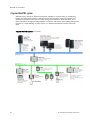
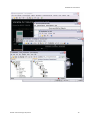
WebCTRL uses a network of microprocessor-based controllers to control heating, air conditioning,
lighting, and other facility systems. A web-based server communicates with these controllers and
generates web pages that the user can access through Internet Explorer. WebCTRL allows you to
gather information, change operating properties, run reports, and perform other building management
functions on a single building, an entire campus, or a network of facilities that stretch around the
globe.
A typical WebCTRL system may include:
16
© 2011 Automated Logic Corporation
WebCTRL v5 User Manual
The WebCTRL client uses Internet Explorer to access WebCTRL Server as a website. Access and
security options in WebCTRL may include:
WebCTRL editions
WebCTRL supports:
•
Unlimited simultaneous users
•
Multiple operating systems and databases
•
Built-in alarming, trending, and reporting
•
International languages (International English, Korean, Traditional and Simplified Chinese,
Spanish, French, German, Russian, Swedish, Thai)
•
Third-party integration
•
WAP-enabled devices
•
Secure server access using TLS/SSL
•
Optional WebCTRL packages listed below
WebCTRL 500 supports all the same features and options as WebCTRL in systems with fewer than
500 points.
NOTE Points include all input and output points tied into the system, regardless of vendor.
© 2011 Automated Logic Corporation
17
WebCTRL v5 User Manual
Optional WebCTRL packages
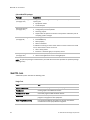
Package
Capabilities
Advanced Reporting
(see page 113)
Configurable report designer for making environmental reports. Available
report types:
Advanced Security
(see page 131)
•
•
•
•
•
•
Advanced Alarming
(see page 82)
Enterprise Integration
(see page 191)
Equipment Values
Trend Samples
Location-dependent operator access
Configurable password policies
Audit Log reports
Requirement of operator comments and operator verification prior to
accepting system changes
The following alarm actions:
• Send SNMP trap
• Write property
• Write to database
In addition to running an alarm action when an alarm or return-to-normal
occur, alarm actions can be set to run:
•
•
•
•
After a delay period
Based on a schedule group's occupancy status
Web services (XML/SOAP) data retrieval
Add-on web applications such as EnergyReports
NOTE An optional package is enabled when you install the license that provides the optional package
(see page 167).
WebCTRL tools
A WebCTRL system includes the following tools.
Design Tools
18
Use...
To...
EIKON LogicBuilder
Create control programs and Properties pages.
ViewBuilder
Create graphics and BACview screens.
ViewBuilder for WAP
Customize pages for WAP-enabled devices.
SiteBuilder
Create and modify the system database and associate control
programs and graphics with equipment.
Third-Party BACnet Utility
Use discovered BACnet information to choose and address
microblocks for third party BACnet integration.
© 2011 Automated Logic Corporation
WebCTRL v5 User Manual
© 2011 Automated Logic Corporation
19
WebCTRL v5 User Manual
Start-up, Commissioning, and Service Tools
20
Use...
To...
Field Assistant
Service or start up and commission a piece of equipment or a
partial network of controllers.
Test & Balance
Calibrate airflow in VAV zone controllers, commission air
terminals, and override reheat and terminal fans.
Virtual BACview
Let your laptop serve as a local interface to a single piece of
equipment.
© 2011 Automated Logic Corporation
WebCTRL v5 User Manual
Chapter 3
Getting to know the workspace
NOTES
•
After you log in to WebCTRL, you will see the page defined as your starting location on the My
Settings page. To change your opening page, see To change My Settings (page 130).
•
Privileges control what an operator can see or do in WebCTRL. If you cannot see or do something
that you read about in Help, ask your System Administrator to check your privileges.
© 2011 Automated Logic Corporation
21
WebCTRL v5 User Manual
Navigating the system
NOTE Use only the WebCTRL interface to navigate through WebCTRL; do not use the browser’s
navigation buttons.
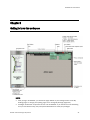
To navigate to an item in the system
1
Select an item in the GEO or NET tree.
NOTE The GRP and CFG trees are used to set up your system.
2
Use the action buttons and their drop-down menus to navigate to specific types of information
about the selected tree item.
3
Use the tabs to filter the information further.
To navigate using links
Use links to jump to related pages.
On a Graphics page
On a Properties page
Tree icons and hover text
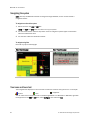
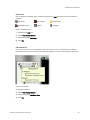
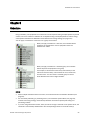
The navigation tree displays an icon to the left of each item to denote the type of item. For example:
System
Area
Equipment
You can select custom equipment icons in EIKON LogicBuilder or in WebCTRL. In WebCTRL, right-click
the equipment in the GEO or NET tree, select Configure, then select the Icon.
22
© 2011 Automated Logic Corporation
WebCTRL v5 User Manual
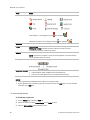
Optional icons
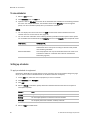
You can display the following icons to denote locations in the GEO tree where items were created or
assigned.
Schedules
Trend Graphs
Alarm Actions
Schedule Groups
Reports
Privileges
To turn on optional icons:
1
Right-click the GEO tree.
2
Select Tree Display Options.
3
Select the desired Tree Icons.
4
Click OK.
Optional hover text
If you turn on hover text, you can hold the cursor over a system, area, or equipment icon to display
information about its item. The information displayed depends on which hover text options you select.
To turn on hover text:
1
Right-click the tree.
2
Select Tree Display Options.
3
Select the desired Tree Hover Text.
4
Click OK.
© 2011 Automated Logic Corporation
23
WebCTRL v5 User Manual
To show/hide the navigation pane
Click
to toggle the navigation pane between shown or hidden. When the navigation pane is hidden,
move the cursor across the left edge of the browser to show the navigation pane.
Click and drag the right edge of the navigation pane to adjust its width.
Zooming and resizing in the action pane
•
Hold down Ctrl while rolling your mouse wheel to zoom in or out on the contents of the action
pane.
•
Right-click the action pane and select Scale to 100% to restore the contents to their original size.
•
If a graphic does not fit in the action pane, right-click it and select Scale to Fit to make it fit the
action pane. Select Scale to 100% to return it to its original size.
Using right-click menus
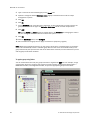
You can right-click the following items to select options:
A tree item
The action pane
A property
To print the action pane
Click
to print the contents of the action pane. Set the print orientation to Landscape in the Print
dialog box.
24
© 2011 Automated Logic Corporation
WebCTRL v5 User Manual
Colors and status in WebCTRL
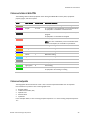
The following colors indicate equipment status throughout WebCTRL on floor plans, equipment
property pages, and some reports.
Color
Color Name
Status Code
Condition Indicated
Mustard
none
In equipment when running WebCTRL Design Server
Purple
0 or 15
In a controller—non-operational or no communications
In equipment—a hardware or software error
Charcoal
14
In a controller—a download is required or is already in
progress
In equipment—a controller has stopped
Coral
13
Control program error
NOTE If a zone controlled by a U line controller shows
coral on a floorplan, the controller may be offline.
Red
2 or 9
Heating or cooling alarm
Orange
8
Maximum cooling
Dark blue
3
Maximum heating
Yellow
7
Moderate cooling
Light blue
4
Moderate heating
Gray
1
Unoccupied/inactive
White
10
Occupied/active
Light green
6
Free cooling
Green
5
In a controller—operational or operational read only
In equipment—No heating or cooling
Colors and setpoints
Thermographic colors indicate how much a zone’s actual temperature differs from its setpoints.
Five conditions may affect a zone’s thermographic color:
• Setpoint adjust
• Timed local override (TLO)
• Optimal start
• Demand level
• Hysteresis
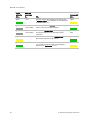
In the examples below, a zone’s heating occupied setpoint is 70° and its cooling occupied setpoint is
74°.
© 2011 Automated Logic Corporation
25
WebCTRL v5 User Manual
26
If you
normally
see...
when the
zone temp
is...
green
72.5°
someone adjusts the setpoints (for example, with
a setpoint adjust of two degrees, the new setpoints
would be 68 and 72°)
yellow
gray
73°
(unoccupied)
someone presses the Override button on a room
sensor to use the occupied setpoints
green
gray
77°
(unoccupied)
the zone is in optimal start and is ramping up to
its occupied setpoint in the few hours before
occupancy
an occupied
color
yellow
75°
the zone’s electric meter is in demand level 2
with relaxed setpoints of 68 and 76°
green
green
73.5°
cooling began when the temperature rose above
74° and the temperature has not yet dropped
beyond the 1° hysteresis (to 73°)
yellow
then you will
see...
but...
© 2011 Automated Logic Corporation
WebCTRL v5 User Manual
Chapter 4
Running WebCTRL Server
WebCTRL Server accesses and maintains the system database that is viewed and edited from client
browsers.
WebCTRL Server's Current Users, Connections, and Output tabs allow you to monitor the status of the
system. Output information is continually archived to WebCTRLx.x\logs\WEBSERVER.log.
To run a system
WebCTRL Server must be running before operators can log in from client browsers.
1
Select Start > Programs > WebCTRL x.x > WebCTRL Server.
TIP If you use WebCTRL as a Windows service, your computer can automatically start WebCTRL
Server every time the computer starts. See Running WebCTRL as a Windows service (page 177).
2
Start the Internet browser on one or more client computers.
3
Verify that your browser is set up for displaying WebCTRL. See To set up a browser to view
WebCTRL (page 27).
4
Type the WebCTRL server's address in the browser's Address field.
NOTE You can type http://localhost if the WebCTRL Server and browser are running on
the same computer.
5
Enter a Name and Password.
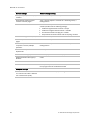
To set up a computer and browser to view WebCTRL
NOTES
•
WebCTRL Server must be running before operators can log in from client browsers.
•
To view trends, client computers need Sun's Java VM plugin. In WebCTRL, go to the CFG tree Client
Installs page for a link to the Java website.
© 2011 Automated Logic Corporation
27
WebCTRL v5 User Manual
Browser settings
Where to change setting
Accept First-party and Third-party
cookies.*
Tools > Internet Options > Privacy tab >Advanced button
Automatically check for newer
versions of stored pages.*
Tools > Internet Options > General tab > Browsing history >
Settings button
Load ActiveX Control*
Tools > Internet Options > Security > Custom Level > ActiveX
controls (enable all of the following settings)
•
•
•
•
Download signed ActiveX controls > Prompt
Download unsigned ActiveX controls > Disable
Run ActiveX controls and plug-ins > Enable
Script ActiveX controls marked safe for scripting > Enable
Disable the Image Toolbar (IE6).
Tools > Internet Options > Advanced tab > Multimedia section
Select Play animations in web
pages.
Tools > Internet Options > Advanced tab > Multimedia section
Do not save passwords if the
computer is used by multiple
operators.
Tools > Internet Options > Content tab > AutoComplete >
Settings button
Disable all the options on the
Explorer Bar.
View > Explorer Bar
Disable browser's pop-up blockers.
Tools > Pop-up Blocker > Turn Off Pop-Up Blocker
Disable external toolbar pop-up
blockers.
Varies
Hide the browser's toolbars.
View > Toolbars
Maximize the browser window.
F11 on your keyboard, or use the minimize/maximize button in
the top right corner of the browser window
Computer settings
Set the monitor's screen resolution
to a minimum of 1024 x 768 with
24- or 32-bit color quality.
28
Start > Control Panel > Display > Settings tab
© 2011 Automated Logic Corporation
WebCTRL v5 User Manual
Browser settings
Where to change setting
Disable navigation sounds.
Start > Control Panel > Sounds and Audio Devices > Sounds tab
* WebCTRL cannot function without this setting.
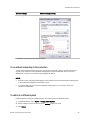
To run without connecting to the controllers
To verify links between graphics and to set up properties, schedules, alarms, and trends before you
connect to the network, run the WebCTRL Design Server instead of WebCTRL Server. Then view
WebCTRL in a browser as you would if running WebCTRL Server.
NOTES
•
Question marks and purple thermographic color indicates correct microblock paths. Missing data
or dark yellow thermographic color indicate errors.
•
If your Start Menu does not show the WebCTRL Design Server, you are using a Tools Only
installation of WebCTRL.
To switch to a different system
Design engineers working on multiple projects can switch systems in WebCTRL Server.
1
In WebCTRL Server, select Server > Change Active System.
2
Select a different system (it must be in the webroot folder) and mode.
3
Click Select.
© 2011 Automated Logic Corporation
29
WebCTRL v5 User Manual
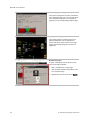
To send a message to logged in operators
Notification messages are delivered immediately to WebCTRL client browsers. You can send multiple
messages, but the operator must click Ok for the first message before the next message can be
delivered. If the browser window is minimized, the message is not visible.
1
In WebCTRL Server, click the Current Users tab.
2
Click the Notify button
Users.
3
Type a Notification message.
4
Click OK.
beside the user you want to send a message to. Or click Notify All
NOTE You can also type notify [followed by the message] in the manual command
dialog box in WebCTRL to send a message to all logged in operators.
To log off an operator
NOTE The operator will be logged off without warning.
1
In WebCTRL, press Ctrl+m.
2
Type whoson in the manual command field.
3
Obtain the ID number of the operator you want to log off.
4
Press Ctrl+m.
5
Type logoffuser x (where x is the ID number).
6
Click OK.
To shut down a system
1
In WebCTRL Server, select Server > Shut Down.
2
Optional: Select a delay option, then edit the Notification message.
3
Click Shut Down.
NOTE You can also type shutdown in the manual command dialog box in WebCTRL to shut down the
server.
30
© 2011 Automated Logic Corporation
WebCTRL v5 User Manual
Chapter 5
Working with equipment
You can view and adjust equipment operation from the following pages:
Graphics pages (see page 33)
You can view and adjust your essential building
controls on most Graphics pages.
© 2011 Automated Logic Corporation
•
Thermographic floor plans indicate the
temperature of zones compared to their
effective setpoints.
•
Equipment graphics show the current
status of mechanical equipment and often
include an adjustable setpoint control or
other editable properties.
31
WebCTRL v5 User Manual
Properties pages (see page 36)
Each piece of equipment and each microblock
has a Properties page. You can view and adjust
more equipment properties on a Properties
page than on its corresponding Graphics page.
Logic pages (see page 39)
Logic pages show the control program for a
piece of equipment. Use the sequence of
control and yellow status values on the Logic
pages for troubleshooting your mechanical
equipment.
Microblock pop-ups
To open a microblock pop-up where you can
view and change properties:
32
•
Click a microblock on a Logic page.
•
Click the bold, underlined microblock name
on a Properties page.
•
Right-click a value and then select Details.
© 2011 Automated Logic Corporation
WebCTRL v5 User Manual
Graphics pages
You can view and adjust your system from Graphics pages, which include navigation maps, floor plans,
and equipment.
Some typical controls that may appear on a graphics page are:
•
Button or switch to turn equipment on or off
•
Input field to set a property value
•
Drop-down list to select a state
•
Interactive room sensor to override an unoccupied schedule
•
Setpoint graph to adjust setpoints
•
Trend graph to view trend information
•
Link to jump to another WebCTRL page or to the Internet
NOTES
•
Right-click a value, then select Details to view and change properties in the microblock pop-up.
•
Right-click a value, then select Global Modify (see page 41) to view and change the property in
other control programs.
•
A yellow dashed box around a value indicates the value is locked.
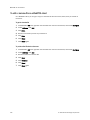
•
If a graphic is larger than the action pane, right-click the graphic and select Scale to Fit to see the
whole graphic. Right-click and select Scale to 100% to return the graphic to its original size.
•
When using Scale to 100%, hold down Ctrl while rolling the mouse wheel to zoom in and out on a
graphic.
To attach a graphic in WebCTRL
1
On WebCTRL's navigation tree, right-click the item that you want to attach a graphic to, then select
Configure.
2
Equipment graphic only: If the system has other control programs of this type, select which control
programs you want to change.
© 2011 Automated Logic Corporation
33
WebCTRL v5 User Manual
NOTES
3
○
If the control program is in an IP router, the second option will change the graphic for all
control programs of this type only on the IP network.
○
If the control program is on the network below an IP router, the second option will not change
the graphic for the router's control programs of this type.
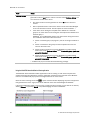
Do one of the following:
If the graphic is...
In the Views Available list
a. Select the graphic, then click Attach.
b. Click OK.
Not in the Views Available list
a. Click Add New.
b. Browse to select the view file.
c. Click Open.
d. Click Continue.
e. Click Close.
f. Click Close again.
NOTES
•
Select a graphic in the Attached list to edit the graphic's:
○ Display Name–The name that appears in the Graphics button drop-down list
○ Category–The name of the category that multiple graphics may be sorted into in the Graphics
button drop-down list
NOTE Changes to Display Name or Category apply only to WebCTRL and are not retained if
you export source files.
○ Reference Name–The name that is used to create links to the graphic in ViewBuilder
○ Included in download–Equipment graphics only. Select to have the .view file included in an All
Content download so that it can be uploaded by Field Assistant. The graphic will have
beside it in the Attached list. Requires 4.x or later drivers.
•
You can click Delete Unused at the bottom of the Views section to delete all unattached graphic
files from your system.
To edit a graphic on a WebCTRL client
On a WebCTRL client, you can get a copy of a graphic from the server, edit it, then put it back on the
server.
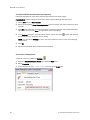
To get the graphic
34
1
On WebCTRL's GEO tree, right-click the item that the graphic is attached to, then select Configure.
2
At the bottom of the Views section, click Edit Existing.
3
Select the graphic you want to edit.
© 2011 Automated Logic Corporation
WebCTRL v5 User Manual
4
Click Save
5
Browse to the folder you want to put the file in.
6
Click Save.
7
Click Close.
8
Click Close again.
To put the edited graphic back on the server
1
On WebCTRL's GEO tree, right-click the item that the graphic is attached to, then select Configure.
2
At the bottom of the Views section, click Add New.
3
Browse to select the .view file.
4
Click Open.
5
Click Continue.
6
Click Close.
7
Click Close again.
To organize multiple graphics for a tree item
If a single tree item has multiple graphics and you want to change the default graphic that was defined
in SiteBuilder, display the graphic in WebCTRL, then run the setdefault manual command (see page
141).
In WebCTRL, you can create categories and assign graphics to them so that the Graphics button dropdown menu has the graphics arranged by category. This is typically done in ViewBuilder or SiteBuilder.
See "To define WebCTRL navigation" in ViewBuilder Help and "To attach graphic files" in SiteBuilder
Help.
To add or edit a Graphics category in WebCTRL
1
On WebCTRL's CFG tree, click the plus sign (+) to the left of the Categories folder, then select
Graphic.
2
Click Add or select a category to edit.
3
Type the Category Name and Reference Name.
4
Optional: Select a privilege so that only operators with that privilege can access graphics in the
category.
5
Click OK.
NOTE To delete a category, select the category, click Delete, then click OK.
© 2011 Automated Logic Corporation
35
WebCTRL v5 User Manual
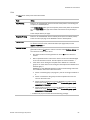
To assign a graphic to a category in WebCTRL
1
On WebCTRL's GEO tree, right-click the item that the graphic is attached to, then select Configure.
2
Under Views, select the graphic in the Attached list.
3
Select the category in the Category field.
4
Click OK.
Properties pages
Properties pages are automatically generated from control programs created in EIKON LogicBuilder.
Use Properties pages to:
•
View the status of a piece of equipment. See Colors and status in WebCTRL (page 25).
•
View or change the equipment or microblock properties currently stored in the controller
•
Commission equipment
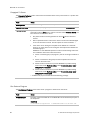
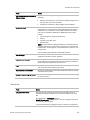
To view or edit properties
1
Select a piece of equipment or a microblock on the GEO or NET tree, then click Properties.
NOTE You must resolve any condition described in red text at the top of the page before a
Properties page can obtain current information from its controller.
36
2
To change a property:
3
Click OK.
© 2011 Automated Logic Corporation
WebCTRL v5 User Manual
NOTES
•
Right-click a value, then select Details to view and change properties in the microblock pop-up.
•
Right-click a value, then select Global Modify (see page 41) to view and change the property in
other control programs.
•
A yellow dashed box around a value indicates the value is locked.
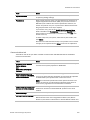
Point types
A point name on the Properties page is followed by a code that tells you the point type. The table below
describes each code.
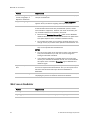
Code
Point type
AI
Analog Input
ANI
Analog Network Input
ANI2
Analog Network Input 2
ANO
Analog Network Output
ANO2
Analog Network Output 2
AO
Analog Output
AV
Analog Value
BAI
BACnet Analog Input
BALM
BACnet Alarm
BAO
BACnet Analog Output
BAV
BACnet Analog Value
BBI
BACnet Binary Input
BBO
BACnet Binary Output
BBV
BACnet Binary Value
BFM
Floating Motor
BI
Binary Input
BLSTAT
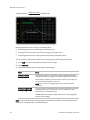
LogiStat Zone Sensor with Optional OAT Display
© 2011 Automated Logic Corporation
37
WebCTRL v5 User Manual
38
Code
Point type
BMSV
BACnet Multi State Value
BNI
Binary Network Input
BNI2
Binary Network Input 2
BNO
Binary Network Output
BNO2
Binary Network Output 2
BO
Binary Output
BPTA
Pulse to Analog Input
BPWM
Pulse-Width Output
BRS
RS Sensor
BRSF
RS Sensor Fan
BTLO
Timed Local Override
BTRN
Trend Log
BV
Binary Value
DI
Digital Input
DO
Digital Output
EVT
BACnet Alarm
LAN AI
LAN Analog Input
LAN AO
LAN Analog Output
LAN DI
LAN Digital Input
LAN DO
LAN Digital Output
LSTAT
LogiStat Zone Sensor
POLLAVG
Average Analog Properties
POLLMAX
Maximum Analog Properties
POLLMIN
Minimum Analog Properties
POLLTOT
Total Analog Properties
PTA
Pulse to Analog Input
TLO
Timed Local Override
© 2011 Automated Logic Corporation
WebCTRL v5 User Manual
Logic pages
The Logic page shows the control program for a piece of equipment. WebCTRL updates the live data
(yellow text) every few seconds and whenever you click the Logic button. The control program uses
exact property values for its calculations, but values are rounded to 2 decimal places when displayed
on the Logic page.
TIP Click anywhere on the Logic page, then use the Page Up, Page Down, and arrow keys to scroll
through the page.
NOTE If you find an unexpected value on a Properties page or a Logic page, you can use the Logic
page to troubleshoot.
To view a Logic page
1
Select a piece of equipment in the GEO or NET tree.
2
Click Logic.
3
Click a microblock to view its details.
To locate a microblock, section, or label
1
Right-click the Logic page, then select Jump To.
2
Do one of the following:
○
On the Microblock or Section tab, select an item to have WebCTRL locate and highlight the
item.
○
On the Label tab, select a label to have WebCTRL display a reduced logic page outlined in
yellow that shows all instances of the label. A red box indicates an output label; a yellow box
indicates an input label. Click a red or yellow box to jump to that label in the full-size logic
page.
NOTE You can also click a label on the full-size logic page to display the reduced logic page.
To change properties, alarms, or trends
1
Click a microblock on the equipment’s Logic page.
2
In the microblock pop-up, click the Properties, Alarms, or Trends button.
3
Change properties, alarms, or trends for that microblock in the same way that you would make
changes on a regular Properties page (see page 36), Alarms page (see page 101), or Trends page
(see page 65).
4
Click OK or Apply.
NOTE Right-click a value, then select Global Modify (see page 41) to view and change the property in
other control programs.
© 2011 Automated Logic Corporation
39
WebCTRL v5 User Manual
Using a Logic page to troubleshoot
WebCTRL monitors your system and provides feedback. Interpreting the feedback on a Logic page is a
powerful troubleshooting tool.
If you find an unexpected value on a Properties page or a Logic page, work your way backward (right to
left) through the sequence in the control program to discover what caused that value. See Microblock
reference to understand what each microblock in the sequence is doing.
Unexpected feedback
Possible cause
Space temperature reads
excessively high or low
•
The sensor has a short (or open) circuit. Verify wires are properly
connected at the sensor and controller.
•
A sensor is missing or configured incorrectly on its Properties
page.
Equipment displays an
unexpected color - effective
setpoints are different than
the programmed setpoints
Gaps in trend data on trend
graph
NOTE Equipment operates using effective setpoints.
•
Check hysteresis.
•
Check Demand Level.
•
Check Optimal Start.
•
Check Timed Local Override (TLO).
•
Check Setpoint Adjust.
Usually gaps result if network communication was disrupted or a
point was temporarily disabled.
If the gap is not the result of interrupted communication, send
reports more frequently. Open the trend microblock that displayed
the gap in data, then decrease the notification threshold so that it is
approximately 40% of the buffer size (allocated memory size) for
that microblock.
WebCTRL is not receiving
alarms from a BACnet alarm
microblock
Output should be off, but the
equipment is on
Locate the microblock on the Logic page. If the color square on the
microblock is black, the alarm is disabled. To enable it:
1
Click the microblock.
2
In the microblock pop-up, click the Alarms button.
3
On the Enable/Disable tab, select Potential alarm source.
The On-Off-Auto (OOA) switch on the controller for that equipment
may be locked in the On (Hand) position.
Sensor value on the Properties Calibrate the sensor.
page does not match the
Check to see if the output point is locked on.
reading from handheld sensor
40
© 2011 Automated Logic Corporation
WebCTRL v5 User Manual
Changing multiple microblock properties
Two WebCTRL features, Global Modify and Global Copy, allow you to view and change multiple
microblock properties at the same time.
TIP Click
to copy a microblock's reference path to the clipboard so you can paste it into another
field or application.
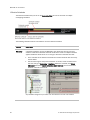
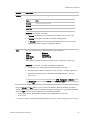
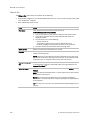
To use Global Modify
Use the Global Modify feature to:
•
View a microblock’s full path, control program name, and the privileges required to change its
properties.
•
View or change a single property in several control programs at one time.
•
View errors on graphics and Properties pages.
1
Browse to any page that displays the property you want to view or change.
2
Do one of the following to access Global Modify.
○ Right-click the property, then select Global Modify.
○ Alt+click the property.
Make changes to the Control Program field, if needed.
3
NOTES
○
Use wildcards in the Control Program field to broaden the search.
For example:
vav* matches vav, vav1, vavx, vav12345
vav*z matches vavz, vav1z, vavxz, vav12345z
vav*1*2 matches vav12, vavabc1xyz2
vav?? matches vav11, vav12, vavzz, but does not match vav, vav1, vav123
* matches any control program
○
Click Show Advanced to view the location, value, and privileges associated with this property.
4
Select the tree item under which you want to search for every occurrence of that microblock in
other control programs.
5
Click Find All.
6
Select the properties in the list that you want to change.
© 2011 Automated Logic Corporation
41
WebCTRL v5 User Manual
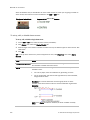
7
Do one of the following:
○
Type a New Value to the right of each selected item (a).
○
Type a number in the Set All To field (b).
○
Type a number in the Change All By field (c).
8
If you typed a value in b, click Set All To.
If you typed a value in c, click Change All By.
9
Click Apply Changes.
NOTE To modify several properties in multiple control programs at the same time, use Global Copy.
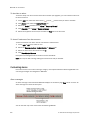
To use Global Copy
Use Global Copy to copy any or all of the following from one control program to other equipment using
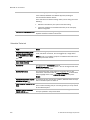
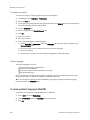
the same control program:
•
•
•
•
Embedded trend graph settings
Custom trend graphs
Custom reports
Other editable properties to other pieces of equipment using the same control program.
1
On the GEO or NET tree, right-click the piece of equipment that has the properties you want to
copy, then select Copy Control Program Properties.
2
In the Global Copy dialog box, select the items that you want to copy.
3
Select the area on the tree containing similar control programs that you may want to copy these
properties to, then click Search.
All instances at that level and below are listed in the expanded lower window.
42
© 2011 Automated Logic Corporation
WebCTRL v5 User Manual
4
Select or clear checkboxes as needed.
5
Do one of the following:
6
○
Select the Skip bad values checkbox to copy all values except a bad value (it cannot be copied
because you do not have the necessary privilege, the property to be copied is undefined, etc.).
○
Clear the checkbox to prevent any values from being copied if a bad value is found.
Click Apply Changes, then close the Global Copy dialog box.
Downloading to controllers
If you make any of the following changes, you must download the new data from WebCTRL Server to
the affected controllers.
In WebCTRL
In SiteBuilder
•
•
•
•
•
•
•
•
•
•
•
•
Change or reload a control program
Change or reload a driver
Change a schedule
NOTE A schedule change automatically downloads unless you clear its
Automatically Download Schedules checkbox (on the schedule's Configure
tab under Show Advanced).
Change a BACview file
Select or deselect a .view file's Included in download option
Add a device
Add equipment
Change or reload a control program
Set an object instance
Change or reload a driver
Assign or unassign equipment
Select or deselect a .view file's Included in download option
WebCTRL automatically marks the affected controllers as requiring a download. You can download
these controllers from the Downloads page (see page 44) or the Properties page (see page 45) for the
controller, the equipment, or a microblock.
When WebCTRL marks a controller for download, it determines what information needs to be
downloaded based on the type of information that changed. See Download Options (page 44).
NOTES
•
A property change in WebCTRL is automatically downloaded while WebCTRL is communicating
with the controller. If the download fails, WebCTRL adds the controller to the Downloads page with
the reason for the failure.
•
To see who downloaded a controller last, go to the NET tree, select the controller, then do one of
the following:
○
Go to Reports > Network > Controller Status, then click Run.
○
View Downloaded by on the Properties page.
○
Click Module Status on the Properties page.
© 2011 Automated Logic Corporation
43
WebCTRL v5 User Manual
Download Options
When WebCTRL marks a controller for download, it determines what information needs to be
downloaded based on the type of information that changed. Below are the options that can be
downloaded.
This option...
Downloads...
All Content
•
•
•
•
•
Only the executable portion of the driver and control programs
The names of all .equipment, .bacview, and .driver source files
The names of any .view files that are marked to be included in a download
Parameters
Schedules
NOTE An All Content download also:
• Synchronizes the controller's time to WebCTRL.
• Overwrites trends in the controller.
• Restarts the controller.
Only Schedules
All schedules that are not set for automatic download
Only Parameters
All editable properties
Only BBMDs
BBMD tables (.bdt file) that you have updated but have not yet written to the
controller
NOTES
•
An All Content download clears trend, history, and alarm data from the affected controllers. At the
beginning of the download process, trends that have the Trend Historian enabled are saved to the
system database.
•
If Field Assistant will be used with your system, you can choose to have the All Content option
download the full source files instead of only their names. In WebCTRL's NET tree, select a
controller, then enable Download Source Files on the Properties page. See Commissioning
equipment using Field Assistant.
To download from the Downloads page
The Downloads page shows any controllers that WebCTRL marked for download. But if needed, you
can add other controllers to the list.
To download:
44
1
On the NET tree, select an item to download controllers at and below that item.
2
Click Downloads.
3
Click
to the left of a Location to see controllers that require a download.
© 2011 Automated Logic Corporation
WebCTRL v5 User Manual
4
Optional: To add controllers to the list:
a) Click Add.
b) Select the controller(s).
NOTE Use Ctrl+click or Shift+click to select multiple controllers.
c) Select a Download Option (see page 44).
d) Click Add, then click Close.
5
Select the controllers that you want to download.
NOTES
6
○
Use Ctrl+click, Shift+click, or the Select All checkbox to select multiple controllers.
○
A network's controllers download in the order shown. To change the order, select a
controller(s), then drag and drop or click Move to Top or Move to Bottom.
EXCEPTION If a controller's router requires a download, it will download first regardless of it's
position on the Download page.
Click Start.
NOTES
•
•
•
•
Click Hold to stop pending
downloads. Active downloads cannot be stopped.
Up to 5 routers can download simultaneously.
A controller is removed from the list when its download is complete.
Icons in the Tasks column indicate the following:
Active—WebCTRL is downloading to the controller.
Pending—You initiated the download, and the controller is waiting for its turn to download.
Failed—The download failed. See If a controller fails to download (page 46).
On Hold—Indicates either of the following:
• The controller requires a download
• You clicked Hold to stop a pending
•
•
download.
in the upper left-hand corner to view a log of download activity in the current session.
Click
Copy to Clipboard lets you copy the text to paste it into another application.
To remove an item from the download list, right-click the item, then select Remove selected tasks.
To download from a Properties page
If a controller requires a download, a red download message and a Download button appear at the top
of the Properties page for the controller, the equipment, or a microblock. Click the button to start the
download.
Downloading from the Properties page downloads All Content to the controller.
© 2011 Automated Logic Corporation
45
WebCTRL v5 User Manual
If a controller fails to download
A controller that fails to download appears on the Downloads page with this icon
1
.
Review the reason for the failure:
○
Hold your cursor over the failed task to see hover text giving the reason.
○
Click
in the upper left-hand corner of the page to see information on all failed downloads.
Copy to Clipboard lets you copy the text to paste it into another application.
2
Correct the problem that caused the failure.
3
Select the controller on the Downloads page, then click Start.
Checking controller status
On WebCTRL's NET tree, you can select a network, router, site, or the system, and then click the
Devices button to:
•
View the status of controllers (see page 47)
•
View controller information such as address, model, driver, and .view files included in download
•
Download or upload to resolve a mismatch (see page 48)
•
Troubleshoot network communication
•
Download or upload files for Field Assistant
NOTES
•
Use Ctrl+click, Shift+click, or the Select All checkbox to select multiple controllers.
•
Click Hold to stop pending
downloads or uploads. Active downloads
be stopped.
Icons in the Tasks column indicate the following:
•
or uploads
cannot
Active—WebCTRL is downloading to the controller.
Active—WebCTRL is uploading from the controller.
Pending—You initiated the download, and the controller is waiting for its turn to
download.
Failed—The download failed. See If a controller fails to download (page 46).
On Hold—Indicates you clicked Hold to stop a pending
•
46
download.
in the upper left-hand corner to view a log of activity on the Devices page in the current
Click
session. Copy to Clipboard lets you copy the text to paste it into another application.
© 2011 Automated Logic Corporation
WebCTRL v5 User Manual
Status messages
In WebCTRL's NET tree, you can select a router, network, site, or the system to view the status of
controllers. The Status column shows a description of the controller's current state. Hold your cursor
over that description to see hover text with a more detailed description.
If multiple conditions exist, WebCTRL displays the message with the highest priority.
The table below shows all possible messages. The message color indicates the following:
Green—In process
Red—An error occurred
Blue—Requires action from the user
Status column
message
Hover text message
Notes
Green messages:
Downloading
The controller is downloading,
communications may be disabled
Uploading
The controller is uploading,
communications may be disabled
Pending
This controller is waiting to be
processed.
Red messages:
Connection Error
The connection for this controller
failed to start.
Occurs if the connection is
misconfigured or failed to start.
Connection
Disabled
The connection for this controller has
been disabled.
Occurs if someone stopped the
connection. This includes stopping a
connection, using the No Connect
connection, or running WebCTRL
Design Server.
Out of Service
This controller is out of service.
The controller's Out of Service
checkbox on the Properties page is
enabled.
Communications
Error
Cannot communicate with this
controller.
Not Uploadable
This controller is not configured for
content upload.
Download Failed
(Message depends on the cause of
the failure.)
Error
An unknown error has occurred.
© 2011 Automated Logic Corporation
Occurs if you attempt to upload a
controller with a pre-4.x driver.
47
WebCTRL v5 User Manual
Blue messages:
Download All
Content
Please download all content to the
controller.
Controller Replaced
This controller has been replaced by
another controller of the same type in
the field.
4.x driver only
Program Mismatch
Content differences detected. Upload
all content from the controller or
download all content to the controller.
4.x driver only
Driver Parameter
Mismatch
Driver parameter differences
detected. Upload parameters from the
controller or download parameters to
the controller.
Parameter
Mismatch
Control Program parameter
differences detected. Upload
parameters from the controller or
download parameters to the
controller.
Download
Parameters
To download parameters, highlight
row and select "Parameters" from the
Download Action menu and click
"Download"
Download Schedule
To download schedules, highlight row
and select "Schedules" from the
Download Action menu and click
"Download"
General messages:
This controller is ok.
Cancelled
The last operation on this controller
was cancelled
To resolve a mismatch
A mismatch occurs when a value in a controller does not match the value in WebCTRL Server. Use
either of the following methods to handle mismatches in your system.
•
Select Always upload properties from controllers to WebCTRL Server on mismatch on the System
Settings > Communications page to have WebCTRL upload automatically.
•
Clear Always upload properties from controllers to WebCTRL Server on mismatch so that you can
evaluate every mismatch to determine the correct value. When a mismatch occurs:
1. On WebCTRL's NET tree, select the controller's network.
2. Click Devices.
48
© 2011 Automated Logic Corporation
WebCTRL v5 User Manual
3. On the Manage tab, select a controller with a mismatch.
4. Do one of the following:
• Click Upload to upload parameters from the controller to WebCTRL Server.
• Click Download to download parameters from WebCTRL Server to the controller.
NOTE Click the mismatch message in the Status column to view details.
Setpoints
Use setpoints to set temperature values that control the HVAC equipment. WebCTRL displays green
when a zone is within the desired temperature range determined by the heating and cooling setpoints.
•
Programmed setpoints are set and changed by operators. See To change programmed setpoints
(page 49).
•
Effective setpoints reflect the impact of other system conditions on the programmed setpoints,
such as setpoint adjustments, demand reduction adjustments, and hysteresis. Effective setpoints
control the equipment.
Besides manually adjusting setpoints, you can use the following cost-saving strategies (see page 137)
to adjust setpoints automatically:
•
•
•
Optimal Start
Demand Control
Setpoint Optimization
To change programmed setpoints
1
Navigate to a setpoint control in one of the following places:
○
The zone temperature section of a Properties page
○
The setpoint microblock pop-up on a Logic page
○
A Graphics page (Click a setpoint trend graph control to access the editable setpoint bar.)
2
On a programmed setpoint bar, click the segment or the gap between segments you want to
change.
3
Type new values in the Heating and Cooling fields.
TIP You can click and drag a segment or a gap between segments to change setpoints.
4
Click OK.
Optimal Start
Optimal Start gradually moves the unoccupied setpoints toward the occupied setpoints as the
occupied time approaches. The actual equation that a controller uses to calculate Optimal Start is
nonlinear. An approximation of the equation is shown below.
© 2011 Automated Logic Corporation
49
WebCTRL v5 User Manual
calculated capacity =
design temp – OAT
x capacity at 65°
design temp – 65°
Refining Optimal Start saves energy in the following ways:
•
Removing guesswork from preheating or precooling zones
•
Ensuring that zones reach the ideal comfort range just as people arrive
•
Preventing equipment from running unnecessarily during unoccupied periods
You can adjust the Optimal Start routine in the control program's Zone Setpoint microblock.
1
In the GEO tree, select the equipment that you want to change.
2
Click Properties.
3
Adjust the following fields located below the setpoint graph.
Field
Notes
Heating Capacity
Cooling Capacity
The maximum rate (in °F/hr) that the zone temperature could be
changed by heating or cooling if the outside temperature were 65°F.
For example, if it takes 2 hours for a zone to warm up from 65°F to
72°F, the heating capacity is 3.5°F/hr
NOTE Use 5°/hr as a starting point if you are unsure of actual
capacities.
Heating Design Temp
Cooling Design Temp
The most extreme outside winter and summer temperatures at which
the equipment must run 100% of the time to maintain the zone
temperature at a comfortable level.
ASHRAE determines design temperatures based on the geographic
location of the building.
NOTE The Zone Setpoint with Learning Adaptive Optimal Start microblock automatically adjusts the
heating and cooling capacities to optimize efficiency.
50
© 2011 Automated Logic Corporation
WebCTRL v5 User Manual
Learning Adaptive Optimal Start
If you are using the Learning Adaptive Optimal Start feature and a zone does not reach the ideal
temperature range by the time occupancy begins or reaches it too soon, then the heating or cooling
capacities of the equipment are automatically adjusted up or down for the next unoccupied period.
When the Learning Adaptive Optimal Start routine runs, adjustments are made based on the color that
is achieved when occupancy begins. Adjustment amounts are defined for thermographic colors in the
control program's Zone Setpoint with Learning Adaptive Optimal Start microblock.
For example, the heating capacity for a zone is 5° per hour. When the zone becomes occupied, the
zone temperature is 1° below the occupied setpoint, indicating a need for additional heat. Because
the zone temperature was low by 1°, the learned heating capacity will be decreased by the Less than
Heating setpoint value. If the value is 0.06, the learned heating capacity will be adjusted to 4.94° for
the next optimal start period. The setpoint adjustment will begin sooner in the next unoccupied period.
If you need to change the adjustment values in the Learning Adaptive Optimal Start routine:
1
In the GEO tree, select the equipment that you want to change.
2
Click Properties.
3
Adjust the color fields between the Zone Set Points graph and the Effective Set Points graph.
CAUTION When using Learning Adaptive Optimal Start, be sure that all equipment is properly
maintained so that your system doesn’t “learn” to compensate for dirty filters or loose fan belts.
TIP After your system has run for at least a year, you may want to turn off learning in your control
program, and change the Heating Capacity and Cooling Capacity in your control program to match the
learned heating or cooling capacity shown on the Properties page.
Fields
Notes
Color fields
The amount of adjustment the system makes for the color that is
achieved at the beginning of occupancy.
Learned cooling and
heating capacity
The rate (in °F/hr) that the zone temperature can change by heating or
cooling at an outside temperature of 65°F.
Actual or
adjusted capacity
The actual heating or cooling capacity of the equipment at an outside
temperature of 65°F.
© 2011 Automated Logic Corporation
51
WebCTRL v5 User Manual
Demand Control
Demand Control is a cost-saving strategy that saves energy while maintaining comfort in the following
ways:
•
Controlling energy use to avoid peak demand, ratchet, or time of use utility charges
•
Maintaining ventilation at relaxed setpoints rather than shutting down equipment (as with load
shedding or duty cycling)
Before you can use Demand Control effectively, you must:
•
Obtain details regarding past energy usage and peak demand, ratchet, and time of use charges
from your energy provider.
•
Understand the demand profiles of the zones you are controlling.
Demand Control can be customized at the zone level. For example, you may relax the setpoints in
some zones, like break rooms and closets, by a few degrees, but you may not want to relax setpoints in
computer rooms at all.
Zone Setpoint microblocks that have a Demand input use a demand control strategy to conserve
energy by relaxing setpoints as the demand level rises. In EIKON LogicBuilder, you define the amount
that setpoints will be adjusted or relaxed based on the demand level.
To define Demand Control properties
52
1
On the GEO or NET tree, select the electric meter.
2
Click Properties.
3
Expand the Demand Level Parameters section.
4
Type the Start Time and End Time to define the time period that you want demand control to be in
effect for this zone.
5
Type kilowatts per hour (kW/hr) in the Level columns to define the amount of power that the
demand must exceed before WebCTRL calls for a higher demand level.
© 2011 Automated Logic Corporation
WebCTRL v5 User Manual
NOTE Levels are defined in the electric meter control program in EIKON LogicBuilder. You can test the
Demand Levels by locking the meter to a value.
In the example below, during Period 4, defined as 12:00 (noon) to 16:00 (4:00 p.m.), if the demand
exceeds 800 kW/hr, WebCTRL will use Demand Level 1 setpoints. If the demand exceeds 1000
kW/hr, WebCTRL will use Demand Level 2 level setpoints and so on.
Setpoint Optimization
Setpoint Optimization, also known as Trim and Respond, saves energy by calculating the setpoint of a
piece of equipment based on the number of heating or cooling requests it receives from other
equipment.
You must put a Setpoint Optimization microblock in a control program to receive Total, Average,
Minimum, or Maximum microblock outputs from linked equipment.
© 2011 Automated Logic Corporation
53
WebCTRL v5 User Manual
54
© 2011 Automated Logic Corporation
WebCTRL v5 User Manual
Chapter 6
Schedules
Using schedules, your equipment can maintain one set of setpoints during occupied periods to provide
comfort, and it can maintain a different set of setpoints during unoccupied periods to reduce energy
consumption. Schedules are WebCTRL's most effective cost-saving strategy (see page 137).
You can apply a schedule to a tree item or to a group of tree items.
When you apply a schedule to a tree item, the schedule affects
equipment at and below the area or equipment where the
schedule was added.
When you apply a schedule to a schedule group, the schedule
affects all pieces of equipment in the group.
For example, a school board meets every third Tuesday of the
month and uses the lobby, main conference room, break room,
and rest rooms. You can create a schedule group to control
these different areas with a single schedule.
NOTES
•
When multiple schedules affect a tree item, the combined result is the Effective Schedule (see
page 60).
•
Do not include preheating or precooling time in your schedules. Optimal Start (see page 49),
another cost-saving strategy, automatically calculates and controls precise preheating and
precooling routines.
•
If you are using hierarchical servers, when you add or change a schedule on the parent server, the
schedule is automatically downloaded to the corresponding location on the child server(s).
© 2011 Automated Logic Corporation
55
WebCTRL v5 User Manual
To view schedules
1
Select a GEO tree item.
2
Click Schedules, then the View tab.
3
Optional: Click an Effective bar to view all the schedules that contribute to the resulting schedule.
If the item has multiple schedules, the schedule closest to the Effective bar has the highest
priority. You set a schedule's priority when you create the schedule.
NOTES
•
You can display icons and hover text in the GEO tree that show where schedules have been
created. See Tree icons and hover text (page 22).
•
You can also view schedules on the following detailed, printable schedule reports. These reports
are accessible from the Schedules page Reports tab or from the Reports button drop-down menu.
This report...
allows you to...
Schedule Instances
Find every schedule with its location that is entered at and below a
selected tree item. This report can help you discover newly added
and conflicting schedules.
Effective Schedules
View all equipment that may be scheduled and the net result of all
schedules in effect for a selected date and time. See Effective
Schedules (page 60).
Setting up schedules
To apply a schedule to equipment
Schedules in WebCTRL are typically based on zone occupancy. See Using schedule categories (page
62) if you want to create a schedule based on conditions other than occupancy.
1
On the GEO tree, select the area or equipment you want to schedule.
2
Click Schedules, then Configure.
3
Click Add.
4
Select a Priority. A schedule's priority determines whether affected zones will use occupied or
unoccupied setpoints.
5
56
Select...
For...
Normal
A typical occupied period
Holiday
An unoccupied period that overrides a Normal schedule
Override
An occupied period that overrides a Holiday schedule
Select a Type. See table below.
© 2011 Automated Logic Corporation
WebCTRL v5 User Manual
6
Type a schedule name in the Description field.
7
Enter desired values in the fields below Description.
8
On the graph, change the schedule's default time segment (shown as a colored bar) by doing one
of the following:
9
○
Click the segment, then type Start and End times in the fields above the segment.
○
Click and drag either end of the segment or the entire segment.
Optional: Click Show Advanced below the schedule bar to add one or more separate segments to
the schedule.
10 Click OK.
Type
Schedule runs
Weekly
Every week on the specified days
Date
On a single, specified date
Date Range
Between two specified dates
Date List
On multiple, specified dates
Wildcard
According to a repeating pattern (For example, the second Tuesday of
every month)
NOTE Wildcard schedules do not work with ALC legacy equipment.
WebCTRL will let you know if you apply a schedule to legacy equipment.
Continuous
Continuously between specified times on two separate dates
Dated Weekly
Weekly between a start date and an end date (For example, the summer
break in the school year)
NOTE To use a Dated Weekly schedule with an ExecB controller, you must
use the 1.71:032 (or later) ExecB driver.
NOTES
•
To have all new schedules and schedule changes in the system download automatically, click
Show Advanced under the Add button, then select Automatically Download Schedules. If you
want to manually download schedules, see Downloading system changes to controllers (page 43).
•
When you apply a schedule to an item in the GEO tree, the schedule affects that item and all
children of that item. If you do not want an item to be affected by schedules from a higher level,
click Show Advanced under the Add button, then select Ignore Schedules above this level.
To apply a schedule to a group of items
You must create a group, then add members (areas, equipment, or other groups) to the group before
you can apply a schedule to it.
1
On the GRP tree, select Scheduling Groups.
Optional: If you have created folders to organize your groups, select the appropriate folder. See
"To organize groups using folders" below.
2
Click Add Group.
© 2011 Automated Logic Corporation
57
WebCTRL v5 User Manual
3
Type a name for the new schedule group in the Name field.
4
Optional: Change the default Reference name. A group's reference name must be unique
throughout the system.
5
Click OK.
6
Click Go.
7
On the Members page, select the areas, equipment, or other groups that you want to add to the
group from the tree on the right. Use Ctrl+click, Shift+click, or both to select multiple items.
8
Click Add.
TIP Use the Raise and Lower buttons to reorder items in the Members list. Changing the order is
for your viewing convenience and does not affect the system.
9
Click OK.
10 Click the Schedules button, then Configure.
11 Add a schedule to the group. See To apply a schedule to equipment (page 56).
NOTE When using hierarchical servers, you can place a server link in a schedule group on the parent
server. This automatically creates a schedule group with the same name on the child server(s). This
group includes only the top-most area node of the child server. However, from the child server you can
edit the group to add other members.
To organize groups using folders
You can create folders and sort your groups into them to organize the GRP tree. For example, a large
school system that has a group for each school may want to create an Elementary School folder, a
Middle School folder, and a High School folder, and put the appropriate groups in each folder.
58
© 2011 Automated Logic Corporation
WebCTRL v5 User Manual
To create folders and add groups to them:
1
On the GRP tree, select Scheduling Groups.
2
Click Add Folder.
3
Type a name for the new folder in the Name field.
4
Optional: Change the default Reference name.
5
Click OK.
6
Repeat steps 1–4 for each folder that you want to add.
7
Do one of the following to add a group to a folder:
○
If you have already created the group, drag and drop it into the appropriate folder in the tree
on the Scheduling Groups page, then click OK.
○
Select the folder in the tree on the Scheduling Groups page, click Add Group, enter a Name
for it, then click OK.
NOTE You can also add a folder to a folder, or drag and drop a folder into another folder.
To edit or delete a schedule
1
Do one of the following:
○
On the GEO tree, select the tree item where the schedule was defined.
○
On the GRP tree, expand Scheduling Groups, then select the group you want to edit the
schedule for.
2
Click Schedules, then Configure.
3
Select the schedule you want to edit or delete.
4
Edit the fields you want to change or click Delete.
5
Click OK.
NOTE WebCTRL automatically deletes expired dated schedules from the database at 3:30 AM every
day. But expired schedules remain in the controller until the next time schedules are downloaded to
the controller. You can change the deletion time on the Scheduled Tasks tab of the System Settings
page (see page 160).
© 2011 Automated Logic Corporation
59
WebCTRL v5 User Manual
Effective Schedules
The effective schedule that you see on the Schedules View tab can be the result of multiple
overlapping schedules.
The following schedule features can influence an item's effective schedule.
Feature
Description
Hierarchy
A schedule applied to an item on WebCTRL's tree affects that item and all of its
children. A child item's effective schedule could be the result of multiple schedules
applied at different levels above it. To change a child item's effective schedule:
•
Add a schedule at the child that overrides the current schedule. See the Priority
feature below.
•
Set the child to ignore the parent schedules. To do this, select the child item in
the tree, then go to Schedules > Configure. Select the schedule, click Show
Advanced, then select Ignore Schedules above this level. You can then add a
different schedule for the child.
Any schedule change that you make to an item affects it and all of its children.
60
© 2011 Automated Logic Corporation
WebCTRL v5 User Manual
Feature
Description
Priority
You must assign one of the following priorities to every schedule.
Use...
For...
Normal
A typical occupied period
Holiday
An unoccupied period that overrides a Normal schedule
Override
An occupied period that overrides a Holiday time
EXAMPLE For a school, you define:
Type
•
A Normal schedule that has it occupied every Monday–Friday, 6 am–5 pm
•
A Holiday (unoccupied) schedule for the week of Spring Break
•
An Override schedule on the first day of Spring Break from 9 am–1 pm for the
cafeteria only where a teacher's meeting will be held.
You must assign one of the following types to every schedule.*
Weekly
Date
Date Range
Date List
Wildcard
Continuous
Dated Weekly
See To apply a schedule to equipment (page 56) for a description of each type.
EXAMPLE For a school, you define the following 3 schedules:
•
Full calendar year: Normal, Weekly, Monday–Friday, 6am–5pm
•
Summer months: Holiday, Continuous, 12am June 1st – 11:59pm August 31st
•
Work days in summer months: Override, Dated Weekly, Monday–Thursday,
9 am–2 pm
* If you do not see one of the types listed above, go to CFG > Categories > Schedule. Select
the Occupancy category, then the Priority. Under Schedule Types, select the missing type,
then click OK.
Using the Priority and Type options, you can often accomplish the effective schedule you need in
several different ways. For example, the effective schedule resulting from the 3 schedules described
above for Type could also be accomplished with the following schedules:
•
School year: Normal, Dated Weekly, Monday–Friday, September 1st–May 31st,
6 am–5 pm
•
Summer months: Normal, Dated Weekly, Monday–Thursday, June 1st–August 31st, 9 am–2 pm
© 2011 Automated Logic Corporation
61
WebCTRL v5 User Manual
Using schedule categories
Occupancy is WebCTRL’s only default schedule category. Occupancy is a binary schedule category that
allows a zone or piece of equipment to be defined as On when a space is occupied and Off when it is
unoccupied.
You can add custom schedule categories to handle other conditions if the equipment’s control
program includes a Time Clock microblock. For example, you can add a multi-state schedule category
to control lights: on during work hours, off at night, and dim for janitorial work.
Creating a custom schedule category
1
Create the custom schedule category in EIKON LogicBuilder. See "To use custom alarm and
schedule categories" in EIKON LogicBuilder Help.
2
In EIKON LogicBuilder, select the new category from the Schedule Category droplist in a Time
Clock microblock.
3
Create the same custom schedule category in WebCTRL. The Reference Name must be identical
to the category's name in EIKON LogicBuilder. See "To add a custom schedule category in
WebCTRL" below.
To add a custom schedule category in WebCTRL
TIP Study the default Occupancy category to understand the various properties you need to set when
adding a new schedule category.
PREREQUISITES
•
Add the custom schedule category in EIKON LogicBuilder. See "To use custom alarm and schedule
categories" in EIKON LogicBuilder Help.
•
In EIKON LogicBuilder, select the new category from the Schedule Category droplist in a Time
Clock microblock.
1
On the WebCTRL CFG tree, click the plus sign (+) to the left of the Categories folder, then click
Schedule.
2
Click Add Category.
3
Enter values or add items for the fields in each section of the page. See table below.
NOTE The fields that you see depend on selections you made in previous sections. Category
Details fields.
4
62
Click OK.
© 2011 Automated Logic Corporation
WebCTRL v5 User Manual
Field
Notes
Reference Name
Must be unique in the database, be lowercase, and not contain
any spaces. This name must be identical to the name of the
custom schedule category that you added in EIKON LogicBuilder.
Schedule Category Description
The name used in the WebCTRL interface
Allowed Type
Replace Undefined with one of the following:
•
Boolean: binary (on/off, true/false) condition
•
Multi State: list of integer-defined states. For example, 1=off,
2=on, 3=dim
Default Value
Displays what schedule value is in effect for times not specified
by the schedule. To set this value, in the Allowed Values table,
select the value that you want to use as the default, then click the
Make Default OK button.
Allowed Values
If you selected Boolean above, select True Value or False Value.
If you selected Multi State, click the Add Value button to create
each schedule state.
Allowed Value Description
The name used in the WebCTRL interface.
Pattern
Type none, dark, or
/_common/lvl5/graphics/patterns/xxx.gif,
where xxx.gif is any .gif file in the
webroot\_common\lvl5\graphics\patterns folder.
Priority Description
The name used in the WebCTRL interface.
Index
Represents this priority’s relative level of importance within this
schedule category. WebCTRL automatically assigns the priority
index, which is zero for the first priority level. The higher the index
value, the higher the priority of the schedule type relative to other
schedules. BACnet limits the number of priority indices to sixteen.
Color
Color of the schedule bar on the Schedules page.
Schedule Types
The Weekly type is available for Index 0 only.
The Allow Wildcards and Partial Day options affect all selected
schedule types.
Default Schedule
The default schedule used when this category is selected. Create
the schedule by adding segments for each state until every hour
in the 24-hour schedule is covered by a segment.
EXCEPTION If you selected Partial Day in the Schedule Types
field, you do not have to add segments for the entire 24-hour
period.
© 2011 Automated Logic Corporation
63
WebCTRL v5 User Manual
To view, edit, or delete a schedule category
64
1
On the CFG tree, click the plus sign (+) to the left of the Categories folder, then click Schedule.
2
In the Schedule Categories table, select the category you want to edit or delete.
3
Edit the fields in the Category Details section or click Delete.
4
Click OK.
© 2011 Automated Logic Corporation
WebCTRL v5 User Manual
Chapter 7
Trends
WebCTRL can read and store equipment status values over time and then display this information in a
graph to help you monitor the equipment’s operation.
You can collect trend data for any BACnet input or output point in WebCTRL. The controller reads
values for a point at intervals that you define and then stores that data in the controller.
Because a controller has limited memory for storing trend data, you can set up historical trending to
archive the trend data from the controller to the WebCTRL database. A trend graph can display data
from both the controller and the database.
To collect trend data for a point
PREREQUISITE Assign an input or output number to the point in EIKON LogicBuilder or WebCTRL.
Before you can look at a trend graph for a point, you must enable trending for that point and then tell
WebCTRL how you want the controller to collect the point's data.
1
On the GEO tree, select the equipment that has the point you want to trend.
2
Click the Trends button drop-down arrow, select Disabled Points, then select the point.
3
Click the Enable/Disable tab, then select Enable Trend Log to have the controller collect trend
data.
4
Enter information in the appropriate fields. See table below.
5
Click OK.
TIP You can set up all trends for a piece of equipment at once on the Trend Sources tab of the
equipment's Properties page.
Field
Notes
Sample every _:_:_
(hh:mm:ss)
Records the point’s value at this interval.
© 2011 Automated Logic Corporation
NOTE Set trend intervals for U line controllers to one minute or
greater. U line controllers are designed to meet low end, high volume
terminal control applications and are not suited to very short trend
intervals.
65
WebCTRL v5 User Manual
Field
Notes
Sample on COV
(change of value)
Records the point’s value only when the value changes by at least
the amount of the COV Increment.
NOTE Use this method for a binary point or for an analog point that
has infrequent changes in value.
Allocate memory for __
samples in the controller
Type the maximum number of samples to be stored in the controller.
NOTES
•
Trending consumes memory in the controller. The amount of
memory available depends on the type of controller. Each
trended point consumes 48 bytes of memory plus 10 bytes for
each trend sample. Each trend microblock consumes 416 bytes
of memory plus 10 bytes for each trend sample.
•
Click Reset to delete all samples currently stored in the
controller.
•
Changing the value in Allocate memory for __ trend samples in
the controller will delete all of the point's trend samples currently
stored in the controller. Click the Store Trends Now button before
changing the value to transfer the trend data from the controller
to the system database.
The sample and memory allocation fields together define trend data
storage in the controller in terms of hours.
EXAMPLE If you set these fields so that samples are collected every
5 minutes for a maximum of 120 samples, the controller will store
600 minutes (5 x 120) or 10 hours of trend data.
66
Stop When Full
Select this field to stop trend sampling when the maximum number
of samples is reached.
Enable trend log at specific
times only?
Collects trend data for the specific period of time you define in the
time and date fields.
Enable Trend Historian
Archives trend data to the system database.
Store Trends Now
Writes all trend data in the controller to the system database without
having to enable trend historian.
Every __ trend samples write
to historian
Writes all trend data in the controller to the system database each
time the controller collects the number of samples that you enter in
this field. This number must be greater than zero and less than the
number entered in the field Allocate memory for __ samples in the
controller. The number of trends specified must be accumulated at
least once before the historical trends can be viewed.
Trend samples accumulated
since last notification
Shows the number of samples stored in the controller since data was
last written to the database.
Last Record Written to
Historian
Shows the number of trend samples that were last written to the
database.
Keep historical trends
for __ days
This is based on the date that the sample was read. Set this field to
0 to use the system default defined in System Settings (see page
160).
Delete
Deletes all trend samples stored in the database for the item
selected in the GEO tree.
© 2011 Automated Logic Corporation
WebCTRL v5 User Manual
Field
Notes
BACnet Configuration
The Object Name is a unique alphanumeric string that defines the
BACnet object. Although the Object Name field can be edited, it is
not recommended. The Notification Class is set to 1 to receive
alarms generated by ALC controllers.
NOTES
•
You can use Global Copy (see page 41) to copy trend properties to other pieces of equipment that
use the same control program.
•
Run a Trend Usage report (see page 113) to view trend data.
Graphing data for multiple points
You can graph multiple trend points simultaneously to help monitor and troubleshoot your system.
A comparison trend graph can display up to four graphs on the page. Each graph can display up to 4
similar points—4 binary points or 4 analog points.
NOTES
•
Before you create a comparison trend graph, you must enable trending for the individual points
you want to include in the graph. See To collect trend data for a point (page 65).
•
You can display icons and hover text in the GEO tree that show where trend graphs for multiple
points have been created. See Tree icons and hover text (page 22).
© 2011 Automated Logic Corporation
67
WebCTRL v5 User Manual
To create a comparison trend graph
You can select up to 16 trends to view, then save them for graphing again later.
1
In the GEO tree, select the area or equipment where you want to view the graph.
2
Click the Trends button drop-down arrow, then select New Graph.
3
Select up to 16 trends from the selection tree.
NOTES
○
Use Ctrl+click, Shift+click, or both to select multiple items.
○
The tree shows only points that have trending enabled. See To collect trend data for a point
(page 65).
4
Click View.
5
Optional: Click Save to name and save the trend graph configuration so the graph will be
accessible from the Trends button.
To edit a comparison trend graph
1
On the GEO tree, select the tree item where the trend was created.
2
Click the Trends drop-down arrow, then select the trend graph.
3
Select the Configure tab.
4
Follow the instructions below for the edits you want to make.
To add another graph to a trend graph page
1
Click the Add button below the Graphs list.
2
Type a Y-axis label.
3
Add up to 4 points. (See below.)
4
Click OK.
To add a point to a trend graph
1
Select the graph in the Graphs list.
2
Click the Add button below the Points list.
3
Select a point from the Data source tree.
NOTES
4
68
○
The tree shows only points that have trending enabled. See To collect trend data for a point
(page 65).
○
Each graph can display up to 4 similar type points (all binary or all analog).
Click OK.
© 2011 Automated Logic Corporation
WebCTRL v5 User Manual
To delete a point from a trend graph
1
Select the graph in the Graphs list.
2
Select the point in the Points list.
3
Click the Delete button below the Points list.
4
Click OK.
To delete a graph from a comparison trend graph page
1
Select the graph you want to delete in the Graphs list.
2
Click the Delete button below the Graphs list.
3
Click OK.
To delete a comparison trend graph
1
On the GEO tree, select the tree item where the trend was created.
2
Click the Trends drop-down arrow, then select the trend graph.
3
Click the menu button
, then select Delete.
Using trend graphs
In WebCTRL, you can view and print trend graphs. You can also copy the trend data to a spreadsheet
program.
To view a trend graph
1
On the GEO tree, select the equipment whose trend(s) you want to view.
2
Click the Trends button drop-down arrow, then select the graph you want to view.
3
Select the View tab.
NOTES
•
A large marker indicates a point that is in alarm, in fault, out of service, or has been overridden.
Ctrl+click the marker to view details.
© 2011 Automated Logic Corporation
69
WebCTRL v5 User Manual
•
•
A dotted vertical line indicates:
○
Trend Historian has been enabled or disabled.
○
The trend object ID of a third-party trend source has been changed. For information only, you
do not need to do anything.
○
Equipment received a time synchronization from its network router or from WebCTRL.
Ctrl+click the line to view the time correction.
○
Trend Log has been enabled or disabled.
Ctrl+click a dotted vertical line to view details.
Tools for viewing trends
Right-click anywhere on a trend graph to access most of the tools described below.
70
Shortcut
Tool
Notes
Arrow keys
Pan
If you display more than one graph, panning up and down affects
only one graph at a time. Panning left to right affects all graphs.
You can also Alt+click and drag inside the graph.
Page Down Zoom in
You can also use the + key on the numeric keypad, the X key, or
drag a rectangle around area.
Page Up
Zoom out
You can also use the - (minus) key on the numeric keypad or the
Z key.
Home
Zoom to extents
Shows all the data you have viewed in the current session of a
particular trend graph.
End
Reset view
Resets the display to its default setting. You can also use the
Enter or R key.
Esc
Undo
Undo up to 10 changes to your view.
J
Set start date
Enter the date you want the trend to jump to. The trend displays
the same time range for the new date. Press the J key again to
hide the date fields.
H
History Only
Displays only the historical data on the graph.
U
Auto Update
The trend graph polls for data every 10 seconds. Press U again
to stop updating.
M
Point Markers
Shows a marker for each data point in the graph.
Ctrl-C
Copy data to
clipboard
Copies only the data from the time range that is currently
displayed.
Refresh the display
(gather trend data)
Click Trends.
Display a specific
sample’s data
Ctrl+click a sample to view the point name, time and date the
sample was read, the exact point value, and if the point is in
alarm, is in fault, out of service, or has been overridden. Click
anywhere to clear the details.
© 2011 Automated Logic Corporation
WebCTRL v5 User Manual
To print a trend graph
1
On the GEO tree, select the equipment that has the trend(s) you want to print.
2
Click the Trends button drop-down arrow, then select the point graph or custom graph you want to
print.
3
Select the View tab to display the graph.
4
Click the print button
.
To transfer trend data to a table format
You can copy the trend data currently displayed in the graph and paste it into a spreadsheet
application, such as Microsoft® Excel.
1
On the GEO tree, select the equipment.
2
Click the Trends button drop-down arrow, then select the point graph or custom graph.
3
Select the View tab to display the graph.
4
Right-click somewhere in the graph, then select Copy data to clipboard.
5
Click OK.
6
Start your spreadsheet program and paste the trend data into your spreadsheet.
7
Convert the trend data in the Time column to a readable date/time format using the spreadsheet
application’s formatting options. For example, in Microsoft Excel, highlight the cells you want to
format and choose Format > Cells. On the Number tab, choose Time from the Category list, and
select the type of format you want to see.
© 2011 Automated Logic Corporation
71
WebCTRL v5 User Manual
Customizing graph appearance
To edit graph properties
Each point trend graph has a standard format. However, you can change the format and how much
data is displayed on the graph.
1
On the GEO tree, select the equipment that has the trend graph properties you want to configure.
2
Click the Trends button drop-down arrow, then select the trend you want to change.
3
Click the Configure tab.
4
Edit the graph properties as needed. See table below.
5
Click OK.
Field
Notes
Font size
Lets you change the font size of the graph's title and other text.
Enable Grid?
Show or hide the graph's grid.
Autoscale x-axis
Gathers the most recent 2000 data samples and then autoscales the x-axis
to include the complete time range of all the samples.
X initial range
If you do not autoscale the x-axis, type in this field how far back WebCTRL
should go to display data. For example, if you want to see trend data from a
week ago, type 7 in the Days field.
Autoscale y-axis
Gathers the trend data from the controller and then autoscales the y-axis to
include the complete range of values.
Y-axis minimum and
maximum
If you do not autoscale the y-axis, type the minimum and maximum value
that you want the graph to display.
Graphs*
Add or delete graphs from the page.
Points*
Add or delete points from the graph selected in the Graphs table.
* for custom graphs only
72
© 2011 Automated Logic Corporation
WebCTRL v5 User Manual
To edit colors, line styles, and marker types
You can change colors, line styles, and marker types for both point trend graphs and custom trend
graphs. The changes you make apply to all graphs in the system, and become the default settings for
future trend graphs.
1
On the CFG tree, select Trends Display Setup to change the settings for displaying trend graphs or
select Trends Print Setup to change the settings for printing trend graphs.
2
Follow the appropriate instructions below.
3
Click OK.
To change a color
Click the colored box to the right of the graph element that you want to change, then select the new
color in the color palette. Or, you can type the hexadecimal value in the RGB field.
To change line styles and marker types
For a point trend graph, select the new line style and marker type under Graph 1, Data Series 1.
For a custom trend graph:
1
Click the plus sign (+) to the left of the graph you want to change.
2
The four Data Series refer to the 4 points that you can include on a custom trend graph. Under the
appropriate Data Series, select the new line style and marker style you want.
© 2011 Automated Logic Corporation
73
WebCTRL v5 User Manual
Default settings on Trends Display Setup and Trends Print Setup pages
If you make changes to the Trends Display Setup and Trends Print Setup pages and then find you
need to return them to their original settings, refer to the images below that show the default settings.
Trends Display Setup
74
© 2011 Automated Logic Corporation
WebCTRL v5 User Manual
Trends Print Setup
To copy a trend graph’s properties
You can use Global Copy (see page 41) to copy trend properties to other pieces of equipment that use
the same control program.
To add, edit, or delete a trend category
A point trend graph is in the Enabled or Disabled category in the Trends button drop-down menu.
You can add categories for your custom trend graphs.
1
On the CFG tree, click the plus sign (+) to the left of the Categories folder, then select Trend.
2
Click Add or select a category to edit.
© 2011 Automated Logic Corporation
75
WebCTRL v5 User Manual
3
Type the Category Name and Reference Name.
4
Select a privilege so that only operators with that privilege can access trends in the category.
5
Click OK.
NOTE To delete a category, select the category, click Delete, then click OK.
76
© 2011 Automated Logic Corporation
WebCTRL v5 User Manual
Chapter 8
Alarms
Alarm A message sent from an alarm source (usually a microblock in a control program) to WebCTRL
to notify you that certain conditions exist, such as a piece of equipment has stopped running or a
temperature is too high. When WebCTRL receives an alarm, it displays information about the alarm on
the Alarms page. WebCTRL can also perform alarm actions to inform personnel of the condition and to
record information about the alarm. An alarm source can also send a return-to-normal message when
the alarm condition returns to its normal state.
Alarm sources and the alarms they generate are assigned to categories, such as HVAC Critical or HVAC
Maintenance, to help you work with related alarms.
© 2011 Automated Logic Corporation
77
WebCTRL v5 User Manual
The application engineer usually sets up alarm sources in EIKON LogicBuilder. In WebCTRL, you:
•
View, acknowledge, and delete alarms received by WebCTRL (see page 78)
•
Set up the alarm actions that WebCTRL performs (see page 82)
•
Edit alarm sources that were set up in EIKON LogicBuilder or set up new alarm sources to
generate alarms (see page 101)
•
Customize alarms by changing the category or message (see page 104)
NOTE Besides the alarms that you set up, WebCTRL has built-in system and equipment alarms.
Viewing, acknowledging, and deleting alarms
In WebCTRL, you can view, acknowledge, and delete alarms received by WebCTRL. Select an item in
the tree to see all alarms at that level and below it.
Click the system-wide alarms button to view all alarms in the system. The color of this button signifies
one of the following conditions:
•
•
•
Red—Critical alarms need to be acknowledged.
Yellow—Non-critical alarms need to be acknowledged.
Green—No alarms need to be acknowledged.
You must acknowledge alarms that have been set up to require acknowledgement.
You should delete alarms from your system as WebCTRL closes them because large quantities of
stored alarms can reduce the efficiency of your system. WebCTRL closes an alarm when all of the
following have occurred:
• You acknowledge the alarm (if required)
• WebCTRL receives a return-to-normal (if required)
• WebCTRL performs all alarm actions
To save alarm information before deleting, select Alarms > Reports tab > Alarms > click Run button.
78
© 2011 Automated Logic Corporation
WebCTRL v5 User Manual
To view alarms in WebCTRL
1
On the GEO or NET tree, select the system level, an area, or a piece of equipment.
NOTE The WebCTRL tree is limited to ten levels. When an alarm source is deeper than ten levels,
the alarm is reassigned to the system level.
2
Click Alarms, then select the View tab.
3
Select the alarm categories that you want to view. Use Ctrl+click, Shift+click, or both to select
multiple categories, or select the Select All checkbox.
The alarms list displays all alarms received for the selected location and below. See table below.
4
Double-click an alarm to see more information. Double-click again to hide this information.
NOTE This information includes a path to the alarm source. Each section of the path is a link to
that location. For example, in the path West Wing/RTU-1/SSP_LO, West Wing links to the West
Wing graphic, RTU-1 links to the equipment graphic, and SSP_LO links to microblock's Properties
page.
Field
Notes
View By
Select one of the following options to sort the alarms list:
Date
Displays all alarms based on the time the alarm was
generated with the most recent alarm at the bottom of the list.
To Do
Displays only alarms that are waiting on one or more actions to
complete before they are closed.
Incident
Group
Groups the alarms in an alarm incident group with a bracket to
the left of the icons.
Alarm incident group All alarms related to a particular
incident. For example, an alarm and its return-to-normal form
an alarm incident group.
Status table
Gives the status of alarms at the current location (Here) and in the entire
system (Total). This table shows the number of alarms that need a return-tonormal, need to be acknowledged, or are closed.
© 2011 Automated Logic Corporation
79
WebCTRL v5 User Manual
Field
Notes
Alarm icon
Indicates the alarm category.
Critical alarms: The category icon plus . For example,
Maintenance alarms: The category icon plus
.
. For example,
Occurred
The date and time the alarm was generated
To Do
Acknowledge indicates the alarm needs to be acknowledged.
Waiting for normal indicates the alarm requires a return-to-normal.
A checkmark indicates the alarm is closed.
Details
The alarm message.
.
NOTE An alarm that requires a return-to-normal appears in red text until the
alarm condition returns to normal.
Navigation buttons
Use these buttons to move through the alarm list.
Additional Actions
You can:
•
•
acknowledge or delete multiple alarms simultaneously
search for an alarm generated on a particular date and time
NOTES
•
•
Alarms generated by WebCTRL Server appear at the system level.
Alarms generated by controllers appear at the system level on the GEO tree, but in the network
hierarchy on the NET tree.
To acknowledge alarms
To acknowledge a single alarm
80
1
On the Alarms page, select the View tab.
2
Select an alarm that shows Acknowledge in the To Do column.
3
Click the Acknowledge button beneath the list.
© 2011 Automated Logic Corporation
WebCTRL v5 User Manual
To acknowledge all alarms in the selected categories:
1
On the Alarms page, select the View tab.
2
Click Additional Actions.
3
Click All under Acknowledge alarms in selected categories.
TIP Acknowledging many alarms simultaneously can take a long time. Acknowledge alarms as they
occur to avoid long waits.
To delete alarms
To delete a single alarm:
1
On the Alarms page, select the View tab.
2
Select an alarm.
3
Click Delete.
To delete multiple alarms in the selected categories:
1
On the Alarms page, select the View tab.
2
Click Additional Actions.
3
Click the appropriate button under Delete alarms in selected categories.
○
Closed Incidents deletes all closed incident groups. An incident group is considered closed
when all alarms in the group are closed.
○
All System deletes all system alarms.
○
All deletes all alarms at the selected location and below.
NOTES
•
To have WebCTRL automatically delete alarm incident groups a specified number of days after the
groups close, select this option on the Scheduled Tasks tab in System Settings (see page 160).
•
Also on the Scheduled Tasks tab in System Settings, you can set WebCTRL to archive alarm
information to a text file as alarms are deleted.
•
An alarm source may be set up to generate an alarm and a return-to-normal. If an alarm occurs
but WebCTRL never receives the return-to-normal, you can click Force Normal so that WebCTRL
can close the alarm. Force Normal has no affect on the alarm condition that generated the alarm.
© 2011 Automated Logic Corporation
81
WebCTRL v5 User Manual
To receive audible notification of alarms
You can set up WebCTRL to play an audio file on your workstation when it receives a critical or noncritical alarm.
1
On the CFG tree, select My Settings.
2
On the Settings tab, select Non-critical alarms or Critical alarms to be notified of each type of
alarm.
3
In the Sound File field, type the path to the sound file.
When an alarm triggers the audio file to play, you can temporarily silence the sound by clicking the
menu button
and selecting Silence. The alarm is silenced for a period of about five minutes or
until another alarm that triggers a sound is received.
Setting up alarm actions
Alarm Action An action that WebCTRL performs to notify personnel of an alarm or to record
information about the alarm. You can assign alarm actions to an alarm source, a category of alarm
sources, alarm sources from a certain location, or a combination of these criteria.
WebCTRL can perform the following alarm actions:
• Alarm Popup
• Print
• Propagate To Server
• Run External Program
• Send Alphanumeric Page
• Send E-Mail
• Write to File
If your system has the Advanced Alarming package, WebCTRL can also perform the following alarm
actions:
• Send SNMP Trap
• Write Property
• Write to Database
See the following topics for a description of each alarm action.
To assign alarm actions to alarm sources
To assign alarm actions to multiple alarm sources
Although you can assign an alarm action to a single alarm source, you typically assign an action to
multiple alarm sources at the area or equipment level. The alarm action applies to all instances of the
alarm sources at the selected location and below. Click an action’s Edit button to make any changes.
To assign an alarm action to alarm sources:
82
1
On the GEO or NET tree, select the area, equipment, or controller containing the alarm sources.
2
Click Alarms, then select the Actions tab.
© 2011 Automated Logic Corporation
WebCTRL v5 User Manual
3
Follow the 3 steps on the screen.
NOTE Use Ctrl+click, Shift+click, or both to select multiple items.
4
Click Add.
5
Set up the alarm action by editing the fields on the alarm action page. See the appropriate alarm
action below for field descriptions.
6
Click OK.
After you have assigned alarm actions to an alarm source, simulate the alarm (see page 104) to check
your work. If an alarm action fails, WebCTRL receives an alarm for the failed action.
NOTES
•
Click View Selected Sources to view or change settings for each alarm.
•
You can display icons and hover text in the GEO tree that show where alarm actions have been
created. See Tree icons and hover text (page 22).
To assign an alarm action to a single alarm source
1
On the GEO or NET tree, select the alarm source (microblock).
2
Click Alarms, then select the Actions tab.
3
Click the drop-down arrow to select an alarm action, then click Add.
4
Set up the alarm action by editing the fields on the alarm action page. See the appropriate alarm
action below for field descriptions.
5
Click OK.
Alarm Popup
The Alarm Popup alarm action pops up a message on any computer that is running the WebCTRL
Alarm Notification Client application.
Field
Notes
To Operator
To Group
Select individual operators or operator groups who should receive alarm
notification.
Generate alarm if
delivery fails
Select this checkbox to send a System Info alarm to WebCTRL Server if the
popup recipient is not currently running the Alarm Notification Client
application.
Message text
Use punctuation, spaces, or returns after the entries to format the text.
To add live data to the text, select field codes (see page 108) from the
Append Field Code list.
Append Field Code
Add field codes (see page 108) to the message text if desired.
© 2011 Automated Logic Corporation
83
WebCTRL v5 User Manual
Field
Notes
Perform Action
By default, WebCTRL performs an alarm action when the alarm source
generates an alarm and when it returns to normal. Under Perform Action, you
can choose to run the alarm action:
•
Only when the alarm source generates an alarm or when it returns to
normal.
•
After a specified amount of time if the alarm has not been acknowledged
or has not returned to normal. Use this option for alarm escalation. *
•
If the alarm occurs during the occupied hours defined for a schedule
group or run if the alarm occurs during the unoccupied hours defined for a
schedule group. *
EXAMPLE: To have WebCTRL perform one alarm action during work hours
and a different alarm action after work hours:
1. Create a schedule group (see page 57), but do not assign members to
it.
2. Create a schedule for the group. Set the occupied hours to be the
same as the work hours.
3. Create the alarm action that you want WebCTRL to perform during
work hours. Under Perform Action, select If schedule group <your new
group> is Occupied.
4. Create the alarm action that you want WebCTRL to perform during
after hours. Under Perform Action, select If schedule group <your new
group> is Unoccupied.
* Available only if you have the Advanced Alarming package.
Using the WebCTRL Alarm Notification Client application
The WebCTRL Alarm Notification Client application must be running on each client computer that
should receive popup notifications. Keep the application minimized to the right side of the Windows
task bar. The window will pop up with a message whenever an alarm occurs.
to open a browser window displaying the piece of equipment
Select an alarm message, then click
that generated the alarm. A grayed out alarm indicates that it was acknowledged in WebCTRL.
If the Alarm Notification Client is set up to play a continuous alarm sound, you can silence an alarm by
clicking Silence!, by pressing Ctrl+S, or by acknowledging the alarm in WebCTRL.
84
© 2011 Automated Logic Corporation
WebCTRL v5 User Manual
Button
Notes
Opens a browser window that displays the equipment that generated the alarm.
Copies the selected alarm information to the clipboard.
Removes the alarm information from the alarm popup list. Removing items from this list
has no effect on the alarms list in WebCTRL.
View information about the server connection.
On this tab...
You define...
Server
Connection
The WebCTRL server and port, and the WebCTRL operator name and
password
NOTE The default port is TCP 47806. If you change this, you must
also change the Port field in WebCTRL's System Settings. See "To set
WebCTRL Server to support Alarm Popup clients" below.
Browse To
Which page you want to see first in WebCTRL when browsing to the
equipment
Internet Explorer Whether or not browsing to the equipment opens a new browser
window
Notification
Sounds
•
If you want to hear a sound when an alarm occurs
•
Which sound you want to hear for each type of alarm.
NOTE A Connection Failure occurs when the Alarm Notification
Client loses communication with WebCTRL Server.
•
Whether you want the sound to continue until silenced
NOTE If multiple types of alarms occur simultaneously, the application
plays the sound of the most critical alarm (Connection Failure first,
then Critical, then Normal).
To set up WebCTRL Server to support Alarm Popup clients
1
On WebCTRL's CFG tree, select System Settings.
2
On the General tab, select Enable support for Alarm Popup clients to connect to this server.
3
If the server has more than one network interface adapter, type in the Restrict to IP Address field
the IP address that the Alarm Notification Client application will connect to. You must specify the
same IP address in the Server field in the WebCTRL Alarm Notification Client.
4
Use the default port or specify a different port. You must specify the same port in the Port field in
the WebCTRL Alarm Notification Client.
NOTE If the WebCTRL Alarm Notification Client application is not on the local network and will access
WebCTRL alarms through a NAT router, you must port forward the TCP port you defined in step 4
above.
© 2011 Automated Logic Corporation
85
WebCTRL v5 User Manual
To install the WebCTRL Alarm Notification Client application
Follow the steps below on each client computer that should receive alarm popups.
PREREQUISITE Enable support for Alarm Popup client in System Settings. See above topic.
1
On the CFG tree, click Client Installs.
2
Select the appropriate Alarm Popup Application based on whether your client computer is 32-bit
or 64-bit.
3
Click Run, then follow the on-screen instructions to install the WebCTRL Alarm Notification Client
application. After you click Done, the application starts automatically.
4
In the Settings dialog box, enter appropriate values. You can also click
the table above for a description of each setting.
to open this box. See
NOTE You can lock the Settings so that a user cannot edit them. See To lock a client's Settings
feature below.
5
Click OK.
6
Minimize the WebCTRL Alarm Notification Client window.
To lock a client's Settings feature
To prevent a user from editing the Settings
86
:
1
Right-click Alarm Notification Client in the Windows Start menu.
2
Select Properties.
3
On the Shortcut tab, type -lockconfig at the end of the Target path.
© 2011 Automated Logic Corporation
WebCTRL v5 User Manual
Print
The Print alarm action prints alarm information.
Field
Notes
Text Printing
Select to use the WebCTRL server's local dot-matrix printer. Text Printing will
not print to a network printer.
In the Printer Name field, type the computer port that the printer is connected
to. In the Line Width field, type the number of characters to be printed per
line.
Prints multiple alarms per page.
Graphics Printing
Select to use the WebCTRL server's default printer (local or network printer).
Prints one alarm per page to the WebCTRL server's default printer.
Text to Print
Use punctuation, spaces, or returns after the entries to format the text.
To add live data to the text, select field codes (see page 108) from the
Append Field Code list.
Perform Action
By default, WebCTRL performs an alarm action when the alarm source
generates an alarm and when it returns to normal. Under Perform Action, you
can choose to run the alarm action:
•
Only when the alarm source generates an alarm or when it returns to
normal.
•
After a specified amount of time if the alarm has not been acknowledged
or has not returned to normal. Use this option for alarm escalation. *
•
If the alarm occurs during the occupied hours defined for a schedule
group or run if the alarm occurs during the unoccupied hours defined for a
schedule group. *
EXAMPLE To have WebCTRL perform one alarm action during work hours
and a different alarm action after work hours:
1. Create a schedule group (see page 57), but do not assign members to
it.
2. Create a schedule for the group. Set the occupied hours to be the
same as the work hours.
3. Create the alarm action that you want WebCTRL to perform during
work hours. Under Perform Action, select If schedule group <your
new group> is Occupied.
4. Create the alarm action that you want WebCTRL to perform during
after hours. Under Perform Action, select If schedule group <your
new group> is Unoccupied.
* Available only if you have the Advanced Alarming package.
© 2011 Automated Logic Corporation
87
WebCTRL v5 User Manual
Propagate To Server
The Propagate To Server alarm action sends the selected alarm to the parent server in a system with
hierarchical servers.
Field
Notes
Message text
The alarm message that is sent to the parent server.
Append Field Code
Add field codes (see page 108) to include live data in the Message text field.
Perform Action
By default, WebCTRL performs an alarm action when the alarm source
generates an alarm and when it returns to normal. Under Perform Action, you
can choose to run the alarm action:
•
Only when the alarm source generates an alarm or when it returns to
normal.
•
After a specified amount of time if the alarm has not been acknowledged
or has not returned to normal. Use this option for alarm escalation. *
•
If the alarm occurs during the occupied hours defined for a schedule
group or run if the alarm occurs during the unoccupied hours defined for
a schedule group. *
EXAMPLE To have WebCTRL perform one alarm action during work hours
and a different alarm action after work hours:
1. Create a schedule group (see page 57), but do not assign members to
it.
2. Create a schedule for the group. Set the occupied hours to be the
same as the work hours.
3. Create the alarm action that you want WebCTRL to perform during
work hours. Under Perform Action, select If schedule group <your
new group> is Occupied.
4. Create the alarm action that you want WebCTRL to perform during
after hours. Under Perform Action, select If schedule group <your
new group> is Unoccupied.
* Available only if you have the Advanced Alarming package.
Run External Program
The Run External Program alarm action starts a program or batch file on the server.
Field
Notes
Command Line
The path of the executable file on the WebCTRL server followed by the path of
the output file.
EXAMPLE:
c:\windows\notepad.exe c:\WebCTRL\webroot\alarms.txt
88
© 2011 Automated Logic Corporation
WebCTRL v5 User Manual
Field
Notes
Append Field Code
Add field codes (see page 108) to the Command Line field.
EXAMPLE:
c:\reports\run_report.bat $Generation_time$$To_State$
This starts a batch file on the server and uses the alarm’s generation time
and state as values.
Synchronize
Tells WebCTRL to wait for the external program to finish running before
initiating the next Run External Program alarm action.
Perform Action
By default, WebCTRL performs an alarm action when the alarm source
generates an alarm and when it returns to normal. Under Perform Action, you
can choose to run the alarm action:
•
Only when the alarm source generates an alarm or when it returns to
normal.
•
After a specified amount of time if the alarm has not been acknowledged
or has not returned to normal. Use this option for alarm escalation. *
•
If the alarm occurs during the occupied hours defined for a schedule
group or run if the alarm occurs during the unoccupied hours defined for a
schedule group. *
EXAMPLE To have WebCTRL perform one alarm action during work hours
and a different alarm action after work hours:
1. Create a schedule group (see page 57), but do not assign members to
it.
2. Create a schedule for the group. Set the occupied hours to be the
same as the work hours.
3. Create the alarm action that you want WebCTRL to perform during
work hours. Under Perform Action, select If schedule group <your
new group> is Occupied.
4. Create the alarm action that you want WebCTRL to perform during
after hours. Under Perform Action, select If schedule group <your
new group> is Unoccupied.
* Available only if you have the Advanced Alarming package.
Send Alphanumeric Page
The Send Alphanumeric Page alarm action sends a page to one or more alphanumeric pagers or
sends text messages to cell phones. The pager or phone must be able to accept e-mail.
Field
Notes
To
Type the address(es) that you want to send the alarm to. To enter multiple
addresses, type a space or press Enter after each address.
From
Enter a valid address if required by your mailserver.
© 2011 Automated Logic Corporation
89
WebCTRL v5 User Manual
Field
Notes
Mail Host
The SMTP mailserver's address. This can be an IP address or a system name,
such as mail.mycompany.com.
Specify Mail User For Select if your mailserver requires a username and password.
Mail Host
Authentication
Send mail as MIME
attachment
Select if your mailserver allows only MIME attachments.
Message Text
Use punctuation, spaces, or returns after the entries to format the text.
To add live data to the text, select field codes (see page 108) from the
Append Field Code list.
Perform Action
By default, WebCTRL performs an alarm action when the alarm source
generates an alarm and when it returns to normal. Under Perform Action, you
can choose to run the alarm action:
•
Only when the alarm source generates an alarm or when it returns to
normal.
•
After a specified amount of time if the alarm has not been acknowledged
or has not returned to normal. Use this option for alarm escalation. *
•
If the alarm occurs during the occupied hours defined for a schedule
group or run if the alarm occurs during the unoccupied hours defined for
a schedule group. *
EXAMPLE To have WebCTRL perform one alarm action during work hours
and a different alarm action after work hours:
1. Create a schedule group (see page 57), but do not assign members to
it.
2. Create a schedule for the group. Set the occupied hours to be the
same as the work hours.
3. Create the alarm action that you want WebCTRL to perform during
work hours. Under Perform Action, select If schedule group <your
new group> is Occupied.
4. Create the alarm action that you want WebCTRL to perform during
after hours. Under Perform Action, select If schedule group <your
new group> is Unoccupied.
* Available only if you have the Advanced Alarming package.
NOTE You should not assign this alarm action to frequently-occurring alarms as this may cause
problems on your network or the Internet.
To set up a dial-up networking connection
WebCTRL can use a dial-up internet connection through a modem to deliver e-mail for the Send E-mail
or Send Alphanumeric Page alarm action.
To set up the dial-up connection:
1
90
Set up your modem to dial out to your Internet Service Provider. See your modem documentation.
© 2011 Automated Logic Corporation
WebCTRL v5 User Manual
2
On the WebCTRL server, open Internet Explorer.
3
Select Tools > Internet Options.
4
On the Connections tab, click Setup.
5
Follow the instructions in the wizard. See Windows Help for assistance.
6
In a text editor such as Windows Notepad, open WebCTRLx.x\webroot\<system>\
system.properties.
7
At the end of the file, type the following line:
repactions.connection.name=<name of connection>
where <name of connection> is the ISP name you entered in the wizard in step 2.
8
Open Internet Explorer, then select Tools > Internet Options > Connections tab.
9
If the box under Dial-up and Virtual Private Network settings shows more than one connection,
select the connection that you just created, then click Set Default.
10 Select Always dial my default connection.
Send E-mail
The Send E-mail alarm action sends a message to one or more e-mail accounts. The alarm action can
also run a report and attach it to the e-mail as a PDF, HTML, or Excel file.
Field
Notes
To
Type the address(es) that you want to send the alarm to. To enter multiple
addresses, type a space or press Enter after each address.
From
Enter a valid address if required by your mailserver.
Mail Host
The SMTP mailserver's address. This can be an IP address or a system name,
such as mail.mycompany.com.
Specify Mail User For Select if your mailserver requires a username and password.
Mail Host
Authentication
Send mail as MIME
attachment
Select if your mailserver allows only MIME attachments.
Message Text
Use punctuation, spaces, or returns after the entries to format the text.
To add live data to the text, select field codes (see page 108) from the
Append Field Code list.
© 2011 Automated Logic Corporation
91
WebCTRL v5 User Manual
Field
Notes
Attach Report
Select to attach a WebCTRL report to the e-mail, then select the Report and
the Format.
NOTE The Report Name field shows a custom report only if it was created at
the current system level.
Run as shows the name and login name of the operator creating the alarm
action. The report will be run using the privileges and report options of this
operator.
TIP You may want to create a new operator with limited privileges for this
purpose.
Perform Action
By default, WebCTRL performs an alarm action when the alarm source
generates an alarm and when it returns to normal. Under Perform Action, you
can choose to run the alarm action:
•
Only when the alarm source generates an alarm or when it returns to
normal.
•
After a specified amount of time if the alarm has not been acknowledged
or has not returned to normal. Use this option for alarm escalation. *
•
If the alarm occurs during the occupied hours defined for a schedule
group or run if the alarm occurs during the unoccupied hours defined for
a schedule group. *
EXAMPLE To have WebCTRL perform one alarm action during work hours
and a different alarm action after work hours:
1. Create a schedule group (see page 57), but do not assign members to
it.
2. Create a schedule for the group. Set the occupied hours to be the
same as the work hours.
3. Create the alarm action that you want WebCTRL to perform during
work hours. Under Perform Action, select If schedule group <your
new group> is Occupied.
4. Create the alarm action that you want WebCTRL to perform during
after hours. Under Perform Action, select If schedule group <your
new group> is Unoccupied.
* Available only if you have the Advanced Alarming package.
NOTES
92
•
You should not assign this alarm action to frequently-occurring alarms as this may cause problems
on your network or the Internet.
•
This alarm action uses SMTP TCP Port 25 to send emails. To use a different port, open
WebCTRLx.x\webroot\<system_name>\system.properties in a text editor such as Notepad. In
the line #mail.server.port = 25, delete # at the beginning of the line and change 25 to the port you
want to use. If you make this change while WebCTRL Server is running, you must restart it to have
the change take effect.
© 2011 Automated Logic Corporation
WebCTRL v5 User Manual
To secure mailserver communication using Secure Sockets Layer (SSL)
By default, the Send E-mail alarm action uses the SMTP protocol to send the email as clear text over
TCP/IP. You can switch to one of the following protocols to secure email communication between the
WebCTRL server and the mailserver.
SMTPS
Sends email using SSL, a communication protocol that provides data encryption.
STARTTLS
Sends email using SSL, but does not begin encryption until WebCTRL issues
STARTTLS command.
To use one of these protocols:
1
Open WebCTRLx.x\webroot\<system_name>\system.properties in a text editor such as Notepad.
2
In the line #mail.transport.protocol = SMTP, delete # at the beginning of the line and change
SMTP to SMTPS or STARTTLS. If you make this change while WebCTRL Server is running, you must
restart it to have the change take effect.
Before WebCTRL sends an email using SSL, WebCTRL requests an SSL certificate from the mailserver.
If the certificate that WebCTRL receives is in its list of trusted certificates, WebCTRL sends the email. If
the certificate is not in the list, WebCTRL generates a system alarm indicating that the email alarm
action failed. If this occurs, you will need to add the mailserver's certificate to WebCTRL's list of trusted
certificates.
1
Get a copy of the certificate file from the mailserver. Ask your Network Administrator for help.
2
Put the file on the WebCTRL server.
3
From the WebCTRL server's Start menu, select Run.
4
In the Open field, type the following command:
C:\WebCTRL<x.x>\java\<operating_system>\jre\bin\keytool.exe -import trustcacerts -alias smtpserver -keystore webserver\keystores\certkeys
-file <file_path>
replacing:
<x.x> with the system's version number
<operating_system> with the WebCTRL folder name for the operating system you are
running
<file_path> with the full path and file name of the certificate file
5
The information for the smtpserver key is displayed and you are prompted to trust this certificate.
Type yes.
To set up a dial-up networking connection
WebCTRL can use a dial-up internet connection through a modem to deliver e-mail for the Send E-mail
or Send Alphanumeric Page alarm action.
To set up the dial-up connection:
1
Set up your modem to dial out to your Internet Service Provider. See your modem documentation.
2
On the WebCTRL server, open Internet Explorer.
© 2011 Automated Logic Corporation
93
WebCTRL v5 User Manual
3
Select Tools > Internet Options.
4
On the Connections tab, click Setup.
5
Follow the instructions in the wizard. See Windows Help for assistance.
6
In a text editor such as Windows Notepad, open WebCTRLx.x\webroot\<system>\
system.properties.
7
At the end of the file, type the following line:
repactions.connection.name=<name of connection>
where <name of connection> is the ISP name you entered in the wizard in step 2.
8
Open Internet Explorer, then select Tools > Internet Options > Connections tab.
9
If the box under Dial-up and Virtual Private Network settings shows more than one connection,
select the connection that you just created, then click Set Default.
10 Select Always dial my default connection.
Send SNMP Trap
NOTE To see if your system has this optional package, click
package if Enabled Features shows Adv. Alarming.
, then select About. You have this
The Send SNMP Trap alarm action sends an SNMP trap in response to receiving an alarm. Traps
contain the text created in the Text to send as the SNMP Trap field in the alarm action dialog box. You
can configure up to five SNMP servers to receive traps.
NOTES
94
•
WebCTRL supports SNMP v1.
•
Each SNMP server you want to receive these traps must have SNMP monitoring equipment
installed. If problems arise with your SNMP connection or receiving traps, contact your IS
department.
•
This alarm action uses Port 162 to send SNMP traps. To use a different port, open
WebCTRLx.x\webroot\<system_name>\system.properties in a text editor such as Notepad. In
the line #snmp.trap.port = 162, delete # at the beginning of the line and change 162 to the port
you want to use. If you make this change while WebCTRL Server is running, you must restart it to
have the change take effect.
Field
Notes
Network Address*
The network address of the SNMP server receiving the SNMP trap.
Community Name*
The community name that the SNMP server belongs to.
Comment
The physical location of the SNMP server. This field is optional.
© 2011 Automated Logic Corporation
WebCTRL v5 User Manual
Field
Notes
Trap number*
If the network administrator has configured trap numbers, type a unique
number from 1 to 127.
NOTE The same trap number is used for all messages from this alarm
action.
Text to send as the
SNMP Trap
255 character limit. Type punctuation, spaces, or returns after the entries
to format the message. You can customize this text by selecting field
codes (see page 108) from the Append Field Code list.
Perform Action
By default, WebCTRL performs an alarm action when the alarm source
generates an alarm and when it returns to normal. Under Perform Action,
you can choose to run the alarm action:
•
Only when the alarm source generates an alarm or when it returns to
normal.
•
After a specified amount of time if the alarm has not been
acknowledged or has not returned to normal. Use this option for
alarm escalation. *
•
If the alarm occurs during the occupied hours defined for a schedule
group or run if the alarm occurs during the unoccupied hours defined
for a schedule group. *
EXAMPLE To have WebCTRL perform one alarm action during work
hours and a different alarm action after work hours:
1. Create a schedule group (see page 57), but do not assign
members to it.
2. Create a schedule for the group. Set the occupied hours to be the
same as the work hours.
3. Create the alarm action that you want WebCTRL to perform during
work hours. Under Perform Action, select If schedule group <your
new group> is Occupied.
4. Create the alarm action that you want WebCTRL to perform during
after hours. Under Perform Action, select If schedule group <your
new group> is Unoccupied.
* Available only if you have the Advanced Alarming package.
* Ask your network administrator for this information.
Write Property
NOTE To see if your system has this optional package, click
package if Enabled Features shows Adv. Alarming.
, then select About. You have this
The Write Property alarm action writes a specified value to a BACnet property. You typically set up 2
alarm actions, the first writes a value when the alarm occurs and the other writes a value when the
return-to-normal occurs.
© 2011 Automated Logic Corporation
95
WebCTRL v5 User Manual
Field
Notes
Expression
Type the target property’s expression.
Value to Write
Type the value you want to write to the microblock property. Type 0 or 1 for a
binary property.
Append field code to
value
Select field codes (see page 108) to add this information to the Value to
Write field.
Perform Action
By default, WebCTRL performs an alarm action when the alarm source
generates an alarm and when it returns to normal. Under Perform Action, you
can choose to run the alarm action:
•
Only when the alarm source generates an alarm or when it returns to
normal.
•
After a specified amount of time if the alarm has not been acknowledged
or has not returned to normal. Use this option for alarm escalation. *
•
If the alarm occurs during the occupied hours defined for a schedule
group or run if the alarm occurs during the unoccupied hours defined for
a schedule group. *
EXAMPLE To have WebCTRL perform one alarm action during work hours
and a different alarm action after work hours:
1. Create a schedule group (see page 57), but do not assign members to
it.
2. Create a schedule for the group. Set the occupied hours to be the
same as the work hours.
3. Create the alarm action that you want WebCTRL to perform during
work hours. Under Perform Action, select If schedule group <your
new group> is Occupied.
4. Create the alarm action that you want WebCTRL to perform during
after hours. Under Perform Action, select If schedule group <your
new group> is Unoccupied.
* Available only if you have the Advanced Alarming package.
Write to Database
NOTE To see if your system has this optional package, click
package if Enabled Features shows Adv. Alarming.
, then select About. You have this
The Write to Database alarm action stores alarm information in a table in the WebCTRL alarm
database or in a custom database. Third-party applications can access the alarm information for
building maintenance management or alarm analysis. For example, an application can perform actions
such as triggering a stored procedure or running a report.
96
© 2011 Automated Logic Corporation
WebCTRL v5 User Manual
Writing to the WebCTRL alarm database
When you add the Write to Database alarm action, by default WebCTRL writes alarm information to
the write_db_ra table in the WebCTRL alarm database. The following table describes the information
that WebCTRL writes to the database and gives the column name and data type you will need in order
to access the alarm information from a third-party application.
Description
Column Name
Data type
Alarm generation time
EVENT_TIME_
Datestamp
Path to the alarm source
Example: #slm/m073
SOURCE_PATH_
String
Display name path to the alarm source
Example: Atlanta Office/R&D Facility/Second Floor/VAV
2-1/Zone Temp
DISPLAY_NAME_
String
Alarm state
Example: OFF NORMAL, LOW LIMIT, HIGH LIMIT
EVENT_STATE_
String
Alarm text as defined in the Text to write to the
database field on the alarm action page. You can add
live data to the text by selecting field codes (see page
108) from the Append Field Code list.
RA_TEXT_
String
By default, WebCTRL performs an alarm action when the alarm source
generates an alarm and when it returns to normal. Under Perform Action,
you can choose to run the alarm action:
Perform Action
•
Only when the alarm source generates an alarm or when it returns to
normal.
•
After a specified amount of time if the alarm has not been acknowledged
or has not returned to normal. Use this option for alarm escalation. *
•
If the alarm occurs during the occupied hours defined for a schedule
group or run if the alarm occurs during the unoccupied hours defined for
a schedule group. *
EXAMPLE To have WebCTRL perform one alarm action during work
hours and a different alarm action after work hours:
1. Create a schedule group (see page 57), but do not assign members
to it.
2. Create a schedule for the group. Set the occupied hours to be the
same as the work hours.
3. Create the alarm action that you want WebCTRL to perform during
work hours. Under Perform Action, select If schedule group <your
new group> is Occupied.
4. Create the alarm action that you want WebCTRL to perform during
after hours. Under Perform Action, select If schedule group <your
new group> is Unoccupied.
* Available only if you have the Advanced Alarming package.
© 2011 Automated Logic Corporation
97
WebCTRL v5 User Manual
NOTES
•
To keep the database table from growing too large, you must delete old entries using a third-party
database application. You cannot view, edit, or delete entries from WebCTRL.
•
If your system uses an Access or MSDE database, you cannot open the database in a third-party
application while WebCTRL or SiteBuilder is running.
Writing to a custom database
WebCTRL can write alarm information to the following types of custom databases. The custom
database does not have to be the same type as the WebCTRL database.
• SQL Server
• MySQL
• PostgreSQL
• Oracle
You may create a table in an existing third-party database or create a new database.
Using your database management tool, create a table in your custom database that includes fields for
each alarm field code to be written to the table. Each field length in the table should be as long as the
longest value to be written to that field.
To set up WebCTRL to write to a custom database instead of the WebCTRL alarm database, select the
Specify Custom Database checkbox on the Alarms page Actions tab, then enter information in the
remaining fields. See table below.
Field
Notes
Text to write to the
database
The text is made up of field codes (see page 108) that add live data to the
text. You can select additional field codes from the Append Field Code list.
NOTE To write the text in this field to the custom database, you must include
the Report Text field code ($report_text$) in the Database Insert String field
described below.
Database Connect
String
For database type...
The connect string format is...
SQL Server
jdbc:odbc:<odbc_alias>
MySQL
jdbc:mysql://<host>:<port>/<instance>
PostgreSQL
jdbc:postgresql://<host>:<port>/<instance>
Oracle
jdbc:oracle:thin@<host>:<port>/<instance>
where:
<host> is the database server name/IP address
<port> is the port number for the database
<instance> is the database name in the database
server
<odbc_alias> is the name of the ODBC data source
Database Login and
Password
98
The login and password to connect to the database.
© 2011 Automated Logic Corporation
WebCTRL v5 User Manual
Field
Notes
Database Insert
String
Use the following format:
Insert into <TABLE_NAME> (<column1_name>, <column2_name> ...) values
(<$field_code1$>, <$field_code2$>, ...)
Example:
Insert into WebCTRL_ALARMS (TIME_, LOCATION_, TO_STATE_, TEXT_) values
($generation_time$, $location_path$, $to_state$, $report_text$)
NOTES
You can add field codes (see page 108) to the Insert String using the Append
Field Code list.
If you add a timestamp type field code (for example, $generation_time$), you
should have the data go into a timestamp data type field in the custom
database. Otherwise, you must use field code formatting (see page 108) to
format the time.
Perform Action
By default, WebCTRL performs an alarm action when the alarm source
generates an alarm and when it returns to normal. Under Perform Action, you
can choose to run the alarm action:
•
Only when the alarm source generates an alarm or when it returns to
normal.
•
After a specified amount of time if the alarm has not been acknowledged
or has not returned to normal. Use this option for alarm escalation. *
•
If the alarm occurs during the occupied hours defined for a schedule
group or run if the alarm occurs during the unoccupied hours defined for a
schedule group. *
EXAMPLE To have WebCTRL perform one alarm action during work hours
and a different alarm action after work hours:
1. Create a schedule group (see page 57), but do not assign members to
it.
2. Create a schedule for the group. Set the occupied hours to be the
same as the work hours.
3. Create the alarm action that you want WebCTRL to perform during
work hours. Under Perform Action, select If schedule group <your
new group> is Occupied.
4. Create the alarm action that you want WebCTRL to perform during
after hours. Under Perform Action, select If schedule group <your
new group> is Unoccupied.
5. * Available only if you have the Advanced Alarming package.
© 2011 Automated Logic Corporation
99
WebCTRL v5 User Manual
Write to File
The Write to File alarm action can do either of the following:
•
Record alarm information in a standard ASCII text file that you can view and edit using a text editor
such as Windows® Notepad.
•
Write a WebCTRL report to a file.
Field
Notes
File Name
Path name for the file you want to write to such as
c:\WebCTRLx.x\webroot\alarms.txt.
•
•
•
•
If you do not specify a path, the file is written to the system folder.
If you type a path that does not exist, WebCTRL will create the
necessary folders.
You can write to one of the following:
- a file on the server
- a networked computer if you map the network drive. Use
the drive mapping in the path from the server to the computer.
The path name may contain field codes (see page 108).
Write as File
Select to record alarm information in a text file.
Append
Select to append new alarm information to the end of the file instead of
writing over existing data.
NOTE Because you can append new alarm information to the end of the
file, this file can become very large. You must back up and delete this file
frequently if you are using this alarm action with many alarms.
Text to write to the
file
Use punctuation, spaces, or returns after the entries to format the text.
To add live data to the text, select field codes (see page 108) from the
Append Field Code list.
Write as Report
Select to write a WebCTRL report to a file, then select the Report and the
Format.
NOTE The Report Name field shows a custom report only if it was created
at the current system level.
Run as shows the name and login name of the operator creating the
alarm action. The report will be run using the privileges and report options
of this operator.
TIP You may want to create a new operator with limited privileges for this
purpose.
100
© 2011 Automated Logic Corporation
WebCTRL v5 User Manual
Field
Notes
Perform Action
By default, WebCTRL performs an alarm action when the alarm source
generates an alarm and when it returns to normal. Under Perform Action,
you can choose to run the alarm action:
•
Only when the alarm source generates an alarm or when it returns to
normal.
•
After a specified amount of time if the alarm has not been
acknowledged or has not returned to normal. Use this option for
alarm escalation. *
•
If the alarm occurs during the occupied hours defined for a schedule
group or run if the alarm occurs during the unoccupied hours defined
for a schedule group. *
EXAMPLE To have WebCTRL perform one alarm action during work
hours and a different alarm action after work hours:
1. Create a schedule group (see page 57), but do not assign
members to it.
2. Create a schedule for the group. Set the occupied hours to be the
same as the work hours.
3. Create the alarm action that you want WebCTRL to perform during
work hours. Under Perform Action, select If schedule group <your
new group> is Occupied.
4. Create the alarm action that you want WebCTRL to perform during
after hours. Under Perform Action, select If schedule group <your
new group> is Unoccupied.
* Available only if you have the Advanced Alarming package.
Setting up an alarm source in WebCTRL
The application engineer usually sets up alarm sources in EIKON LogicBuilder. In WebCTRL you can:
•
Edit an alarm source’s settings from EIKON LogicBuilder or set up a new alarm source to generate
alarms.
•
Set up all alarms for a piece of equipment at once on the Alarm Sources tab of the equipment's
Properties page.
•
Simulate an alarm to test its setup.
Two types of microblocks generate alarms in control programs.
•
Alarm microblocks include logic that takes into account conditions such as space occupancy.
•
I/O point microblocks can generate an alarm when the present value exceeds defined limits
(analog) or when the present value changes to an off-normal state (binary). This type of microblock
is typically set up for analog points to generate alarms for sensor failure.
© 2011 Automated Logic Corporation
101
WebCTRL v5 User Manual
Alarm microblocks and I/O microblocks can have similar names. So, when you are going to enable an
alarm source, first look for an alarm microblock in the GEO or NET tree.
This type of microblock...
Appears in the GEO or NET tree as...
To set up, edit, or disable alarm sources
To set up, edit, or disable a single alarm source
1
On the GEO or NET tree, select the alarm source (microblock).
2
Click Alarms, then select the Enable/Disable tab.
3
Make changes to the fields as needed. The fields can vary for different types of alarm sources. See
table below.
4
Click OK.
TIP To set up all the alarms for a piece of equipment at once, click Properties, then select Alarm
Sources.
Field
Notes
Potential alarm source
Select the checkbox to enable the alarm source to generate alarms. Clear
the checkbox to disable the alarm source.
Alarm
Select to have the alarm source generate an alarm when the specified
conditions occur.
•
For a binary input, enter the conditions for generating an alarm.
•
For an analog input, type the low and high limits that, when exceeded,
will generate an alarm.
Deadband The amount inside the normal range by which an alarm
condition must return before a return-to-normal notification is generated.
EXAMPLE
NOTE If the Status checkbox is selected, the alarm condition currently
exists.
102
© 2011 Automated Logic Corporation
WebCTRL v5 User Manual
Field
Notes
Return to Normal
Select to have the alarm source generate a return-to-normal when the
alarm condition returns to a normal state.
Alarm requires
acknowledgement
Select to have WebCTRL require that an operator acknowledge the alarm.
Return requires
acknowledgement
Select to have WebCTRL require that an operator acknowledge the returnto-normal.
Classified as critical
This property determines the color of the system-wide alarm button when
the alarm comes in.
= Critical
Event State
= Non-critical
The current state of the alarm source can be:
•
•
•
•
•
Normal—value is normal
Off normal—the value is not normal (binary only)
Fault—the alarm source microblock may be misconfigured
High Limit—the value exceeds the normal range (analog only)
Low Limit—the value is below the normal range (analog only)
BACnet Configuration:
Dial on alarm
Select to have this alarm immediately delivered through a modem
connection.
NOTE When monitoring your system through a modem connection, noncritical alarms are stored in the gateway until one of the following happens:
•
•
•
Notification Class
a critical alarm occurs
the gateway is contacted by WebCTRL
the gateway buffer is full, at which time all alarms are sent to WebCTRL
Do not change this field.
To set up, edit, or disable multiple alarm sources simultaneously
1
On the GEO or NET tree, area, equipment, or controller containing the alarm sources.
2
Click Alarms, then select the Enable/Disable tab.
3
In step 1, select the categories that contain the alarm sources.
NOTE In step 1 and step 2, Ctrl+click, Shift+click, or both to select multiple items, or select the
Select All checkbox.
4
In step 2, select the alarm sources.
5
Make appropriate changes in step 3.
6
Click OK.
NOTE Click View Selected Sources to view or change settings for each alarm.
© 2011 Automated Logic Corporation
103
WebCTRL v5 User Manual
To simulate an alarm
To test the setup of an alarm source and its alarm actions (see page 82), you can simulate an alarm or
its return-to-normal.
1
On the GEO tree, select the alarm source (
2
Click Alarms, then select the Enable/Disable tab.
3
Select the Enable checkbox next to Alarm or Return to Normal.
4
Click Simulate next to Alarm or Return to Normal.
5
Select the equipment on the tree, then select the View tab to see the alarm.
, but not
) whose alarm you want to simulate.
To view all instances of an alarm source
To find all instances of an alarm source at and below a selected area:
1
On the GEO or NET tree, select an area.
2
Select the Message, Actions, Enable/Disable, or Category tab.
3
Select an alarm source from the list in step 2.
4
Click View Selected Sources.
Each path in the dialog box links to the alarm source microblock.
NOTE You may be able to change settings that relate to the tab you selected.
Customizing alarms
Each alarm source has an alarm message, category, and template defined in EIKON LogicBuilder. You
can change messages and categories in WebCTRL.
Alarm messages
An alarm message is the information WebCTRL displays on the Alarms page View tab for an alarm. An
alarm message can consist of three parts.
You can edit Text only at the alarm source in EIKON LogicBuilder.
104
© 2011 Automated Logic Corporation
WebCTRL v5 User Manual
Prefix and Details are hierarchical. They apply at the location where they are added and to all its
children. For example, you could enter Details at the system level to show the acknowledge time for
alarms in the HVAC Critical category. The acknowledge time would then be in any HVAC critical alarm
message in the system.
NOTE An alarm action can have a different message from the alarm message seen on the View tab.
To edit the message for a particular alarm action, see Setting up alarm actions (page 82).
To edit the message for an alarm source
1
On the GEO tree, select the alarm source (microblock).
2
Click Alarms, then select the Messages tab.
NOTE Sample Alarm Message and Sample Return Message show the messages as they are
currently defined.
3
4
Do the following as needed:
○
Edit the Text for Alarm or Return. You can add live data to the text by selecting field codes
(see page 108) from the Append Field Code list.
○
Click the Edit button to edit Message Prefix or Message Details.
○
In the drop-down list to the right of Message formation, select Add new prefix to beginning of
message or Add new details to end of message, then click Add.
Click OK.
To add a Prefix or Details for multiple alarm sources
1
In the GEO or NET tree, select the area, equipment, or controller containing the alarm sources.
2
Click Alarms, then select the Messages tab.
3
In step 1, select the categories that contain the alarm sources whose messages you want to edit.
NOTE In step 1 and step 2, Ctrl+click, Shift+click, or both to select multiple items, or select the
Select All checkbox.
4
In step 2, select the alarm sources.
5
In step 3, select Add new prefix to beginning of message or Add new details to end of message.
6
Click Add.
7
Type text and add field codes as needed.
8
Click OK.
© 2011 Automated Logic Corporation
105
WebCTRL v5 User Manual
Alarm categories
Alarm categories sort related alarm sources and their alarms into groups such as HVAC Critical and
Access Control General. Alarm categories let you:
•
View, acknowledge, or delete selected categories of alarms received by WebCTRL (see page 78)
•
Assign alarm actions (see page 82) to selected categories of alarm sources
•
Set up alarm sources (see page 101) in selected categories
Each alarm source is assigned to an alarm category in EIKON LogicBuilder, but you can change the
category assignment in WebCTRL.
WebCTRL has a number of default alarm categories, but you can create custom categories, if needed.
To assign alarm sources to a different category
1
On the GEO or NET tree, select the area, equipment, or controller containing the alarm sources.
2
Click Alarms, then select the Category tab.
3
In step 1, select the category that currently contains the alarm sources.
NOTE In step 1 and step 2, Ctrl+click, Shift+click, or both to select multiple items, or select the
Select All checkbox.
4
In step 2, select the alarm sources whose category you want to change.
5
In step 3, select a category from the drop-down list, then click Change.
6
Click OK.
To add a custom alarm category
PREREQUISITE Add the custom alarm category in EIKON LogicBuilder. See "To use custom alarm and
schedule categories" in EIKON LogicBuilder Help.
106
1
On the CFG tree, click the plus sign (+) to the left of Categories.
2
Click Alarms.
3
Click Add. See table below.
4
Click OK.
Field
Notes
Reference
Name
Must be unique in the database, be lowercase, and not contain any spaces. This
name must be identical to the name of the custom alarm category that you added in
EIKON LogicBuilder.
Icon
1
Find or create a 32 x 32 pixel icon (.gif file) that represents the new category. For
example,
2
Store the .gif file in the WebCTRLx.x\webroot\_common\lvl5\
graphics\event_categories folder.
3
Type
/_common/lvl5/graphics/event_categories/<file_name>.gif
in the Icon field.
© 2011 Automated Logic Corporation
WebCTRL v5 User Manual
If you upgraded alarms from v2.0 or earlier
All v2.5 and later alarms use one template called Universal. This template lets you define your alarm
message text, the critical setting and the required acknowledgements at the alarm source in EIKON
LogicBuilder or WebCTRL.
Templates in upgraded systems
If you upgraded your system from v2.0 or earlier, the alarm sources retained their existing templates
and existing alarm settings. If the existing alarm sources contain little or no customization to the alarm
settings, Automated Logic Corporation recommends that you change all of the alarms to use the
Universal template. If the alarm sources had customized alarm settings, continue using the existing
templates.
To assign a different template to alarm sources
PREREQUISITE The Alarms Template tab must be visible. If it's not, on the CFG tree, select Privilege
Sets, then select the Maintain Alarm Templates checkbox.
1
On the GEO tree, select the piece of equipment containing the alarm sources to be changed.
2
Click Alarms, then select the Template tab.
3
Follow the 3 steps on the screen.
NOTE Use Ctrl+click, Shift+click, or both to select multiple items.
4
Click Change.
5
Click OK.
TIP To change all alarms in the system simultaneously, go to the system level and then select all
categories and all alarm sources on the Templates tab.
To add an alarm template
1
On the CFG tree, select Alarm Templates.
2
Click Add.
3
Select Source-based (a v2.5 template) or Stand-alone (a pre-v2.5 template), then click OK.
4
Edit the template fields as needed. See table below.
5
Click OK.
Field
Template Type
Notes
Reference Name
All
Must be unique in the database, be lowercase, and not
contain any spaces. This name must be identical to the
name of the template in EIKON LogicBuilder.
Display Name
All
The name WebCTRL will display for this template.
Alarm Message
Source-based
The message text displayed on the View tab or in the alarm
action when an Alarm requires acknowledgement.
© 2011 Automated Logic Corporation
107
WebCTRL v5 User Manual
Field
Template Type
Notes
Return Message
Source-based
The message text displayed on the View tab or in the alarm
action when a return-to-normal requires acknowledgement.
Fault Message
Source-based
The message text displayed on the View tab or in the alarm
action when a Fault requires acknowledgement.
Critical
Stand-alone
Select if this is a template you will use with a critical alarm.
Acknowledgement
Required
Stand-alone
Select which alarm states require an acknowledgement.
Out of Range
Stand-alone
Analog inputs and outputs that have low and high limit
alarm properties.
Click the plus sign (+) to the left of Out of Range to make
changes to the alarm messages displayed on the Alarms
page > View tab. Short text is the message displayed when
the alarm is not expanded. Long text is the message
displayed when the alarm is double-clicked and expanded.
Change of State
Stand-alone
Binary inputs and alarm microblocks.
See Out of Range above to change the alarm messages.
Copy Field Code to
Clipboard
Stand-alone
To add a field code to any of the message text fields:
1 Select a field code to copy it.
2 Click in the appropriate text field where you want the
field code.
3 Press Ctrl+V to paste the field code.
Using field codes
Use field codes to insert live data into:
•
The message on an alarm action
•
Text displayed on the Alarms page > View tab
• Alarm information archived to a text file when an alarm is deleted
You can customize the setup of each of these items by appending field codes. For example, to have
the message in an alarm action include the device that generated the alarm, append the Device field
code to the action's message.
Format field codes
You can type a formatting command after a field code to format the field code in one of the following
three ways:
108
•
Format a number field code (Example: ##.##)
•
Format a date/time field code (Example: MM/dd/yyyy hh:mm:ss)
•
Left, right or center align a field code and set the field width
© 2011 Automated Logic Corporation
WebCTRL v5 User Manual
A formatting command must have the following syntax:
Use the table below to determine the format_type and style for a formatting command.
format_type
style
Example
To format a
number
N
The actual formatting,
such as ##.##. The basic
format uses the pound
sign (#) to represent a
number. See Other
numerical formatting
System Options
http://java.sun.com/j2se
/1.4.2/docs/api/java/tex
t/DecimalFormat.html.
To always truncate an alarm
value to two digits to the right
of the decimal, the field code
is:
$alarm_value%N:##.##$
For example, 78.9935
becomes 78.99.
To format
date/time
D
The actual formatting,
such as MM/dd/yyyy
hh:mm:ss. See Date time
formatting System
Options
http://java.sun.com/j2se
/1.4.2/docs/api/java/tex
t/SimpleDateFormat.html
.
To show the date and time
when an alarm is generated in
a format like 03/15/2004
10:50:43, the field code is:
$generation_time%D:MM/dd/
yyyy hh:mm:ss$
To set alignment
and field width
L for left align
R for right align
C for center align
Indicate the field width by To left align the name of the
number of characters.
device that generated the
alarm and set the field width
to 15 characters, the field
code is:
$device%L:15$
Using multiple formatting commands
You can type multiple formatting commands for a field code. For example, you can format a number
and then set the alignment and field width. The syntax for multiple formatting commands is:
$fieldcode%format_type1:style%format_type2:style$
EXAMPLE To format the alarm date and time, center it and set the field at 20 characters, the field
code is:
$generation_time%D:MM/dd/yyyy hh:mm:ss%C:20$
NOTE You must enter the date/time or number formatting command before the alignment/field width
command.
© 2011 Automated Logic Corporation
109
WebCTRL v5 User Manual
Field Codes
Field Code Name
Field Code
Description
Acknowledge
Operator
$acknowledge_operator$
The operator who acknowledged the alarm.
Acknowledge Time
$acknowledge_time$
The time when the operator acknowledged the
alarm.
Alarm Category
$event_category$
The alarm category that the alarm is assigned to.
Alarm Template
$event_template$
The alarm template that the alarm is assigned to.
Alarm Type
$event_type$
The alarm type of the alarm source; for example,
CHANGE OF VALUE, CHANGE OF STATE.
Alarm Value
$alarm_value$
The alarm value.
Alert Text
$alerttext$
For a converted SuperVision system if the option
Create a single alarm template... was selected
during upgrade. Retrieves alarm message text
from cmnet_alert_text.properties.
To use this field code:
1
Select the Alert Text field code.
2
After $alerttext, type one of the following:
:normalshort
:normallong
:alarmshort
:alarmlong
For example, $alerttext:alarmlong$
Character
$c$
A single ASCII character. Often used for form
feeds and other printer escape sequences.
For example, $C:65$ displays A.
110
Command Value
$command_value$
The commanded value from the alarm source.
Valid only for alarm type COMMAND FAILURE.
Dead Band
$deadband$
The deadband value from the alarm source. Valid
only for alarm type OUT-OF-RANGE.
Deletion Operator
$deletion_operator$
The operator who deleted the alarm.
Deletion Time
$deletion_time$
The time the alarm was deleted.
Device
$device$
The display name of the device where the alarm
came from.
Equipment
$equipment$
The display name of the equipment where the
alarm came from.
Error Limit
$error_limit$
The error limit, from the alarm source. Valid only
for alarm type FLOATING LIMIT.
Exceeded Limit
$exceed_limit$
The exceeded limit value from the alarm source.
Valid only for alarm type OUT-OF-RANGE.
© 2011 Automated Logic Corporation
WebCTRL v5 User Manual
Field Code Name
Field Code
Description
Exceeding Value
$exceeding_value$
The exceeding value from the alarm source. Valid
only for alarm type OUT-OF-RANGE.
Fault
$fault$
The status of the fault condition from the alarm
source.
Feedback Value
$feedback_value$
The feedback value from the alarm source. Valid
only for alarm type COMMAND FAILURE.
Field Message
$field_message$
Additional text recorded in the alarm by the
device.
From State
$from_state$
The previous state of the alarm source.
Generation
Operator
$generation_operator$
The operator who forced the alarm to return to
normal.
Generation Time
$generation_time$
The time in the controller when the alarm was
generated.
In Alarm
$in_alarm$
The in alarm status from the alarm source.
Incident Closed
Time
$incident_closed_time$
The time the alarm's entire incident group closed.
Latched Data Value
(Analog)
$latched_data_analog:x$
"x" ranges from 1 to 5.
The display name of the alarm source that
generated the alarm.
Latched Data Value
(Digital)
$latched_data_digital:x$
"x" ranges from 1 to 5.
The display name of the alarm source that
generated the alarm.
Location Path
$location_path$
Displays all the path display names from root to
source.
Long Message
$long_message$
The formatted alarm long text displayed by
double-clicking the alarm on the Alarms page.
Message Details
$message_details$
The message details displayed on the Alarms
page View tab.
Message Prefix
$message_prefix$
The message prefix displayed on the Alarms page
View tab.
Message Text
$message_text$
The message text displayed on the Alarms page
View tab.
New State
$new_state$
The status of new state from the alarm source.
New Value
$new_value$
The new value from the alarm source. Valid only
for alarm type CHANGE OF VALUE.
Object ID
$object_ID$
Object ID of the alarm source.
Out of Service
$out_of_service$
The status of 'out of service' from the alarm
source.
Overridden
$overridden$
The status of 'overridden' from the alarm source.
© 2011 Automated Logic Corporation
111
WebCTRL v5 User Manual
112
Field Code Name
Field Code
Description
Program ID
$program_id$
The address of the control program that
generated the alarm.
BACnet program address format:
device ID, program number (example: 240219,5)
SuperVision program address format:
site, gateway, controller, fb (example: 1, 2, 13, 5)
Receive Time
$receive_time$
The time at the workstation when the alarm was
received.
Recipient Device ID
$device_id$
The device ID of the device where the alarm came
from.
Record Type
$record_type$
The type of alarm; for example, BACnet,
SuperVision, System.
Reference Path
$reference_path$
Path to alarm source. Available in all alarm
actions.
Reference Value
$reference_value$
The 'reference value' from the alarm source. Valid
only for alarm type FLOATING LIMIT.
Referenced Bitstring $referenced_bitstring$
The value of the 'referenced bitstring' value from
the alarm source. Valid only for alarm type
CHANGE OF BITSTRING.
Report Text
$report_text$
Used only with the Write to Database alarm
action. You must include this field code in the
Database Insert String.
RTN Time
$RTN_time$
The time when the alarm returned to normal.
Setpoint Value
$setpoint_value$
The 'setpoint value' from the alarm source. Valid
only for alarm type FLOATING LIMIT.
Short Message
$short_message$
The formatted alarm short text.
Site
$site$
The display name of the site the alarm came
from.
Source
$source$
The display name of the alarm source that
generated the alarm.
Source description
$source:description$
The description of the alarm source that
generated the alarm.
Source Path
$source:<path>$
For advanced users, displays the database item
indicated by <path> relative to the alarm source;
for example, <path> = ~equipment.display-name.
The easiest way to display the path is to use
Global Modify.
System Directory
$system_dir$
The system folder name.
To State
$to_state$
The current state of the alarm source; for
example, Normal, Fault, Off-normal, High limit,
Low limit.
© 2011 Automated Logic Corporation
WebCTRL v5 User Manual
Chapter 9
Reports
Use WebCTRL reports to monitor and troubleshoot your system. In WebCTRL, you can:
• View preconfigured reports
• Create custom reports
See the table below for a list of all reports.
The Reports button drop-list varies depending on whether you selected the
GEO or NET tree and if you have created any custom reports at or above the
selected location.
A report shows data for the selected item and all of its children.
NOTE You can display icons and hover text in the GEO tree that show where
custom reports have been created. See Tree icons and hover text (page 22).
This preconfigured
report...
allows you to...
Schedules
Schedule Instances
Find every schedule with its location that is entered at and below a
selected tree item. This report can help you discover newly added and
conflicting schedules.
Effective Schedules
View all equipment that may be scheduled and the net result of all
schedules in effect for a selected date and time.
Commissioning
Test & Balance
View the results of VAV box commissioning. Running this report
automatically uploads calibration parameters to WebCTRL.
Equipment Checkout
View the information on the Equipment Checkout tab of the
equipment's Properties page during commissioning. Also, find
equipment that has not been fully commissioned.
Alarms
Alarms
© 2011 Automated Logic Corporation
View, sort, and filter the information on the Alarms > View tab (see page
78).
113
WebCTRL v5 User Manual
This preconfigured
report...
allows you to...
Alarm Sources
Create a summary of potential alarm sources as configured on the
Alarms > Enable/Disable tab (see page 101).
Alarm Prefixes & Details
Create a summary of the information configured on the Alarms >
Messages tab (see page 104).
Alarm Actions
Create a summary of the information configured on the Alarms > Actions
tab (see page 82).
Equipment
Point List
View the details of all points. Verify that all points have been checked
out during commissioning. Also, create custom lists for other
contractors. For example, create a list of BACnet IDs or Web services
links.
Locked Values
Find all locked points and locked values.
NOTE Locks in the Airflow microblock are not reported.
Network IO
Verify the programming and status of all network points—especially
useful for commissioning controllers used for third-party integration.
Trend Usage
Creates a summary of the information configured on the Trends >
Enable/Disable tab (see page 65.
Parameter Mismatch
Discover where your system has parameter mismatches that need to be
resolved.
Security
NOTE You must have the Advanced Security package to run these
reports.
Location Audit Log
View chronological lists of location-based changes, the operators that
made them, and the reasons for the changes. This report includes
changes such as property edits, downloads, driver changes, and view
changes.
System Audit Log
View chronological lists of system-wide changes, the operators that
made them, and the reasons for the changes. This report includes
changes such as any change made in the CFG tree, login/logout, and
scheduled processes like deleting expired trends
Network
114
Equipment Status
Display the thermographic color, status, and prime variable of each
control program.
Controller Status
Discover network communication problems (shown as purple squares
on the report) that need troubleshooting. The report also shows boot
and driver version, download information, and if controller has 4.x or
later driver, the report shows the serial number and Local Access port
status.
© 2011 Automated Logic Corporation
WebCTRL v5 User Manual
This preconfigured
report...
allows you to...
Add-in reports
Install the following 2 reports if you need them.
1. On the CFG tree, select Reports Administration.
2. Click Add, browse to WebCTRLx.x\extras\web\reports, then select a
report.
3. Click OK.
Historical Trends Report
View historical trend information for the selected GEO tree item,
including the point that was trended, the number of trend samples
collected, and the date and time of the first and last sample.
Equipment Sources Report View heat and/or cool sources, the paths to the equipment, and the
names of the control programs.
This custom report...
allows you to...
Equipment Summary
View the following information for equipment at or below the location
where the report was created:
•
Color
•
Active alarm
•
Locked values
•
Current value of selected points
•
Effective schedule
See To create an Equipment Summary report (page 116).
Equipment Values
Compare point information. See To create an Equipment Values report
(page 117).
NOTE This report is available only if your system has the optional
Advanced Reporting package.
Trend Samples
View trend values for a particular time frame. See To create an Trend
Samples report (page 119).
NOTE This report is available only if your system has the optional
Advanced Reporting package.
NOTE The Send E-mail alarm action (see page 91) can run any WebCTRL report and attach it to the
email. The Write to File alarm action (see page 100) can run any WebCTRL report and save it as a file.
For both alarm actions, the report can be a PDF, HTML, Excel, or CSV file.
© 2011 Automated Logic Corporation
115
WebCTRL v5 User Manual
To run a report
1
Select an item on the GEO or NET tree.
2
Click the Reports button drop-down arrow, then select a report.
3
On the Options tab, define the layout and content of the report.
NOTES
○
Changing the size and orientation of the printed page also changes the report layout on the
View tab.
○
To create a CSV (Comma Separated Values) file after you run the report, select Support CSV
text format. See To create a PDF, Excel spreadsheet, or CSV file (page 121).
○
WebCTRL saves report options for the current operator. When that operator logs in again,
WebCTRL uses the same options.
4
Click Run.
5
Click PDF if you want to print the report.
To create an Equipment Summary report
An Equipment Summary report can provide the following information for equipment at or below the
location where the report is created.
•
•
•
•
•
Color
Active alarm
Locked values
Current value of selected points
Effective schedule
To create an Equipment Summary report:
1
On the GEO or NET tree, select the location where you want to view the report.
2
Click the Reports button drop-down arrow, then select New Report.
3
Select Equipment Summary.
4
Optional: Select a Category.
NOTE The Category field is visible only if you have defined report categories. See To organize
custom reports (page 121).
5
Type a name for the report.
6
Click Create.
7
On the Design tab, define the title, layout, and the Maximum number of rows.
8
To create a CSV (Comma Separated Values) file after you run the report, select Support CSV text
format. See To create a PDF, Excel spreadsheet, or CSV file (page 121).
9
Select or clear the Optional Sections checkboxes as needed.
10 Optional: Select Show only equipment for specific control programs at or below this location,
then type the names of the control programs.
116
© 2011 Automated Logic Corporation
WebCTRL v5 User Manual
11 Select Available Points that you want to include in the report. Use Ctrl+click, Shift+click, or both to
select multiple items.
12 Click Add.
13 Click OK.
14 Click Run.
NOTE To run this report later, go to the location where the report was created. Click the Reports
button drop-down arrow, select the report, then click Run.
To create an Equipment Values report
NOTE To see if your system has this optional package, click
package if Enabled Features shows Adv. Reporting.
, then select About. You have this
An Equipment Values report allows you to compare point information.
To create an Equipment Values report:
1
On the GEO or NET tree, select the location where you want to view the report.
2
Click the Reports button drop-down arrow, then select New Report.
3
Select Equipment Values.
4
Optional: Select a Category.
NOTE The Category drop-down list is only visible if you have defined report categories. See To
organize custom reports (page 121).
5
Type a name for the report.
6
Click Create.
7
On the Design tab, click
next to Page to verify or change the page size and orientation.
NOTE Changing the size and orientation of the printed page also changes the report layout on the
View tab.
8
Click
9
Do one of the following:
next to Rows.
○
Select Show only equipment for specific control programs at or below this location, then type
the control program names.
○
On the selection tree, select the pieces of equipment you want to view in the report. (Use
Ctrl+click, Shift+click, or both to select multiple items.) Then click Add.
Optional: Select the Highlight alternate rows checkbox to make the report easier to analyze.
10 Click Next or
next to Columns.
11 Verify or change the report Title, Page units of measure for defining column widths, and Outer
border characteristics.
© 2011 Automated Logic Corporation
117
WebCTRL v5 User Manual
12 Select a column in the report preview.
NOTE The selected column is light purple.
13 Under Column Header, define how you want the column header to look.
14 Under Column Data, define the data you want in the column and how you want it to look. See table
below.
15 Optional: Use the Add, Delete, and arrow buttons below the report preview to manipulate the
columns.
16 Click OK.
17 Click Run.
NOTE To run this report later, go to the location where the report was created. Click the Reports
button drop-down arrow, select the report, then click Run.
Type of Column Data
Point
Displays point data in the column.
Display
Select the property to show in this column.
Data is named
differently in some
equipment
Select this checkbox if similar points have different names
in different control programs. Then add each of the names
to the Name to use list.
For example, if a point is named Zone Temp in one control
program and Zone Temperature in different control
program, add both names to the list.
Trend Sample
Point to use
Select the name of the point to show in the column.
Display
Select First, Minimum, Maximum, or Last recorded trend
value.
Data is named
differently in some
equipment
Select this checkbox if similar points have different names
in different control programs. Then add each of the names
to the Name to use list.
For example, if a point is named Zone Temp in one control
program and Zone Temperature in different control
program, add both names to the list.
118
Trend to use
Select the name of the point to show in the column.
Set
Click to have all columns in the report use the same time
range.
Time Range
Select the time range to run the report for.
© 2011 Automated Logic Corporation
WebCTRL v5 User Manual
Type of Column Data
Trend
Calculation
Display
Select the type of calculation to show in the column,
Average or Total.
Data is named
differently in some
equipment
Select this checkbox if similar points have different names
in different control programs. Then add each of the names
to the Name to use list.
For example, if a point is named Zone Temp in one control
program and Zone Temperature in different control
program, add both names to the list.
Trend to use
Select the name of the point to show in the column.
Set
Click to have all columns in the report use the same time
range.
Time Range
Select the time range to run the report for.
Equipment
Display
Select Color, Display Name, Display Path, Notes, Prime
Variable, or Reference Name to show in the column.
Expression
Data is named
differently in some
equipment
Select this checkbox if similar points have different names
in different control programs. Then add each of the names
to the Name to use list.
For example, if a point is named Zone Temp in one control
program and Zone Temperature in different control
program, add both names to the list.
Expression
Type the GQL expression relative to the current control
program. The GQL expression must return a string value.
To display the Notes on an equipment's Properties page,
type .notations in this field.
To create an Trend Samples report
NOTE To see if your system has this optional package, click
package if Enabled Features shows Adv. Reporting.
, then select About. You have this
A Trend Samples report provides trend values for a particular time frame.
To create an Trend Samples report:
1
On the GEO or NET tree, select the location where you want to view the report.
2
Select the Reports button drop-down arrow, then select New Report.
3
Select Trend Samples.
© 2011 Automated Logic Corporation
119
WebCTRL v5 User Manual
4
Optional: Select a Category.
NOTE The Category drop-down list is only visible if you have defined report categories. See To
organize custom reports (page 121).
5
Type a name for the report.
6
Click Create.
7
On the Design tab, click
next to Page to verify or change the page size and orientation.
NOTE Changing the size and orientation of the printed page also changes the report layout on the
View tab.
8
Click
9
Select a Time Range from the drop-down list, then refine that option by selecting an option from
the drop-down list(s) to the right.
next to Rows.
10 Define the trend data.
NOTES
○
Calculate values for missing samples calculates a value based on the two closest values to
the time interval.
○
Find the closest sample displays the value closest to the time interval selected.
11 Optional: Select the Highlight alternate rows checkbox to make the report easier to analyze.
12 Click Next or
next to Columns.
13 Verify or change the report Title, Page units of measure for defining column widths, and Outer
border characteristics.
14 Select a column in the report preview.
NOTE The selected column is light purple.
15 In the top 2 boxes, define the Column Header and the Column Data.
16 In the bottom 2 boxes, define the appearance of the header and data cells.
NOTE Select General from the Format drop-down list unless you want to define the number of
places to the right of the decimal point for the displayed value.
17 Optional: Use the Add, Delete, and arrow buttons below the report preview to manipulate the
columns.
18 Click OK.
19 Click Run.
NOTE To run this report later, go to the location where the report was created. Click the Reports
button drop-down arrow, select the report, then click Run.
120
© 2011 Automated Logic Corporation
WebCTRL v5 User Manual
To create a PDF, Excel spreadsheet, or CSV file
PREREQUISITE FOR CSV TEXT You must enable Support CSV text format on the Options tab before
you run the report.
1
Run a report.
2
Click PDF, Excel, or CSV Text.
3
For Excel or CSV Text, click Open to view the file or Save to save it.
NOTE If you need a digitally signed PDF to comply with 21 CFR Part 11, open the PDF in a program
that supports digital signing such as Adobe Acrobat®, then sign the PDF. WebCTRL does not support
digital signing because 21 CFR Part 11 requires that the signature be added manually, not through an
automated process.
To edit or delete a custom report
1
Select the item in the GEO or NET tree where the report was created.
2
Click the Reports button drop-down arrow, then select the report you want to edit or delete.
3
Do one of the following:
○
Edit the report, then click OK.
○
Click the menu button
, then select Delete.
To organize custom reports
You can organize your custom reports by creating report categories that appear in the Reports button
drop-down list.
To add or edit a report category
1
On the CFG tree, click
2
Click Add or select a category to edit it.
3
Type the Category Name and Reference Name.
4
Select a privilege so that only operators with that privilege can access reports in the category.
5
Click OK.
to the left of the Categories folder, then click Report.
NOTE To delete a category, select the category, click Delete, then click OK.
© 2011 Automated Logic Corporation
121
WebCTRL v5 User Manual
To use custom reports from v2.5 or earlier
If you upgrade WebCTRL from a version that had custom reports created with e.Spreadsheet, Report
Designer, or Formula One, you can continue to view and edit those reports in WebCTRL.
Copy the following files from WebCTRL2.5\webroot\WEBINF\lib or WebCTRL3.0\lib to WebCTRLx.x\bin\lib in your new version of WebCTRL.
f1j9_de.jar
f1j9_es.jar
f1j9_fr.jar
f1j9_it.jar
f1j9_ko.jar
f1j9_zhs.jar
f1j9_zht.jar
f1j9swing.jar
f1jtextures.jar
Then follow the steps below to make the reports appear in the Reports button drop-down list.
To add a new e.Spreadsheet report
1
Go to CFG > Reports Administration and add the report.
2
In the GEO tree where you want to be able to access the report, click the Reports button down
arrow, then select New Report.
3
Select Other, then select a report type from that drop-down list. Name the report, then click
Create.
NOTE Report Designer is licensed to Automated Logic Corporation by Actuate Corporation for
WebCTRL v2.5 and earlier.
122
© 2011 Automated Logic Corporation
WebCTRL v5 User Manual
Chapter 10
Operator access
Privileges control the parts of a WebCTRL system an operator can access. Privileges also control what
an operator can do and what he can change.
To set up operator access to your system:
1
Log into WebCTRL as the Administrator. See Operators and operator groups (page 127).
2
Define privilege sets by job function. See Privilege sets (page 124).
3
Enter each operator in the system by assigning him privilege sets and entering settings that apply
only to him. If you need to assign the same privilege set to multiple operators, you can create an
operator group and assign the privilege set to the group. See Operators and operator groups (page
127).
An operator can change many of his operator settings on the My Settings page (see page 130).
To access WebCTRL, an operator must enter his user name and password. This password requirement
can be enhanced by using WebCTRL’s advanced password policy (see page 135) (available with the
optional Advanced Security package).
Restricting operator access
To restrict access to your system, you can:
•
Restrict an operator's privileges
•
Use location-dependent operator access (see page 131) (available with the optional Advanced
Security package)
•
Change a microblock's Editing Privilege from Preset to a specific privilege. The microblock's
properties will be editable only by an operator that has that privilege.
CAUTION Each microblock property has a default Editing Privilege (represented by the Preset
option) that is appropriate for that property. Changing Preset to a specific privilege changes every
property in the microblock to the same privilege which may produce undesirable results.
© 2011 Automated Logic Corporation
123
WebCTRL v5 User Manual
Privilege sets
A privilege set is a group of one or more privileges (see page 124). The Administrator creates privilege
sets and assigns them to operators and operator groups.
Privileges
This privilege...
allows an operator to...
System Administration Privilege
•
Add, edit, and delete operators, operator groups, and privilege
sets.
•
Update WebCTRL Server with service packs and patches.
•
Register the WebCTRL software. See To register your
WebCTRL software (page 167).
•
Enable and set up advanced security features (see page 131)
(optional package) such as location-dependent operator
access and a configurable password policy.
•
Add and remove WebCTRL web applications such as
EnergyReports.
This Access privilege...
allows an operator to access (but not edit)...
Access Geographic Locations
pages from the GEO tree.
Access Network Items
pages from the NET tree.
Access Groups
pages from the GRP tree.
Access Config Items
pages from the CFG tree.
Access Alarms
alarms.
Access Logic Pages
logic pages.
Access User Category 1-5
anything in a category that has the same privilege assigned to it.
See "To create a custom privilege" below.
This Parameter privilege...
allows an operator to edit properties such as...
Edit Setpoint Parameters
occupied and unoccupied heating and cooling setpoints.
Edit Setpoint Tuning Parameters
demand level setpoint offsets, thermographic color band offsets,
heating and cooling capacities and design temperatures, color
hysteresis, and learning adaptive optimal start capacity
adjustment values.
Edit Tuning and Logic
Parameters
gains, limits, trip points, hysteresis, color bandwidths, design
temperatures, and optimal start/stop.
Edit Manual Override Parameters locks on input, output, and network points.
Edit Point Setup Parameters
124
point number, type, range, and network source and destination.
© 2011 Automated Logic Corporation
WebCTRL v5 User Manual
This Parameter privilege...
allows an operator to edit properties such as...
Edit Restricted Parameters
properties the installer restricted with this privilege.
Edit Category Assignments
Alarm, Graphic, Trend, and Report category assignments.
Edit History Value Reset
elapsed active time and history resets, and runtime hours.
Edit Trend Parameters
enable trend logging, log intervals, and log start/stop times.
Edit Calibration Parameters
point calibration offsets.
Edit Hardware Controller
Parameters
driver properties.
Edit Critical Configuration
critical properties the installer protected with this privilege.
Edit Area Name
area display names.
Edit Control Program Name
control program display names.
Edit Alarm Configuration
enabling/disabling alarms and editing alarm messages, actions,
categories, and templates.
InterOp Privilege 1 - 10
those protected by password levels 1-10 in SuperVision.
This Functional privilege...
allows an operator to...
Manage Alarm Messages
and Actions
add, edit, and delete alarm messages and actions.
Maintain System Parameters
edit all properties on the System Settings page.
Maintain Schedules
add, edit, delete, and download schedules.
Maintain Schedule Group
Members
add, edit, and delete schedule groups.
Maintain Categories
add, edit, and delete categories.
Maintain Trends Display and
Print Setup
edit Trends Display Setup and Trends Print Setup on the CFG tree.
Maintain Alarm Templates
edit Alarm Template and Reporting Action Templates.
Acknowledge Non-Critical Alarms
acknowledge all non-critical alarms.
Acknowledge Critical Alarms
acknowledge all critical alarms.
Force Normal Non-Critical Alarms force non-critical alarms to return to normal.
Force Normal Critical Alarms
force critical alarms to return to normal.
Delete Non-Critical Alarms
delete non-critical alarms.
Delete Critical Alarms
delete critical alarms.
Execute Audit Log Report
run the Location Audit Log and System Audit Log reports.
Download Controllers
mark equipment for download and initiate a download.
System Shutdown
issue the Shutdown manual command that shuts down WebCTRL
Server.
© 2011 Automated Logic Corporation
125
WebCTRL v5 User Manual
This Functional privilege...
allows an operator to...
Engineer System
•
•
•
•
log in and make database changes in SiteBuilder.
use the copy, notify, reload, and revert manual commands.
access the Configure and Set up Tree right-click menus in
WebCTRL.
Add text in the Notes field on an equipment's Properties page.
Access Commissioning Tools
access:
• Equipment Checkout
• Airflow Configuration
• Trend, Report, and Graphic categories that require this
privilege
• Discovery tool
Maintain Graphs and Reports
add, edit, and delete trend graphs and reports.
Maintain Connections
edit Connections page properties.
Remote File Management
access files using a WebDAV utility.
Remote Data Access-SOAP
retrieve WebCTRL data through an Enterprise Data Exchange
(SOAP) application.
Do not audit changes made
using SOAP (Web services)
not have his SOAP (Web services) changes recorded in the Audit
Log.
Manual Commands/Console
Operations
access the manual command dialog box and issue basic manual
commands.
Manual Commands/File IO
execute manual commands that access the server's file system.
Manual Commands/Adv Network execute manual commands that directly access network
communications.
Manual Commands/Unrestricted
execute manual commands that bypass all safeguards and may
cause unpredictable results if used incorrectly.
To create a custom privilege
You can assign a privilege to a Graphic, Property, Trend, or Report category so that only operators with
that privilege can access the category. You assign a category privilege on the page where you create or
edit categories.
If all the other privileges are too widely used to accomplish the results you want, you can assign one of
the five Access User Category privileges to the operator(s) and category.
For example, your system has two graphics categories, HVAC and Lighting/Security. You want HVAC
technicians to see only the HVAC graphics and security personnel to see only the Lighting/Security
graphics. To do this:
126
Assign...
To...
Results
Access User
Category 1
HVAC graphics category and
HVAC technicians only
The security personnel cannot see the HVAC
graphics because they do not have Access User
Category 1.
Access User
Category 2
Lighting/Security Graphics
category and
Security personnel only
The HVAC technicians cannot see the
Lighting/Security graphics because they do not
have Access User Category 2.
© 2011 Automated Logic Corporation
WebCTRL v5 User Manual
To add or edit a privilege set
1
On the CFG tree, select Privilege Sets.
2
Click Add to create a new privilege set, or select a privilege set to edit.
3
Type the Name and Reference Name for the privilege set.
4
Select the checkbox beside each privilege you want to include in the privilege set.
5
Click OK.
CAUTION Include all required access privileges in a privilege set. For example, if you add Acknowledge
Non-Critical Alarms to a privilege set, also add Access Alarms to that privilege set.
TIP To create a privilege set that is similar to an existing set, select the existing set, then click Add.
The privileges that are initially selected are identical to those of the existing set.
To delete a privilege set
1
On the CFG tree, select Privilege Sets.
2
Select the privilege set to be deleted.
3
Click Delete.
4
Click OK.
5
Click OK again.
Operators and operator groups
The Administrator (see "Default operators" below) sets up each operator in WebCTRL by entering the
necessary settings and assigning one or more privilege sets to the operator.
Operator groups give you the ability to assign privilege sets to a group of operators instead of the
individual operators. Operator groups are useful if you have multiple operators who need the same
privilege set or you have positions with high turnover rates. You can assign an operator to a group
when you enter the operator or when you create the operator group.
NOTE When using hierarchical servers, you must create identical operators on each server in order to
navigate across servers.
Default operators
WebCTRL is installed with the following default operators:
Operator...
Has ...
To log in...
Administrator
Almost all privileges
Type Administrator in the
Name field, then click Log in.
Anonymous
The Standard privilege set that
contains only viewing privileges
Click Log in.
© 2011 Automated Logic Corporation
127
WebCTRL v5 User Manual
To ensure system security, log in as the Administrator, then do one of the following:
•
•
Assign the Admin privilege set to another operator, then delete the Administrator operator
Assign a password to the Administrator operator.
CAUTION Passwords can be forgotten. To ensure access to the administrative functions of WebCTRL,
assign the Admin privilege set to at least two operators.
If you want to prevent Anonymous access to your system, delete the Anonymous operator.
To add or edit an operator
1
On the CFG tree, select Operators.
2
Click Add to enter a new operator, or select an operator to edit his settings.
3
Enter information on this page as needed. The only required fields are Name and Login Name.
See table below.
4
Click OK.
Field
Notes
Login Name
The name the operator must type to log in to the system. This name must be
unique within the system.
Change password
Enable this field, then type the current and new passwords.
NOTE An operator can change his password on the My Settings page (see
page 130).
Force User to
Change Password at
login?
Forces the operator to change his password immediately after his next login.
Exempt From
Password Policy
If the advanced password policy is enabled in System Settings on the Security
tab (see page 161), select this option if you do not want the policy to apply to
this operator.
Logoff options
If the automatic logoff feature is enabled in System Settings on the Security
tab (see page 161), select one of the 3 logoff options.
NOTE Use this field with the Change Password field to create a temporary
password that the operator must change after his next login.
Personal Information You can enter contact information for this operator.
NOTE An operator can enter contact information on the My Settings page
(see page 130).
Starting Location
and
Starting Page
128
The location and page WebCTRL will display after the operator logs in.
© 2011 Automated Logic Corporation
WebCTRL v5 User Manual
Field
Notes
System-wide
Privilege Sets
To assign a privilege set to the operator, select the privilege set's checkbox.
NOTES
•
Click Show current privileges only to see only the selected privilege sets.
•
A grayed out privilege set with a group name beside it indicates the
operator is inheriting that privilege set from the group.
To delete an operator
1
On the CFG tree, select Operators.
2
Select the operator.
3
Click Delete.
4
Click OK.
To add or edit an operator group
1
On the CFG tree, select Operator Groups.
2
Click Add to create a new operator group, or select an operator group to edit it.
3
Type the Display Name and Reference Name for the operator group.
4
Under Members, select the operators and/or groups that you want to add to the new group.
5
Under Privilege Sets, select the privilege sets that you want to assign to the new group.
6
Click OK.
TIP WebCTRL has a permanent default group called Everybody that every operator is automatically a
member of. You can assign privilege sets to this group.
To delete an operator group
1
On the CFG tree, select Operator Groups.
2
Select the operator group.
3
Click Delete.
4
Click OK.
CAUTION When you delete an operator group, its individual members lose the privilege sets that were
assigned to the group.
© 2011 Automated Logic Corporation
129
WebCTRL v5 User Manual
To change My Settings
On the My Settings page, you can change settings, such as your:
•
•
•
Password
Viewing preferences
Contact information
NOTE The System Administrator can also change these settings on the Operators page.
To change your settings:
1
On the CFG tree, select My Settings.
2
Make changes on the Settings or Contact Info tab. See table below.
3
Click OK.
Field
Notes
Change password
Enable this field, then type your current and new passwords.
Starting Location and
Starting Page
The location and page WebCTRL will display after you log in.
Language
The language and formatting conventions you want to see in WebCTRL.
NOTES
•
If you will be using a language other than English, see Setting up
your system for non-English languages (page 181) for additional
requirements.
•
If support for your selected language is removed in SiteBuilder,
WebCTRL will automatically assign the System language to you.
Automatically collapse
trees
Expands only one tree branch at a time.
Play sound at browser
when server receives
Select the Non-critical alarms or Critical alarms checkbox if you want
the system to audibly notify you when that type of alarm is received.
If you want to use a custom sound file (.au or .wav):
1
Put the file in the webroot\_common\lvl5\sounds folder.
2
In the Sound File field, replace warning_bell.au or critical_bell.au
with the name of your sound file.
NOTE You can put your sound file anywhere under the WebCTRLx.x
folder, but be sure to change the path in the Sound File field.
130
© 2011 Automated Logic Corporation
WebCTRL v5 User Manual
Chapter 11
Advanced security
NOTE To see if your system has this optional package, click
package if Enabled Features shows Adv. Security.
, then select About. You have this
Location-dependent operator access
NOTE To see if your system has this optional package, click
package if Enabled Features shows Adv. Security.
, then select About. You have this
With the Advanced Security package, you can set up operator access to your system to be locationdependent. This type of operator access lets you assign privileges to an operator only at locations in
the system where he needs them. For example, you could assign an operator mechanic privileges in
one building in a system, view-only privileges in another building, and no privileges in a third building.
New and converted WebCTRL systems default to location-independent operator access in which an
operator’s privileges apply throughout the system. You should understand this type of operator access
before switching to location-dependent. See Operator access (page 123) for more information on
location-independent operator access.
NOTE When using hierarchical servers, the security policy and privilege sets are local to each server,
so you can have location independent security on one server but not on another.
To switch to location-dependent access
CAUTIONS
•
Create a backup of your system before you begin. Switching to location-dependent operator
access changes the configuration of operators and privilege sets. If you need to revert to locationindependent operator access, your previous configuration cannot be automatically restored.
•
If you change the policy after you create and assign privilege sets to operators, you may need to
reconfigure your operators’ privileges.
© 2011 Automated Logic Corporation
131
WebCTRL v5 User Manual
To switch to location-dependent operator access:
1
On the CFG tree, select System Settings.
2
Select the Security tab.
3
Click Change Policy.
4
Follow the on-screen instructions.
Privileges and privilege sets
When using location-dependent operator access, privileges are either system-wide or local.
System-wide privileges allow an operator to perform functions throughout the entire system, such as
accessing the Configuration tree or performing a system shutdown.
Local privileges allow an operator to perform functions in a specific area of the system, such as editing
setpoints or viewing alarms. Assigning any local privilege to an operator also allows him to change his
password and set preferences on the My Settings page on the CFG tree.
You assign system-wide privileges to system-wide privilege sets and local privileges to local privilege
sets. Use the following table in planning which privileges to assign to a privilege set. For a description
of each privilege, see Privileges (page 124).
System-wide privileges
Local privileges
Access Groups
Access Config Items
Maintain System Parameters
Maintain Schedule Group Members
Maintain Categories
Maintain Trends Display and Print Setup
Maintain Alarm Templates
Acknowledge Non-Critical Alarms
Acknowledge Critical Alarms
Force Normal Non-Critical Alarms
Force Normal Critical Alarms
Delete Non-Critical Alarms
Delete Critical Alarms
Execute Audit Log Report
Download Controllers
System Shutdown
Engineer System
Access Commissioning Tools
Maintain Graphs and Reports
Maintain Connections
Remote File Management
Remote Data Access-SOAP
Do not audit changes made using SOAP (Web services)
Manual Commands/Console Operations
Manual Commands/File IO
Manual Commands/Adv Network
Manual Commands/Unrestricted
Access Geographic Locations
Access Network Items
Access Alarms
Access Logic Pages
Access User Category 1 - 5
Edit Setpoint Parameters
Edit Setpoint Tuning Parameters
Edit Tuning and Logic Parameters
Edit Manual Override Parameters
Edit Point Setup Parameters
Edit Restricted Parameters
Edit Category Assignments
Edit History Value Reset
Edit Trend Parameters
Edit Calibration Parameters
Edit Hardware Controller Parameters
Edit Critical Configuration
Edit Area Name
Edit Control Program Name
Edit Alarm Configuration
InterOp Privilege 1 - 10
Manage Alarm Messages and Actions
Maintain Schedules
NOTES
132
© 2011 Automated Logic Corporation
WebCTRL v5 User Manual
•
For an operator to add, edit, or delete schedule groups, he must have the system-wide privilege
Maintain Schedule Group Members. He must also have the local privileges Access Geographic
Locations and Maintain Schedules at each location that is a member of the schedule group.
•
If you switch to location-dependent operator access in a system that has operators and privileges
set up, WebCTRL splits any existing privilege set containing local and system-wide privileges into
two separate privilege sets - one local and one system-wide. Operators’ system-wide privilege sets
still apply throughout the system. The operators’ local privilege sets are automatically assigned at
the system level. You can then reassign the local privilege sets to the operators at the locations
where they need them.
To add a privilege set
Adding a privilege set using location-dependent operator access is the same as using locationindependent operator access except that you must select whether you are adding a system-wide or
local privilege set. See Privilege sets (page 124).
To assign privilege sets to an operator
Assign a system-wide privilege set to an operator on the Operators page in the same way you would
assign privilege sets in a system using location-independent operator access. See Operators and
Operator Groups (page 127).
Assign a local privilege set to an operator at locations on the GEO or NET tree where he needs the
privileges.
1
Select a location on the GEO or NET tree.
2
Click Privileges.
3
Click Add.
4
Select the operator or operator group.
5
Click OK.
6
Select the privilege set(s) that you want the operator to have.
7
Click OK.
NOTE You can display icons and hover text in the GEO tree that show where privileges have been
assigned. See Tree icons and hover text (page 22).
To delete a local privilege set assignment
1
On the GEO or NET tree, select the location where the assignment was made.
2
Click Privileges.
3
Select the assignment under Privilege Set Assignments at this Level.
4
Click Delete.
5
Click OK.
© 2011 Automated Logic Corporation
133
WebCTRL v5 User Manual
Restricting access in the system
Restricting an operator’s access to areas of the system
You can give an operator access to only a specific area of the system. All other areas will be either
grayed out or not visible when the operator logs in to WebCTRL.
EXAMPLE If you give an operator the Access Geographic Locations privilege only at the first floor of the
system shown below, he will see a navigation tree like the one on the left. The areas above the first
floor are visible because he needs them to navigate to the first floor, but grayed out because he
cannot access them. The operator does not see Dallas, New York, or San Francisco because he can’t
access them and does not need them to navigate.
Restricted access
Full system
Restricting all operator access to a location
To remove all operators’ local privileges from a location so that you can assign access only to a specific
operator(s), navigate to the location, select Privileges, then clear the checkbox Inherit security
privileges from above this level.
Security Assignments Report
A Security Assignments Report shows an operator’s local and system-wide privileges and privilege sets
at a specific location.
134
1
Select the location on the GEO or NET tree.
2
Click the Reports button drop-down arrow, then select Security > Security Assignments.
3
On the Options tab, select an operator.
4
Click Run.
© 2011 Automated Logic Corporation
WebCTRL v5 User Manual
Recording reasons for edits (21 CFR Part 11)
NOTE To see if your system has this optional package, click
package if Enabled Features shows Adv. Security.
, then select About. You have this
The Advanced Security package provides support for 21 CFR Part 11. With this feature enabled,
WebCTRL can require an operator to record a reason for changing an equipment property before
WebCTRL accepts the change. WebCTRL's Audit Log report then displays the operator's name and the
recorded reason for making the change.
NOTE You cannot use WAP-enabled devices to change equipment that requires operators to log
changes.
To set up equipment to require reasons for changes
1
In WebCTRL's GEO or NET tree, right-click the equipment, then select Configure.
2
Select the Require operator to record any changes to equipment checkbox.
3
Click OK or Apply.
NOTE You can also turn this setting on in SiteBuilder in the equipment's Properties dialog box.
To view reasons for changing equipment properties
1
In WebCTRL, select a piece of equipment that requires reasons for change.
2
Click the Reports button drop-down arrow, select Security > Audit Log.
3
On the Options tab under Display the following columns, select the Reason checkbox.
4
Click Run.
Advanced password policy
NOTE To see if your system has this optional package, click
package if Enabled Features shows Adv. Security.
, then select About. You have this
With the Advanced Security package, you can set up a WebCTRL password policy to meet your security
needs.
1
On the CFG tree, select System Settings.
2
Select the Security tab.
3
Enter information in the fields described below.
NOTE See System Settings (page 160) for information on all the other fields.
© 2011 Automated Logic Corporation
135
WebCTRL v5 User Manual
Field
Notes
Use advanced password policy
Enable this field to put restrictions on passwords.
An operator’s login name and password must be different when
this policy is enabled.
After you change the password policy, any operator whose
password doesn't meet the new requirements will not be locked
out of the system, but will be prompted to create a new password.
Passwords must contain
You can require that passwords contain any or all of the following:
Numbers
Special characters—any keyboard character that is not a number
or letter.
Letters—uppercase, lowercase, or both.
136
Cannot be changed more than
once every __ days.
Enter a number to limit how often users can change their
passwords. When set to 0, users can change them as often as
they want.
May not be reused until __
different passwords are used.
Enter a number between 1 and 20. Enter 0 to reuse passwords
without a delay.
Expire after __ days
Enable to set the number of days an operator can use his
password before the system requires him to change it. Enter a
number between 1 and 999.
Force expiration
Click this button to force every user's password to expire. Each
user will be prompted to change their password when they next
attempt to log in to WebCTRL.
© 2011 Automated Logic Corporation
WebCTRL v5 User Manual
Chapter 12
Cost-saving strategies
HVAC equipment runs in order to maintain adequate temperature for zones. Some zones, like
classrooms, must maintain a comfortable temperature only while people occupy them. When a zone is
no longer occupied, you can define different setpoints that require less energy to maintain. Use
WebCTRL Schedules for these occupied/unoccupied zones so that equipment runs only as needed to
reduce energy consumption, but not comfort.
Other zones, like computer server rooms and production floors, must maintain particular cooling and
heating setpoints 24 hours a day, 7 days a week. Schedules would have no cost-saving effect on them.
Use one of the other cost-saving strategies to reduce energy consumption and equipment repairs for
these kinds of zones.
You can realize the greatest savings by using Schedules. Then fine tune Optimal Start, Demand
Control, and Setpoint Optimization. Each strategy depends on a particular microblock.
Microblock
Strategy
Description
Schedules
(see page 55)
Define when a building or zone is occupied and
whether or not equipment should run, depending on
the occupied setpoints.
Optimal Start
(see page 49)
Ensures that a zone’s ideal comfort range is reached
just as the zone becomes occupied.
Demand Control
(see page 52)
Relaxes heating or cooling setpoints when a certain
level of energy use is reached in order to avoid peak
demand, ratchet, or time of use electric charges.
Setpoint Optimization
(Trim and Respond)
(see page 53)
Calculates a piece of equipment’s setpoint based on
the number of heating or cooling requests it receives
from other equipment.
© 2011 Automated Logic Corporation
137
WebCTRL v5 User Manual
138
© 2011 Automated Logic Corporation
WebCTRL v5 User Manual
Advanced topics and features
© 2011 Automated Logic Corporation
139
WebCTRL v5 User Manual
140
© 2011 Automated Logic Corporation
WebCTRL v5 User Manual
Chapter 13
Manual commands
To run a manual command:
1
Click the menu button
2
Type the manual command in the dialog box, then click OK.
, then select Manual Command.
TIP Ctrl+M also opens the dialog box.
You must have the Manual Commands/Console Operations privilege to access the manual commands
dialog box. The descriptions below tell you if you need an additional privilege to run the corresponding
command.
Command
Description
addon
Opens a dialog box where you can upload, start, stop, or remove an
add-on program such as Tenant Override Billing.
arcnet
Run this command each time you plug a device, such as a laptop,
into a controller using an ARCNET card. The arcnet command
configures WebCTRL to recognize your device as the WebCTRL
server. Run this command from the equipment, controller, or
network level on the NET tree.
autopilot location
Displays the full path for the current location and copies the path to
the Windows® clipboard. You can then paste the path into the
autopilot.xml file that runs WebCTRL's autopilot. See Running
WebCTRL's autopilot (page 149).
bbmd commands:
You must have the Manual Commands/Adv Network privilege to run
bbmd commands.
bbmd read <IP address>
Reads the BBMD table of the controller at the given IP address.
For example, to display the BBMD table in the BACnet device router
at IP address 154.16.12.101, type:
bbmd read 154.16.12.101
bbmd update <network
number>
Selects BBMDs on the specified network and marks them for
download. If no network is entered at the end of the command, all
networks in the system are scanned.
For example, if the network number is 888, type:
bbmd update 888
© 2011 Automated Logic Corporation
141
WebCTRL v5 User Manual
Command
bbmd view <network
number>
Description
Views the list of BBMDs that have been selected for the network
number at the end of the command. Assumes the update has been
run.
For example:
bbmd view 888
bbmd write <table file> <IP
address>
Writes the BBMD table into the controller at the given IP address.
See To set up BBMD's using WebCTRL.
For example, to write the BBMD table in dallasbbmd.bdt into the
BACnet device router at IP address 154.16.12.101, type:
bbmd write dallasbbmd.bdt 154.16.12.101
bbmd clear <IP address>
Clears the BBMD for the specified controller.
For example:
bbmd clear 154.16.12.101
bbmd dump <network>
<file>
checkurls
142
Writes to a file the BBMD from the specified controller.
For example:
bbmd dump 888 dallasbbmd.bdt
1
Finds all network point exp: expressions for the selected item in
the GEO or NET tree.
2
Converts the exp: expressions to bacnet:// equivalent
expressions that the controllers use.
3
Compares the equivalent bacnet:// expressions to the bacnet://
expressions currently downloaded in the controllers.
4
Displays any mismatches.
checkurls -p
Does the same as checkurls, then adds any mismatches to the
download queue as parameter downloads.
checkurls -v
Does the same as checkurls, but displays the exp: and bacnet://
expressions for all network points that were checked.
commstat
Gives a complete set of diagnostic information for all defined
connections as well as information regarding all modems in the
system.
copy
Displays a global copy utility that allows you to selectively copy trend
graphs, custom reports and all editable properties from the selected
equipment to other equipment in the system with the same control
program. See To use Global Copy (page 42).
disconnect
Disconnects you from a BACnet dial-up session if you are the last
active operator.
download commands:
Each of these commands performs an immediate download to a
controller for the selected control program, device, or driver.
download m
Downloads all content, including parameters, schedules, and
BBMDs (if applicable).
download p
Downloads parameters only.
download s
Downloads schedules only.
© 2011 Automated Logic Corporation
WebCTRL v5 User Manual
Command
Description
go commands:
go <refname or path>
Goes to the point in the system that is referenced.
For example:
go #oa_conditions
or
go vav_1/m28
go ~net
Takes you from a piece of equipment on the GEO tree to the same
equipment on the NET tree.
go ~geo
Takes you from a piece of equipment on the NET tree to the same
equipment on the GEO tree.
go ~device
Takes you to the controller for a point or piece of equipment on the
NET tree.
go ~network
Takes you to the network the selected object’s controller is
associated to.
go -logicpopup <refname>
Goes to the microblock pop-up for the microblock that is referenced.
You must run this command from the microblock’s equipment in the
navigation tree.
For example:
go -logicpopup lstat
go <device ID>
Goes to a device in the NET tree.
For example, to go to device 301205 referenced in a dead module
alarm, type:
go 301205
go <device ID>/<object
ID>
Goes to a device and object in the GEO or NET tree.
go <object ID>
Goes to an object for the current device in the GEO or NET tree.
For example:
go 300550/AI:3
For example, if a module alarm reports a control program Locked
I/O Alarm and references an error in program 11, click the link to go
to the device, then go to the object by typing:
go PRG:11
go <s.g.m.p>
(site, gateway, controller, program) Goes to the item that the s.g.m.p
address references. Use this command for legacy equipment only.
For example:
go 2,1,4,1
localhost
Shows the IP address of the WebCTRL server
logoffuser
Logs off a user (without warning the user).
Type a whoson manual command to view the IDs of logged in
operators, then type logoffuser x, where x is a the user's ID.
markdownload commands:
© 2011 Automated Logic Corporation
These commands place the controller for the selected tree item on
the list to download at a later time. The download list can be viewed
at NET > Downloads.
143
WebCTRL v5 User Manual
Command
Description
markdownload
Marks for an All Content download, that includes parameters,
schedules, and BBMDs (if applicable).
markdownload p
Marks for a Parameters download.
markdownload s
Marks for a Schedules download.
memory
Shows the amount of server memory allocated for WebCTRL and
the amount being used by WebCTRL.
memory -free
Releases unused server memory, then shows the memory usage by
WebCTRL before and after the release.
modstat commands:
These commands display a Modstat report.
NOTE It is not necessary to download a controller before running a
Modstat on it. Binding takes place when you run the modstat.
modstat
modstat 8:<device instance
number>
Displays status of the controller at the current location, including:
•
Hardware components of the device
•
Software components of the device
•
Error conditions that may exist in the device
•
Date and time the device is using
Displays status for a specific controller in the IP network using the
controller’s ID. Your location in the system does not have to be the
controller you are querying.
For example:
modstat 8:489202
modstat mac:<network
number>,<media type>:
<mac address>
Displays a Modstat for a specific controller in the system using the
controller’s MAC address. Network number is the number of the
network this controller is on as specified in SiteBuilder; media type
is the type of network the controller is on; MAC address can be
either the controller address or the IP address and depends on the
controller’s media type.
For example:
modstat mac:48161,arcnet:2
or
modstat mac:888,bacnet/ip: 172.16.101.119
notify
144
Sends a message to all operators currently logged in to the system.
For example, "The server is going to shut down in 5 minutes. Please
log off." To run this command, type: notify your message.
The message must use only alphanumeric characters. You must
have the Admin privilege set or the Engineer System privilege to run
this command.
© 2011 Automated Logic Corporation
WebCTRL v5 User Manual
Command
Description
paramupload
Uploads parameters (editable properties) to WebCTRL Server from
the equipment or driver at the current location and below. If you
want to upload editable properties for all equipment on a floor,
navigate to the floor level on the GEO tree. If you want to do this for
everything under a particular router (such as an ), navigate to the
router or the network on the NET tree. You must have the Manual
Commands/Adv Network privilege to run this command.
ping
Ping to verify communication between to IP devices. You cannot
ping devices on non-IP networks. To run this command type: ping
<hostname> where <hostname> is the IP address or device
name.
For example:
ping 192.168.168.1
(will ping the IP address 4 times)
or
ping 192.168.168.1 -t
(will ping the IP address constantly)
rebootserver
Restarts WebCTRL Server. You must log back in to WebCTRL if you
want to continue. You must have the System Shutdown privilege to
run this command.
rebuild
Rebuilds a Properties page. Use if you make changes to control
program property text in EIKON LogicBuilder.
reload
Reloads a control program. Use if you make changes to control
program logic in EIKON LogicBuilder. You must have the Engineer
System privilege to run this command.
restartmodule
Restarts the current controller. You must have the Manual
Commands/Adv Network privilege to run this command.
rnet here
Overrides the address configuration of the Rnet host controller to
allow a subsequent All Content or Parameters download. Run this
command if you experience communication problems with the
controller because the controller’s network number does not agree
with SiteBuilder’s network number. Run this command from a
control program, device or driver.
revert
Resets the selected driver or control program to its default values.
setdefault
Sets the current page as the default view for the selected action
button and the selected tree location. You must have the Engineer
System privilege to run this command.
© 2011 Automated Logic Corporation
145
WebCTRL v5 User Manual
Command
Description
setgcm
Initializes any LANgate (gateway) from a converted SuperVision
system.
After downloading to the LANgate, run setgcm if you:
•
Added a controller to a CMnet where the address is set higher
than any other address on the CMnet
•
Changed the 3-letter system name
•
Changed the dead module timeout value on the System Settings
page
•
Changed the site number in SiteBuilder (previously referred to
as the line number)
setgcm sends the following information from the WebCTRL
database to the LANgate:
•
Maxnet (the highest addressed controller plus one)
•
3-letter system name
•
Site number
•
Dead module timeout value
NOTES
146
•
You can send this command over network, direct or modem
connections, but not over a direct network (access port).
•
In SuperVision, the command set the workstation phone
number in the LANgate. You must now type the LANgate’s
phone numbers on the LANgate’s parameter pages.
•
You must have the Manual Commands/Adv Network privilege to
run this command.
showhistory
Gives historical information on the system, such as when it was
created and updated. You must have the Manual
Commands/Unrestricted privilege to run this command.
shutdown
Shuts down WebCTRL Server. This stops communication between
the server and the client, but does not close any open WebCTRL
pages. You must have the System Shutdown privilege to run this
command.
storetrends
Uploads trend data from the controller(s) to the database for all
equipment at and below the selected item on the GEO tree. This
command stores trend data for points that have Trend Historian
enabled.
© 2011 Automated Logic Corporation
WebCTRL v5 User Manual
Command
Description
timesync
Synchronizes the time on all controllers at the current location and
below to the time on the server. Run this command only from a
location in the NET tree.
NOTE For CMnet networks, executing a timesync on a controller
sends the timesync to its gateway, and all the controllers under that
gateway.
You must have the Manual Commands/Adv Network privilege to run
this command.
updatedriver commands:
You must have the Engineer System privilege to run updatedriver
commands.
updatedriver
Updates the selected controller to the latest version of its driver.
updatedriver net
Updates the selected controller to the latest version of its driver and
any other controllers on the same network that use that driver.
updatedriver all
Updates the selected controller to the latest version of its driver and
all other controllers in the system that use that driver.
whereami
Displays the full path for the current location and gives the display
and reference names of the action button, category, instance and
tab. If the selected tree location differs from the location shown in
the action pane (for example, a point trend page), whereami returns
information on both locations.
Use this command when you create links in ViewBuilder.
whoson
Shows the list of users currently logged in to the WebCTRL system,
the IP addresses from where they are logged on, what kind of
interface they are using (for example, lvl5 for an Internet browser on
a computer), and how long it has been since they have actively
interfaced with the WebCTRL system.
zap
Restarts the current controller. You must have the Manual
Commands/Adv Network privilege to run this command.
© 2011 Automated Logic Corporation
147
WebCTRL v5 User Manual
148
© 2011 Automated Logic Corporation
WebCTRL v5 User Manual
Chapter 14
Running WebCTRL's autopilot
To monitor your WebCTRL system, you can run the autopilot to display specified WebCTRL pages at
regular intervals. You can run the autopilot on the WebCTRL server or on one or more client computers.
Each computer can display a different set of pages.
To set up WebCTRL's autopilot
1
Copy the WebCTRLx.x\autopilot folder from the WebCTRL system to any location on the computer
where you will be running the autopilot.
2
In a text editor such as Windows® Notepad, open the autopilot.xml file in the new folder you
created in step 1.
CAUTION Do not open or edit the original autopilot.xml file in the WebCTRL system. Keep this file
to set up the autopilot on other computers.
3
In the row that begins with <script, replace the highlighted text shown below with the information
needed to start your system.
NOTES
4
○
The Attribute list near the top of the file describes each field.
○
To prevent exposing someone's password in this file, create a generic user and password in
WebCTRL.
Each pair of rows beginning with <navigate and <delay define a page in WebCTRL and how many
seconds WebCTRL should display the page. Follow the steps below to replace each <navigate line
with information specific to your system. Add or delete rows as needed.
a) In WebCTRL, go to the page you want to display.
b) Press Ctrl+m.
c) Type autopilot location.
d) Click OK. The path to the WebCTRL page is displayed and is copied to the Windows clipboard.
© 2011 Automated Logic Corporation
149
WebCTRL v5 User Manual
e) In the autopilot.xml file, highlight a <navigate row, then press Ctrl+V to replace the highlighted
text with the copied WebCTRL path.
NOTE To have the autopilot run a report, define the path to the report's View tab.
5
In the <delay row below each path, change 20 to the number of seconds you want to display the
WebCTRL page.
6
Save the file.
To run WebCTRL's autopilot
NOTE If your computer is running Windows Vista®, see To run autopilot with Windows Vista (page 150)
before starting the autopilot.
1
Start WebCTRL Server.
2
Run the autopilot.bat file that you created in step 1 of To set up WebCTRL's autopilot (page 149).
NOTES
•
•
To stop the autopilot, do one of the following:
○
Close the browser.
○
Close the Command Prompt window that is running the autopilot.bat file to stop the autopilot
but leave WebCTRL running in the browser.
If the autopilot does not start, open autopilot.log to see the error.
To run autopilot with Windows Vista
To run the autopilot with the Windows Vista® operating system, you must add the WebCTRL URL to
Internet Explorer's trusted sites.
150
1
In Internet Explorer, select Tools > Internet Options.
2
On the Security tab, select the Trusted Sites icon, then click the Sites button.
3
Under Add this Web site to the zone, type the url that autopilot uses to start your system. See step
3 in To set up WebCTRL's autopilot (page 149).
4
Clear the checkbox beside Require server verification (https:) for all sites in this zone.
5
Click Add.
6
Click OK to close both windows.
7
Close Internet Explorer to have the changes take effect.
© 2011 Automated Logic Corporation
WebCTRL v5 User Manual
Chapter 15
Managing files on a remote WebCTRL server
WebCTRL supports WebDAV, a network protocol designed for managing remote server files through an
Internet connection. By using WebDAV, you can access the Internet from anywhere in the world and
manage your system files residing on a distant WebCTRL server.
Methods for using WebDAV
•
A third-party WebDAV client application such as WebDrive allows you to open remote files in
addition to managing them.
•
Perform remote file management:
○
With Internet Explorer by opening the remote system as a web folder.
○
With Microsoft Windows file explorer by adding a network connection in file explorer.
NOTE These functions may not be available on all versions or combinations of Windows operating
systems or Internet Explorer.
To use WebDAV with Internet Explorer
PREREQUISITES
On your client computer, you must:
•
Be running WebCTRL v2.0 or later on the WebCTRL server.
NOTE Your WebCTRL system must be running on the remote server for WebDAV to work; you can
then access the webroot folder for the system. You cannot edit the WebCTRL database when using
WebDAV.
•
On the WebCTRL Systems Settings page Security tab, enable Remote File Management.
•
Have Remote File Management privilege assigned in your privilege set.
•
Have a password for the person logging in; the password field cannot be empty.
© 2011 Automated Logic Corporation
151
WebCTRL v5 User Manual
To use WebDAV from a client computer:
1
On the Internet Explorer menu bar, select File > Open.
2
In the Open dialog box, select Open as Web Folder.
3
In the Open field, type the IP address of your WebCTRL server/webdav. For example:
http://172.16.2.163/webdav.
NOTE On a Windows XP machine, you may need to include the HTTP port number in your URL. For
example: http://172.16.2.163:80/webdav.
4
Type your WebCTRL user name and your password.
NOTES
5
152
○
The user name must not end with a space when using WebDAV.
○
The password field must contain a valid password, must not contain a space, and must not be
blank.
Browse to Web Folders to remotely view and manage your WebCTRL files.
© 2011 Automated Logic Corporation
WebCTRL v5 User Manual
Chapter 16
Using wireless devices with WebCTRL
WebCTRL supports Wireless Application Protocol (WAP), a communications protocol that allows you to
access your system through a wireless device, such as a mobile phone. WebCTRL supports WAPenabled browsers on 2G and 3G devices on the Sprint PCS network and Pocket Internet Explorer on
devices running Windows Mobile for Pocket PC 2003 or later.
Using a WAP device, you can access the Internet and remotely manage certain aspects of your system.
WebCTRL currently supports only English alphanumeric characters.
NOTES
•
Navigation buttons and how the information is presented varies among WAP devices.
•
To use WAP through a Secure Sockets Layer (SSL), you must use a certificate from a trusted
Certificate Authority (CA). Ask your phone company which Certificate Authorities they support. See
"To set up TLS/SSL using a self-signed certificate" in WebCTRL Help.
Supported WebCTRL features
The WAP interface supports the following features of WebCTRL. You can:
• Navigate through the GEO tree.
• View and manage Alarms for the current location.
• Receive an e-mail alarm message.
• View and edit abbreviated Properties pages for areas and equipment.
• View and edit abbreviated Properties pages for microblocks.
You cannot:
•
•
•
•
•
View and manage Schedules.
View and edit items under the CFG tree.
Configure and view Reports.
View Graphics pages.
Send manual commands.
© 2011 Automated Logic Corporation
153
WebCTRL v5 User Manual
To dial up a System using WAP
Dialing up a WebCTRL system using a WAP device differs from dialing a telephone number. Each
service has a slightly different method. The following method for connecting to a WebCTRL server using
WAP is similar to the Sprint PCS Wireless mobile phone process.
1
Turn on the WAP device.
2
Select Wireless Web.
3
Select Launch Browser.
4
Select Menu.
You can also select WebCTRL bookmark if one has been saved.
5
Select Goto.
6
Tap in the WebCTRL IP address; for example, 192.168.168.1.
NOTE If you do not see the WebCTRL login, tap in the IP address again and do the following:
If your WAP device supports...
...append these characters to the
end of the address.
WML browsers.
Applies to most older (pre 3G) WAP devices.
?t=w
XHTMLMP browsers.
Applies to most newer (3G) WAP devices.
?t=xmp
XHTML browsers.
A text only interface for PC's or PDA's.
?t=X
EXAMPLE 192.168.168.1?t=xmp
7
154
Log in to your WebCTRL system:
○
Tap in your WebCTRL username, then select OK
○
Tap in your WebCTRL password, then select Login.
© 2011 Automated Logic Corporation
WebCTRL v5 User Manual
To navigate the System
Navigating through the WAP interface is the same as navigating through the WebCTRL GEO tree—the
WAP screen is similar to the WebCTRL navigation pane.
WebCTRL automatically generates default WAP interface pages. However, you can create custom
pages using ViewBuilder for WAP.
After you log in, the first screen shows the system level. The name at the top of the screen is the name
of the current level. To navigate deeper into the system, select an item by either pressing its number
on the keypad or by scrolling through the list and then selecting OK. To navigate to other areas of the
system, see below.
Select
Action
1...
Navigate up one level.
Menu
Navigation
Return to the navigation tree (area and equipment level only).
Alarms
List the alarms at the current level (area and equipment level
only).
Properties
Show properties at the point level
and show properties at the area and equipment levels if custom
pages have been attached.
Back
Return to the previous page.
Go to Root
Return to the top of the GEO tree.
Logout
Log out of WebCTRL.
© 2011 Automated Logic Corporation
155
WebCTRL v5 User Manual
To view and edit Alarms
1
Navigate to the area you want to view alarms for.
2
Select Menu.
3
Select Alarms to view all alarms at this area.
4
Select an alarm, then click OK to view or edit its details.
5
Select Actions to view a list of actions for the alarm.
6
Select the action to be done, then select OK.
Select
Action
1 List
List all alarms at the current area or equipment level.
2 Navigation
Return to the navigation tree.
3 Ack All
Acknowledge all alarms at the current level.
4 Del All Closed
Delete all closed alarms at the current level.
5 Del All
Delete all alarms at the current level.
To view and edit equipment properties
NOTE If WebCTRL requires reasons for changes to equipment (see page 135), you cannot edit
equipment properties using WAP.
1
Navigate to a point or BACnet object to view.
2
Edit any properties in brackets.
NOTE You may need to scroll down the screen to view them all.
For example, from the BACnet analog input point level, you can view the following:
156
Select
Action
Value
Present value for that point.
Lock
Locked override status for that point; True locks the present value to the At
value.
At
Locked override value.
Alarm
Alarm state for that point.
© 2011 Automated Logic Corporation
WebCTRL v5 User Manual
Chapter 17
Setting up a system in WebCTRL
Editing the GEO or NET tree in WebCTRL
In WebCTRL, you can edit the GEO or NET tree that was originally set up in SiteBuilder. The system
database is updated immediately.
Right-click an item in the GEO tree, then select Set up Tree. Click GEO or NET to display the tree you
want to edit.
Click this
button...
Or use this
shortcut...
To...
Add an area as a child of the selected area. (GEO tree only)
Import a clipping that was saved in SiteBuilder. See To import a
clipping (page 158) below.
Ctrl+X
Cut a selected item so it can be pasted in another location in the
tree. (GEO tree only)
Ctrl+V
Paste an item that was previously cut from another location in the
tree. The item will be pasted as a child to the selected item. (GEO
tree only)
Up arrow,
or
Drag and drop in
new location
Move the selected item up the tree to a new location. (GEO tree
only)
Down arrow,
or
Drag and drop in
new location
Move the selected item down the tree to a new location. (GEO tree
only)
Rename the selected item.
Delete
Delete the selected item. The item and all of its children will be
deleted.
Double-click the
tree item
Edit the item's features such as:
• names
• view—See To attach a graphic in WebCTRL (page 33)
• control program—See Working with control programs in
WebCTRL (page 171)
© 2011 Automated Logic Corporation
157
WebCTRL v5 User Manual
CAUTIONS
•
Make a backup of your system before making changes.
•
Make changes carefully as they cannot be undone.
NOTES
•
You can also right-click items in the Set up Tree dialog box to perform the above tasks.
•
You can perform some of the above actions on multiple tree items simultaneously. Use Ctrl+click,
Shift+click, or both to select multiple items.
To import a clipping
You can export a clipping (a portion of a system) in SiteBuilder and then import it in WebCTRL. The
following items are imported:
•
One or more selected Geographic and Network tree items including attached control programs,
graphics, and drivers
•
Reports
•
Alarm templates and categories
•
Location-dependent security information
•
Schedules and schedule group membership (including the entire schedule group and schedules, if
it does not exist in the target system)
•
Alarm actions
•
Alarm message prefixes and suffixes
•
Source tree relationships (including source tree rules if the source tree does not exist in the target
system)
To import a clipping:
1
Right-click an item in the GEO tree, then select Set up Tree.
2
Click the Import clipping button
3
Browse to and select the clipping you want to import, then click Next.
4
Optional: If necessary, you can change the location path where the clipping will be imported.
Select the system fragment, then select the import location in the tree below.
5
Click Next.
6
If asked if you want to replace event templates, follow the on-screen instructions.
7
If asked if you want to overwrite components, follow the on-screen instructions.
8
WebCTRL lists any conflicts and problems that were found during the import. Make any needed
corrections in SiteBuilder.
.
NOTE Click Copy to Clipboard and then paste the list into another program such as Notepad for
viewing or printing.
9
158
Click Next.
© 2011 Automated Logic Corporation
WebCTRL v5 User Manual
10 Click Finish.
11 Do any of the following that apply.
If you imported...
Do the following in SiteBuilder...
Do the following in
WebCTRL...
Another site into the system
Change the new site's BACnet/IP
network number to be the same as
the other BACnet/IP network(s).
Download All Content to all
ALC IP routers in the system.
A second BACnet/IP network Move the items under the new
into a site
network to the original BACnet/IP
network, then delete the new
network.
Download Parameters to any
controllers that you moved.
Any controllers that use the
SiteBuilder option
Automatically Configure My
BBMDs
N/A
Download BBMDs to the
routers.
Any controllers that use
manually configured BBMD
tables
N/A
Update the routers' BBMD
tables.
© 2011 Automated Logic Corporation
See "To set up BBMD's using
WebCTRL" or "To set up
BBMD's using the BBMD
Configuration Tool" in
WebCTRL Help.
159
WebCTRL v5 User Manual
System Settings
The System Settings page contains information that you must enter before WebCTRL can run properly.
To access System Settings:
1
On the CFG tree, select System Settings.
2
Click each tab, then enter the necessary information. Tab details are described below.
General tab
The General tab presents the following system information:
•
•
•
•
System Directory Name
System Date and Time
Path to the Web Root Directory
Database Type
You can edit or use the following fields and buttons.
Field
Notes
Time Sync
Click to synchronize the time on all controllers in the system to the
time on the server.
Time Format
Select one of the following for the system's time:
•
•
12-hour clock (Example: 4:34 pm)
24-hour clock (Example: 16:34)
Date Format
Select the format you want the system to use.
Node Name Display Depth
The number of levels displayed in paths in WebCTRL. For
example, if Node Name Display Depth is set at:
2, a typical path might be ..\AHU-1\RA Temp
3, a typical path might be ..\Atlanta R&D\First Floor\AHU-1
NOTE Changing this field does not take effect until you restart
WebCTRL Server.
System Language
The language to be used for:
•
The default language for new operators
•
Alarms logged to the database
•
State text and object names downloaded to the field
•
The login page
NOTE Language also refers to formatting conventions. For
example, English uses the date format mm/dd/yy, but English
(International) uses the date format (dd/mm/yy).
160
© 2011 Automated Logic Corporation
WebCTRL v5 User Manual
Field
Notes
Use a single alarm template for
CMnet alarms
If your system is an upgraded legacy system, do one of the
following:
All Source Files
•
Select this checkbox to have alarms for CMnet equipment use
only the alert_auto alarm template.
•
Disable this checkbox to allow multiple alarm templates.
Use to export source files to a .zip file that can be imported into
Field Assistant. If the technician using Field Assistant changes or
adds files, he can export them from Field Assistant so that they
can then be imported in WebCTRL or SiteBuilder. Source files
include:
• Control programs (.equipment files only)
• Drivers
• Graphics (.view files only)
• BACview files
NOTE If import detects a difference between a database file and
an import file with the same name, import does not overwrite the
database file. A message lists any file differences so that you can
resolve them.
See Commissioning equipment using Field Assistant.
Alarm Popup
Select the checkbox to use the Alarm Notification Client
application. See Alarm Popup (page 82).
Restrict to IP Address
If the server has more than one network interface adapter, type
the IP address of the server's network connection that the Alarm
Notification Client application will connect to.
Port
Change this field if the Alarm Notification Client application will
use a port other than 47806 on the server.
Current client connections
Shows any workstation whose Alarm Notification Client is actively
connected to this server.
Select a week of logs to review
For troubleshooting, you can download a zip file that contains logs
of system activity.
Security tab
Field
Notes
Log audit data to file
Records operator activities and some system activities (such as
opening and closing the database or automatic deletions) in a text
file.
The default file is auditlog.txt stored in
WebCTRL\webroot\<system_name>. You can change the file name
and include a different path.
To prevent the file from growing too large as new data is appended,
© 2011 Automated Logic Corporation
161
WebCTRL v5 User Manual
Field
Notes
you can archive the data to another text file by selecting an archive
frequency in the Archive log file contents field. The archive file is
auditlog_yyyy_mm_dd.txt, where yyyy_mm_dd is the creation date of
the archive file. This file is created in the same location as
auditlog.txt.
NOTE If you do not archive the log file contents, you should manually
delete the oldest entries.
Log audit data to database
Records audit data in a database named audit.mdb that can be
accessed by third-party software.
NOTE For Access or MSDE, the database is automatically created. An
Access database is named audit.mdb; a MSDE database is named
audit.mdf. For MySQL, SQL Server, PostgreSQL, or Oracle, you must
create the database manually.
Delete database entries older Automatically deletes entries in the database that are older than the
than ____ days
number of days you specify.
Log errors for invalid URLs
Enable this field to write to the core.txt log any time an external
source sends a request to the WebCTRL Server.
NOTE Regular maintenance scans by external software can cause
the log files to grow large.
Security Policy
See Location-dependent operator access (page 131) for information
on Change Policy.
Allow remote file
management
Lets you access the system using WebDAV.
Return operators to previous
locations when server
reconnects
Returns operators to current tree locations when the server
reconnects.
Log off operators after _:_
(HH:MM) of inactivity
The system automatically logs off an operator who has had no
activity in the system for the time period specified.
This is a default setting for the system. The System Administrator can
change this setting for an individual operator on the Operators page.
162
Lock out operators for __
minutes after __ failed login
attempts
Clear Lockouts removes lockouts for all users.
Use advanced password
policy
A feature of the Advanced Security package that provides additional
security. See Advanced password policy (page 135).
Do not synchronize operator
and privileges
If using hierarchical servers, WebCTRL automatically synchronizes
the operator/privilege settings on the child servers with those on the
parent server. You have the following options:
NOTE Restarting WebCTRL Server will remove lockouts.
•
Enable this checkbox on all servers to stop the synchronization
process.
•
Enable this checkbox on a child server to remove it from the
synchronization process so that you can manage that server's
settings locally.
© 2011 Automated Logic Corporation
WebCTRL v5 User Manual
Field
Notes
Synchronize Now
Click this button on the parent server for immediate synchronization
of operator/privilege settings.
Permissions
When control programs, views, and bacview files are created by an
original equipment manufacturer (OEM), they cannot be used in a
WebCTRL system without the creator's permission. However, the
creator can produce a key for a system with a different license that
will grant permission to the key's recipient.
If you receive a key, put it in the WebCTRL X.X\resources\keys
folder. The table in the Permissions section of the Security page
shows all keys in the that folder. To activate a key, click Add, then
browse to the key.
To delete a key from your system, select the key in the table, then
click Delete.
Red text in the table indicates the key has a problem such as it does
not apply or has expired. See the Notes column for an explanation.
Communications tab
The fields on this tab let you define controller communication with WebCTRL Server and BACnet
network communication.
Field
Notes
WebCTRL Server BACnet
Device Instance
and
BACnet Alarm Recipient
Instance
The BACnet identifier for the system's server and the alarm recipient.
You enter these system properties in SiteBuilder.
Always upload properties
from controllers to WebCTRL
server on mismatch
Automatic uploads are listed in the Audit Log.
If you do not select this field, properties must be manually uploaded
or downloaded by the operator when a mismatch occurs.
NOTE If an automatic upload fails and the operator chooses to do
nothing at that time, the upload will be attempted again when he
returns to the page where he encountered the mismatch.
Ignore incoming alarms from
sources not in this database
WebCTRL Server will ignore alarms from third-party devices not in the
database or devices from other WebCTRL systems on the same
network.
BACnet Settings
Native WebCTRL system only
Use Static BACnet Bindings
If selected, WebCTRL uses information in its database to bind to
BACnet devices rather than using BACnet's Who-Is/I-Am/Who-IsRouter-To/I-Am-Router-To broadcasts to resolve BACnet network and
© 2011 Automated Logic Corporation
163
WebCTRL v5 User Manual
device bindings (dynamic binding).
If not selected, WebCTRL uses BACnet (dynamic) binding for
communication between devices.
Leave this field at its default setting unless you are doing one of the
following:
Log BACnet Binding Conflicts
•
Select this checkbox if your system uses NAT routing.
•
Clear this checkbox to use BACnet Discovery or for third-party
BACnet integration.
When checked, WebCTRL logs binding conflicts that result from
duplicate network numbers or device IDs.
Scheduled Tasks tab
Field
Notes
Automatically delete alarm
incident groups which have
been closed for more than
___ days
Alarm incident groups are all alarm actions, such as Off Normal,
Fault, and Return to Normal, that are triggered by a single alarm.
Archive alarm information
upon alarm deletion
Writes alarm information to a text file.
Archive file
The default file is eventdel.txt stored in
WebCTRL\webroot\<system_name>. You can change the file name
and include a different path.
Archive file format
The alarm information to be written to the archive file. To add
information, select field codes in Append Field Code. To delete field
codes, highlight them in the Archive file format box and press
Delete.
Automatically delete expired
schedules daily at ___
To ensure there are no time zone conflicts, WebCTRL waits two days
after a schedule expires to delete it.
NOTE Alarms in an incident group are not deleted until all alarms in
the group have been closed.
Keep historical trends for ___ Stores trend data in the WebCTRL database for the time you specify.
days
This is a default setting that you can change when you set up trends
for an individual point.
Remove expired historical
trends daily at ____
164
Deletes trend data that has been in the database longer than then
time you specified in the previous field.
© 2011 Automated Logic Corporation
WebCTRL v5 User Manual
Field
Notes
Enable time synchronization
of controllers daily at____
Automatically synchronizes the time on all equipment to the time on
the server, adjusting for different time zones and Daylight Saving
Time. We recommend that you enable this field.
CAUTIONS
•
To prevent time sync problems when the transition to and from
Daylight Saving Time occurs, set the time sync to occur at least 1
hour after the last controller in the system is adjusted for DST.
For example, your server and part of your system is in the Eastern
Standard Time zone, but you also have controllers in the Pacific
Time zone. Your server is adjusted for DST at 2:00 a.m. Eastern
Standard Time, but the controllers in the Pacific Time zone are
not adjusted until 3 hours later. So you would set the time sync to
occur daily at 6:00 a.m. or later.
•
Make sure that your server’s time and time zone setting are
correct.
•
Make sure that each site’s time zone setting is correct in
SiteBuilder.
NOTES
•
You can disable this function for an individual site on the site’s
Properties page. See To set up site properties.
•
You can also perform time synchronizations using the timesync
manual command (see page 141).
Daylight Saving tab
On this tab, you can adjust the settings for Daylight Saving Time.
Click Update to automatically set the table's Begin and End dates for the next ten years based on the
system's timezone. This marks all controllers with ExecB drivers for a Parameters download.
If the updated dates are incorrect
If you clicked Update but the dates are incorrect, your system's Java timezone data may be out-of-date.
Do the following:
1
Go to the Oracle Java SE Download site (http://java.sun.com/javase/downloads).
2
Download the JDK DST Timezone Update Tool (tzupdater-.zip).
3
In WebCTRL, go to System Settings > Daylight Saving, then click Import.
4
Browse to the tzupdater.zip file, select it, then click Open.
5
Click Continue.
6
Restart WebCTRL Server.
7
On the System Settings > Daylight Saving tab, click Update.
© 2011 Automated Logic Corporation
165
WebCTRL v5 User Manual
Web Applications tab
NOTE To see if your system has this optional package, click
package if Enabled Features shows Enterprise.
, then select About. You have this
A web application, such as Tenant Billing, is an application that retrieves and uses data from a
WebCTRL system. A web application is a standard Web Application Archive (.war) file as described in
the Java Servlet Specification. For example, Tenant Billing is override.war.
To deploy a web application from your WebCTRL system:
1
Save the web application's .war file to your computer.
2
On the System Settings > Web Applications tab, click Browse and open the .war file.
3
Click Add Web Application. After a few seconds, the message Web Application has been
successfully deployed is displayed.
4
Click OK. The web application appears in the table at the top of the page. The information in each
column is described below.
NOTE To update a web application, select Remove (Leave data) in the Commands column for that
application, follow steps 4 through 6 above, then restart the WebCTRL Server.
Column
Notes
Webapp Path
To open the web application in a web browser, append this path to your
WebCTRL system's address.
For example, to start Tenant Billing, enter:
http://<system_name>/override, or
http://<system_IP_address>/override.
Running
Shows the status of the web application. This column must show running for
you to open the web application in a browser.
Sessions
Shows the number of web browsers that are currently connected to the web
application.
Commands
Use these commands to stop or start the application, remove the application
and its data, or remove just the application.
NOTE If you click one of the Remove commands, you must follow the procedure
above to deploy the application again.
CAUTIONS If you click Remove All, you will lose all data associated with the
web application.
Webapp Data
Directory
This displays the size and location of the web application data. For example, the
data for Tenant Billing is stored in:
WebCTRLx.x\webroot\<system_name>\webapp_data\override
Webapp Directory
166
Shows the location of the installed web application.
© 2011 Automated Logic Corporation
WebCTRL v5 User Manual
To set up site properties
1
On the NET tree, select the site.
2
Click Properties.
3
Configure site properties.
Field
Notes
Enable Timesync
Daily synchronizes the time in the site's controllers with the server's time,
adjusting for different time zones and Daylight Saving Time. Synchronization
occurs each day at the time specified in the field Enable time synchronization
of controllers daily at on the System Settings > Scheduled Tasks tab (see page
164).
CAUTION Make sure that your server’s time and time zone setting are correct.
Also, make sure that the site’s time zone setting is correct in SiteBuilder.
Group Cache
Controller
The designated router where colors are cached when peer caching is enabled
in SiteBuilder.
To register your WebCTRL software
To register your software, you must obtain a registered license from ALC and then apply it in WebCTRL.
You can apply it when you install WebCTRL or at a later time.
1
Go to http://accounts.automatedlogic.com (http://accounts.automatedlogic.com).
2
Select Support > Software Licenses > WebCTRL 2.5 and later (BAS License Manager).
3
Select filter criteria to narrow the list of licenses, then click Filter in the upper right-hand corner.
4
Select the appropriate row.
5
Fill in the blank fields in the License Registration Area.
6
Click Register License.
7
Select the checkbox for I agree to the terms of use.
8
Click Download License, then save the license file to a disk or to your hard drive.
9
Apply your license in WebCTRL:
○
During the WebCTRL installation—The installation requests the location of your license file.
Browse to location where you saved it in step 4 above.
○
After the installation—
a. In WebCTRL, select CFG > License Administration.
b. Browse to the license file.
c. Click Apply.
d. Restart WebCTRL Server using the rebootserver manual command (see page 141).
NOTES
•
Do not edit any part of this registered license file. Editing a license file invalidates the license.
•
Store the license in a safe location.
© 2011 Automated Logic Corporation
167
WebCTRL v5 User Manual
To replace the license when adding features
You can add any of the following optional WebCTRL packages to your WebCTRL system:
•
Enterprise integration: Web services (XML/SOAP) data retrieval
•
Advanced security: Location-dependent operator access, configurable password policies, and
required operator comments/verification for system changes
•
Advanced reporting: Custom reports
•
Additional alarm actions
You can purchase an optional package at http://orders.automatedlogic.com. Select Options under
Software Products.
To obtain an updated license and then apply it in WebCTRL:
1
Go to http://accounts.automatedlogic.com (http://accounts.automatedlogic.com).
2
Select Support > Software Licenses > WebCTRL 2.5 and later (BAS License Manager).
3
Select filter criteria to narrow the list of licenses, then click Filter in the upper right-hand corner.
4
Select the appropriate row.
5
Select the checkbox for I agree to the terms of use.
6
Click Download License, then save the license file to a disk or to your hard drive.
7
To replace your license in WebCTRL, select CFG > License Administration.
8
Browse to the license file.
9
Click Apply.
10 Restart WebCTRL Server using the rebootserver manual command (see page 141).
TIP Back up your system (see page 207) before replacing your license in WebCTRL.
168
© 2011 Automated Logic Corporation
WebCTRL v5 User Manual
Adding links or text to WebCTRL's login page
You can add links or text, such as a disclaimer, to WebCTRL's login page.
To add links to the login page
1
In a text editor such as Notepad, type 2 lines for each link that you want on the login page.
Line 1: link#.text=<the link text that is to appear on the login page>
Line 2: link#.url=<the link's address>
Example to add links shown above:
© 2011 Automated Logic Corporation
169
WebCTRL v5 User Manual
2
Save the file with the following name and location.
File name: extra_login_links.properties
Location: WebCTRLx.x\webroot\<system_name>
To add text to the login page
1
In a text editor such as Notepad, type the text that you want on the login page.
Example to add text shown above:
2
170
Save the file with the following name and location.
File name: legal_disclaimer.txt
Location: WebCTRLx.x\webroot\<system_name>
© 2011 Automated Logic Corporation
WebCTRL v5 User Manual
Chapter 18
Working with control programs in WebCTRL
A control program is typically defined in SiteBuilder when the system is engineered, but you can make
the following changes to a control program in WebCTRL. These changes require you to download All
Content to the controller (see page 43).
•
Select a different control program
See topic below.
•
Reload a revised control program located in webroot\<system>\programs.
In WebCTRL's GEO tree, right-click the equipment, then select Reload.
NOTE If you change a control program in EIKON LogicBuilder and it does not display correctly in
WebCTRL, Ctrl+right-click WebCTRL's action pane, then select Refresh.
To select a different control program
1
Right-click the equipment on WebCTRL's navigation tree, then select Configure.
2
If the system has other control programs of this type, select which control programs you want to
change.
NOTES
○
If you are changing an IP router's control program, the second option will change all control
programs of this type only on the IP network.
○
If you are changing a control program on the network below an IP router, the second option
will not change control programs of this type in the router.
© 2011 Automated Logic Corporation
171
WebCTRL v5 User Manual
3
Do one of the following:
If the control program is...
4
In the Control Program drop-down list
a. Select the control program.
b. Click OK.
Not in the Control Program drop-down list
a. Click Add New.
b. Browse to select the control program.
c. Click Open.
d. Click Continue.
e. Click Close.
f. Click Close again.
Download All Content to the controller (see page 43).
NOTE You can click Delete Unused in the Control Programs section to delete all unattached control
programs and any supporting files with the same name from the programs folder.
To edit a control program on a WebCTRL client
On a WebCTRL client, you can get a copy of a control program from the server, edit it, then put it back
on the server.
To get the control program
1
Right-click the equipment on WebCTRL's GEO or NET tree, then select Configure.
2
In the Control Programs section, click Edit Existing.
3
Click Save.
4
Browse to the folder you want to put the file in.
5
Click Save.
6
Click Close.
7
Click Close again.
To put the edited control program back on the server
172
1
Right-click the equipment on WebCTRL's GEO or NET tree, then select Configure.
2
In the Control Programs section, click Add New.
3
Browse to select the control program.
4
Click Open.
5
Click Continue.
6
Click Close.
7
Click Close again.
© 2011 Automated Logic Corporation
WebCTRL v5 User Manual
Chapter 19
Working with drivers in WebCTRL
A controller's driver is defined in SiteBuilder when the system is engineered, but you can make the
following changes to a driver in WebCTRL.
•
Change or upgrade a driver. See topic below.
•
Reload a driver if it becomes corrupt (for example, a driver page is missing in WebCTRL). On
WebCTRL's NET tree, right-click the controller or driver, then select Reload Driver. Changes you
made on the driver pages in WebCTRL remain in effect.
After you make these changes, you must download All Content to the affected controller(s) (see page
43).
NOTE You can also make these changes in SiteBuilder. See "To change or upgrade a driver" in
SiteBuilder Help.
To change or upgrade a driver
1
On WebCTRL's NET tree, right-click the controller, then select Configure.
2
If other controllers in the system use this driver, select which controllers you want to change.
3
Do one of the following:
If the driver is...
In the Driver Version drop-down list
a. Select the driver.
b. Click OK.
Not in the Driver Version drop-down list
a. Click Add.
b. Browse to select the driver.
c. Click Open.
d. Click Continue.
e. Click Close.
f. Click Close again.
© 2011 Automated Logic Corporation
173
WebCTRL v5 User Manual
4
Download All Content to the controller (see page 43).
NOTE You can click Delete Unused in the Controller section to delete all unused drivers in
WebCTRLx.x\webroot\<system_name>\drivers.
174
© 2011 Automated Logic Corporation
WebCTRL v5 User Manual
Chapter 20
Working with BACview files in WebCTRL
To use a BACview to view or edit a controller's property values, you must download a .bacview file to
the controller. The .bacview file is typically defined in SiteBuilder and downloaded with the initial
download to the controller, but you can select a different file in WebCTRL.
To select a different .bacview file
1
On WebCTRL's NET tree, right-click the controller, then select Configure.
2
If other controllers in the system use this .bacview file, select which controllers you want to
change.
3
Do one of the following:
If the .bacview file is...
4
In the BACview file drop-down list
a. Select the file.
b. Click OK.
Not in the BACview file drop-down list
a. Click Add.
b. Browse to select the .bacview file.
c. Click Open.
d. Click Continue.
e. Click Close.
f. Click Close again.
Download All Content to the controller (see page 43).
NOTE You can click Delete Unused in the Bacview section to delete all unused BACview files in:
•
•
WebCTRLx.x\webroot\<system_name>\views
WebCTRLx.x\webroot\<system_name>\programs
© 2011 Automated Logic Corporation
175
WebCTRL v5 User Manual
To edit a .bacview file on a WebCTRL client
On a WebCTRL client, you can get a copy of a .bacview file from the server, edit it, then put it back on
the server.
To get the .bacview file
1
On WebCTRL's NET tree, right-click the controller that uses the .bacview file, then select Configure.
2
Under BACview, click Edit.
3
Click Save.
4
Browse to the folder you want to put the file in.
5
Click Save.
6
Click Close.
7
Click Close again.
To put the edited file back on the server
176
1
On WebCTRL's NET tree, right-click the controller that uses the .bacview file, then select Configure.
2
Under BACview, click Add.
3
Browse to select the .bacview file.
4
Click Open.
5
Click Continue.
6
Click Close.
7
Click Close again.
© 2011 Automated Logic Corporation
WebCTRL v5 User Manual
Chapter 21
Running WebCTRL Server as a Windows service
Run WebCTRL Server as a Windows service if you want WebCTRL Server to automatically start up when
the server computer is restarted.
NOTE If your WebCTRL system uses a non-MS Access database located on the same computer as
WebCTRL Server, you must set up Windows to delay starting WebCTRL Server until the database
service has started. See Microsoft's "How to delay loading of specific services"
(http://support.microsoft.com/kb/193888).
To install WebCTRL Server service
NOTE If you think the service was previously installed, see To determine if WebCTRL Server service is
installed (page 179).
On Windows 2003 and XP
1
Click the Windows Start button, then click Run.
2
Browse to the WebCTRLx.x folder, select WebCTRL Service.exe (the service install file), then click
Open.
3
Click OK.
On Windows 7, Vista, 2008, and 2008 R2
1
In the Windows Start menu, right-click Command Prompt, then select Run as administrator.
2
Select Yes in the User Account Control message.
3
In the Command Prompt window, type: cd <path to the WebCTRL install
directory>
For example, type: cd c:\WebCTRL5.2
4
Press Enter.
5
Type:
6
Press Enter.
"WebCTRL Service.exe" -install
© 2011 Automated Logic Corporation
177
WebCTRL v5 User Manual
To start WebCTRL Server as a Windows service
1
Click the Windows Start button, then select Control Panel.
2
Double-click Administrative Tools, then Services.
3
In the Services (Local) list, double-click WebCTRL.
4
In the WebCTRL Properties dialog box, select Automatic in the Startup type drop-down list.
5
Optional: If you want to be able to access WebCTRL Server on the server computer's desktop,
select Allow service to interact with desktop on the Log On tab.
NOTES
○
If you do not select this checkbox, the computer screen will give no indication that WebCTRL
Server is running; you must view the computer's Services page to see if it is running.
○
This checkbox applies only to a user logged in on the server. A Windows Remote Desktop user
cannot access WebCTRL Server running as a service.
○
If you select this checkbox, you cannot use the instructions below to set up printing to a
network printer. Ask your Network Administrator to set up Local System account to use a
network printer.
○
If you select this checkbox and WebCTRL is to run email alarm actions, ask your Network
Administrator to set up Local System account to send emails.
6
Click Start.
7
Click OK.
NOTES
•
To shut down the WebCTRL service, return to the WebCTRL Properties dialog box and click Stop.
•
If WebCTRL Server does not start when you click Start, you may have a Windows permissions
problem. Follow the procedure below in To set up the WebCTRL service for network printing to set
up the Windows user name and password.
To set up the service for network printing
If WebCTRL runs as a service on a computer that is using a network printer, you must set up the
Windows user name and password for the service. The Print alarm action requires this setup to be able
to print.
1
Open the Windows Control Panel.
2
Select Administrative Tools > Services.
3
Double-click WebCTRL Service x.x.
4
On the Log On tab, select This account.
5
Browse to the computer's domain, then select the user that the service will log in as.
NOTE Contact your network administrator if you need help determining the domain.
6
178
Type the user's password in the Password and Confirm password fields.
© 2011 Automated Logic Corporation
WebCTRL v5 User Manual
To remove WebCTRL Server service
On Windows 2003 and XP
1
Click the Windows Start button, then click Run.
2
Browse to the WebCTRLx.x folder, select WebCTRL Service.exe (the service install file), then click
Open.
3
At the end of the path, type: <space>-remove
EXAMPLE "c:\WebCTRL5.2\WebCTRL Service.exe" -remove
4
Click OK.
On Windows 7, Vista, 2008, and 2008 R2
1
In the Windows Start menu, right-click Command Prompt, then select Run as administrator.
2
Select Yes in the User Account Control message.
3
In the Command Prompt window, type: cd <path to the WebCTRL install
directory>
For example, type: cd c:\WebCTRL5.2
4
Press Enter.
5
Type:
6
Press Enter.
"WebCTRL Service.exe" -remove
To determine if WebCTRL Server service is installed
If you do not know if the service was previously installed, follow the appropriate steps below.
On Windows 2003 and XP
1
From the Windows Start menu, open Command Prompt.
2
In the Command Prompt window, type: cd <path to the WebCTRL install
directory>
For example, type: cd c:\WebCTRL5.2
3
Press Enter.
4
Type:
5
Press Enter.
"WebCTRL Service.exe" -check
On Windows 7, Vista, 2008, and 2008 R2
1
In the Windows Start menu, right-click Command Prompt, then select Run as administrator.
2
Select Yes in the User Account Control message.
© 2011 Automated Logic Corporation
179
WebCTRL v5 User Manual
180
3
In the Command Prompt window, type: cd <path to the WebCTRL install
directory>
For example, type: cd c:\WebCTRL5.2
4
Press Enter.
5
Type:
6
Press Enter.
"WebCTRL Service.exe" -check
© 2011 Automated Logic Corporation
WebCTRL v5 User Manual
Chapter 22
Setting up a system for non-English languages
English is WebCTRL’s default language, but you can set up your system to display a different language.
You can also set up multiple languages so different operators can view the system in different
languages.
Follow the procedures below to display WebCTRL in non-English languages.
1
Install a language pack (see page 181).
2
Prepare your workstation for non-English text (see page 181).
3
Create control programs and translation files (see page 183).
4
Create graphics (see page 185).
5
Create your system in SiteBuilder (see page 187).
6
Set an operator’s language in WebCTRL (see page 188).
Installing a language pack
A language pack translates the text in the WebCTRL interface. WebCTRL is installed with an English
language pack. To download other language packs:
1
Go to http://accounts.automatedlogic.com (http://accounts.automatedlogic.com).
2
Select Support > Download.
3
Under Software Updates, select Language Packs for the version you need.
4
Follow the instructions under To install this language pack.
NOTE If you create a system by copying an existing system that uses language packs, install the same
language packs on the new system.
Preparing your workstation for non-English text
Set up your workstation so you can type international fonts from your keyboard.
1
Install the appropriate fonts for the languages you will be using. In the Windows Control Panel,
open Fonts, select File > Install new fonts.
© 2011 Automated Logic Corporation
181
WebCTRL v5 User Manual
2
In the Control Panel, open Regional and Language Options, then select the Input language.
3
Install an Input Method Editor (IME) for non-alphanumeric characters.
See your operating system's Help for more information.
182
© 2011 Automated Logic Corporation
WebCTRL v5 User Manual
Creating control programs and translation files for a non-English system
To have WebCTRL display a control program’s user-defined text (such as microblock names and
property text) in a non-English language, you must:
1
Create the control program using key terms instead of the text.
2
Create translation files of key terms and their language-specific equivalents.
In WebCTRL, the key term is replaced with its equivalent in the translation file for the current operator
language. If a WebCTRL Properties page, Logic page, or graphic shows ??key term??, the key term is
missing from the translation file.
NOTES
•
You also use key terms and translation files with graphics that you create with WebCTRL
extensions for FrontPage (see page 185).
•
To edit existing control programs or translation files, see Editing translation files, control
programs, or graphics (page 189).
To enter a key term in EIKON LogicBuilder
In EIKON LogicBuilder's Property Editor, type @ before each key term.
NOTES
•
Type only the key term in EIKON LogicBuilder. Expressions such as $present_value$ are put in the
translation file as part of the translated text. See EXAMPLES in "Translation files" below.
•
Key terms can contain only alphanumeric characters and underscores (no spaces) and cannot
start with a number.
Translation files
Translation files are used to translate key terms in control programs and graphics created with
WebCTRL extensions for FrontPage (see page 186). A translation file contains key terms and their
language-specific equivalents.
For a non-English system, you must create an English translation file and a non-English translation
file* for each of the following:
•
•
•
•
Each control program
Key terms used in multiple control programs
Each graphic created with WebCTRL Extensions for FrontPage
Key terms used in multiple graphics
© 2011 Automated Logic Corporation
183
WebCTRL v5 User Manual
EXAMPLES
Translation files
Key term=Language-specific equivalent
English
This_value=This value is $present_value$
Zone_temp=Zone temperature
Spanish
This_value=Este valor es $present_value$
Zone_temp=Temperatura de zona
*If WebCTRL will be displayed in multiple non-English languages, create a translation file for each
language.
To create and implement a translation file
Create your translation file in a text editor, such as Microsoft Word, that supports the character
encoding you need.
1
Type one key term and language equivalent per line, left justified, starting in column 1. Do not put
spaces on either side of the equal sign.
2
Save the file using the appropriate file name and location in the table below.
If key terms are used in...
the file name is...
File location
A single control program
<any_name>_xx.native*
Any location
Multiple control programs
equipment_xx.native*
WebCTRL\webroot\
<system_name>\resources
A single
graphic
<graphic_name>_xx.native*
WebCTRL\webroot\
<system_name>\graphics\lvl5
Multiple
graphics
translations_xx.native*
WebCTRL\webroot\
<system>\resources
* xx = the language extension code. See "Extension codes and encoding" below.
If you are using:
○
the English character set, save the file as Text only.
○
a non-English character set, save the file as Encoded text . (See your application’s help for
information on saving files as encoded text.) When prompted for the language and encoding,
see “Extension codes and encoding” below.
3
Open the control program in EIKON LogicBuilder, then select Control Program > Bundled
Resources.
4
Click
, locate and select the translation file(s) for this control program, then click Open.
NOTES
5
184
○
Do not add equipment_xx.native files that you created for multiple control programs.
○
You can use Ctrl+click or Shift+click to select multiple files.
Save the control program. The translation files are embedded in the control program; the original
files are no longer necessary.
© 2011 Automated Logic Corporation
WebCTRL v5 User Manual
Extension codes and encoding
Language
Extension codes
Encoding*
English
_en
ISO-8859-1
French
_fr_FR
ISO-8859-1
German
_de
ISO-8859-1
Japanese
_ja
EUC-JP
Korean
_ko
EUC-KR
Russian
_ru
KOI8_R
Spanish
_es
ISO-8859-1
Swedish
_sv
ISO-8859-1
Simplified Chinese
_zh
GB2312
Traditional Chinese
_zh_TW
Big5
Thai
_th
TIS620
Vietnamese
_vi
Cp1258
* Encoding is used when you create the translation file.
Creating graphics for a non-English system
Use ViewBuilder to create graphics for a single language system.
Use WebCTRL extensions for FrontPage to create graphics for a multi-language system.
Creating a non-English graphic in ViewBuilder
NOTES
•
The names of your .view file and any inserted image files must contain only ASCII characters.
•
Graphics created in ViewBuilder do not use translation files. Type non-English terms directly into
the graphic in ViewBuilder.
Before you begin adding objects to a graphic:
1
Select Configure > View Properties.
2
In the Language field, select the language you want to use.
3
Click OK.
© 2011 Automated Logic Corporation
185
WebCTRL v5 User Manual
To set the default font
If your system has language packs installed, you can select a language to be the default language for
all new graphics that you create in ViewBuilder. You can then change the language selection for an
individual graphic in its View Properties.
To set the default language:
1
Select Configure> Preferences.
2
Select the Languages tab.
3
Select the checkbox for the default language.
ViewBuilder uses the defined font for all text in your graphic. The default is Arial Unicode MS because it
supports all languages and is the only font that ensures controls and labels in your graphic will align
correctly in WebCTRL. If you do not see Arial Unicode MS in the Font column, install it if possible using
the following instructions. If you cannot install it, use the font shown or click on it to see other fonts
that you can select.
To install the Arial Unicode MS font
Arial Unicode MS is only supplied with Microsoft® Office. Although Office may be installed on your
computer, the font may not be installed.
1
Insert your Microsoft Office CD in the computer.
2
Select Start > Control Panel.
3
In the Control Panel, select Add/Remove Programs.
4
Make sure Change or Remove Programs in the upper left corner is selected.
5
Select Microsoft Office XP (or Microsoft Word 2002).
6
Click Change.
7
In the Setup window, select Add or Remove Features.
8
Click Next.
9
Expand Office Shared Features.
10 Expand International Support.
11 Click the icon next to Universal Font.
12 Select Run all from My computer.
13 Click Update.
14 Restart ViewBuilder if it was open.
Creating a graphic for a multi-language system using WebCTRL extensions for FrontPage
When you create a graphic using WebCTRL extensions for FrontPage, you enter a key term instead of
text in the graphic. When the graphic is displayed in WebCTRL, the key term is replaced with its
equivalent in the translation file for the current operator language. See Creating control programs and
translation files (page 183).
186
© 2011 Automated Logic Corporation
WebCTRL v5 User Manual
To enter a key term for an image area label:
1
Double-click the image area label.
2
Enter a key term in the Label Text field.
NOTE Use only alphanumeric characters and underscores (no spaces). Do not start a key term
with a number.
3
Select Label Text is resource key.
4
Do one of the following:
○
If the translation file for the graphic is in WebCTRL\webroot\<system_name>\graphics\lvl5),
leave the Resource field blank.
○
If the translation file is in WebCTRL\webroot\<system_name>\resources, enter the following
in the Resource field: resources\<translation file prefix>
EXAMPLE resources\translation
5
Click OK.
To enter a key term for other text:
1
Click the International Text button
2
Double-click [Text] on the graphic.
3
Type the key term in the Key field.
4
Enter the location of the translation file in the Resource field. See step 4 above.
5
Click OK.
.
Creating a non-English system in SiteBuilder
To set language preferences
1
In SiteBuilder, select Configure > Preferences.
2
Select the Language tab.
3
Under Supported Languages, select each language that your system will display.
NOTE Each language you select requires a language pack. See Installing a language pack (page
181).
4
Select the system language under System. See System Language (page 188).
5
Click OK.
6
Save your database.
© 2011 Automated Logic Corporation
187
WebCTRL v5 User Manual
To create your system
To create your system in each language that the system will display:
1
In SiteBuilder, select Configure > Preferences.
2
Select the Font tab.
3
To the right of each language that your system will display, click Default and select the appropriate
font for that language from the drop-down list.
4
Click the Language tab.
5
Select a language in the Current Session field.
6
Click OK.
7
Create your system.
8
Save your database.
9
If your system will display multiple languages:
a) Select Configure > Preferences, select the Language tab, and select another language in the
Current Session field.
b) Re-enter all node names and display names in the current language.
c) Save your database.
d) Repeat steps a. through c. for each additional language the system will display.
System language
The system language is used for:
The default language for new operators
Alarms sent to the database
State text and object names downloaded to the field
The default login page *
All other information is displayed in the operator’s language, which may be different than the system
language. See Setting an operator’s language in WebCTRL (page 188).
* You can change the language shown on WebCTRL’s login page by selecting a different language
from the list below the Password field.
To set an operator’s language in WebCTRL
An operator can change their language preference in WebCTRL.
188
1
On the CFG tree, select My Settings.
2
Under Preferences, select the Language in the drop-down list.
3
Click OK.
© 2011 Automated Logic Corporation
WebCTRL v5 User Manual
Editing translation files, control programs, or graphics for a non-English system
If you add or edit a key term in a control program or graphic, be sure to make the same change in the
translation file. See Creating control programs and translation files (page 183).
If you make changes after attaching a control program or graphic in SiteBuilder, do one of the
following:
•
If you changed text only in a control program or its translation file, right-click the control program in
the Geographic tree, then select Rebuild Equipment Pages.
•
If you changed logic in the control program, right-click the control program in the Geographic tree,
then select Reload Control Program.
•
If you changed a translation file located in WebCTRL\webroot\<system_name>\resources, rightclick each applicable graphic in the Geographic tree, then select Rebuild Graphic Resources.
To edit a bundled resource
EIKON LogicBuilder bundles (embeds) the translation file(s) for a control program into the .equipment
file. See steps 3 through 5 in To create and implement a translation file (page 184). To edit a bundled
translation file:
1
Open the control program in EIKON LogicBuilder.
2
Select Control Program > Bundled Resources.
3
Select the file, then click
4
Edit the translation file.
5
In the Bundled Resources dialog box in EIKON LogicBuilder, click
6
Click OK to overwrite the existing file.
to save it to your hard drive.
and select the edited file.
Editing an EIKON for WebCTRL control program in EIKON LogicBuilder
To edit a non-English control program that you created in EIKON for WebCTRL:
1
In EIKON LogicBuilder, open the .eiw or .equipment file, then make your edits.
2
Select Control Program > Bundled Resources.
3
Verify that the list shows all translation files specifically for the control program. Use the plus or
minus button to add or delete translation files.
NOTE This list shows the translation files in the WebCTRL\webroot\<system_name>\programs
folder. This list should not include translation files for multiple control programs or graphics.
4
Click OK.
5
Save the control program. The translation files are bundled with the control program; the original
files are no longer necessary.
NOTE If you need to change a translation file after you save the control program, see To edit a bundled
resource (page 189).
© 2011 Automated Logic Corporation
189
WebCTRL v5 User Manual
Copying translation files to another system
To copy most translation files from one system to another, you copy the files in the source system and
paste them into the same folders in the destination system.
However, if your source system and destination system have translation files with the same name,
copying and pasting would overwrite the file(s) in the destination system. In this case:
190
1
Open the source system’s translation file in a text editor, then copy the key terms and translations.
2
Open the destination system’s translation file in a text editor, then paste into it the key terms that
you copied. Remove any duplicate key terms.
© 2011 Automated Logic Corporation
WebCTRL v5 User Manual
Chapter 23
Web services
NOTE To see if your system has this optional package, click
package if Enabled Features shows Enterprise.
, then select About. You have this
Using Web services to retrieve or change data
Web services are:
•
•
•
•
A class of data exchange using XML (extensible markup language) and SOAP (simple object access
protocol)
Self-contained, modular applications that can be run over the Internet and can be integrated into
other applications
A standardized method for combining remote applications distributed over the Internet so that
they may work together for a common purpose
Application-to-application interfaces
Using Web services, you can retrieve information or set values for items accessible through WebCTRL's
GEO or NET tree. You can retrieve trend data, reports, present values, setpoints, and any other BACnet
object property information from a remote WebCTRL server and import the information into a SOAP
client such as Microsoft Excel. You can also set present values, setpoints, and any other object
property information on a remote WebCTRL server.
The Web services examples we provide use Microsoft Excel as the SOAP client, but you can use other
software packages.
NOTE To use Web services with Microsoft Excel or Microsoft Word:
•
You should be comfortable writing Visual Basic scripts and setting up macros.
•
You must install the Soap Toolkit found at
http://download.microsoft.com/download/xml/Install/3.0/W982KMeXP/ENUS/SoapToolkit30.EXE.
© 2011 Automated Logic Corporation
191
WebCTRL v5 User Manual
WebCTRL privilege requirements
You should create a WebCTRL operator and a privilege set whose specific purpose is Web services.
The privilege set must have the following privileges:
•
•
•
•
Remote Data Access
Access Geographic Locations or Network Locations, as needed
Access Network items, as needed
Any privileges needed for the specific task
Every change made through Web services is recorded in the Audit Log. If you do not want these
changes recorded in the Audit Log, add the following privilege to the privilege set:
•
Do not audit changes made using SOAP (Web Services)
WebCTRL data access using SOAP
NOTE The operator attempting to use SOAP must have the Remote Data Access privilege.
You can use the following services with WebCTRL data:
•
Eval - Returns the value for the given GQL Expression.
•
Trend - Returns trend data for a specified point
•
Report - Returns the WebCTRL report in CSV or HTML format
•
System - Returns a path to a folder in the system folder where a web application can store data so
that it is backed up with other system files
The information below gives the WSDL, methods, and parameters for each service.
NOTE You may discover other methods in our web services that are not listed below, but these are for
internal use only and not intended for use by our customers.
192
© 2011 Automated Logic Corporation
WebCTRL v5 User Manual
1. Eval
See:
Example using Web services to set a value (page 197)
Example using Web services to retrieve values (page 199)
WSDL:
http://<WebCTRL_server>/_common/webservices/Eval?wsdl
Methods:
a. String getValue(String expression)
Returns the raw value for the given expression.
b. String [] getValues(String [] expressions)
Returns an array of the raw values for the given expressions.
c.
String getDisplayValue(String expression)
Returns the display value for the given expression.
d. String [] getDisplayValues(String [] expressions)
Returns an array of the display values for the given expressions.
e. setValue(String expression, String rawVal, String reason)
Sets the given raw value for the expression.
f.
setValues(String [] expressions, String [] rawVals, String reason)
Sets an array of the given raw values for the expressions.
g. setDisplayValue(String expression, String displayVal, String reason)
Sets the given display value for the expression.
h. setDisplayValues(String [] expressions, String [] displayVals, String reason)
Sets an array of the given display values for the expressions.
Parameters:
•
expression:
For Methods a. through d., its the GQL expression to be evaluated. For points, expression
only needs to refer to the microblock; present_value is assumed.
For Methods e. through h., its the GQL expression for which new value is to be set
•
rawVal: The raw value (for instance, 1, indicating a On status) *
•
displayVal: The display value (for instance, “On”, indicating On status) *
•
reason: Reason for the change.**
*
raw value versus display value: For a binary input that is on, the raw value would be "1".
For an operator whose default language is English, the display value would be "On". The
display value is in the operator's default language.
** reason can be used if you need to comply with 21 CFR Part 11 (see page 135).
© 2011 Automated Logic Corporation
193
WebCTRL v5 User Manual
NOTE Methods b, d, f, and h above process multiple expressions. If an expression causes an
error, only that expression returns an error. The remaining expressions are processed as
intended.
•
•
For an expression that gets a value, an error is indicated by [ERROR]:error message.
Correctly processed expressions return a value.
For an expression that sets a value, an error is indicated by [ERROR]. Correctly processed
expression return [OK].
2. Trend
See Example using Web services to retrieve trend data (page 202).
WSDL:
http://<WebCTRL_server>/_common/webservices/Trend?wsdl
Method:
getTrendData(String trendLogPath, String sTime, String eTime, boolean limitFromStart, int
maxRecords)
Retrieves trend records for a given point or a trend log. A series of (time, value) pairs
representing trend samples is returned.
The first element of the array is the time for the first sample, second element of the array
is the trend data value for the first sample. The third element is time for second sample
fourth element is trend data value for second sample etc. The returned array is in the
following format:
10/02/2002 10:22:00 AM
76.1
10/02/2002 10:22:30 AM
76.1
10/02/2002 10:23:00 AM
76.2
---->
---->
---->
---->
---->
---->
Time for first sample
Trend data value for first sample
Time for second sample
Trend data value for second sample
Time for third sample
Trend data value for third sample
Parameters:
194
•
user: WebCTRL operator login Id. This user should have the Remote Data Access
privilege.
•
password: Password for the above WebCTRL user.
•
trendLogPath: The full (GQL) path to the point, or trend log node whose trend data is
desired. For example, #mxm/ai_interval, or #mxm/ai_interval/trend_log
•
sTime: Start Time. Returns trend data values starting with this time.
•
eTime: End Time. Returns trend data values until this time.
•
limitFromStart: If maxRecords is >0, use True to retrieve maxRecords from the start
(sTime if specified or the first record in the database); use False to retrieve maxRecords
from the end (eTime if specified or the last record in the database)
•
maxRecords: Maximum number of records desired. Use a number >0 to limit records; use
0 to retrieve unlimited records. If using 0, you must specify sTime and eTime;
limitFromStart will be ignored.
© 2011 Automated Logic Corporation
WebCTRL v5 User Manual
NOTES
•
sTime and eTime format: MM/dd/yyyy hh:mm:ss aa. Example: 10/02/2002 10:22:00
AM
•
If you do not want to specify a start time or end time, use NULL or an empty string for the
sTime or eTime. In this case, maxRecords must be >0.
EXAMPLES
•
sTime=04/07/2007 12:00:00 AM
eTime=NULL
limitFromStart=True
maxRecords=10
The first 10 records starting on 4/7/07 at 12:00:00 AM will be returned.
•
sTime=NULL
eTime=NULL
limitFromStart=False
maxRecords=10
The most recent 10 records in the database will be returned.
•
sTime=04/07/2007 12:00:00 AM
eTime=04/10/2007 11:59:00 PM
limitFromStart=False
maxRecords=0
All records in the database between 04/07/2007 12:00:00 AM and 04/10/2007
11:59:00 PM will be returned.
3. Report
See Example using Web services to retrieve a report (page 205).
WSDL:
http://<WebCTRL_server>/_common/webservices/Report?wsdl
Methods:
a. String runReport(String location, String reportName, String extension)
Runs the named report at the given location and returns the result as a large
string with embedded carriage returns.
b. String [] runReportCsvLines(String location, String reportName)
Runs the named report at the given location and returns an array of individual CSV
lines. The caller must still parse each line.
© 2011 Automated Logic Corporation
195
WebCTRL v5 User Manual
Parameters:
•
location: The location to run the report at in the database
•
reportName: The name of a built-in report or the reference name of a custom report
Built-in report names:
~schedule-instance
~effective-schedule
~point-list-report
~locked-value
~network-io
~test-and-balance
~equipment-checkout
~audit-log
~alarms
~alarm-source
~network-status
~module-version
~security-assignment
~alarm-messages
~alarm-actions
~trend-usage
~parameter-mismatch
•
extension: Type of report to run, CSV or html
4. System
WSDL:
http://<WebCTRL_server>/_common/webservices/System?wsdl
Method:
String getWebAppStorageDirectory(String webAppName)
Returns a path to a folder in the system folder where a web application can store data. The
web application is responsible for creating the folder.
Parameter:
webAppName: A name unique to the web application.
196
© 2011 Automated Logic Corporation
WebCTRL v5 User Manual
Example using Web services to set a value
Follow the process below to change a BACnet Binary Point's:
•
•
Raw value in the WebCTRL database and controller
Display value shown in WebCTRL
Step 1: Create a spreadsheet
1
2
Enter the following information the spreadsheet uses to log in to the WebCTRL system.
○
WebCTRL Server IP address or the server network name (Cell A1 in this example)
○
Operator name for logging in to WebCTRL (Cell A2 in this example)
○
Operator's WebCTRL password (Cell A3 in this example)
Enter the GQL path to the property whose raw value you want to set (Cell A5), then enter the raw
value (Cell B5).
NOTE You can use an absolute path, such as /trees/geographic/points/io_points/m001, or a
global reference name.
3
Enter the GQL path to the property whose display value you want to set (Cell A6), then enter the
display value (B6).
4
If you need to comply with 21 CFR Part 11 (see page 135), enter the reason the values are being
changed (Cell C5 and C6).
Step 2: Create a macro
The macro will write the values from the spreadsheet to the WebCTRL system.
The following steps correspond to the numbered parts of the code shown below.
1
Name the subroutine (testSoapWrite) that will set the value in WebCTRL.
2
Define which spreadsheet cells contain the:
host (WebCTRL server)
user (WebCTRL operator)
password (WebCTRL operator's password)
3
Identify the Web services program that allows the spreadsheet to access the WebCTRL server over
the network or Internet.
4
Enter the code to authenticate the user.
5
Enter the error handling code.
© 2011 Automated Logic Corporation
197
WebCTRL v5 User Manual
6
Enter the code that uses the setValue method to set the raw value.
7
Enter the code that uses the setDisplayValue method to set the display value.
8
This displays an error checking statement if an error is found in the data.
Sub testSoapWrite()
host = Range("A1").Value
user = Range("A2").Value
passwd = Range("A3").Value
Dim changeReason As String
Dim client As MSSOAPLib30.SoapClient30
Set client = CreateObject("MSSOAP.SOAPClient30")
URL = "http://" & host &
"/_common/webservices/Eval?wsdl"
client.mssoapinit (URL)
client.ConnectorProperty("WinHTTPAuthScheme") = 1
client.ConnectorProperty("AuthUser") = user
client.ConnectorProperty("AuthPassword") = passwd
On Error GoTo err
i = 5
expression = Range("A" & i).Value
newValue = Range("B" & i).Value
changeReason = Range("C" & i).Value
client.setValue expression, newValue, changeReason
i = 6
expression = Range("A" & i).Value
newValue = Range("B" & i).Value
changeReason = Range("C" & i).Value
client.setDisplayValue expression, newValue, changeReason
GoTo done
err:
Range("D" & i).Value = err.Description
done:
End Sub
NOTE If you have problems connecting to WebCTRL using Visual Basic, add the following line:
client.ClientProperty("ServerHTTPRequest") = TRUE
above the line:
client.mssoapinit (URL)
198
© 2011 Automated Logic Corporation
WebCTRL v5 User Manual
Step 3: Run the macro
NOTE WebCTRL Server must be running.
1
In Excel, click Tools > Macro > Macros.
2
Select the TestSoapWrite sub-routine.
3
Click Run. The macro will write the values into the WebCTRL database and field controllers.
NOTE Follow the steps below if you get an error message when you run the macro.
a) In Excel, select Tools > Macro > Visual Basic Editor.
b) In the Visual Basic editor, select Tools > References.
c) Select the Microsoft Soap Type Library v3.0 and click OK.
Example using Web services to retrieve values
Follow the process below to read the value of BACnet Binary Inputs.
Step 1: Create a spreadsheet
1
2
Enter the following information the spreadsheet uses to log in to the WebCTRL system.
○
WebCTRL Server IP address or the server network name (Cell A1 in this example)
○
Operator name for logging in to WebCTRL (Cell A2 in this example)
○
Operator's WebCTRL password (Cell A3 in this example)
Enter the GQL paths to the properties whose values you want to get (Cells A5, A6, and A7).
NOTE You can use an absolute path, such as /trees/geographic/points/io_points/m001, or a
global reference name.
The macro that will retrieve the values will write them to cells B5, B6, and B7.
© 2011 Automated Logic Corporation
199
WebCTRL v5 User Manual
Step 2: Create a macro
The macro will read the values from the WebCTRL system and write them to the spreadsheet.
The following steps correspond to the numbered parts of the code shown below.
1
Name the subroutine (testSoapRead) that will retrieve the values from WebCTRL.
2
Define which spreadsheet cells contain the:
host (WebCTRL server)
user (WebCTRL operator)
password (WebCTRL operator's password)
3
Identify the Web services program that allows the spreadsheet to access the WebCTRL server over
the network or Internet.
4
Enter the code to authenticate the user.
5
Enter the error handling code.
6
Enter the code to allocate and specify the expressions to get.
7
Enter the code to get the values and insert them into the spreadsheeet.
8
This displays an error checking statement if an error is found in the data.
Sub testSoapRead()
host = Range("A1").Value
user = Range("A2").Value
passwd = Range("A3").Value
Dim changeReason As String
Dim client As MSSOAPLib30.SoapClient30
Set client = CreateObject("MSSOAP.SOAPClient30")
URL = "http://" & host &
"/_common/webservices/Eval?wsdl"
client.mssoapinit (URL)
client.ConnectorProperty("WinHTTPAuthScheme") = 1
client.ConnectorProperty("AuthUser") = user
client.ConnectorProperty("AuthPassword") = passwd
On Error GoTo err
REM
REM
Dim
Dim
Dim
VB arrays start at index 0 and are declared by the maximum index
some the next line declares an array of two strings at indices 0 and 1
expressions (2) As String
values (2) As String
result() As String
expressions(0) = Range("A5").Value
expressions(1) = Range("A6).Value
expressions(2) = Range("A7").Value
200
© 2011 Automated Logic Corporation
WebCTRL v5 User Manual
result = client.getValues(expressions)
Range("B5") = result(0)
Range("B6") = result(1)
Range("B7) = result(2)
GoTo done
err:
Range("D" & i).Value = err.Description
done:
End Sub
NOTE If you have problems connecting to WebCTRL using Visual Basic, add the following line:
client.ClientProperty("ServerHTTPRequest") = TRUE
above the line:
client.mssoapinit (URL)
Step 3: Run the macro
NOTE WebCTRL Server must be running.
1
In Excel, click Tools > Macro > Macros.
2
Select the TestSoapRead sub-routine.
3
Click Run. The macro will write the values into the WebCTRL database and field controllers.
NOTE Follow the steps below if you get an error message when you run the macro.
a) In Excel, select Tools > Macro > Visual Basic Editor.
b) In the Visual Basic editor, select Tools > References.
c) Select the Microsoft Soap Type Library v3.0 and click OK.
© 2011 Automated Logic Corporation
201
WebCTRL v5 User Manual
Example using Web services to retrieve trend data
Follow the process below to retrieve a collection of zone temperature samples and put it in an Excel
spreadsheet.
Step 1: Create a spreadsheet
1
2
Enter the following information the spreadsheet uses to log in to the WebCTRL system.
○
WebCTRL Server IP address or the server network name (Cell A1 in this example)
○
Operator name for logging in to WebCTRL (Cell A2 in this example)
○
Operator's WebCTRL password (Cell A3 in this example)
Enter the GQL path to the trend object you want to retrieve (Cell A5 in this example).
NOTE You can also use a global path or a global reference name such as #zone_1.
3
Define the sample’s start time (Cell A6) and end time (Cell A7), and the maximum number of
samples to take (Cell A9).
4
The text in Cell A11 indicates where the results will be listed after the macro is run.
The macro will retrieve the trend data and write the time of each sample in column A and the
corresponding zone temperature in column B.
Step 2: Create a macro
The macro will retrieve the values from your system’s trend log and put them in the spreadsheet.
The following steps correspond to the numbered parts of the code shown below.
202
1
Name the subroutine (evalTrends) that will retrieve the trend data from WebCTRL.
2
Define which spreadsheet cells contain the:
host (WebCTRL server)
user (WebCTRL operator)
password (WebCTRL operator's password)
© 2011 Automated Logic Corporation
WebCTRL v5 User Manual
3
Add this section to define the data read from the GQL expression for the trend in cell A5. This
retrieves trends from startDate to endDate:
LimitFromStart - to retrieve maxRecords from beginning if true; from end if false
MaxRecords - the maximum numbers of records to retrieve
expression - the expression to evaluate
4
Identify the Web services program that allows the Excel spreadsheet to retrieve the data from the
WebCTRL server over the network or Internet.
5
Enter the code to authenticate the user.
6
Enter the error handling code.
7
Add this code to retrieve the trend data and displayed it.
8
This displays an error checking statement if an error is found in the data.
Sub evalTrends()
host = Range("A1").Value
user = Range("A2").Value
passwd = Range("A3").Value
startDate = Format(Range("A6").Value, "mm/dd/yyyy hh:mm:ss AMPM")
endDate = Format(Range("A7").Value, "mm/dd/yyyy hh:mm:ss AMPM")
limitFromStart = Range("A8").Value
MaxRecords = Range("A9").Value
expression = Range("A5").Value
Dim client As MSSOAPLib30.SoapClient30
Set client = CreateObject("MSSOAP.SOAPClient30")
URL = "http://" & host &
"/_common/webservices/Trend?wsdl"
client.mssoapinit (URL)
client.ConnectorProperty("WinHTTPAuthScheme") = 1
client.ConnectorProperty("AuthUser") = user
client.ConnectorProperty("AuthPassword") = passwd
On Error GoTo err
Dim result1() As String
© 2011 Automated Logic Corporation
203
WebCTRL v5 User Manual
result1 = client.getTrendData(expression, startDate, endDate,
limitFromStart, maxRecords)
Dim i, row, index, size As Integer
index = 0
Rem results is time/value string pairs
Rem compute size: result is 0 based, so add one to UBound to get size
size = (UBound(result1) + 1) / 2
For i = 1 To size
row = i + 11
Range("a" & row) = result1(index)
Range("b" & row) = result1(index + 1)
index = index + 2
Next
GoTo done
err:
Range("a10") = err.Description
done:
End Sub
NOTE If you have problems connecting to WebCTRL using Visual Basic, add the following line:
client.ClientProperty("ServerHTTPRequest") = TRUE
above the line:
client.mssoapinit (URL)
Step 3: Run the macro
NOTE WebCTRL Server must be running.
1
To launch and run the macro, click Tools.
2
Click Macro > Macros.
3
Select the evalTrends sub-routine.
4
Click Run. The macro will retrieve the data and place it in the spreadsheet.
NOTE Follow the steps below if you get an error message when you run the macro.
a) In Excel, select Tools > Macro > Visual Basic Editor.
b) In the Visual Basic editor, select Tools > References.
c) Select the Microsoft Soap Type Library v3.0 and click OK.
204
© 2011 Automated Logic Corporation
WebCTRL v5 User Manual
Example using Web services to retrieve a WebCTRL report
Follow the procedure below to retrieve a WebCTRL Point List report and put it in an Excel spreadsheet.
Step 1: Create a spreadsheet
1
2
Enter the following information the spreadsheet uses to log in to the WebCTRL system.
○
WebCTRL Server IP address or the server network name (Cell A1 in this example)
○
Operator name for logging in to WebCTRL (Cell A2 in this example)
○
Operator's WebCTRL password (Cell A3 in this example)
Enter the path to the WebCTRL report (Cell A5 in this example).
NOTE You can also use a global path or a global reference name such as #zone_1.
The macro will write the report data to Cell B1.
Step 2: Create a macro
The macro will retrieve the report data and add it to the spreadsheet.
The following steps correspond to the numbered parts of the code shown below.
1
Name the sub-routine (TestReport) that will retrieve the report.
2
Define which spreadsheet cells contain the:
host (WebCTRL server)
user (WebCTRL operator)
password (WebCTRL operator's password)
3
Identify the Web services program that allows the Excel spreadsheet to retrieve the report from the
WebCTRL server over the network or Internet.
4
Enter the code to authenticate the user.
5
Enter the error handling code.
6
Enter the code to run the report.
7
This displays an error checking statement if an error is found in the data.
© 2011 Automated Logic Corporation
205
WebCTRL v5 User Manual
Sub TestReport()
host = Range("A1").Value
user = Range("A2").Value
passwd = Range("A3").Value
Dim client As MSSOAPLib30.SoapClient30
Set client = CreateObject("MSSOAP.SOAPClient30")
URL = "http://" & host &
"/_common/webservices/Report?wsdl"
client.mssoapinit (URL)
client.ConnectorProperty("WinHTTPAuthScheme") = 1
client.ConnectorProperty("AuthUser") = user
client.ConnectorProperty("AuthPassword") = passwd
On Error GoTo err
location = Range("A4").Value
report = Range("A5").Value
result = client.runReport(location, report, "csv")
Range ("B1").Value = result
GoTo done
err:
Range("B1").Value = err.Description
done:
End Sub
NOTE If you have problems connecting to WebCTRL using Visual Basic, add the following line:
client.ClientProperty("ServerHTTPRequest") = TRUE
above the line:
client.mssoapinit (URL)
Step 3: Run the macro
NOTE WebCTRL Server must be running.
1
To launch and run the macro, click Tools.
2
Click Macro > Macros.
3
Select the TestReport subroutine.
4
Click Run. The macro will retrieve the data and place it in the spreadsheet.
NOTE Follow the steps below if you get an error message when you run the macro.
a) In Excel, select Tools > Macro > Visual Basic Editor.
b) In the Visual Basic editor, select Tools > References.
c) Select the Microsoft Soap Type Library v3.0 and click OK.
206
© 2011 Automated Logic Corporation
WebCTRL v5 User Manual
Chapter 24
System database maintenance
You should perform the following system maintenance on a regular basis.
To back up a system
The type of database your system uses determines the method you use to back up the system.
For MS Access or MSDE
1
Shut down WebCTRL Server and SiteBuilder.
2
In the WebCTRLx.x\webroot folder, copy your system folder.
3
Paste the copy to a new location.
TIP Zip the copy before transporting it over a network or to a CD.
For MySQL, MS SQL Server, Oracle, or PostGreSQL
Use the database management system's backup method.
To compact and defragment
In a new WebCTRL system, the records in a database are contiguous. As records are added, deleted,
and modified, the records become scattered in the database. This condition, called fragmentation, can
slow down system performance and increase the database size. Compact the database to correct this
situation.
The files on the server's hard drive can also become fragmented. Defragment the hard drive to correct
this situation.
You should compact and defragment on a regular schedule such as once a month. But, you may need
to do these more often, depending on how often the data or files change.
TIP To minimize the effects of fragmentation, you should maintain at least 20% free disk space on the
server.
© 2011 Automated Logic Corporation
207
WebCTRL v5 User Manual
Compacting the database
MSDE, MySQL, MS SQL Server, Oracle, and PostGreSQL databases are compacted dynamically—
compacting occurs in the background when a database is open.
To compact an MS Access database:
1
Shut down WebCTRL Server and SiteBuilder.
2
Click Start > Control Panel.
3
Double click Administrative Tools.
4
Double click Data Sources (ODBC).
5
On the User DSN tab, click MS Access Database, then click Configure.
6
Click Compact.
7
Under Directories, select your system's folder under \webroot.
8
Under Database Name, select core.mdb, then click OK.
9
Under Format, select Version 4.x, then click OK.
10 When asked if you want to replace the database, click Yes.
11 When compacting finishes, click OK.
NOTE Compacting a database may take several minutes to several hours, depending on its size.
12 Repeat steps 5 - 10 to compact audit.mdb, events.mdb, and trends.mdb.
Defragmenting the server's hard drive
For all database types, use a defragmentation utility such as Windows Disk Defragmenter or Norton
SystemWorks.
NOTE If you are using a single computer as both the WebCTRL server and the client, you must
defragment the disk more often than the disk of a dedicated server—especially if people access the
Internet from this computer.
To minimize the database size
The larger a database is, the less responsive it may become. Deleting closed alarm incident groups,
expired schedules, and expired historical trends on a regular basis will reduce the database size. You
can set WebCTRL to automatically delete these. See "System Settings - Scheduled Tasks tab (page
164)" in WebCTRL Help.
208
© 2011 Automated Logic Corporation
WebCTRL v5 User Manual
Index
A
C
Access database • 207
Access User Category privilege • 124
action button • 21
action pane • 21
Admin privilege set • 124, 127
advanced password policy • 7, 135, 160, 161
Advanced reporting actions • 82
advanced security • 131, 135
alarm actions • 77, 82, 101, 104, 113
alarm categories • 110
alarm messages • 82, 104, 110, 124, 131,
157
Alarm Notification Client • 7, 83
Alarm Popup alarm action • 82, 83, 160
alarm source • 101
alarm templates • 104, 110, 124, 131, 157,
160
alarms • 77
acknowledging • 78
alarm actions • 82
archiving deleted alarms • 160, 164
changing settings • 77
deleting • 78, 164
sounds for alarms • 130
viewing • 78
arcnet manual command • 141
audible sounds for alarms • 130
audit log • 7, 124, 131, 135, 160
automatic logoff • 30, 127, 160, 161
automatically collapse trees • 130
autopilot • 149
category • 21, 124
alarm • 77, 78, 82, 104, 110
categories • 62
graphic • 33
trend • 72
category privilege • 123, 124
changing modes • 27
checkurls manual command • 141
clipping • 157
CMnet equipment • 158
colors • 25
colors in WebCTRL • 21, 25
compact the database • 207
comstat • 141
control programs • 36, 39, 41, 171
controllers • 15, 27
copy manual command • 141
copying a path • 41
cost-saving strategies • 137
CSV (Comma Separated Values) • 116, 121
custom reports • 41, 113, 116, 117, 119,
121, 122
B
Back button • 21
backing up database • 207
BACnet alarm recipient intance • 160
BACnet binding conflicts • 160, 163
BACnet devices • 16
BACnet Discovery • 7
BACnet routers • 16
BACnet/IP • 157
BACview • 16, 18
BACview files • 175
BBMD • 44, 141
bbmd manual commands • 141
binary schedule category • 62
browser • 15, 16, 27
© 2011 Automated Logic Corporation
D
database, system • 27
back up • 207
database type • 160, 207
defragment • 207
maintenance • 207
minimize size • 208
date format • 160
Daylight Saving Time • 160, 165, 167
defragmenting the database • 207
demand control • 49, 137
Design mode • 27
device ID • 163
Devices page • 7, 46
dial-up connection • 91
disconnect manual command • 141
display name • 33
download • 7, 25, 43, 46, 48, 56, 124, 131,
141, 157, 163, 165, 171, 173, 175
download manual commands • 141
download options • 44
Downloads page • 7, 44
driver • 124, 141, 165, 173
209
WebCTRL v5 User Manual
E
editing a graphic • 34
EIKON LogicBuilder • 18, 36, 39, 49, 62, 77,
101, 104, 141, 171, 181
energy consumption • 49, 137
Equipment Summary report • 113, 116
Equipment Values report • 113, 117
error indicator • 21
errors • 25, 29, 150
event recipient instance • 160
extensions for FrontPage • 183, 185
F
Field Assistant • 7, 13, 44
floorplans • 25
font • 72, 181, 187
G
global copy • 41, 42, 65, 72, 141
global modify • 33, 36, 39, 41, 110
go manual commands • 141
graphics • 18, 22, 33, 181
attaching graphic files • 33, 157
category • 35, 124
editing • 34
size • 24, 33
Graphics button • 33, 35
Graphics pages • 31, 33, 49
H
Help button • 21
hierarchical servers • 55, 127, 131, 160
historical trends • 65, 160, 164, 208
HTTP • 160
I
index • 62
Internet browser • 15, 16, 27
IP address • 141, 160
K
keyboard shortcuts • 70, 157
L
labels • 39
language pack • 181
languages • 130, 181
license • 167
links • 22, 29, 33, 169
local access port • 7
local privileges • 131, 134
location-dependent operator access • 131,
157, 160
210
location-independent operator access • 123,
131
logging in • 27, 123, 127, 130
logging out • 30, 127, 141, 161
Logic pages • 31, 39, 49, 124
login • 27, 82, 127, 160, 169, 191
login name • 127, 128
login, failed • 160, 161
logoff • 128
M
maintenance • 207
manual commands • 141
Manual Commands/Console Operations
privilege • 124, 141
markdownload manual commands • 141
memory • 65
menu button • 21
menu commands • 21
microblock paths • 41
microblock pop-up • 31, 33, 36, 39, 141
microblock properties • 31, 33, 36, 39, 41
microblocks • 31, 33, 36, 39
minimize database size • 208
mismatch • 48, 141, 160, 163
modems • 82, 101, 141
modstat • 141
modstat manual commands • 141
module memory • 65
MSDE database • 161, 207
multi-state schedule category • 62
My Settings • 82, 130, 131
MySQL database • 161, 207
N
NAT • 82
navigation pane • 21, 24
navigation tree • 21
navigation, WebCTRL • 21
network number • 163
node name • 160
non-English system • 181
Normal mode • 27
Notify all users • 30
notify manual command • 141
O
operator access • 123, 131, 135
operator groups • 123, 127
operators • 123, 127, 128, 131, 133
optimal start • 49, 137
Oracle database • 161, 207
P
parameters • 44
© 2011 Automated Logic Corporation
WebCTRL v5 User Manual
paramupload manual command • 141
password • 27, 123, 127, 128, 130, 135
password policy • 128, 135, 160, 161
paths • 41
Permissions • 7
PostgreSQL • 161, 207
Print alarm action • 82, 178
printing • 24
priority level • 56
privilege set • 123, 124, 127, 131, 132
assigning to an operator • 128, 129, 133
privileges • 41, 123, 124, 131, 132
Propagate To Server alarm action • 82
properties • 36, 39, 41
Properties pages • 31, 36, 43, 45
protocol • 16
R
rebootserver manual command • 141
rebuild manual command • 141
reload control programs • 141, 171
reload manual command • 141
remote data retrieval • 191, 202
remote file management • 151, 161
reports • 7, 113
categories • 121
custom • 113, 116, 117, 119, 121, 122
reset to defaults • 39
restartmodule manual command • 141
right-click menus • 24
rnet here manual command • 141
Run External Programs alarm action • 82
S
schedule • 43, 44, 55, 56, 62, 137
categories • 62
deleting expired schedules • 160, 164,
208
groups • 7, 57
occupancy • 56, 62
reports • 113
setting up • 55, 56
viewing • 56
secure socket layer (SSL) • 153, 191
Security Assignments Report • 131
Send Alphanumeric Page alarm action • 82
Send E-mail alarm action • 82, 91
Send SNMP Trap alarm action • 82
sequence of control • 31
Server • 16, 27
service packs and patches • 124
setdefault manual command • 141
setgcm manual command • 141
setpoint optimization • 49, 137
shortcuts, mouse and keyboard • 70, 157
Show/Auto-hide button • 21
© 2011 Automated Logic Corporation
showhistory manual command • 141
shutdown manual command • 27, 141
site properties • 167
SiteBuilder • 18
SNMP • 82
SOAP • 16, 124, 191
source files • 7, 44
spreadsheet data retrieval • 191
SSL • 153, 191
starting location • 128, 130
starting page • 128
starting the WebCTRL Server • 27
starting WebCTRL • 27
static BACnet bindings • 160, 163
status values • 31, 65
synchronize time • 160, 164, 167
system database • 27, 157
back up • 207
database type • 160, 207
defragment • 207
maintenance • 207
minimize size • 208
system language • 160
system maintenance • 207
system name • 160
System Settings • 160
System-wide alarms button • 21
system-wide privileges • 128, 131, 132
T
tab • 21
TCP ports • 83, 91
TCP/IP • 16
Test & Balance • 13
thermographic colors • 25
Third-Party BACnet Utility • 13
third-party integration • 13
time format (12-hour or 24-hour) • 160
time synchronization • 160, 164, 167
time zone • 164, 165, 167
timesync manual command • 141
TLS/SSL • 153, 191
translation file • 183, 189
trend data • 40, 65, 67, 69, 164, 191
Trend Samples report • 113, 119
trends • 7, 41, 65
copying • 67
enabling historian • 65
historical • 65, 69, 164, 208
trend graph • 67, 69, 72
viewing • 69
troubleshooting • 31, 39, 40
U
upload • 46, 48, 163
211
WebCTRL v5 User Manual
V
ViewBuilder • 18
ViewBuilder for WAP • 18
W
WAP • 153
WAP devices • 153
Web applications • 7, 166
WebCTRL action pane • 21
WebCTRL client • 16, 27
WebCTRL Design Server • 7, 29
WebCTRL extensions for FrontPage • 183,
185
WebCTRL navigation • 21
WebCTRL navigation tree • 21
WebCTRL Server • 7, 16, 27
changing systems • 27
restarting • 27
shutting down • 27
starting • 27
WebCTRL Server BACnet device instance •
160
WebCTRL tools • 18
WebDAV • 151, 161
WebPRTL • 16
whoson manual command • 141
Windows service • 27, 177
Write Property alarm action • 82
Write to Database alarm action • 82
Write to File alarm action • 82, 100
Z
zones • 31, 49
212
© 2011 Automated Logic Corporation