1
Transferring messages from a computer to an IR Message Loader
Messages created on AlphaNet plus™ for Windows® software can be transferred to a sign using the IR
Message Loader:
1.
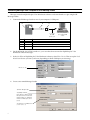
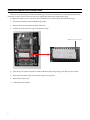
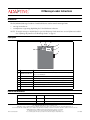
Connect the IR Message Loader to one of your computer’s COM ports:
B
A
DATA VALID
DATA
1 2 3
MEMORY LOCATION
C
BAT.LOW
MESSAGE
LOADER
TRANSMIT
To one of the
PC’s COM
(RS232) ports
Item
Part #
Description
A
1071-1113
IR Message Loader
B
1088-8621
3-foot RS485 data cable
C
1088-9108
9 pin-to-RJ11 adapter (a 25-pin adapter is also available, pn 4370-0001C)
2.
Set the MEMORY LOCATION switch to 1, 2, or 3 to select where to store the AlphaNet plus™ for
Windows® software messages.
3.
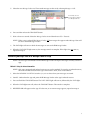
In the Site Editor of AlphaNet plus™ for Windows® software, select Edit > Device. Then set up the Local
Wired Com 1 device (or Com 2, and so on, depending on which COM port you are using):
Must be set to 7E2
4.
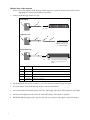
Create a site named Message Loader:
Site Name = Message Loader
Compatibility = EZ KEY II
Can be Alpha 1.0 or Alpha 2.0 if the IR
Message Loader has version G or later
firmware installed. (See “Updating the
firmware in an IR Message Loader” on
page 6.)
Connect Device = Local Wired Com 1
(or Com 2, and so on)
2
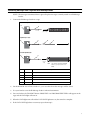
PC running AlphaNet
plus™ for Windows®
software