1
DTM Generation
PHOTOMOD 6.0.2
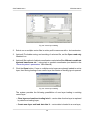
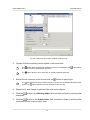
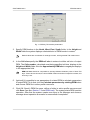
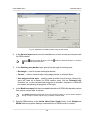
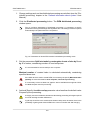
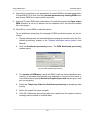
6. [optional] In order to export a line from the Line template field, set the First line
with field names checkbox on.
7. [optional] In order to change number of decimal places in coordinates to be exported,
set the Maximum decimal places: checkbox on and input needed value.
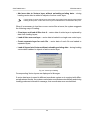
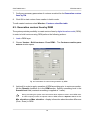
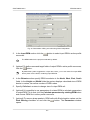
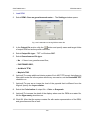
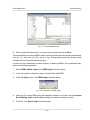
8. In the Available fields list select required field name and click the Add selected
field
button or click the Add all fields
button, to transfer all field names. After
that all or selected field names are moved to the Used fields list.
To cancel field name selection click the
button or click the
button to cancel moving
all field names. To move selected field to the list bottom, click the
button, and to move
selected field to the list top click the
button.
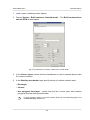
9. In the Decimal separator section select point or comma to be used to separate
coordinates.
10. [optional] In order to limit required parts of exported list of coordinates by quotes,
in the Enclose in quotes section choose one of the following options:
• Auto – allows to limit by quotes the fields, which are located in the file to be exported;
• All text fields – allows to limit by quotes only the fields, which contain text information;
• All fields – allows to limit by quotes each field, which is located in the exported
file.
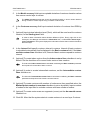
11. In the Field separator section choose, what is used to separate fields: comma,
space, tab, semicolon or other delimiters.
If the field separator is selected as a comma, it is not recommended to specify the decimal
separator as a comma, since objects with incorrect coordinates will be created after import
operation.
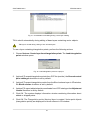
12. [optional] To define standard parameters set the Transform reference system
checkbox on (see the chapter Transform reference system of objects in the ’Vectorization’ User Manual);
13. Click OK to complete the export operation.
69