1
Formatting a Label
Text Objects
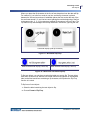
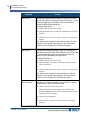
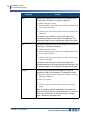
Where you place the flip character in the line of text determines how the data will flip.
For instance, if you have four words in one line, and the flip character is placed
between the first and second word, LabelMark places the first word at the end of the
line and treats words 2, 3, and 4 as one word, placing them at the beginning of the line
in the same order - 2, 3, 4. You cannot put multiple flip characters in a line of text. The
Flip feature only acknowledges the first flip character it encounters, ignoring the rest.
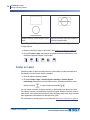
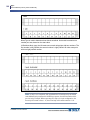
Horizontal flip-flop (with flip character)
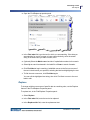
Figure 11 • Horizontal Flip Flop
Multi-word horizontal flip flop, before flip.
Multi-word horizontal flip flop, after flip
Figure 12 • Multi-word horizontal flip flop
To flip text objects, you only have to select the label you want to flip. The text object
itself does not have to be selected. All vertical multi-line text objects on the selected
label, and all horizontal lines containing a flip character, will flip when the Flip Flop
function is invoked.
To flip lines of a text object:
1. Select the label containing the text object to flip.
2. Choose Format > Flip Flop.
LabelMark 6.0 User’s Manual
57



















![LM 4.0_QuickStart_EURO [7] Languages.fm](http://vs1.manualzilla.com/store/data/006170771_1-f471c6a60f770fa9f17213cbf88d66dd-150x150.png)