1
Mainframe, SONET Version
ANT-20/ANT-20E
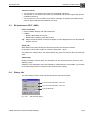
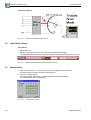
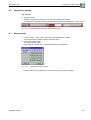
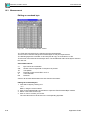
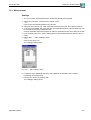
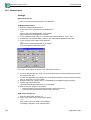
Select the startup mode
When using the ANT-20 in remote operating mode, it is not normally desirable to receive a logon request during startup. When using a DominoCOM ANT-20, it is essential that the log-on
request is disabled.
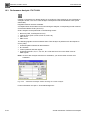
To disable the log-on request
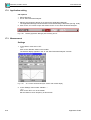
1. Start or return to Windows95.
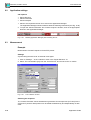
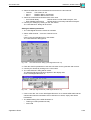
2. Click the Windows95 “Start” button, choose “Settings” and then choose “Control Panel”.
In the “Control Panel” window, double-click the “Network” icon.
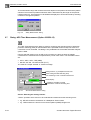
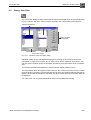
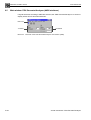
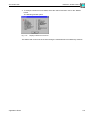
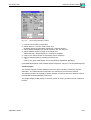
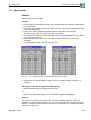
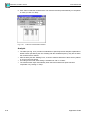
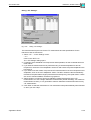
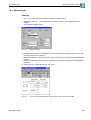
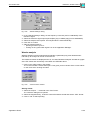
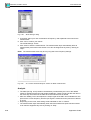
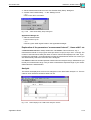
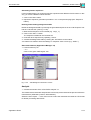
3. In the “Configuration” tab of the “Network” window, select “Windows Logon” in the “Primary
Network Logon” list and confirm with “OK”.
4. Reboot the ANT-20 now.
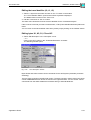
Verify the network installation
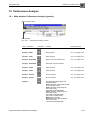
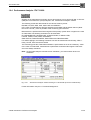
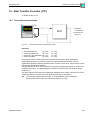
Test the connection to the controlling PC:
1. Start or return to Windows95.
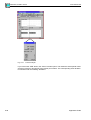
2. Click the Windows95 “Start” button, choose “Programs” and then choose “MS-DOS
Prompt”.
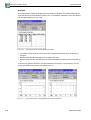
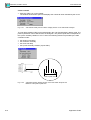
3. Execute C:\ping <ip_address>, where <ip_address> is the IP address of the controlling PC.
If no connection can be established,
• the C:\WINDOWS\hosts file may have incorrect or missing entries or
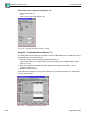
• the “Gateway” tab in the “TCP/IP Properties” window of the “Network” setup may have
incorrect or missing entries.
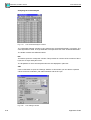
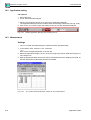
Installing the ReachOut software
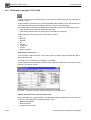
1. Start or return to Windows95.
2. Insert the ReachOut for Windows & DOS installation disk 1 into drive A:.
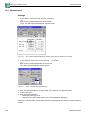
3. Click the Windows95 “Start” button, choose “Run …” and type the following command into
the dialog box:
A:\install
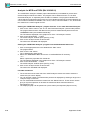
4. Follow the on-screen instructions to complete the installation. Select connection type
Internet (using Windows Sockets). For detailed information refer to the ReachOut user‘s
guide.
If you are installing ReachOut on a DominoCOM ANT-20, answer the on-screen question
“Would you like ReachOut Host to be started automatically when you start Windows?” with
“Yes”.
All configuration parameters can be changed after installation by configuring ReachOut.
5. After complete installation exit Windows95, remove the installation disk from drive A:, and
reboot the ANT-20.
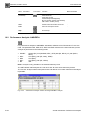
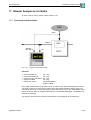
After this installation procedure on the ANT-20 (the “Host” in terms of ReachOut ) you can start
the ReachOut Host and configure it as required.
To prevent a Viewer from accidentally tying up the Host, it is recommended setting the Host
configuration parameter “Inactivity Timeout” to a non zero value (in “Preferences …/Host
Options” menu).
After installing ReachOut on the controlling PC (the “Viewer” in terms of ReachOut ) and
configuring the ReachOut Viewer as required, you can start remote access to the ANT-20.
For detailed information refer to the ReachOut user‘s guide.
RO-14
Remote operation