1
Installation and Operation Manual
HyperDeck Disk Recorders
Mac OS X™
Windows™
July 2015
Welcome
We hope you share our dream for the television industry to become a truly creative
industry by allowing anyone to have access to the highest quality video.
Our range of HyperDeck disk recorders have made it easier and more affordable than ever
to record and play back full 10 Bit uncompressed video and now Ultra HD! HyperDeck
records directly to removable 2.5” Solid State Disks (SSDs) that are getting bigger, faster
and more affordable every day. It’s incredible that you can now record and play the
most amazing quality video onto something so small thousands of times without any
degradation in quality!
SSDs can also be mounted on any computer for immediate editing and fast transfer of
your media. With no moving parts, SSDs are unbelievably robust and can handle harsh
conditions that would destroy conventional hard drives and videotapes!
You can bypass unwanted camera compression and record directly from HDMI or
SDI cameras straight to SSD and even connect to any HDMI or SDI monitor for instant
playback! With HyperDeck Studio Pro, you can connect analog sources and also record
and play back Ultra HD with 6G-SDI. The HyperDeck Studio 12G model can record even
higher frame rates in Ultra HD up to 60 fps!
If you need longer recording times for each SSD, then HyperDeck also records and plays
back Apple ProRes and Avid DNxHD files. These 10 Bit quality codecs retain fantastic
picture quality and increase the recording length of SSDs by more than 5 times!
This instruction manual contains all the information you need to start using your
HyperDeck disk recorder. For uncompressed recording you need to use an SSD that
supports the required data speed and we are continually adding details on our website of
new SSDs that we have tested.
Please check the support page at www.blackmagicdesign.com for the latest version of this
manual and updates to the HyperDeck software. Keeping your software up to date will
always ensure you get all the latest features. When downloading software, please register
with your information so we can keep you updated when new software is released. We are
constantly working on new features and improvements, so we would love to hear from you!
Grant Petty
CEO Blackmagic Design
Contents
HyperDeck Disk Recorders
5
Getting Started
19
Control Panel Menu
Getting Started with Blackmagic HyperDeck 5
Using the Display Menu on HyperDeck Studio Models 19
Plugging in Power 5
Selecting Timecode Source 19
Plugging in Video and Audio 5
SDI Start/Stop Recording 19
Plugging in SSDs 6
Timecode Run Recording 21
8
Recording
Recording Ultra HD and HD video with HyperDeck 8
22
RS-422 Control
What is RS-422 Control? 22
Recording Video with HyperDeck Shuttle 8
Using an External RS-422 Controller 22
Recording Video with HyperDeck Studio Models 8
Supported RS-422 Commands 23
Ref Input 9
10
Playback
Playing Video with HyperDeck Shuttle 10
Playing Video with HyperDeck Studio models 10
Ultra HD Playback on HyperDeck Studio Pro 11
Jog or Shuttle with HyperDeck Studio Models 11
12
HyperDeck Status Indicators
13
About SSDs
RS-422 Developer Information 27
28
Thunderbolt
Capturing video via Thunderbolt 28
Capturing from SSD 28
Simultaneous Capture and Recording 28
29
SSD Workflow
Accessing Your Clips 29
Mac OS X 29
Choosing a Fast SSD 13
Windows 29
Preparing SSDs 15
Using Blackmagic MultiDock with HyperDeck 30
17
HyperDeck Utility
Connecting to a Computer 30
Plugging in Drives 31
Using HyperDeck Utility 17
Identifying Drives 31
How to Update Your HyperDeck Software on Mac OS X 17
Formatting Drives 31
How to Update Your HyperDeck Software on Windows 17
Setting up a RAID for High Speed Performance
and Data Security 33
Selecting Your Video Format 18
Contents
HyperDeck Disk Recorders
Configuring a RAID using Mac OS X and Windows 34
Adobe Premiere Pro CC 47
Unplugging your Drives 34
Capturing live via Thunderbolt 48
35
Using DaVinci Resolve
Introducing DaVinci Resolve 35
Importing your Clips 35
Adobe Photoshop CC 48
How to grab video frames 48
49
Using Blackmagic Media Express
Editing your Clips 36
What is Blackmagic Media Express? 49
Trimming Clips 36
Capturing Video and Audio Files 49
Mapping Keyboard Shortcuts 37
Playing back Video and Audio Files 53
Adding Transitions 37
Browsing Media 55
Adding Titles 38
Adding Audio Tracks 38
Color Correcting your Clips 39
Using Scopes 39
Secondary Color Correction 40
Qualifying a Color 41
Adding a Power Window 41
Tracking a Window 42
Using Plugins 43
Mastering your Edit 43
44
Using Third Party Editing Software
Avid Media Composer 44
Setting up 44
Capturing live via Thunderbolt 45
Apple Final Cut Pro 7 46
Setting up 46
Capturing live via Thunderbolt 46
57
Using Blackmagic UltraScope
68
Using Blackmagic Disk Speed Test
71
Accessories
Installing the HyperDeck Shuttle Mounting Plate 71
72
Developer Information
Blackmagic HyperDeck Ethernet Protocol 72
Protocol Commands 72
Protocol Details 74
87
Help
88
Warnings
89
Warranty
Getting Started
5 Getting Started
POWER
REMOTE
Y IN
B-Y IN
R-Y IN
Y OUT
B-Y OUT
R-Y OUT
REF IN
Getting Started with Blackmagic HyperDeck
STEREO IN
PUSH
PUSH
PUSH
L
C
IN
D
OUTHyperDeck
A
OUT B
OUTrecorder
C
OUT D
OUT
GettingINstarted
with
your
disk
is as MON
easy
as connecting power, plugging in your video
sources and destination equipment to your HyperDeck's inputs and
outputs and inserting your SSDs.
R
IN A
ETHERNET
IN
IN B
OUT
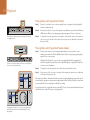
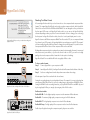
Plugging in Power
HDMI
POWER
Y IN
REMOTE
SD/HD/3G/6G-SDI IN
B-Y IN
R-Y IN
Y OUT
B-Y OUT
R-Y OUT
IN
SD/HD/3G/6G-SDI OUT
OUT
TIMECODE
CH 1
CH 2
ANALOG AUDIO IN
REF IN
For HyperDeck Studio models, simply plug a standard IEC cable to your HyperDeck’s power input
on the rear panel.
STEREO IN
PUSH
PUSH
PUSH
L
IN A
ETHERNET
IN B
IN C
OUT
IN
IN D
OUT A
OUT B
OUT C
OUT D
MON OUT
For HyperDeck Shuttle, connecting power will also charge the internal battery. You can disconnect
the external power once the battery is charged so your HyperDeck Shuttle is completely portable
to record video anywhere. Press the ‘power’ button to switch it on.
R
IN
HDMI
SD/HD/3G/6G-SDI IN
Connect power to your HyperDeck Studio using a standard
IEC power cable.
SD/HD/3G/6G-SDI OUT
OUT
TIMECODE
CH 1
CH 2
ANALOG AUDIO IN
CH 1
CH 2
ANALOG AUDIO OUT
Plugging in Video and Audio
All HyperDeck models have SDI and HDMI inputs and outputs. Plug your source video to the inputs,
and your destination equipment to the outputs.
HyperDeck Studio 12G has 12G-SDI connectors so you can input or output Ultra HD up to 2160p60
using a single BNC cable.
R-Y OUT
HyperDeck Studio Pro provides additional inputs and outputs for connecting video equipment that
supports single link, dual link or quad link Ultra HD.
REF IN
STEREO IN
PUSH
PUSH
PUSH
L
OUT C
G-SDI OUT
OUT D
MON OUT
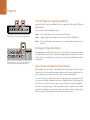
Plugging in Analog Audio and Timecode on HyperDeck Studio Pro
R
IN
OUT
TIMECODE
CH 1
CH 2
ANALOG AUDIO IN
CH 1
CH 2
ANALOG AUDIO OUT
HyperDeck Studio Pro lets you plug in external analog audio
and timecode via the rear panel XLR connectors. You can even
plug in analog audio from audio equipment such as iPods and
HiFi systems via the RCA inputs.
If you want to connect analog audio sources to HyperDeck Studio Pro, plug into the XLR or RCA
connectors. To select your desired audio input, simply press the 'input' button on the front control
panel to cycle through combinations of video and audio inputs. For example, SDI + XLR, SDI + RCA,
and more. External timecode can also be connected to and from your HyperDeck Studio Pro via the
timecode XLR input and output connectors.
CH
A
6 Getting Started
Plugging in SSDs
All HyperDeck models ship ready to record immediately without having to configure any settings.
All you need is a formatted SSD.
If you have a HyperDeck Studio model then you can easily format SSDs via the front LCD based menu
settings. You can also format your SSDs using a computer.
Refer to the 'About SSDs' section in this manual for more information on how to format SSDs, the
types of SSDs that are best for recording video and a list of recommended media.
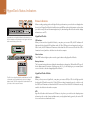
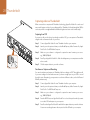
To plug an SSD into your HyperDeck:
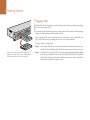
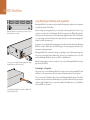
Step 1. Hold a 9.5mm SSD with the connection pins facing the bottom and aligned with your
HyperDeck's drive bay. Gently push the SSD into the drive bay until you feel it slot into place.
Hold your SSD with the connection pins facing the bottom,
aligned with your HyperDeck's drive bay and gently push the
SSD into the drive bay until you feel it slot into place.
Step 2. Your HyperDeck will verify the SSD. This is shown by an illuminated green light surrounding
the drive bay on HyperDeck Studio models, or the flashing SSD indicator on HyperDeck
Shuttle. When the light or indicator turns off and the ‘stop’ button on the control panel is
illuminated, your HyperDeck is ready to record.
About Hyperdeck
Recording
8 Recording
Recording Ultra HD and HD video with HyperDeck
DISP
DISP
VIDEO
HyperDeck models that support Ultra HD video record compressed Ultra HD using Apple ProRes
codecs. All HyperDeck models excluding the original HyperDeck Shuttle can record HD video using
ProRes and DNxHD codecs, or uncompressed HD video for high definition at the highest quality.
The original HyperDeck Shuttle exclusively records uncompressed HD video.
VIDEO
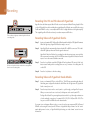
The record button lights up red when HyperDeck Shuttle
is recording video.
Recording Video with HyperDeck Shuttle
Step 1.
Insert your formatted SSD. As HyperDeck Shuttle reads the disk, the SSD light will illuminate.
When the light stops, HyperDeck Shuttle is ready to record.
Step 2.
HyperDeck Shuttle automatically detects whether SDI or HDMI is connected. The 'video'
01:42:56:12
status LED
lights up when a valid video signal is detected.
INPUT
DISP
HyperDeck Shuttle will default to recording from whichever input was connected first.
We recommend connecting only SDI or HDMI at a time as HyperDeck Shuttle will switch
inputs if one is disconnected and reconnected.
SET
JOG
SSD 2
DISP
SET
INPUT
REM
SSD 2
REM
01:42:56:12
JOG
Step 3.
Press the 'record' button and the SSD light will flash to indicate SSD activity. If the 'stop'
button starts flashing while recording, there are only 3 minutes of recording time left
on the SSD.
Step 4.
Press the 'stop' button to finish recording.
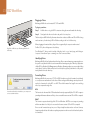
SSD slots on HyperDeck Studio models have rotating LEDs to
show the unit is recording video.
Recording Video with HyperDeck Studio Models
Step 1.
Insert your formatted SSD into either SSD slot. The LED strip surrounding the drive will
illuminate green as HyperDeck reads the disk. When the slot light turns off, HyperDeck
Studio is ready to record.
Step 2. Press the input button on the control panel to cycle through your HyperDeck's inputs.
When your connected source is selected, it will appear on the control panel LCD.
For HyperDeck Studio Pro, pressing the input button will also cycle through combinations
of video and audio connections, for example SDI + SDI, SDI + XLR, and SDI + RCA. This
lets you record SDI or HDMI video with external audio.
If you want to record using a different codec, you can choose from uncompressed HD, ProRes and
DNxHD codecs using the control panel LCD menu or HyperDeck Utility software. See the 'control
panel display menu' section, or 'HyperDeck Utility/selecting your video format' section for more
information.
OOP OUT
9 Recording
INPUT
DISP
SET
OUT 1
OUT 2
MON OUT
REF IN
IN
HDMI
IN
LOOP OUT
OUT 1
OUT 2
MON OUT
REF IN
IN
REMOTE
ETHERNET
JOG
Step 4.
Press the ‘record’ button to start recording instantly. A looping red light on the SSD slot
indicates the SSD is recording. All HyperDeck Studio models have dual SSD slots. This
lets you automatically continue recording onto another SSD when one is full.
Step 5.
Press the 'stop' button to finish your recording.
If the 'record' button flashes slowly, this indicates that the SSD is almost full and is about
to stop recording. It also means there is no second disk with space that recording can
continue onto. In this case, you simply need to insert a disk with space so recording can
continue. Once you insert a blank disk into the slot that's not being used for recording,
the slow flashing will stop and this means the HyperDeck Studio can continue to record,
because this second disk has been checked ok and there is space to keep recording.
If you want to change the disk you are recording to at any time, and you have a second
disk that has free space, then simply hold down the record button and the recording will
move from the current disk to the second disk. This is very useful when you want to get
that disk out of the HyperDeck without pausing recording. This can happen during live
events when you need to get an important recording out to another location, but you
don’t want to miss anything and you don’t want to stop recording.
If the ‘record’ button flashes quickly, this means the disk is not fast enough for sustained
recording. We recommend changing to a compressed recording format such as ProRes
or DNxHD, or use a faster recommended SSD for uncompressed or Ultra HD recording.
If HyperDeck records from a video source that contains closed caption data, the QuickTime
or MXF movie will be recorded as well as a separate .MCC file containing the closed
caption data.
OUT
SD/HD/3GHD-SDI
SD/HD/3GHD-SDI
OUT
HDMI
The reference input on HyperDeck Studio models and
HyperDeck Studio Pro lets you sync your HyperDeck with
other video equipment.
SSD 2
01:42:56:12
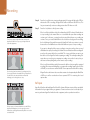
If you have less than three minutes of recording time left on
your current SSD and no formatted SSD in your HyperDeck's
second SSD slot, the timecode indicator will turn red
indicating your recording is about to stop.
1
2
01:42:56:12
If there is space on a formatted disk in the second SSD slot,
HyperDeck will display an icon in the top right corner to
indicate that recording will automatically switch over once the
current disk is full.
REM
Ref Input
HyperDeck Studio models and HyperDeck Studio Pro feature a Reference input, which accepts black
burst and tri-level sync signals from a sync generator. Connect a reference source to this input if you
want to synchronize HyperDeck with other video equipment, such as a production switcher.
Playback
10 Playback
Playing Video with HyperDeck Shuttle
DISP
DISP
VIDEO
The play button illuminates green when HyperDeck Shuttle
is in playback mode.
Step 1.
Press the 'stop' button once to stop recording. Press 'stop' again to switch HyperDeck
Shuttle to playback mode.
VIDEO
Step 2.
Press 'play' and you'll see your video appear on any displays connected to the SDI and
HDMI outputs. When a clip is playing, pressing 'play' again will loop it continuously.
Step 3.
To skip to the next clip, press the next clip button on the shuttle controls. Press previous
clip once to go to the start of the current clip or press twice to skip back to the start of
the previous clip.
SSD 2
01:42:56:12models
Playing Video with HyperDeck Studio
DISP
SET
INPUT
REM
Press the 'play' button once for instant playback and you'll see your video on any
displays connected to the SDI and HDMI outputs. When a clip is playing, pressing 'play'
again will loop it continuously.
With HyperDeck Studio Pro, you can choose to play back Ultra HD using single link,
dual link or quad link outputs. Refer to the 'Ultra HD Playback on HyperDeck Studio Pro'
section for more information.
Step 2.
To skip to the next clip, press the 'next clip' button on the shuttle controls.
Step 3.
Press 'previous clip' once to go to the start of the current clip or press twice to skip back
to the start of the previous clip.
01:42:56:12
JOG
SSD slots on HyperDeck Studio models have rotating LEDs to
show the unit is in playback mode.
Video In
INPUT
REM
4K SDI Out
2160p SDI Out
Single 6G-SDI
Dual 3G-SDI
Quad HD-SDI
JOG
REM
Step 1.
SSD 2
DISP
INPUT
SET
JOG
If the play button flashes, this means the disk is not fast enough and playback cannot keep up. We
recommend you change to a compressed recording format such as ProRes or DNxHD, or use a faster
recommended SSD for uncompressed or Ultra HD recording.
If you play back a video clip that has an associated .MCC file, the closed caption data will be played
out with the video via the SDI output of your HyperDeck.
Video In
INPUT
REM
4K SDI Out
2160p SDI Out
Single 6G-SDI
Dual 3G-SDI
Quad HD-SDI
JOG
For HyperDeck Studio Pro, you can choose between single
link 6G-SDI, dual link 3G-SDI or quad link HD-SDI for Ultra
HD playback.
11 Playback
DISP
DISP
DISP
Ultra HD Playback on HyperDeck Studio Pro
VIDEO
VIDEO
HyperDeck Studio Pro can play back Ultra HD video via single link 6G-SDI, dual link 3G-SDI, and
quad link HD-SDI.
VIDEO
To select your desired Ultra HD playback output:
Press and hold the 'previous clip' or 'next clip' button on
INPUT
DISP HyperDeck Shuttle to rewind or fast forward at 2x speed.
SET
Step 1.
REM
2
Press the 'disp' buttonSSD
to open
the control panel LCD menu.
01:42:56:12
Step 2.
Using the jog/shuttle wheel and 'set' button, select 'video', then '2160p SDI out'.
Step 3.
Select your desired output type and press 'set' to confirm. Press the 'disp' button to close
the menu.
JOG
SSD 2
DISP
SET
INPUT
REM
01:42:56:12
JOG
The fast forward button on the front of HyperDeck Studio
models lights up when fast forwarding through clips.
Shuttling with HyperDeck Shuttle
During playback, press and hold the 'previous clip' or 'next clip' button to rewind or fast forward at
2x speed. Press the 'previous clip' or 'next clip' button again and the speed will increase to 4x and
then 8x. Once you've found the section you want to review, press 'play' and playback will resume at
normal speed.
Jog or Shuttle with HyperDeck Studio Models
During playback, press the 'reverse' or 'fast forward' button to play through the clip at 2x speed.
Press the 'reverse' or 'fast forward' button again and the speed will increase to 4x and then 8x. Once
you’ve found the section you want to review, press 'play' to resume normal playback.
You can also use the jog or shuttle wheel to shuttle to a particular section at variable speeds. The
more you turn it forwards or backwards, the faster your HyperDeck Studio will play through your
video. Once you’ve found the section you want to review, press 'play' to resume normal playback.
If you want to slowly jog through your video frame by frame, press the 'jog' button once to enable
jog operation. Turning the jog or shuttle wheel in the desired direction will then jog through your
video. Pressing the 'jog' button again will return the wheel to shuttle operation.
HyperDeck Status Indicators
12 HyperDeck Status Indicators
Status Indicators
DISP
DISP
DISP
VIDEO
VIDEO
VIDEO
DISP
When recording or playing video with HyperDeck, any information you need to know is displayed on
the unit itself. HyperDeck Shuttle's backlit buttons and LEDs provide vital information such as when
your disk is nearly full and the remaining battery life, whereas HyperDeck Studio models display
information on an LCD.
VIDEO
Status indicators on HyperDeck Shuttle tell you whether your
SSD is formatted correctly, whether a video signal is detected
and how much battery power is left.
HyperDeck Shuttle
SSD Indicator
When you first switch on HyperDeck Shuttle, or any time you insert an SSD, the SSD indicator will
light up while checking the SSD and then switch off. If the SSD has not been formatted correctly, or
01:42:56:12
fails to work, the SSD indicator will illuminate
solid red until the SSD is removed. Check if the SSD is
formatted correctly and also check that it works with a computer.
SSD 2
DISP
INPUT
SET
SSD 2
DISP
SET
INPUT
REM
01:42:56:12
JOG
SSD 2
INPUT
REM
01:42:56:12
REM
JOG
Video Indicator
The VIDEO indicator lights up when a video signal is detected by HyperDeck Shuttle.
Battery Indicator
The four green battery indicators display the internal battery charge level. When all the LEDs go off,
there’s approximately 4 minutes of battery power left. So you should plug in your external power
source or switch to another charged HyperDeck Shuttle.
JOG
HyperDeck Studio Models
The SSD slots on HyperDeck Studio models indicate if an SSD
is formatted correctly and whether the unit is in recording or
playback mode. The LCD on HyperDeck Studio models shows
your video as well as status information.
SSD Slot
When you first power on HyperDeck, or any time you insert an SSD, the SSD slot will light up while
checking the SSD and then switch off. If the SSD has not been formatted correctly, or fails to work,
the SSD slot will illuminate solid red until the SSD is removed. Check if the SSD is formatted correctly
and also check that it works with a computer.
LCD
HyperDeck Studio models feature an LCD that not only shows your video but also displays status
information such as video format and frame rate, record, playback and jog modes, the active SSD
slot as well as timecode and audio levels.
About SSDs
13 About SSDs
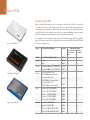
Choosing a Fast SSD
When working with high data rate video it's important to carefully check the SSD you would like
to use. This is because some SSDs can have up to 50% lower write speed than the manufacturer’s
claimed speed, so even though the disk specifications claim an SSD is fast enough to handle video,
in reality the disk is not fast enough for real time video recording. Hidden data compression mostly
affects recording and often these disks can still be used for real time playback.
Intel 335 Series 240GB SSD
In our testing, we have found larger newer models of SSD and larger capacity SSDs are generally
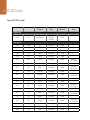
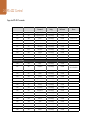
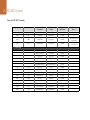
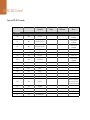
faster. SSDs recommended for use with HyperDeck for uncompressed 10 Bit HD and ProRes Ultra
HD video recording include:
Brand
ADATA
10 Bit uncompressed
HD and Ultra HD
ProRes
HD ProRes
and DNxHD
Yes
Yes
480GB
Yes
Yes
AV Pro.
240GB
Yes
Yes
M4 (firmware 009 only). CT512M4SSD2.
512GB
Yes
Yes
M4 (firmware 000F only). CT256M4SSD2.
256GB
No
Yes
4K Professional Video Series.
DIG-PVD1000, pre-formatted exFat.
1TB
Yes
Yes
Professional Video Series.
DIG-PVD480S, pre-formatted exFat.
480GB
Yes
Yes
Professional Video Series.
DIG-PVD240S, pre-formatted exFat
240GB
Yes
Yes
520 series. SSDSC2CW480A310.
480GB
Yes
Yes
520 series. SSDSC2CW240A310.
240GB
Yes
Yes
530 series. SSDSC2BW240A401.
240GB
Yes
Yes
530 series. SSDSC2BW180A401.
180GB
Yes
Yes
335 series. SSDSC2CT240A4K5.
240GB
Yes
Yes
HyperX 3K. SH103S3/480G.
480GB
Yes
Yes
HyperX 3K. SH103S3/240G.
240GB
Yes
Yes
SSDNow KC300. SKC300S37A/480G.
480GB
Yes
Yes
SSDNow KC300.SKC300S37A/240G.
240GB
Yes
Yes
Intel
Kingston HyperX 240GB SSD
Supported Formats
256GB
Digistor
Kingston
XPG SX900. ASX900S3-256GM-C.
Storage
Angelbird AV Pro.
Crucial
SanDisk Extreme 480GB SSD
SSD Name/Model Number
14 About SSDs
Brand
SSD Name/Model Number
Storage
Supported Formats
10 Bit uncompressed
HD and Ultra HD
ProRes
HD ProRes
and DNxHD
OCZ
Agility 3. AGT3-25SAT3-240G.
240GB
No
Yes
OWC
Mercury Extreme Pro 6G.
OWCSSD7P6G480.
480GB
Yes
Yes
Mercury Extreme Pro 6G.
OWCSSD7P6G240.
240GB
Yes
Yes
Mercury Extreme Pro 6G.
OWCSSD7P6G120.
120GB
Yes
Yes
850 Pro. MZ-1T0BW, spacer required.
1TB
Yes
Yes
850 Pro. MZ-7KE512BW, spacer required.
512GB
Yes
Yes
Samsung
SanDisk
PNY
850 Pro. MZ-7KE256BW, spacer required.
256GB
Yes
Yes
Extreme Pro. SDSSDXPS-240G-G25.
240GB
Yes
Yes
Extreme Pro. SDSSDXPS-480G-G25.
480GB
Yes
Yes
Extreme Pro. SDSSDXPS-960G-G25.
960GB
Yes
Yes
Extreme. SDSSDX-480G-G25.
480GB
Yes
Yes
Extreme. SDSSDX-240G-G25.
240GB
Yes
Yes
Extreme. SDSSDX-120G-G25.
120GB
No
Yes
Prevail. SSD9SC480GCDA-PB.
480GB
Yes
Yes
Prevail. SSD9SC240GCDA-PB.
240GB
Yes
Yes
XLR8. SSD9SC480GMDA-RB.
480GB
Yes
Yes
Transcend SSD370. TS1TSSD370.
1TB
Yes
Yes
SSD370. TS512GSSD370.
512GB
Yes
Yes
SSD370. TS256GSSD370.
256GB
Yes
Yes
SSD720. TS256GSSD720.
256GB
Yes
Yes
Please visit the Blackmagic Design support center at www.blackmagicdesign.com for the latest support
notes and information. If you find an SSD that isn’t fast enough for uncompressed HD video or Ultra HD,
try a faster SSD or use HyperDeck Utility to switch to a compressed recording format such as ProRes
or DNxHD. These recording formats have a much lower data rate and are easier for the SSD to handle.
15 About SSDs
Video
Main Menu
Setup
Format
SSD
Timecode
Record
Select
Open
Turn the jog/shuttle wheel clockwise to
select format SSD on the LCD menu.
Format
SSD 2
SSDs used by HyperDeck must be formatted as either HFS+ or exFAT. These disk formats allow long
clips to be recorded as single files. You can easily format your SSDs using HyperDeck Studio models,
or via a computer with an SSD dock or SATA to USB adaptor.
HFS+ is also known as Mac OS Extended and is the recommended format for HyperDeck as it supports
journaling. Data on a journaled SSD is more quickly recovered in the rare event your SSD becomes
corrupted, and less likely to be corrupted in the first place. HFS+ is natively supported by Mac OS X.
SET
Format
SSD 1
Preparing SSDs
Format SSD 1
HFS+
exFAT
ExFAT is supported natively by Mac OS X and Windows without needing to purchase any additional
software. However, exFAT does not support journaling.
While navigating through the format feature on the LCD menu, you'll have plenty of opportunities
to cancel the format and return to the previous menu by selecting the return arrow on the bottom
right of the LCD, then pressing the 'set' button on the control panel. Always press the 'set' button
to confirm settings and enter setting menus.
To format an SSD using your HyperDeck:
Step 1. Insert an SSD you want to format into either of the SSD slots.
Step 2. Press the 'disp' or 'menu' button on your HyperDeck's control panel.
Set your desired format from the HFS+
or exFAT options.
Format SSD 1 as HFS+?
Your disk’s contents will be erased.
This action cannot be undone.
Step 3. Turn the jog/shuttle wheel clockwise to select 'format SSD' on the LCD menu and press
the 'set' button to enter the menu.
Step 4. Select the SSD you want to format on the LCD using the jog/shuttle wheel. Remember to
press the 'set' button to confirm your selection.
Step 5. Now set your desired format from the 'HFS+' or 'exFAT' options.
Step 6. A warning message will appear on the LCD asking you to confirm the format. Make sure you
have backed up any important data before you confirm as this action cannot be undone
Cancel
Format SSD
Confirm the format by selecting Format SSD using
the jog/shuttle wheel and pressing the set button.
Confirm the format by selecting 'format SSD' using the jog/shuttle wheel and pressing
the 'set' button.
A progress bar will show you the formatting progress. When your SSD has finished formatting, 'format
complete' will display on the LCD. Press the 'set' button again to return to the main menu.
16 About SSDs
Preparing SSDs on a Mac OS X computer
The Disk Utility application included with Mac OS X can format a drive in the HFS+ or exFAT formats.
Make sure you back up anything important from your SSD as you will lose everything on it when it
is formatted.
Use Disk Utility on Mac OS X to erase your SSD in the
Mac OS Extended (Journaled) or exFAT format.
Use the Format dialog box feature in
Windows to format your SSD in the exFAT format.
Step 1.
Connect the SSD to your computer with an external dock or cable adapter and dismiss
any message offering to use your SSD for Time Machine backups.
Step 2.
Go to applications/utilities and launch Disk Utility.
Step 3.
Click on the disk icon of your SSD and then click the erase tab.
Step 4.
Set the format to Mac OS Extended (Journaled) or exFAT.
Step 5.
Type a name for the new volume and then click erase. Your SSD will quickly be formatted
and made ready for use with HyperDeck.
Preparing SSDs on a Windows computer
The format dialog box can format a drive in the exFAT format on a Windows PC. Make sure you back
up anything important from your SSD as you will lose everything on it when it is formatted.
Step 1.
Connect the SSD to your computer.
Step 2.
Open the start menu or start screen and choose computer. Right-click on your SSD.
Step 3.
From the contextual menu, choose format.
Step 4.
Set the file system to exFAT and the allocation unit size to 128 kilobytes.
Step 5.
Type a volume label, select quick format and click Start.
Step 6.
Your SSD will quickly be formatted and made ready for use with HyperDeck.
HyperDeck Utility
17 HyperDeck Utility
Using HyperDeck Utility
Blackmagic HyperDeck Utility is used to change settings and update the internal software in your
HyperDeck. In addition to installing HyperDeck Utility, uncompressed 10 bit codecs are installed for
Mac and Windows. The HyperDeck Installer software also installs Blackmagic System Preferences,
which allow your favorite video editing software to perform live capture from HyperDeck Studio Pro
via Thunderbolt.
Blackmagic system preferences provide a central location so you don't need to configure the same
software settings in each video application that you use.
On Mac OS X, open the System Preferences and click the Blackmagic Design icon. When using
HyperDeck Studio Pro, settings are grayed out and the main use of the Blackmagic system preferences is
to tell you which version of Desktop Video software is installed for video capture via a Thunderbolt port.
When other Blackmagic video capture hardware is connected to your computer, additional settings
may be available.
How to Update Your HyperDeck Software on Mac OS X
Step 1.
Download and unzip the HyperDeck Utility software.
Step 2.
Open the resulting disk image and launch the HyperDeck Installer.
Follow the onscreen instructions.
Step 3.
After installing the latest Blackmagic HyperDeck Utility, connect a USB cable from HyperDeck
to your computer.
Step 4.
Launch Blackmagic HyperDeck Utility and follow any onscreen prompt to update the
internal software in your HyperDeck. If no prompt appears, the internal software is up to
date and there is nothing further you need to do.
How to Update Your HyperDeck Software on Windows
Step 1.
Download and unzip the HyperDeck Utility software.
Step 2.
You should see a HyperDeck Utility folder containing this manual and the HyperDeck
Utility installer. Double-click the installer and follow the onscreen prompts to complete
the installation.
Step 3.
After installing the latest Blackmagic HyperDeck Utility, connect a USB cable from HyperDeck
to your computer.
Step 4.
Launch Blackmagic HyperDeck Utility and follow any onscreen prompt to update the
internal software in your HyperDeck. If no prompt appears, the internal software is up to
date and there is nothing further you need to do.
18 HyperDeck Utility
Selecting Your Video Format
DISP
SET
JOG
HyperDeck can record 10-bit uncompressed QuickTime files on a fast SSD, or to a compressed format
if you have a slower SSD or want to fit longer high definition recordings on a single SSD. This means if
you have used the HyperDeck Utility software to change the recording format, it is possible to have
uncompressed QuickTime files as well as compressed files on the same disk.
Use HyperDeck Utility to select your desired recording and
playback format.
HDMI IN
HDMI OUT
SDI IN
+12V POWER
SDI OUT
HDMI IN
HDMI OUT
SDI IN
Working with uncompressed video is exciting as there is simply no better quality. However, if compressed
video better suits your workflow, or if you need to fit more video on a SSD, you can choose a high
quality professional compressed video format which is also perfect for editing.
SDI OUT
HyperDeck Studio Pro records Ultra HD video using Apple ProRes codecs.
INPUT
DISP
SET
JOG
REF IN
IN
REM
To choose a video format:
Step 1. Connect HyperDeck to your computer via USB.
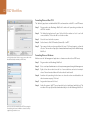
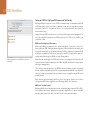
HyperDeck Shuttle USB port.
MON OUT
OTE
All current HyperDeck models let you select from a choice of uncompressed and compressed video
formats. The original HyperDeck Shuttle exclusively records uncompressed video, while HyperDeck
ShuttleINPUT
2 also records
REM to ProRes 422 HQ and Avid DNxHD. You can change the codec you want from
the front panel LCD menu on all HyperDeck Studio models, or you can use the HyperDeck Utility
software depending on what you prefer. For more information on how to change your codec using
the front panel on HyperDeck Studio models, refer to the 'control panel display menu' section.
OUT
HDMI
Step 2.
Launch HyperDeck Utility. Your HyperDeck model will be named in the title bar of the utility.
Step 3.
Set the recording format from the dropdown menu and save the setting.
All subsequent clips will be recorded in the chosen format.
IN
LOOP OUT
OUT 1
OUT 2
MON OUT
REF IN
IN
ETHERNET
Setting the recording format also sets the playback format. For example, if you want to play back an
uncompressed 10-bit QuickTime file, set the recording format to Uncompressed 10 Bit QuickTime.
Setting Avid DNxHD as the recording format lets you play DNxHD QuickTime and MXF clips, and
by selecting Apple ProRes you can play clips using any of the ProRes codecs.
OUT
SD/HD/3GHD-SDI
HDMI
HyperDeck Studio and HyperDeck Studio 12G USB port.
POWER
REMOTE
Y IN
B-Y IN
R-Y IN
Y OUT
B-Y OUT
R-Y OUT
REF IN
STEREO IN
IN A
ETHERNET
IN
IN B
Y IN
REMOTE
IN C
IN D
OUT A
OUT B
OUT C
OUT D
B-Y IN
Y OUT
R-Y IN
B-Y OUT
R-Y OUT
R
REF IN
PUSH
PUSH
PUSH
L
HDMI
HDMI
HyperDeck Studio Pro USB port.
IN A
IN B
IN C
OUT
IN
PUS
MON OUT
ProRes 422 LT - For high quality compression at a lower ProRes data rate.
STEREO IN
ETHERNET
PUSH
ProRes 422 - For extremely high quality compression using a low ProRes data rate.
OUT
POWER
PUSH
ProRes codecs include:
L
ProRes 422 HQ - For the highest quality compression at the maximum ProRes data rate.
OUT A
OUTIN
B
SD/HD/3G/6G-SDI
IN D
OUT C
OUT D
IN
SD/HD/3G/6G-SDI OUT
MON OUT
R
ProRes clips will play back using the compression quality they were recorded in.
IN
SD/HD/3G/6G-SDI IN
OUT
TIMECODE
ProRes 422 Proxy - For high quality offline compression at the lowest ProRes data rate.
SD/HD/3G/6G-SDI OUT
OUT
TIMECODE
CH 1
CH 2
ANALOG AUDIO IN
CH 1
CH 2
ANALOG AUDIO OUT
CH 1
CH
ANALOG AUDIO IN
Control Panel Menu
19 Control Panel Display Menu
Codec
DISP
INPUT
REM
Record
Trigger
Using the Display Menu on HyperDeck Studio Models
Codec
Uncomp 10-bit
On HyperDeck Studio models you can use the display menu to change your video and audio inputs
and outputs as well as any settings changes you would make in the HyperDeck Utility such as trigger
recording, timecode source and your chosen recording codec.
ProRes HQ
ProRes
SET
ProRes LT
JOG
ProRes Proxy
Codec
DISP
INPUT
REM
Record
Trigger
Codec
Uncomp 10-bit
ProRes HQ
ProRes
SET
JOG
ProRes LT
ProRes Proxy
You can use the disp or menu options on HyperDeck Studio
models to select between recording in uncompressed,
ProRes or DNxHD. All HyperDeck Studio models include four
ProRes codecs.
Step 1.
Press the 'disp' or 'menu' button to display the main menu.
Step 2.
Use the jog/shuttle wheel on the front of HyperDeck to highlight different options.
Step 3.
Press the 'set' button to confirm a selection.
Step 4.
To return to a previous menu, scroll to the 'return' arrow and press 'set.
Step 5.
Press the 'disp' or 'menu' button to exit.
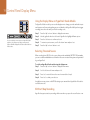
Selecting Timecode Source
When recording from HD-SDI video sources that provide embedded SMPTE RP 188 metadata,
you can record the embedded timecode from the video source instead of using timecode generated
by your HyperDeck.
To set this on HyperDeck Studio models using the display menu:
Step 1. Press the 'disp' or 'menu' button to display the main menu.
Step 2.
Scroll to the 'timecode' menu and press 'set'.
Step 3.
Press 'set' to enter the 'timecode source' menu and select 'input'.
Step 4.
Press 'set' to confirm your selection.
It might be necessary to turn on the RP 188 setting in your camera before HyperDeck will be able to
record the timecode.
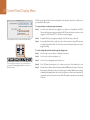
SDI Start/Stop Recording
HyperDeck supports start/stop recording, which means when you press the record button on an
20 Control Panel Display Menu
HD-SDI camera, HyperDeck will start recording without also having to press the record button on
your HyperDeck disk recorder.
To set up start/stop recording for supported cameras:
Step 1. You will need a camera that can trigger the record function of HyperDeck via HD-SDI.
Cameras which support trigger recording via HD-SDI may include menu options such as
'trigger rec', HD-SDI remote I/F' or 'SDI remote start/stop trigger'.
Use the HyperDeck Utility to enable Start/Stop Recording.
Codec
INPUT
REM
Record
Trigger
Step 2.
In HyperDeck Utility, set trigger recording to 'when SDI start/stop is detected'.
Step 3.
If using HyperDeck Studio models, press the 'rem' button after setting 'SDI start/stop
recording' in HyperDeck Utility. The 'rem' button must be illuminated on the unit to allow
trigger recording.
Record Trigger
None
SDI Start/Stop
To set this on HyperDeck Studio models using the display menu:
Step 1. Press the 'disp' or 'menu' button to display the main menu.
Timecode Run
JOG
Codec
DISP
INPUT
REM
Record
Trigger
Record Trigger
SET
Step 2.
Scroll to the 'record' menu and press 'set'.
Step 3.
Scroll to the 'record trigger' menu and press 'set'.
Step 4.
Select 'SDI start/stop' and press 'set' to confirm your selection. Press 'disp/menu' to exit.
Step 5.
Press the 'remote' button, which is the button marked as REM on the front panel. The remote
button must be illuminated on the unit to allow trigger recording. When the remote button
is enabled and illuminated, then the deck will accept remote control from the start/stop SDI
command as well as other sources such as the RS-422 serial port and the timecode running
if selected.
None
SDI Start/Stop
Timecode Run
JOG
The 'record trigger' settings let you set your HyperDeck to
start and stop recording triggered by data received over an
HD-SDI connection.
21 Control Panel Display Menu
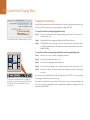
Timecode Run Recording
HyperDeck also supports timecode run recording, which is similar to start/stop recording, but is only
used if your HD-SDI camera does not support trigger recording via HD-SDI.
To set up Timecode Run recording using HyperDeck Utility:
Step 1. Go into your camera's timecode settings and change them from 'free run timecode' to
'record run timecode'.
Use the HyperDeck Utility to enable timecode run recording.
Codec
Record Trigger
Record
Trigger
SDI Start/Stop
REM
Step 2.
In HyperDeck Utility, set trigger recording to 'when SDI timecode runs'.
Step 3.
On HyperDecks with a control panel, press the 'rem' button after setting timecode run
recording in HyperDeck Utility. The 'rem' button must be illuminated on the unit to allow
trigger recording.
To set up Timecode Run recording on HyperDeck Studio models using the display menu:
Step 1. Press the 'disp' or 'menu' button to display the main menu.
None
Timecode Run
JOG
Codec
DISP
INPUT
REM
Record
Trigger
Scroll to the 'record' menu and press 'set'.
Step 3.
Scroll to the 'record trigger' menu and press 'set'.
Step 4.
Select 'timecode run' and press 'set' to confirm your selection. Press 'disp' or 'menu' to exit.
Step 5.
Press the 'rem' button. The 'rem' button must be illuminated on the unit to allow trigger
recording.
Record Trigger
None
SDI Start/Stop
Timecode Run
SET
Step 2.
JOG
The 'Timecode run' recording feature lets you trigger your
HyperDeck to record whenever running timecode is detected
via the HD-SDI connection. Recording will stop when the
timecode stops.
Now whenever your HyperDeck detects the timecode running via HD-SDI it will start recording.
Recording will stop whenever the timecode stops.
Be careful if your HyperDeck is connected to the SDI output of a video router, as any change to the
video source might cause HyperDeck to start recording unexpectedly due to a change in timecode
being detected via HD-SDI.
RS-422 Control
22 RS-422 Control
5
4
9
3
8
2
7
DISP
What is RS-422 Control?
1
6
Receive
(+)
Transmit
(–)
Transmit
(+)
Ground
Pins
2
7
8
3
1, 4, 6, 9
Using an External RS-422 Controller
All HyperDeck Studio models feature an industry standard Sony™ compatible RS-422 deck control port,
which has the correct pin connections for a direct connection to any remote controller with RS-422.
RS-422 remote pin connections.
IN
LOOP OUT
OUT 1
INPUT
DISP
SET
ETHERNET
IN
LOOP OUT
ETHERNET
OUT 1
OUT 2
MON OUT
OUT
HDMI
Remote port on HyperDeck Studio and
HyperDeck Studio 12G.
REM
SET
INPUT
REM
HDMI
You can remotely control your HyperDeck Studio model from an RS-422 controller instead of locally
pushing buttons.
Step 1.
Connect a video signal to an SDI or HDMI video input of your HyperDeck Studio model.
Step 2.
Connect an RS-422 cable from your external controller to your HyperDeck Studio model.
Step 3.
Press the 'rem' button to enable remote deck control.
You can SSD
now2 remotely start and stop recording and playback of your HyperDeck Studio as well as
performing other common jog and shuttle functions. The full list of supported RS-422 commands is
in the following section named 'supported RS-422 commands'.
01:42:56:12
SSD 2
DISP
REM
REF IN
SD/HD/3GHD-SDI
INPUT
You
use
9 pin cables as long as each end of the cable is wired 'pin for pin'
OUT 2 can
MON
OUT pre-manufactured
REF IN
where the same pin numbers
on
eachOUT
end of the cable are connected together. If you would like to
IN
make custom cables, please refer to the accompanying wiring diagram.
JOG
SD/HD/3GHD-SDI
IN
REMOTE
REM
The RS-422 standard is a serial deck control broadcast standard and has been used by broadcasters
SET
JOG
since the early 1980s and is found on many decks, linear editors, non linear editors and broadcast
automation products. HyperDeck Studio models support this standard so can be integrated into
broadcast automation, remote control systems, editing systems and any kind of custom control you
might like to design yourself.
Receive
(–)
REMOTE
INPUT
01:42:56:12
JOG
JOG
Press the remote button on HyperDeck Studio models
to enable RS-422 deck control. The remote button is marked
as REM on the front panel.
23 RS-422 Control
Supported RS-422 Commands
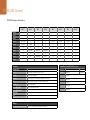
Command
Reply
No Remote
Notes
0x11
DeviceTypeRequest
NTSC: 0xF0E0
PAL: 0xF1E0
24P: 0xF2E0
Enabled
0x20
0x00
Stop
Acknowledge
Disabled
0x20
0x01
Play
Acknowledge
Disabled
0x20
0x02
Record
Acknowledge
Disabled
0x20
0x10
FastFwd
Acknowledge
Disabled
0x21
0x11
JogFwd1
Acknowledge
Disabled
0x22
0x11
JogFwd2
Acknowledge
Disabled
Treated as N=1;
Same as JogFwd1
0x21
0x12
VarFwd1
Acknowledge
Disabled
Uses ShuttleFwd1
0x22
0x12
VarFwd2
Acknowledge
Disabled
Treated as N=1;
Same as VarFwd1
0x21
0x13
ShuttleFwd1
Acknowledge
Disabled
0x22
0x13
ShuttleFwd2
Acknowledge
Disabled
0x20
0x20
Rewind
Acknowledge
Disabled
0x21
0x21
JogRev1
Acknowledge
Disabled
0x22
0x21
JogRev2
Acknowledge
Disabled
Treated as N=1;
Same as JogRev1
0x21
0x22
VarRev1
Acknowledge
Disabled
Uses ShuttleRev1
0x22
0x22
VarRev2
Acknowledge
Disabled
Treated as N=1;
Same as VarRev1
0x21
0x23
ShuttleRev1
Acknowledge
Disabled
0x22
0x23
ShuttleRev2
Acknowledge
Disabled
0x20
0x30
Preroll
Acknowledge
Disabled
0x24
0x31
CueData
Acknowledge
Disabled
0x20
0x34
SyncPlay
Acknowledge
Disabled
0 - System Control
0x00
1 - Slave Response
Treated as N=1;
Same as ShuttleFwd1
Treated as N=1;
Same as ShuttleRev1
24 RS-422 Control
Supported RS-422 Commands
Command
Reply
No Remote
Notes
0x21
0x38
ProgSpeedPlayPlus
Acknowledge
Disabled
0x21
0x39
ProgSpeedPlayMinus
Acknowledge
Disabled
0x20
0x40
Preview
Acknowledge
Disabled
Status bits are set
0x20
0x41
Review
Acknowledge
Disabled
Status bits are set
0x20
0x43
OutpointPreview
Acknowledge
Disabled
0x22
0x5C
DMCSetFwd
Acknowledge
Disabled
0x22
0x5D
DMCSetRev
Acknowledge
Disabled
0x20
0x60
FullEEOff
Acknowledge
Disabled
0x20
0x61
FullEEOn
Acknowledge
Disabled
0x20
0x63
SelectEEOn
Acknowledge
Disabled
0x40
0x10
InEntry
Acknowledge
Disabled
0x22
0x23
ShuttleRev2
Acknowledge
Disabled
0x20
0x30
Preroll
Acknowledge
Disabled
0x24
0x31
CueData
Acknowledge
Disabled
0x20
0x34
SyncPlay
Acknowledge
Disabled
0x21
0x38
ProgSpeedPlayPlus
Acknowledge
Disabled
0x21
0x39
ProgSpeedPlayMinus
Acknowledge
Disabled
0x40
0x11
OutEntry
Acknowledge
Disabled
0x44
0x14
InDataPreset
Acknowledge
Disabled
0x44
0x15
OutDataPreset
Acknowledge
Disabled
0x40
0x18
InFwd
Acknowledge
Disabled
4 - Preset/Select Control
0x40
0x19
InRev
Acknowledge
Disabled
0x40
0x1A
OutFwd
Acknowledge
Disabled
0x40
0x1B
OutRev
Acknowledge
Disabled
0x40
0x20
InReset
Acknowledge
Disabled
0x40
0x21
OutReset
Acknowledge
Disabled
0x40
0x22
AInReset
Acknowledge
Disabled
Treated as N=1;
Same as ShuttleRev1
25 RS-422 Control
Supported RS-422 Commands
Command
Reply
No Remote
Notes
0x40
0x23
AOutReset
Acknowledge
Disabled
0x44
0x31
PrerollPreset
Acknowledge
Disabled
0x40
0x40
AutoModeOff
Acknowledge
Disabled
ignored, Status bit
remembered
0x40
0x41
AutoModeOn
Acknowledge
Disabled
ignored, Status bit
remembered
0x0A
TimeCodeGenSense
6 - Sense Request
0x61
Request for Gen TC
GenTCData
Enabled
Timer1Sense
Timer1Data
Enabled
UserBitsVITCTimeSense
UserBitsVITCTimeData
Enabled
LTCUserBitsTimeSense
LTCUserBitsTimeData
Enabled
VITCUserBitsTimeSense
VITCUserBitsTimeData
Enabled
0x60
0x10
InDataSense
InData
Enabled
0x60
0x11
OutDataSense
OutData
Enabled
0x60
0x12
AInDataSense
AInData
Enabled
0x60
0x13
AOutDataSense
AOutData
Enabled
0x61
0x20
StatusSense
StatusData
Enabled
0x60
0x2E
SpeedSense
SpeedData
Enabled
0x60
0x31
PrerollTimeSense
PreRollTimeData
Enabled
0x60
0x36
TimerModeSense
TimerModeData
Enabled
0x60
0x3E
RecordInhibitSense
RecordInhibitStatus
Enabled
26 RS-422 Control
Supported RS-422 Commands
Command
Reply
No Remote
Notes
7 - Sense Reply
0x78
0x00
Timer1Data
-
-
Current Time and
00:00:00:00
0x78
0x04
LTCUserBitsTimeData
-
-
Current Time and
00:00:00:00
0x78
0x06
VITCUserBitsTimeData
-
-
Current Time and
00:00:00:00
0x74
0x06
VITCTimeData
-
-
Current Time
0x74
0x07
UserBitsVITCTimeData
-
-
00:00:00:00
0x74
0x08
GenTCData
-
-
Current Time
0x78
0x08
GenTCUBData
-
-
Current Time and
00:00:00:00
0x74
0x09
GenUBData
-
-
00:00:00:00
0x74
0x10
InData
-
-
0x74
0x11
OutData
-
-
0x74
0x12
AInData
-
-
0x74
0x13
AOutData
-
-
0x74
0x14
CorrectedLTCTimeData
-
-
Current Time
0x70
0x20
StatusData
-
-
Please see “Status Bits”
sheet: Limited to 9 bytes
of status, silently truncated
0x71
0x2E
SpeedData
-
-
0x74
0x31
PrerollTimeData
-
-
0x71
0x36
TimerModeData
-
-
0x72
0x3E
RecordInhibitStatus
-
-
Returns 0 (TimeCode)
27 RS-422 Control
RS-422 Developer Information
Bit 7
Bit 6
Bit 5
Bit 4
Bit 3
Bit 2
Bit 1
Bit 0
Byte 0
0
0
Cassette out
0
0
0
0
Local
Byte 1
Standby
0
Stop
0
Rewind
Forward
Record
Play
Byte 2
Servo Lock
0
Shuttle
Jog
Var
Direction
Still
1
Byte 3
Auto Mode
0
0
0
Aout Set
Ain Set
Out Set
In Set
Byte 4
Select EE
Full EE
0
0
0
0
0
0
Byte 5
0
0
0
0
0
0
0
0
Byte 6
0
Lamp Still
Lamp Fwd
Lamp Rev
0
0
0
0
Byte 7
0
0
0
0
0
0
0
0
Byte 8
0
0
Near EOT
EOT
0
0
0
0
Byte 9
0
0
0
0
0
0
0
0
Variables
HyperDeck Serial RS-422 Protocol
Cassette Out
Set if no SSD is present
Protocol
Based on Sony 9-pin protocol
Local
Set if Remote is disabled (local control)
Interface
Baud rate
Standby
Set if a disk is available
1 start bit
Direction
Clear if playback is forwarding, set if playback is reversing
8 data bits
Still
Set if playback is paused, or if in input preview mode
Auto Mode
Set if in Auto Mode
Select EE, Full EE
Set if in input preview mode
Lamp Still/Fwd/Rev
Set according to playback speed and direction
Near EOT
Set if total space left on available SSDs is less than 3 minutes
EOT
Set if total space left on available SSDs is less than 30 seconds
Others
Cue Complete (byte 2, bit 0)
Always 1: Cue requests are always instantaneous
1 stop bit
1 parity bit
Odd parity
38.4 kBits/s
Thunderbolt
28 Thunderbolt
Capturing video via Thunderbolt
When connected to a computer with Thunderbolt technology, HyperDeck Studio Pro can be used
as a powerful capture solution for your editing workflow. Thunderbolt offers a blazingly fast 10 Gb/s
connection, which is enough bandwidth to handle the highest resolution video formats easily!
Capturing from SSD
If you want to dub a video that you've already recorded to SSD, you can capture via Thunderbolt
using the video software and codec of your choice.
Step 1.
Connect HyperDeck Studio Pro via a Thunderbolt cable to your computer.
Step 2.
Launch your video capture software, such as Media Express, Adobe Premiere Pro, Apple
Final Cut Pro 7or AVID Media Composer.
Step 3.
Make sure your software is configured to capture the same format as your source.
e.g., 1080i50, 720p60.
Step 4.
Press Play on HyperDeck Studio Pro. Video should appear on your computer screen within
a few seconds.
Step 5.
Click the capture button in your video software.
Simultaneous Capture and Recording
You can also simultaneously capture via Thunderbolt while recording to a SSD. This might be useful
if you are recording a live event and are unsure if you have enough space on your SSDs to record
the whole event. Alternatively, you may want to record in two different codecs, such as ProRes and
DNxHD, simultaneously.
Step 1.
Connect HyperDeck Studio Pro via a Thunderbolt cable to your computer.
Step 2.
Launch your video capture software, such as Media Express, Adobe Premiere Pro, Apple
Final Cut Pro 7 or AVID Media Composer.
Step 3.
Make sure your software is configured to capture the same format as your source.
e.g., 1080i50, 720p60.
Step 4.
Press the INPUT button on HyperDeck Studio Pro to select the input from which you want
to record to SSD and capture to your computer.
Step 5.
Press Record on HyperDeck Studio Pro and click the capture button in your video software.
You are now recording the same video input to both the SSD and to your computer.
SSD Workflow
29 SSD Workflow
Accessing Your Clips
To access your clips, simply connect the SSD to your computer using an SSD dock. You can either
drag the files from the SSD directly to a local hard drive, or you can work directly from the SSD. You
can also connect the SSD to your computer with a 2.5" eSATA to USB cable adapter, however this
won't be fast enough to handle working directly from the SSD and is really only recommended as a
portable solution for getting your video files off the SSD and onto a laptop.
Mac OS X
QuickTime is built into Mac OS X. Apple ProRes and uncompressed QuickTime movies recorded by
HyperDeck can be opened in almost any video software on Mac OS X.
DNxHD MXF files recorded by HyperDeck can be opened with Avid Media Composer and DaVinci
Resolve for Mac.
MCC closed caption data files recorded by HyperDeck can be opened with MacCaption software
for Mac OS X from http://www.cpcweb.com.
Windows
Apple ProRes and uncompressed QuickTime movies recorded by HyperDeck require QuickTime
to be installed on your PC. Almost any video software on Windows that supports QuickTime can
open movies recorded by HyperDeck. QuickTime for Windows can be downloaded free from
http://www.apple.com/quicktime/download/.
DNxHD MXF files recorded by HyperDeck can be opened with Avid Media Composer and DaVinci
Resolve for Windows.
MCC closed caption data files recorded by HyperDeck can be opened with CaptionMaker software
for Windows from http://www.cpcweb.com.
30 SSD Workflow
Using Blackmagic MultiDock with HyperDeck
Blackmagic MultiDock is an attractive rack mountable docking station and the perfect companion
to HyperDeck and your SSD workflow. POWER
CAUTION!
RISK OF ELECTRIC
SHOCK- DO NOT OPEN!
100-240V 1.7A 50-60Hz Fuse T5AL
Blackmagic MultiDock is a fast and practical solution for your
SSD post production workflow.
After recording clips using HyperDeck, you can quickly and easily transfer the clip files to your
computer, or another drive, with Blackmagic MultiDock using super fast 20Gb/s Thunderbolt 2
technology. Four drive bays each provide an independent, high performance SATA 3 disk interface
so you can manage your files efficiently with no data bottlenecks, even when transferring large files
using all four drives simultaneously!
If you want to, you can bypass the file transferring process and edit your clips directly from Blackmagic
MultiDock, or stripe multiple drives as a RAID using your own operating system disk utility so you
can maximize editing performance.
ION!
CAUT
CTRIC EN!
OF ELE T OP
RISKCK- DO NO
L
SHO
Fuse T5A
60Hz
A 500V 1.7
100-24
Connect your power supply to Blackmagic MultiDock using a
standard IEC power cable and connector.
Blackmagic MultiDock is optimized for editing, color grading, or any job that requires large video
files to be stored on multiple drives and provides options for you to make the most out of your SSD
workflow. Blackmagic MultiDock can even use HDDs, or 'hard disk drives'.
Read the following pages to learn more about how you can use Blackmagic MultiDock with your
HyperDeck SSD workflow.
Connecting to a Computer
Plug your power source into Blackmagic MultiDock’s main power input using a standard IEC cable
and connector. The power indicator on the front panel will illuminate when power is supplied.
Connect one end of a Thunderbolt cable to either of the Blackmagic MultiDocks's two Thunderbolt
ports and connect the other end to a Thunderbolt port on your Mac or Windows PC. If your computer
only has a single Thunderbolt port, you can use the additional Thunderbolt port on your MultiDock
to attach a RAID or other device.
Connect Blackmagic MultiDock to your Mac or Windows PC
using a Thunderbolt cable.
31 SSD Workflow
Plugging in Drives
Blackmagic MultiDock uses formatted 2.5" SSDs and HDDs.
To plug in your drive:
Step 1.
Hold the drive so its gold SATA contacts are facing down and towards the drive bay.
Step 2.
Gently push the drive into the drive bay until it slots into place.
The drive bay’s red LED will briefly illuminate when a drive is detected. When an SSD or HDD is being
read or written to, the drive bay’s LED will flash according to the level of disk activity.
When plugging in formatted drives, they will be recognized by the computer and mounted.
Plug SSDs or HDDs into any of Blackmagic MultiDock's
4 drive bays.
On Mac OS X, drives will appear on the desktop.
On a Windows PC, drives can be found by clicking the ‘start’ icon, or ‘start’ page, and clicking on
‘computer’. A window will open containing icons for all connected drives.
Identifying Drives
Blackmagic MultiDock has 4 independent drive bays. We recommend naming or renaming drives so
they can be easily identified. Drives can be named when formatting using the 'disk utility' application
on Mac OS X, or Windows Disk Management on Windows. Renaming a drive is as easy as right clicking
on the drive in 'finder' or Windows Explorer. It’s also helpful to physically label drives so they can be
visually identified in each drive bay.
Formatting Drives
Blackmagic MultiDock can use any 2.5" SSD or HDD. New drives need to be formatted, or initialized,
so a computer can read and write to the them. When working with Blackmagic cameras, drives will
need to be formatted to either HFS+ or exFAT. These disk formats allow large file sizes and long
video clips captured as single files.
A new drive will need to be initialized so your computer can
use it to read and write data.
HFS+
This format is also known as Mac OS Extended and is natively supported by Mac OS X. HFS+ supports
journaling which means data is more likely to be recovered in the rare event an SSD or HDD is corrupted.
ExFAT
This format is supported natively by Mac OS X and Windows. ExFAT does not support journaling
which means data is less likely to be recovered in the rare event an SSD or HDD is corrupted.
Drives can be formatted at any time, even if they already have data written on them. However,
formatting a drive deletes all its data so anything important on a drive needs to be backed up before
it is formatted.
32 SSD Workflow
Formatting Drives on Mac OS X
The 'disk utility' application included with Mac OS X can format a drive in the HFS+ or exFAT formats.
Step 1. Plug a new drive into Blackmagic MultiDock. A window will open asking to initialize the
disk. Click ‘initialize'.
Step 2. The 'disk utility' application will open. On the left of the window is a list of icons for all
connected drives. Click on the disk icon for the new drive.
Step 3. Select the ‘erase’ tab in the top menu.
Step 4. Set the format to ‘Mac OS Extended (Journaled)’ or ‘exFAT’.
Step 5. Type a name for the new volume and then click ‘erase’. Click ‘erase’ again to confirm the
selection. The new drive will quickly be formatted and made ready for use with Blackmagic
MultiDock.
Use Disk Utility on Mac OS X to format or erase a drive in the
Mac OS Extended (Journaled) or exFAT format.
Formatting Drives on Windows
Windows uses the 'disk management' application to format a new drive in the exFAT format.
Step 1. Plug a new drive into Blackmagic MultiDock.
Step 2. Go to: control panel/administrative tools/computer management/storage/disk management.
Step 3. Right click on the new drive from the list of connected drives and select ‘new simple
volume’. New unformatted drives will be described as ‘unallocated’.
Step 4. A window will open asking for the volume size. Leave the volume size defaulted to the
drive’s maximum capacity. Click ‘next’.
Step 5. Assign a drive letter and click ‘next’.
Step 6. Set the file system to ‘exFAT’. Type a volume label, select ‘quick format’ and click ‘next’. The
new drive will be quickly formatted and made ready for use with Blackmagic MultiDock.
Drives can also be formatted in the exFAT format using the
Format dialog box feature in Windows. It can be found by
right clicking on the drive's icon.
33 SSD Workflow
Setting up a RAID for High Speed Performance and Data Security
Blackmagic MultiDock supports 2 levels of RAID, or redundant array of independent disks. RAID
level 0 stripes drives together so they are recognized by a computer as one single drive to increase
performance. RAID level 1 configures two drives so one is always mirrored by the other, which
increases data security.
Striping drives as a RAID shares data over a set of drives which requires careful management. It’s
also worth noting that if striping drives as a RAID, stripe only a set of SSDs or a set of HDDs, not a
combination of both.
RAID Level 0 for High Speed Performance
When using HDDs for uncompressed video capture and playback, it's beneficial to stripe 2 to 4
drives together as a RAID. Sharing the data amongst a pair of drives doubles the total capacity, plus
decreases their workload, so you get faster performance. Similarly, configuring 3 or 4 drives as a RAID
level 0 triples or quadruples, their total drive capacity. For example, a computer will recognize 4 x 1
terabyte drives striped using level 0 RAID as 1 single 4 terabyte drive.
3 SSDs being striped as a level 0 RAID using Disk Utility
on Mac OS X.
When drives are striped together in a RAID set, be careful not to unplug any of the drives while the
computer is powered, otherwise data may be lost. When using RAID, shut down the computer before
removing or swapping drives.
SSDs can also be striped together as a level 0 RAID, however, performance increases are generally
limited to workflows using large sequential files, such as reading and writing Ultra HD or uncompressed
video files. For general every day tasks, the performance increase is negligible so single SSDs should
probably be used.
When detecting drives, Blackmagic MultiDock looks for drive names, therefore a set of drives
configured as a RAID can be plugged into any of Blackmagic MultiDock’s 4 drive bays.
RAID Level 1 for Data Security
Blackmagic MultiDock has 4 drive bays which can be configured as 2 pairs of mirrored SSDs or HDDs.
A mirrored pair of drives are recognized as one single drive. Using RAID level 1 gives an immediate
back up as data is written to the drive. If one drive fails, the other is instantly available.
34 SSD Workflow
Configuring a RAID using Mac OS X and Windows
To configure a RAID, use the 'disk utility' application for MAC OS X or 'window disk management'
for Windows.
The 'Mac OS X disk utility' application can be found by clicking 'go' on the desktop menu bar, then
selecting 'utilities' or 'disk utilities'. 'Windows disk management' can be opened by clicking the control
panel, then selecting 'administrative tools'/'computer management'/'storage'/'disk management'.
For detailed information on how to configure a RAID, refer to your operating system’s online support.
Unplugging your Drives
Make sure drives have been properly ejected before removing them from their drive bays. HDDs
have longer initialize and shut down times compared to SSDs. This is because HDDs use spinning
discs to store data which take time to reach speed.
Ejecting a drive on Mac OS X
2 SSDs being mirrored as a RAID level 1 using Disk Utility
on Mac OS X.
Right click on the drive icon on the desktop and select 'eject'. Blackmagic MultiDock's drive bay
LED will flash briefly and the drive will disappear from the desktop. The drive is now ready to be
unplugged from Blackmagic MultiDock.
Ejecting a drive on a Windows PC
Click on the 'safely remove hardware' and 'eject media' icon at the bottom right of the desktop. A list
of drives and devices will appear above the icon. Click on the drive to eject. Blackmagic MultiDock's
drive bay LED will flash briefly, and the drive will disappear from the device list on the desktop. The
drive is now ready to be unplugged from Blackmagic MultiDock.
NOTE: When using a RAID, it’s important to shut down the computer before unplugging the RAID set.
Never unplug a drive from a RAID set while the computer is operating or there will be a risk of data loss.
Using DaVinci Resolve
35 Using DaVinci Resolve
Introducing DaVinci Resolve
Recording clips using Blackmagic HyperDeck is only part of the process of creating television content,
and just as important is the process of media backup and management as well as editing, color
correction and encoding final master files. Using DaVinci Resolve you have a complete solution for
recording and post production! DaVinci Resolve Lite can be downloaded for free from our web site for
use with the files recorded with your HyperDeck and provides powerful color correction and editing.
After connecting your SSD card to your computer, you can use DaVinci Resolve's media management
to create running backups of your recorded clips. This is recommended as any type of media is
susceptible to becoming damaged or developing a fault so backup ensures your clips will be immune
to loss. Once you have used DaVinci Resolve to back up your media, you can then load your clips
into the DaVinci media pool, then edit, color correct, and finish your production without ever having
to leave DaVinci Resolve.
DaVinci Resolve will help you adjust your clips to get any kind of look you are after. DaVinci Resolve is
the same tool used on most major blockbuster movies, so it’s much more than a simple NLE software
tool, as it has extremely advanced technology built in for high end digital film. You get the advantage
of this technology when you use DaVinci Resolve to edit and color correct your work.
Included here is information on how to get started using DaVinci Resolve with your HyperDeck
recorded SSD files. Of course, DaVinci Resolve is extremely advanced and includes a lot more
features than you immediately see when first looking at its user interface. To learn more about how
to use DaVinci Resolve, please download the DaVinci Resolve instruction manual pdf file from the
Blackmagic Design Support Center on the Blackmagic Design website, or check online for the many
training courses and tutorial videos available.
Importing your Clips
To start editing your clips, you’ll first need to import them into the media pool:
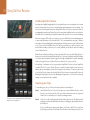
To import your clips, simply drag them from the library and
drop them into the media pool.
Step 1.
Launch DaVinci Resolve. If this is the first time you’ve opened DaVinci Resolve, click on
the ‘plus’ icon at the bottom left of the log in window and create a new user. Log in and
double click on ‘untitled project’ in the project manager window.
Step 2.
You’ll now see the ‘media’ page with a library window at the top left. The library window
displays all your linked media folders from where you’ll drag your clips and drop them into
the media pool.
If your clip folder doesn’t appear in the library, you’ll need to add it. This is easily done
by clicking on preferences in the DaVinci Resolve title bar and clicking on the ‘plus’ icon
36 Using DaVinci Resolve
in the ‘media storage’ tab, browse to and select a drive or folder path, click 'save', restart
DaVinci Resolve and reopen ‘untitled project’ to refresh the media storage settings.
Step 3.
To start editing your clips, you’ll need to create a new timeline.
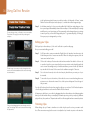
The timeline is the stage upon which all your editing will
take place.
In the library window, click on your newly added clip folder. Now simply drag your clips
from your storage folder and drop them into the media pool. If the untitled project settings
are different to your clip settings, you’ll be prompted to either change the project settings
to match your clips, or leave the settings as they are. To get started quickly, click ‘change’.
Now your project settings match your clips.
Editing your Clips
With your clips in the media pool, click on the ‘edit’ tab to open the edit page.
Now you can start building your edit!
Step 1.
The ‘edit’ page. You can trim your clips, change their order,
move them around and add transitions between them using
the timeline editor.
You’ll first need to create a new timeline. Right click in the ‘timelines’ window next to the
folder library and select ‘create new timeline’. When the dialog box appears, click the
‘create new timeline’ button.
Step 2. Click on the ‘media pool’ button above the timelines window. Now double click on a clip
to open the clip in the source viewer. Use the mouse pointer to scrub the play head in the
source viewer left and right until you find the start frame you want for the clip. Mark the
in point with the I shortcut. Do the same for the end frame using the O shortcut.
Step 3.
Go to the timeline and position the timeline play head where you want your clip to
be inserted.
Step 4.
To insert the clip onto the timeline, click inside the source viewer then drag the mouse
pointer across to the timeline viewer. A list of edit options will appear. Select the type of
edit you want.
Your clip will be placed onto the timeline using the edit type you selected. You’ll find a description
of each edit type and how to use them in the DaVinci Resolve manual.
A faster way to add clips to your edit is by dragging them from the media pool and dropping them
directly onto the timeline where you can adjust your in and out points, position your clips, try different
plug in effects, titles, and more. This particular workflow is like using the timeline as an artist’s palette.
Trim your clips by dragging their start and end points left or
right. The ‘snapping’ feature can be turned off when making
fine adjustments.
Trimming Clips
When editing clips you’ll want to trim them to include only the specific actions you want in each
shot. There are various ways, but the easiest is to adjust the clips’ in and out points on the timeline:
37 Using DaVinci Resolve
Step 1. After adding clips to your timeline, hover your mouse pointer over the start of a clip until
the pointer becomes a trim icon.
Step 2. When the trim icon appears, click on the start of your clip and drag it forwards or backwards
to trim the in point. Watch the timeline monitor as you trim to find the edit point.
Step 3. Now click and drag the end of your clip to adjust the out point.
The zoom slider is located underneath the timeline. By dragging the slider left and right you can
zoom in and out of your timeline to make fine adjustments.
Turning the ‘snapping’ feature off is handy when fine tuning edits, but it’s a helpful feature to keep
your clips held tightly against each other, so it’s worth turning back on once you’re done. Press the
’N’ key to quickly turn snapping on or off.
Trim your clips by dragging their start and end points left or
right. The ‘snapping’ feature can be turned off when making
fine adjustments.
Mapping Keyboard Shortcuts
If you are familiar with keyboard shortcuts using other editing software, you can easily map your own
in DaVinci Resolve to increase speed and optimize your workflow.
To map your own keyboard shortcuts:
Step 1.
Click on the project setting ‘gear’ icon at the bottom left of your DaVinci workspace, then
select keyboard mapping from the settings list.
Step 2.
Select the shortcut you want to change from the categories provided. For example, timeline
cut and paste shortcuts will be in the ‘edit’ category.
Step 3.
Click on the shortcut once to highlight the setting. Double click on the shortcut to enable
the change.
Step 4.
Press your new shortcut keys on the keyboard. If you make a mistake you can easily undo
the change by clicking the ‘undo’ icon next to the setting.
Step 5.
Click save to confirm your new shortcut setting.
Adding Transitions
A transition is a visual effect used to bridge one clip to another in a pleasing way, for example dissolves,
wipes, dips to color, and more. These can add a layer of excitement to your edit. Transitions don’t
always have to be joining two clips, for example you can apply a dissolve transition to the end of one
clip to create a quick and easy fade to black.
The transitions palette contains many types of
transition effects.
To add a dissolve transition between two clips:
38 Using DaVinci Resolve
Step 1. Make sure there are two clips edited tightly together on the timeline. Go to the toolbox in
the ‘effects library’ located below the media pool and you’ll see the ‘transitions’ palette.
Step 2. Click on the ‘cross dissolve’ transition, drag it to your timeline and hover it over the edit
point between two clips. You’ll see the mouse pointer highlight both the end section of the
first clip, and the start of the second. Drop the transition onto the clips. It’s important both
clips have enough length before and after their edit points to make room for the dissolve.
Simply drag and drop transitions between adjoining clips.
You now have a smooth transition mixing from one clip to the other. If you want to adjust the length
of the transition you can lengthen or shorten its start and end point using a similar approach to
trimming a clip. Hover your mouse pointer over the start or end of the transition until the transition
trim icon appears, then drag it left or right.
Adding Titles
It’s easy to create titles for your edit. You can place a title on any video track just as you would a clip.
If you run out of tracks you can easily add new ones by right clicking next to an existing track name
and selecting ‘add track’.
To create a title:
Drag a title type from the ‘titles’ palette and drop it on an
empty track.
Step 1. Go to the toolbox in the ‘effects library’ located underneath the media pool and you’ll
see the ‘titles’ palette. Use the scroll bar to reveal more titles options.
Step 2. Drag and drop a basic text title on the empty video track above the clip you want the
title to appear. You can even drop your title next to a clip on Video 1 if you just want it to
appear over black. To see the title, make sure the timeline playhead is on the title.
Step 3. Double click on the title clip. The ‘inspector’ window will appear showing you the settings
for your title. Type your title into the ‘text’ window.
You can choose from a variety of fonts and adjust the appearance of your title by changing settings
such as color, size, alignment, position, and more. Transitions can be added to titles, just like they
can for clips.
Adding Audio Tracks
To add a new audio or video track, right click next to a track
name and select ‘add track’. For audio, select the track
type you want.
If you want to mix a large sound edit with lots of sound effects and music, you can easily add more
audio tracks when you need them.
To add an audio track:
Step 1. Right click next to the name of the last audio track on your timeline and select ‘add track’.
39 Using DaVinci Resolve
Step 2. Select the type of audio track you want, such as stereo, mono, 5.1 or adaptive.
Your new audio track will appear on the timeline.
This can be handy when you want to separate your audio elements into individual tracks for a sound
mix, for example voice, sound effects, and music.
Refer to the DaVinci Resolve manual for more information on how you can use all the powerful
editing tools.
Color Correcting your Clips
Once you have edited your sequence of clips, you can start color correcting. This is best begun after
you have finished editing your sequence so you can maintain a consistent look, but part of the fun
of DaVinci Resolve is being able to move between the edit and color page to make fine adjustments
and discover new creative choices.
First, click on the color tab to open the color page.
With the ‘color’ page you get absolute control over the look of
your clips.
You’ll see the color wheels, curves palettes and general color correction tools as well as the preview
and nodes window. Don’t feel overwhelmed by the vast array of features in front of you, they are
all there to help you get the most amazing looking pictures. The DaVinci Resolve manual will show
you exactly what the tools are for and how to use them in easy to follow steps. You’ll learn the same
techniques the professionals use in high end color correction facilities.
Generally, the first thing you’ll want do is optimize the shadows, mid tones and highlights in your clips.
In other words adjust the ‘lift’, ‘gamma’ and ‘gain’ settings. This will help get your pictures looking
their brightest and best with a clean, uniform starting point from where you can begin grading the
‘look’ of your film.
Using Scopes
Most colorists make creative color choices by focusing on the emotion and the look they want their
program to have and then simply work using the monitor to achieve that look. You can look at everyday
objects and how different types of light interact with them to generate ideas on what you can do
with your images and a little practice.
The parade scope helps you optimize highlights, mid tones
and shadows.
Another way to color grade is to use the built in scopes to help you balance shots. You can open the
scopes by clicking ‘view’ in the title bar, and turning video scopes ‘on’. Make sure 4 up is selected.
These 4 scopes contain a waveform, parade, vectorscope and histogram. Using these scopes you can
monitor your tonal balance, check the levels of your video to avoid crushing your blacks and clipping
the highlights, plus monitor any color cast in your clips.
40 Using DaVinci Resolve
Step 1.
Adjusting the ‘lift’
With your first clip selected on the color timeline, click on the ‘lift’ dial underneath the
first color wheel. Slide it back and forth and watch how it affects your image. You'll see the
brightness of the dark regions of your picture increase and decrease. Set it to where you
want the dark areas to look their best. If you decrease the lift too much, you'll lose details
in the blacks and you can use the parade scope to help avoid this. The optimal position
for blacks on the waveform is just above the bottom line of the parade scope.
Step 2.
The lift, gamma, gain and offset color wheels give you total
control over the color and tonal balance of your clips. To make
a uniform adjustment to all colors for each tonal region, drag
the dial underneath the color wheels back and forth.
Adjusting the ‘gain’
Click on the ‘gain’ dial and slide it back and forth. This adjusts the highlights which are the
brightest areas of your clip. The highlights are shown on the top section of the waveform
on the parade scope. For a brightly lit shot, these are best positioned just below the top
line of the waveform scope. If the highlights rise above the top line of the waveform scope,
they will clip and you will lose details in the brightest regions of your image.
Step 3.
Adjusting the ‘gamma’
Click on the ‘gamma’ dial underneath the color wheel and slide it back and forth. As you
increase the gamma you'll see the brightness of the image increase. Notice the middle
section of the waveform will also move as you adjust the gamma. This represents the mid
tones of your clip. The optimal position for mid tones generally falls between 50 to 70% on
the waveform scope. However, this can be subjective based on the look you are creating
and the lighting conditions in the clip.
You can also use the curves feature to make primary color corrections. Simply open the ‘curves’
palette and adjust the highlights mid tones and shadows by clicking on the diagonal line inside the
luminance curve at selected points and dragging them up or down. The optimum points to adjust
are the bottom third, mid, and top third of the curve line.
To get a larger view of the curves when making fine adjustments, click on the ‘gigantor mode’ icon
below the curves to maximise the window. Click outside of the window to return to the standard size.
There are many more ways of doing primary color correction in DaVinci Resolve and check the DaVinci
Resolve manual to learn how to use them all.
The curves palette is another tool you can use to make
primary color corrections, or enhance specific areas of
your clip when using a power window.
Secondary Color Correction
If you want to adjust a specific part of your image then you need to use secondary corrections. The
adjustments you have been doing up until now using the color wheels and lift, gamma and gain
adjustments affect the whole image at the same time and so they are called primary color corrections.
41 Using DaVinci Resolve
However if you need to adjust specific parts of your image, say for example you wanted to improve the
color in the grass in a scene, or you wanted to deepen the blue in a sky, then you can use secondary
corrections. Secondary color corrections are where you select a part of the image and then adjust
just that part. With nodes, you can stack multiple secondary corrections so you can keep working
parts of your image until everything is just right! You can even use windows and tracking to allow the
selections to follow movement in your images.
Qualifying a Color
Use the HSL qualifier feature to select specific colors in your
image. This is handy when you want to make areas of your
image 'pop', to add contrast, or to help draw the audience's
attention to certain areas of your shot.
Often you’ll find a specific color in your clip can be enhanced, for example grass by the side of a
road, or the blue in a sky, or you may need to adjust color on a specific object to focus the audience’s
attention on it. You can easily do this by using the HSL qualifier tool.
To qualify a color:
Step 1.
Open the ‘qualifier’ window and make sure the ‘color range’ sample eyedropper tool
is selected.
Step 2.
Click on the color in your clip you want to affect.
Usually you’ll need to make some adjustments to soften the edges of your selection and limit
the region to only the desired color. Click on the ‘highlight’ button to see your selection.
Use power windows to mask out areas you don't want to be
affected by the HSL qualifier secondary adjustments.
Step 3.
Adjust the ‘width’ control in the ‘hue’ window to broaden or narrow your selection.
Experiment with the high, low and softness controls to see how to refine your selection. Now you
can make corrections to your selected color using the trackballs or custom curves.
Sometimes your selection can spill into areas of the shot you don’t want to affect. You can easily mask
out the unwanted areas using a power window. Simply create a new window and shape it to select
only the area of color you want. If your selected color moves in the shot, you can use the tracking
feature to track your power window.
Adding a Power Window
Power windows let you make secondary corrections to specific
parts of your image.
Power windows are an extremely effective secondary color correction tool that can be used to isolate
specific regions of your clips. These regions don’t have to be static, but can be tracked to move with
a camera pan, tilt or rotation, plus the movement of the region itself. For example, you can track a
window on a person in order to make color and contrast changes just to that person without affecting
his/her surroundings. By making corrections like this you can influence the audience’s attention on
areas you want them to look at.
42 Using DaVinci Resolve
To add a power window to your clip:
Step 1.
Add a new serial node.
Step 2.
Open the ‘window’ palette and select a window ‘shape’ by clicking on the icon next to the
shape. Your selected window shape will appear on the node.
Step 3.
Size the shape by clicking and dragging the blue points around the shape. The pink points
adjust the edge softness. You can position the shape by clicking the center point and
moving it to the area you want to isolate. Rotate the window using the point connected
to the center.
Now you can make color corrections to your image in just the area you want.
Tracking a Window
The camera, object or area in your shot may be moving, so to make sure your window stays on your
selected object or area, you’ll need to use DaVinci Resolve’s powerful tracking feature. The tracker
analyzes the pan, tilt, zoom and rotation of the camera or object in your clip so you can match your
windows to that movement. If this isn’t done, your correction can move off the selected target and
call attention to itself, which you probably don’t want.
To track a window to a moving object:
You can track objects or areas in your clip using the tracker
feature so power windows can follow the action.
Step 1.
Create a new serial node and add a power window.
Step 2.
Go to start of your clip and position and size the window to highlight just the object or
area you want.
Step 3.
Open the ‘tracker’ palette. Select the pan, tilt, zoom and rotate settings appropriate for
the movement in your clip by checking or unchecking the relevant ‘analyse’ checkboxes.
Step 4.
Click on the ‘forward’ arrow beneath the analyse settings. DaVinci Resolve will now apply
a cluster of tracking points on your clip and then step through the frames to analyze the
movement. When the tracking is done, your power window will follow the path of the
movement in your clip.
Most of the time automatic tracking is successful, but scenes can be complex and sometimes an
object can pass in front of your selected area, interrupting or affecting your track. This can be solved
manually using the keyframe editor. Refer to the DaVinci Resolve manual to find out more.
43 Using DaVinci Resolve
Using Plugins
While making secondary color corrections you can also add OpenFX plugins to create fast, interesting
looks and effects using the color page, or imaginative transitions and effects on your clips on the
edit page. OFX plugins can be purchased and downloaded from third party suppliers.
OFX plugins are a quick and easy way to create imaginative
and interesting looks.
After installing a set of plugins, you can access them on the color page by opening the OpenFX
panel next to the timeline viewer. Simply click on the ‘OFX plugins’ icon to open the OpenFX panel,
create a new serial node and drag and drop a plugin onto the new node. If the plugin has editable
settings, you can adjust these in the adjoining ‘settings’ panel.
In the edit page you can add plugin generators and transitions to clips by opening the ‘openFX’ panel
in the ‘effects library’ and dragging your selected plugin onto your clip on the timeline.
Mastering your Edit
So now you’ve edited, color corrected and graded your clips you’ll want to export a render of your edit
in the ‘deliver’ page. This page lets you select the range of clips you want to export, plus the format,
codec and resolution you want. You can export in many types of formats such as QuickTime, AVI, MXF
and DPX using codecs such as 8-bit or 10-bit uncompressed RGB/YUV, ProRes, DNxHD, H.264 and more.
To export a single clip of your edit:
Step 1.
The ‘deliver’ page is where you export your edit. You can
select from many different video formats and codecs.
Click on the ‘deliver’ tab to open the deliver page.
Step 2. Go to the ‘render settings’ window on the top left of the page. In the ‘video’ settings,
select ‘single clip’. Choose a video format and codec, and resolution. The frame rate will
usually be locked to the project settings frame rate. If you want to include audio with your
export, tick the ‘export audio’ checkbox in the ‘audio’ settings.
Step 3. In the ‘file’ settings, select ‘use custom filename’. Name your export, then choose your
destination by clicking the ‘browse’ button and selecting a folder location. Click ‘ok’.
Step 4. You’ll see the deliver timeline stretched across the bottom of the page. Click on the scroll
bar underneath your clips and drag it to the start of your edit. Right click on the first clip
and select ‘mark in’ from the dialog box. Now drag the scroll bar across to the end of your
edit and right click on the last clip. Select ‘mark out’.
Step 5. Go back to your ‘render settings’ and click on the ‘add job to render queue’ button. Your
render settings will be added to the render queue on the right side of the page. Now all you
have to do is click ‘start render’ and monitor the progress of your render in the render queue.
After adding your render settings to the render queue, click
the ‘start render’ button to export your edit.
When your render is complete you can open the folder location, double click on your new rendered
clip and watch your finished edit.
Using Third Party Editing Software
44 Using Third Party Editing Software
Avid Media Composer
Avid Media Composer captures standard and high definition video live from HyperDeck Studio
Pro via a Thunderbolt cable. When you install the HyperDeck Software, Blackmagic plug-ins are
automatically installed to Media Composer.
You can use the INPUT button on HyperDeck Studio Pro to select your video and audio connections
including SDI, HDMI and analog.
HyperDeck Utility also installs a HyperDeck Studio deck preset to help with RS-422 deck control.
Setting up
Media Composer
Step 5. Type a project name and set the project options.
Step 1.
Launch Media Composer and the Select Project dialog box will appear.
Step 2.
Choose your preferred User Profile if you have previously created one.
Step 3.
Select the folder in which you want to create the project: Private, Shared or External.
Step 4.
Click the New Project button.
Step 5.
Type a project name and set the project options including Format and Color Space. Click OK.
Once the project has been created, the frame rate and raster cannot be changed. The
color space setting can be changed later in the Format tab of the project.
Step 6.
Double-click the project name in the Select Project dialog box. The Media Composer
interface will appear along with the project window for your new project. You have completed
setting up your project.
45 Using Third Party Editing Software
Capturing live via Thunderbolt
To capture video live via Thunderbolt from HyperDeck Studio Pro:
Step 1. Choose Tools > Capture to open the Capture Tool.
Step 2.
Set up the Capture Tool to capture video by clicking the Toggle Source button.
Step 3.
Set the Video and Audio input menus to "Blackmagic".
Step 4.
Select the video source track (V) and the audio source tracks (A1, A2, ...) you wish to capture.
Step 5.
Use the Bin menu to select a Target Bin from the list of open bins.
Step 6.
From the Res (resolution) menu, choose which compressed or uncompressed codec you
wish to use for your captured clips. For maximum quality uncompressed video, choose
"1:1" for 8-bit video capture or "1:1 10b" for 10-Bit video capture.
Step 7.
Select the disk storage for your captured video and audio. Use the Single/Dual Drive
Mode button to determine if video and audio will be stored together on a single drive or
video on one drive and audio on another drive. Select the target drive(s) for your captured
media from the Target Drives menu(s).
Step 8.
Click the "Tape Name?" button at the bottom of the window to open the Select Tape
dialog box. Select the desired tape, or add a new one, and then click OK.
Step 9.
Ensure your video and audio source is ready or playing and then click the Capture button
or press the F4 key. The Capture button will flash red while recording. Click the Capture
button again or press the Escape button on your keyboard to end the capture.
If you can't see an image in your video capture window:
Step 1. Quit Media Composer.
Step 2. Set up the Capture Tool to capture video by clicking
the Toggle Source button.
Step 2.
Launch Blackmagic UltraScope. Note the output video standard that is displayed on the
left side of Ultrascope's Picture Display. Quit UltraScope.
Step 3.
Launch Media Composer and set the project preferences to match the standard reported
by UltraScope.
46 Using Third Party Editing Software
Apple Final Cut Pro 7
When you install the HyperDeck Software, Blackmagic Easy Setups are automatically installed to
Final Cut Pro 7.
Setting up
Final Cut Pro 7
Step 1.
Launch Final Cut Pro 7 and the Easy Setup window will appear.
Step 2.
Click on the popup menu and select the desired Blackmagic Easy Setup. For each video
format (NTSC, PAL and HDTV) you will find a range of Blackmagic compressed and
uncompressed file formats you can choose.
Step 3.
Click on the popup menu named Primary Scratch Disk and select your disk array from the
popup menu.
Step 4.
Click OK and the Final Cut Pro interface will appear.
Capturing live via Thunderbolt
To capture video live via Thunderbolt from HyperDeck Studio Pro:
Step 1. Select a Blackmagic Easy Setup. Final Cut Pro will sometimes warn that device control
has been set to “non-controllable device”. This is as expected. Click OK and then create
a project with these settings.
Step 2.
Choose File > Log & Capture. (Command + 8).
Step 3.
Press play on HyperDeck Studio Pro and then press the Now button in the Log and Capture
window. Final Cut Pro will show you a preview of the video you are capturing.
Step 4.
Press esc to stop capturing.
Select a Blackmagic Easy Setup
If you can't see an image in your video capture window:
Step 1. Quit Final Cut Pro.
Step 2.
Launch Blackmagic UltraScope. Note the output video standard that is displayed on the
left side of Ultrascope's Picture Display. Quit UltraScope.
Step 3.
Launch Final Cut Pro and set the project preferences to match the standard reported
by UltraScope.
47 Using Third Party Editing Software
Adobe Premiere Pro CC
When you install the HyperDeck Software, Blackmagic plug-ins are automatically installed to
Adobe Premiere Pro CC.
Setting up a Blackmagic Design project
Premiere Pro CC (2014)
Step 1.
Launch Premiere Pro.
Step 2.
Create a New Project and click on the Scratch Disks tab.
Step 3.
Set the desired Location and Name for your project at the bottom of this window.
Step 4.
Set the locations for your captured video, captured audio, video previews and audio previews.
Step 5.
If your graphics card is supported by Premiere Pro CC's Mercury Playback Engine, the
Renderer option will be available and you should switch it to Mercury Playback Engine
GPU Acceleration.
Step 6.
Set the Capture Format to Blackmagic Capture and click on the Settings button to reveal
the Blackmagic Capture Settings for your project. Set your desired Video Standard and
Video Format.
Step 7.
Select File > New Sequence to open the New Sequence window. To preserve maximum
video quality, you can create a full resolution uncompressed sequence. To do so, click
the discovery triangle next to "Blackmagic Design", select a preset to match the video
standard and choose from uncompressed 8 bit YUV, 10 bit YUV or 10 bit RGB. If you don't
have the storage space or disk speed for uncompressed video, choose a sequence preset
that your computer system will be able to handle.
Step 8.
When you have selected the desired sequence preset, give the sequence a name
and click OK.
48 Using Third Party Editing Software
Capturing live via Thunderbolt
To capture video live via Thunderbolt from HyperDeck Studio Pro:
Step 1.
Choose: File > Capture.
Step 2.
Press 'play' on HyperDeck Studio Pro and then click the 'red record' button. A preview of
the video you are capturing will appear.
To change the capture format, click on the 'settings' tab and then the 'edit' button. Ensure the 'capture
format' is set to 'Blackmagic capture', click on the 'settings' button and then change the Blackmagic
capture settings as desired.
If you can't see an image in your video capture window:
Step 1.
Quit Premiere Pro.
Step 2.
Launch Blackmagic UltraScope. Note the output video standard that is displayed on the
left side of Ultrascope's picture display. Quit UltraScope.
Step 3.
Launch Premiere Pro and set the project preferences to match the output video standard
reported by UltraScope.
Capture
Adobe Photoshop CC
How to grab video frames
Step 1.
From Photoshop select File > Import > Blackmagic Image Import
Step 2.
Select the 'video input format' and the 'image bit depth' and then click 'import image'.
Once you have set the options in the 'import' window, each subsequent import will not display the
window, so you can grab frames much faster. However if you would like to change your import format,
hold the 'option' key when selecting import.
Photoshop CC (2014)
Image Capture
Using Blackmagic Media Express
49 Using Blackmagic Media Express
What is Blackmagic Media Express?
Blackmagic Media Express software can be used to record directly from the HyperDeck Studio Pro
model because it features built in Thunderbolt. Normally you would record into the SSD directly,
however in some situations you can record into one file format on the SSD and a different format on
a computer connected via Thunderbolt all at the same time. Blackmagic Media Express is a great
tool when you don’t need the complexity of NLE software, but simply want to capture video from
HyperDeck Studio Pro's Thunderbolt port.
Selecting HyperDeck Studio Pro
If you have more than one Blackmagic Design capture product installed or connected to your computer,
go to the 'device' menu in Media Express and select HyperDeck Studio Pro. In the example pictured on
this page, Intensity Extreme and a HyperDeck Studio Pro are both connected to the same computer.
Selecting HyperDeck Studio Pro will allow you to choose suitable video settings for your project.
Capturing Video and Audio Files
Select your HyperDeck Studio Pro from the Device menu.
Media Express Preferences
Setting Up a Project
Before capturing any clips in Media Express, you will need to select the settings for your project.
Step 1.
Go to Media Express>Preferences and select your ‘project video format’.
Step 2.
Select from a range of professional compressed and uncompressed capture file formats
or even a DPX image sequence in the Capture File Format drop down menu. Video will
be captured in the chosen format and saved to a QuickTime movie. Any settings which
are grayed out are only used with other Blackmagic Design capture products and are not
required by HyperDeck Studio Pro.
Step 3.
Set the storage location for your captured audio and video. Click the ‘browse’ button to
browse and select the folder on your computer.
Step 4.
Choose whether to ‘stop capture’ or ‘stop playback’ if dropped frames are detected.
Step 5.
Standard definition projects use the 4:3 aspect ratio unless you tick to enable the ‘use
anamorphic SD 16:9’ checkbox.
Step 6.
Applications usually stop playing video if you send them to the background. Tick the
‘continue playback when in background’ checkbox if you want Media Express to keep
playing video even if you open another application.
Step 7.
The final options for setting tape decks with RS-422 are not used by HyperDeck Studio
Pro when capturing via a Thunderbolt connection.
50 Using Blackmagic Media Express
Capturing Video and Audio Files
Media List
Project name, video format
and frame rate
Timecode List, Thumbnail and Favorites view
Clip Bins
Mark In / Mark
Out
Search Field
Grab Still
Frame
Logging
Information
VTR / deck timecode
Capture
options
Transport
Controls
Audio channel
enable/disable
Video Preview
Audio Meters
Remote
indicator
51 Using Blackmagic Media Express
Capture
Capturing video is easy. All you need to do is connect HyperDeck Studio Pro via a Thunderbolt cable,
set the Media Express preferences and press the 'capture' button.
Enter a description for your video
Step 1.
Connect your video source to an input on HyperDeck Studio Pro. Check that
HyperDeck Studio Pro is set to the input you have connected your source to.
e.g. SDI, HDMI or analog.
Step 2.
Open Media Express and click the red 'log and capture' tab.
Step 3.
Your source video will appear in the preview pane. Enter a description into the 'description' field.
Step 4.
Click the '+' button next to the description to add it to the automatic 'name' field. Click
the '+' button next to any of the other fields that you wish to add to the name field.
To increment the value in each of these fields, click the corresponding clapper board
icon. Alternatively, type directly into any field to customize its name and number.
The text in the automatic name field will be applied to the clip(s) about to be captured.
To log the clip as a favorite, click the star icon next to the name field.
For a clip name confirmation prompt to appear before every capture, click the '!' icon
next to the name field.
Set the desired number of audio channels to be captured
Step 5.
Set the desired number of audio channels to be captured.
Step 6.
Click the 'capture' button to start recording. To stop the capture and keep the clip, click
the 'capture' button again or press esc. The captured clips are added to the media list on
the left side of Media Express.
If the video input format changes from the project video format, Media Express will automatically
detect it and will prompt you to save the current project and create a new one.
Click the Capture button to commence recording
Media Express alerts you if the video input format changes.
52 Using Blackmagic Media Express
DPX Capture
If you want to capture a DPX image sequence rather than a movie file, open the 'Media Express
preferences' and follow the steps below:
DPX capture preferences
Step 1.
Make sure you connect your video source to an input on HyperDeck Studiio Pro and check
that HyperDeck Studio Pro is set to the input you have connected your source to. e.g. SDI,
HDMI or analog.
Step 2.
Select the 'capture file format' to DPX 10-Bit RGB. You will need a fast disk array to cope
with the uncompressed 10-Bit RGB format.
Step 3.
Click the 'capture' button to start recording. To end capture, click the 'cature' button again
to automatically save the clip to the media list.
When the capture has been completed, a single thumbnail will appear in the media list representing
the entire frame sequence. The sequence of DPX frames will be stored in its own folder in your disk
storage. Audio will be stored in a .wav file in the same folder.
By default, DPX captures are assumed to be from YUV sources. If you are capturing from an RGB
source, select 'capture from an RGB source'.
If you want the DPX frame numbers to be based on the timecode of the captured video, rather than
just starting from zero, enable the option to 'use absolute frame numbering when capturing DPX'.
If you aren't performing long DPX captures, you may wish to reduce the number of zeroes in the frame
numbers by changing the option, 'when capturing DPX files, use (2-8) digit numbers in the frame count'.
53 Using Blackmagic Media Express
Playing back Video and Audio Files
You can use the transport controls to play, stop, jump to the
next or previous clip and loop playback.
Playing back single and multiple clips
To play back a single clip, double-click the clip in the media list. Alternatively, select the clip in the
media list and press the space bar on your keyboard or the play button in the transport controls.
To play back multiple clips, select the clips in the media list and then press the space bar on your
keyboard or the play button in the transport controls.
Your video will play back in the video preview pane of Media Express and on all the video outputs of
your Blackmagic Design video hardware. During playback, the audio channels being monitored can be
switched on or off via the track enable/disable buttons.
Importing clips
You can play back your video and audio files after importing media into Media Express in any of
the following ways:
If the imported clips do not match the existing clips, you will be
prompted to create a new project.
Double-click an empty area of the media list.
Right-click an empty area of the media list and select 'import clip' from the contextual
menu.
Go to the 'file' menu, select import and then 'media files'.
Select the video and audio clip(s) you wish to import from the 'open video clip' dialog box. The clips
will appear in the 'scratch' area of the media list. If you have created your own bins in the media list,
you can drag the clips into the desired bin.
To import directly to a bin, right-click within the desired bin and select 'import clip' from the contextual menu.
If the files being imported do not match the frame rate and size of existing clips in the media list, you
will be prompted to create a new project and to save the current project.
Media Express also supports the import of multichannel audio-only files recorded at 48kHz in the
uncompressed WAVE and AIFF formats.
You can import media directly, or import with an XML or EDL.
Another way to import media is to use an XML file exported from an NLE such as Final Cut Pro 7 or
Final Cut Pro X. Go to the 'file' menu, select 'import' and then either Final Cut Pro 7 XML or Final
Cut Pro X XML. Open the desired XML and all the bins and media from the Final Cut Pro project will
appear in the media list.
Media Express also supports the import of CMX EDL files to batch capture clips using EDL files from other
video software. Go to the 'file' menu, select 'import' and then CMX EDL. Select the EDL and open it.
The logging information will appear in the media list. Select the logged clips and perform a batch
capture to import the clips from your deck.
54 Using Blackmagic Media Express
Playing back Video and Audio Files
Media List
Project name, video format
and frame rate
Timecode List, Thumbnail and Favorites view
Clip Bins
Mark In / Mark
Out
Search Field
Clip
Information
Grab Still
Frame
VTR / deck timecode
Favorites
Selection
Transport
Controls
Audio channel
enable/disable
Video Preview
Audio Meters
Remote
indicator
55 Using Blackmagic Media Express
Browsing Media
Thumbnail view
In the media list, choose to view your clips in 'timecode list'
view or 'thumbnail' view. Click the 'favorites' button to show
only your favorite clips. Type in the search field to find your
favorite clips.
Thumbnails are the most intuitive way to display your clips. Hover your mouse over the clip's thumbnail
and then click on the popup info icon at the bottom-right of the thumbnail. Click the info bubble
to hide it.
List view
You can view your clips in 'timecode list' view by clicking on the 'timecode list' button at the top-right
of the media list. Use the horizontal scroll bar to view all the columns of information for your clips.
Creating and using bins
To create a bin, right click an empty spot in the media list and select 'create bin'. Name the new bin.
You can move clips around by dragging the clip icons to the desired bin. If you want a clip to appear in
more than one bin, import the same clip again by right-clicking on the bin and choosing 'import clip'.
By default, logged clips appear in the 'scratch'. If you want to log clips and have them appear in a
new bin, right-click the new bin and choose 'select as log bin'.
Creating and using favorites
Click a thumbnail's popup info icon to view the info bubble.
In the 'log and capture' tab, click the 'star' icon next to the name field if you want to log a clip as
a favorite.
In the 'playback' tab, clicking the star icon will make the clip a favorite if it is selected in the media
list. Click the star icon again to deselect it as a favorite.
Clips marked as favorites will show a yellow star in their icon in 'timecode list' view and 'thumbnail' view.
Once you have marked clips as favorites, click on the 'show only favorites' button at the top of the
media list. The star icon will turn yellow. All clips will be hidden except for those marked as favorites.
Linking an audio clip to a video clip
To link an audio clip to a video clip in the media list:
In the 'log and capture' tab, click the 'star' icon next to the
name field if you want to log the clip as a favorite.
Select a video clip which contains no audio channels.
Right-click on the video clip and select ‘link audio file’ from the contextual menu.
You can now play back the combined clip or master it to tape.
56 Using Blackmagic Media Express
Deleting clips and bins
To delete clips, select the unwanted clips and press the forward delete button on your keyboard.
This will only delete the clips from the media list and they will safely remain on your disk storage.
To delete bins, right-click within a bin and choose 'delete bin'. This action will delete the bin and
any clips it contained. This will only delete the clips from the media list and they will safely remain
on your disk storage.
Searching the Media List
Click the Favorites button at the top of the Media List to only
show your favorite clips. Type in the Search field to find clips.
Clips can easily be found in a project by typing the name of your clips in the 'search' field at the top
of the media list. When used in conjunction with the favorites feature, the search will be confined to
your favorite clips so you will see a shorter list of found clips.
Using Blackmagic UltraScope
57 Using Blackmagic UltraScope
What is Blackmagic UltraScope?
With HyperDeck Studio Pro you get the incredible features of Blackmagic UltraScope, which you can
even use with compatible Mac OS X and Windows notebook computers with Thunderbolt technology!
Blackmagic UltraScope software is installed by the HyperDeck Studio Pro Installer.
Previously broadcast quality television and post production scopes were incredibly expensive custom
solutions that only let you see one scope at a time on a tiny screen! Some scopes look ugly and don’t
really look good in front of your client. With Blackmagic UltraScope, you get 6 wonderful scopes that
let you see all aspects of your video signals!
Blackmagic UltraScope is perfect for quality control checks of the output of your HyperDeck Studio
Pro, no matter which video input you use. Simply connect a Thunderbolt cable from your HyperDeck
Studio Pro to a Thunderbolt enabled computer and away you go!
Installation Requirements
Blackmagic UltraScope
HyperDeck Studio Pro connects to both Mac OS X and Windows computers with Thunderbolt
technology.
The Blackmagic UltraScope software interface requires a computer display with a minimum resolution
of 1280 x 800 pixels to view two scopes simultaneously. Blackmagic Design recommends viewing all
6 scopes simultaneously by using a computer display resolution of 1920 x 1200 or 1920 x 1080 pixels.
Please see the support pages at www.blackmagicdesign.com for a comprehensive list of the latest
minimum system requirements for Blackmagic UltraScope for Mac OS X and Windows.
58 Using Blackmagic UltraScope
Blackmagic UltraScope Interface
1. Parade Display
4. Histogram Display
5. Error Logging
2. Waveform Display
3. Vectorscope Display
6. Audio Metering Display
7. Picture Display
59 Using Blackmagic UltraScope
Understanding Blackmagic UltraScope Views
Blackmagic UltraScope has two different views available depending on your workflow needs and
screen resolution. You have the choice of viewing six displays in 'full screen' view, or for more compact
viewing, choose any 2 displays in '2-up' view.
The display view can be selected from the 'view' menu.
Choose 'full screen' to enter 'full screen' view. If this option is unchecked, '2-up' view will be displayed.
You can quickly switch between full screen view and 2-up view by using the hot key 'command+f'
on Mac OS X.
In '2-up' view, select the desired left and right scopes by opening the 'view' menu or by right-clicking
anywhere in the UltraScope window. Make your selections from the 'left view' and 'right view' menu
options. If you attempt to choose the same scopes for both the 'left view' and 'right view', the existing
scopes will swap sides.
Full Screen view
Screen Resolution Requirements for Display Views
Full Screen view: 1920 x 1200 pixels or 1920 x 1080 pixels. If your monitor doesn’t support
these resolutions, then full screen view will not be available.
2-up view: minimum resolution of 1280 x 800 pixels.
2-Up view
60 Using Blackmagic UltraScope
Zoom Function
Blackmagic UltraScope allows you to zoom in on various displays for a more detailed analysis.
This helpful function will also pan and zoom the graticules for each display in high resolution.
The zoom function is available in the Parade, Waveform, Vectorscope and Picture displays.
To zoom in, simply click
on the bottom right of each respective display. Now you will be able to
view the display in finer detail. Drag the mouse within the display area to pan around the zoomed
display.
Clicking again, will return the display back to its normal view.
Parade Display
Parade Display is perfect for checking for illegal colors and checking levels.
Zoom Function
Press the RGB button to display the full height of each color channel as red, green and blue. Monitoring
the levels of each red, green and blue color channel makes it is easy to view color balance in the
blacks, mids and whites of the video signal. Parade Display enables you to identify details common
to the red, green and blue channels.
It’s often important to make sure you’re not clipping the video levels. Make sure the video is full level but
not clipped. You can turn on the GAMUT function, and any illegal levels will be highlighted in bright red,
so they are easy to see. Instructions for setting gamut limits can be found in the Error Logging Display
section of this manual. If you want to increase the video level, then make sure it doesn’t go above
upper RGB limit or you will encounter illegal levels. Some equipment won’t let you generate illegal
100% RGB levels, however other equipment will. Blackmagic UltraScope lets you see illegal levels
whenever they occur.
Illegal video can also happen in blacks as well as whites. Some equipment produces black levels
which can be lowered below the black point of 0%. The levels will be shown as bright red if this falls
below the lower gamut limit and the GAMUT warning mode is enabled. If you observe illegal black
levels, just add some “lift” or gain to eliminate them but check the 100% graticule level to make sure
the whole video signal has not lifted and generated illegal colors in the whites.
To check levels, simply press the YUV or YUV+ button.
Parade Display
The COLOR setting switches the RGB display to color rather than traditional black and white. When the
COLOR setting is used with the YUV or YUV+ display, luma (brightness) remains white, B-Y (difference
between blue and luma) appears blue and R-Y (difference between red and luma) appears red. The COLOR
setting is not a professional setting and should usually be switched off, especially when showing video
to clients.
61 Using Blackmagic UltraScope
Waveform Display
The Waveform Display is similar to traditional composite waveform monitors seen in many broadcast
studios. On Mac OS X, the Waveform Display always shows the luminance view and the B/W button is
permanently selected. On Windows, select B/W for the luminance only view, COMP for the composite
only view, and BOTH for the twin luminance and composite view.
Select B/W for the luminance view which provides a digitally encoded waveform similar to traditional
luminance waveform monitors. The luminance view is very useful when adjusting luma (brightness) levels in
an image. Turn on the GAMUT function, and any illegal luma levels will be highlighted in bright red, so they
are easy to see. Instructions for setting luma limits can be found in the Error Logging Display section of this
manual. Traditional luminance waveform monitors only supported composite analog standard definition
video. However UltraScope’s luminance view works in high definition as well as standard definition, so
you have a consistent and easy way to adjust luma levels even when monitoring high definition digital
video formats!
Waveform Display on Windows can show Luminance,
Composite or Both views.
For Windows users, the composite view is exciting because it’s a fully digitally encoded composite
waveform view and similar to a traditional waveform monitor. This provides a much easier way to
align to test signals, such as color bars, because you can use the composite waveform exactly the
same way as it has always been used. Composite view also works in high definition, so you have a
consistent and traditional way to adjust video even when working in high definition!
When BOTH view is selected on a Windows PC, the composite and luminance waveforms display
side by side in a twin view. This is incredibly useful when adjusting video levels or color correcting. It’s
impossible for a vectorscope to show which objects in the video have color because a vectorscope just
shows what colors are in the whole image and not which objects have color. When color correcting,
you often need to look for specific parts of the image, remove the color and produce a neutral state.
This is because the composite waveform is the same as the luminance signal but with chroma added.
Waveform Display on Mac OS X always shows Luminance view.
Choosing this twin view makes it easy to identify similar items in the luminance and composite waveforms,
and if more blur or chroma is observed in the composite area, the item has color. If some part of the
video image is neutral gray, then it should look the same on both waveforms because no chroma will
be present. With the twin view, you can look around the waveform and see the levels of color or chroma
of various objects. As you color correct, the composite waveform will display more or less chroma in
the video signal. Now you can see if specific objects in the video image are color or black and white.
You can make technical and creative decisions using the Waveform Display.
When the Waveform display is zoomed in, you can toggle between COMP and B/W, and view the
same region of an image in the zoomed display.
62 Using Blackmagic UltraScope
Vectorscope Display
The Vectorscope Display uses a vector view to show the colors in a video signal. You can see color
bar video levels by using the color boxes in the graticule. All you need to do is select 75% or 100%
color bars, depending on the standard of color bar test signals used in your facility!
Some people think you can use a vectorscope to check for illegal levels. However this is not correct
and the Parade Display should be used, and set to RGB, for checking for illegal colors. The reason
you cannot use a vectorscope to check for illegal levels is that both chroma and luminance values
are required. For example, colors near the white or black points in video cannot be as saturated as
the much stronger colors, which can be used in the mid-grays. Because Vectorscope Display only
shows colors, and not luminance values, it cannot be used to check for illegal colors.
Vectorscope Display is the best tool for checking color levels from older, analog videotape where you
need to adjust chroma levels. Just play back the color-bar segment of the videotape, and then adjust
the chroma and hue settings, to set the colors of the video within the square boxes in the graticule.
Vectorscope Display
Vectorscope Display is also perfect for color grading, as you can easily see if your video is correctly
white-balanced or if there is a color tint. If your video has a color tint, the Vectorscope display will
drift off-center, and you might see two center dots. Normally the blanking in the video signal will
create a dot in the center of the vector scope, and this is because the blanking in the video is black
video without any color. Blanking provides a useful reference point to help recognize areas of black
video without any color information.
If your video has a color tint, you should see the blacks move off-color and off-center. The degree of shift
represents the amount of color tint in your video and you can see the shift in both the white and black details
of your video. This makes Vectorscope Display valuable for removing color tint and regaining correct
white balance.
Vectorscope Display lets you push colors in your video to the limits, without accidentally adding
unwanted color tints to blacks and whites. While color balance can be monitored on both the
RGB Parade Display and Vectorscope Display, color balance issues will often be easier to see in
Vectorscope Display.
When color correcting footage of skin tone, particularly faces, you will want to keep your warm
color saturation along a line at approximately 10 o'clock on the vectorscope. This is known as the
"fleshtone line" and is based on the color of blood beneath the skin's surface. The fleshtone line is
therefore applicable to all skin pigmentations and is the best way to ensure the skin tones of your
talent look natural.
63 Using Blackmagic UltraScope
Histogram Display
Histogram Display is most familiar to graphic designers and camera operators. Histogram Display
shows the distribution of white to black information and lets you monitor how close the detail is to
being clipped off in the whites or blacks of the video. Histogram Display also lets you see the effects
of gamma changes in the video.
Black video is shown on the left of the display, and whites are shown on the right. All video should
usually be found between the 0% and 100% intervals of the Histogram Display. Your video is being
clipped if it moves below 0% or above 100%. Video clipping can be really bad, when you’re on a
shoot, as detail in the blacks and whites must be preserved if you subsequently want to perform
color-correction in a controlled environment. When shooting, keep the video above the black clip,
and below the white clip, so you can have more freedom later to adjust colors without whites and
blacks appearing flat and lacking in detail.
Histogram Display
When color-correcting, you might decide to clip your video, and in which case Histogram Display will
show the effect of clipping the video, and how much it is being clipped. You can even use gamma
to create a similar look, with less clipping, while retaining more detail.
You cannot really use Histogram Display to check for illegal levels although you can use it to see
illegal blacks and whites. Histogram Display does not show colors and so the histogram might appear
to show legal levels, even though your video may contain illegal colors. Again, RGB Parade Display
provides the best way to watch out for illegal levels as it shows them in both the color and luminance
elements of the video signal.
The HIGH and LOW buttons simply control how bright the histogram appears on your computer display.
If you find the white area of the histogram is too bright in a dark studio, choose LOW for a more
comfortable brightness level.
64 Using Blackmagic UltraScope
Error Logging Display
Error Logging records errors in video and audio and is indispensable when reviewing video and for
unattended operation. Errors may be logged for color, brightness or audio threshold levels as well
as loss of video signal, change of video format or audio silence. After setting the parameters which
define when an error should be logged, you can choose to start or stop error logging, save the log
to a file, or clear the log. These functions can be selected from the buttons in the Error Logging
Display or from the Error Logging pulldown menu.
Errors are recorded against timecode and time of day to make them easy to find. If the timecode
is not present, errors can be found by reviewing the time of day at which they were recorded. As
computer clocks can drift, it is a good idea to inspect the Date & Time settings on your computer,
and set the clock to synchronize with an Internet time server to ensure accurate time of day logging.
In the Full Screen view, Histogram Display and Error Logging Display share the same area of the
UltraScope interface. Select the LOGGING button, below the Histogram Display, to switch to the
Error Logging Display. Select the HISTOGRAM button, below the Error Logging Display, to switch
back to the Histogram Display. After quitting and reopening the UltraScope application, the last
viewed display will be made visible again, i.e. either Histogram or Error Logging.
From the Histogram Display, select the Logging button to
switch to the Error Logging Display.
In 2-up view, Histogram Display and Error Logging Display can be viewed simultaneously and so
there are no LOGGING or HISTOGRAM buttons.
When viewing the Error Logging Display for the first time, the display will initially be blank other than
for some column headings. Select the START button to commence logging. In Full Screen view, you
can switch back to the Histogram Display and UltraScope will continue to perform error logging until
you choose to stop it.
When error logging is being performed, the STOP button replaces the START button. When the
STOP button has been selected, you can choose to START again and any new errors will be appended
to the existing log. When error logging has been stopped, you can choose to SAVE the log to a
CSV file or alternatively CLEAR the log. The SAVE and CLEAR buttons will not appear if no errors
have been recorded. The CSV file can be analyzed in many applications including spreadsheet and
database software.
By default, error logging is performed using the EBU-R103 standard which is set down by the European
Broadcasting Union. This standard is popular worldwide and is commonly used as a template for
making new error logging profiles.
65 Using Blackmagic UltraScope
How to Customize Error Logging
To customize error logging, go to the Error Logging menu and choose Profiles to open the Error
Logging Profiles window. Saved profiles appear in the profile list at the left and the current active
profile appears in bold above the list.
The standard EBU-R103 profile cannot be deleted or modified and is grayed out. You can add a profile
by clicking the add (+) button and typing a name for your profile. The new profile will initially contain
the same parameters as the EBU-R103 profile but these can be changed as required.
Under the Gamut tab, upper and lower limits can be adjusted as a percentage of IRE units for RGB,
Luma and Chroma. Set the minimum time in milliseconds (ms) for which these conditions must be
sustained before being logged as errors. Set the percentage area, of pixels in error to total pixels in
a frame, below which errors can be ignored. The Area setting acts like sensitivity.
Gamut error tolerance settings for color and brightness
Under the Audio tab, the maximum audio level can be set in decibels (dBFS) as can the audio level
below which audio is regarded as silence. Set the minimum time in milliseconds (ms) for which these
conditions must be sustained before being logged as errors.
Under the Video tab, loss of video signal and change of video format can be logged as errors.
Under the Notes tab, write a brief description of the new profile to help distinguish it from other profiles.
To modify a new or existing profile, ensure it is selected and then change its parameters as desired.
Press Save to save these changes or choose Revert to leave the profile unchanged.
Choosing Save saves the changes to the profile but does not determine which profile is active. To
activate a profile, select it from the profile list and then choose Set Active.
You can delete a profile by selecting it in the profile list and clicking the delete (–) button.
Audio error tolerance settings
66 Using Blackmagic UltraScope
Audio Metering Display
Audio Metering Display shows you the audio levels in the embedded audio of the HyperDeck Studio
Pro's video signal. 8 channels of embedded audio from your HyperDeck Studio Pro are de-embedded
and then displayed in either dBFS or VU format. The VU button switches between dBFS and VU audio
metering standards.
dBFS is essentially a meter of the overall digital audio signal and is common on modern digital
equipment.
The VU meter shows average signal levels, is easy to use and very common on older equipment. VU
is calibrated to the SMPTE recommendation of a 1 kHz tone test signal set to -20 dBFS.
Audio Metering Display
The right hand audio scope can monitor two channels of audio. The audio scope presents audio in an X-Y
view so you can see audio balance issues, out of phase conditions and whether an audio track is mono
or stereo. Mono audio should appear as a single, vertical, “in phase” line. If the line is horizontal, then
your audio is “out of phase” and could cancel out (i.e. loss of audio) when received by downstream
equipment. Audio phase is one of the most common audio faults in large facilities, where cables
can be incorrectly connected.
When monitoring stereo signals, the line of the right hand audio scope fans out to represent the
difference between the left and right audio channels. The more stereo sound contained in the audio
track, the more circular the line will appear. If the audio contains minimal stereo content, then the
scope will appear more concentrated around the vertical axis.
While spoken dialog tends to appear as a vertical line, music with plenty of stereo content will puff out.
This is because mono audio is L+R, and will display on the vertical axis, whereas stereo content is
L-R, and will display on the horizontal axis to show the stereo difference.
67 Using Blackmagic UltraScope
Picture Display
The Picture Display is a handy confidence monitor so you can see the video that is being received
by Blackmagic UltraScope. The Picture Display has three settings: COLOR, B/W (black & white) and
BLUE (Blue Only).
Set to COLOR or B/W depending on the needs of your facility. Black & white is popular for use in
color-correction studios so clients don’t get confused when seeing multiple color displays, and not
understanding which color display is the correct, color-calibrated display. You may wish to select
B/W so there is only a single calibrated color display in the room. The black & white display can also
provide a useful visual reference.
Blue Only is used with color bar test signals for setting hue on playback decks. When adjusting hue,
make sure all the blue bars are a constant brightness to attain the correct hue level.
Picture Display
Blue Only can also be used for evaluating noise levels in cameras and telecines. Blue has the least
amount of signal level, in a color video signal, and so is more susceptible to noise. The BLUE setting
can provide a good way to check on noise levels in a video signal.
The Picture Display will also decode RP-188 HD and VITC SD timecode information, from an SDI video
input signal, and display it on the right side of the display. If the timecode information is incorrect,
check your deck to ensure it is outputting the correct timecode signal encoded as VITC or RP188.
It is worth noting that some standard definition broadcast decks let you “re-stripe” the timecode
track independently of the VITC, which was encoded as part of the image. This meant the VITC could
not be changed without copying the video down another generation. Consequently some standard
definition decks had different timecode in the VITC to the normal LTC track on the SDI video output.
It is always worth checking master tapes if you think the displayed timecode is incorrect.
The Picture Display will also show timecode internally generated by your HyperDeck Studio Pro when
Generate is selected in the Ancillary Data>Timecode>Mode Select menu.
Lastly, the video standard is displayed on the left side of the Picture Display, so you can verify the video
standard being output by your HyperDeck Studio Pro. This information is great for independently checking
that the correct video standard is being output without having to use external monitoring equipment.
If the displayed video standard is not what you expected, you should check the output settings on
HyperDeck Studio Pro.
Using Blackmagic Disk Speed Test
68 Using Blackmagic Disk Speed Test
Using Blackmagic Disk Speed Test
Blackmagic Disk Speed Test is a beautiful and fun to use application that measures the read and write
performance of storage media in video frame sizes. The use of video frame sizes provides accurate
measurement of how the disk storage will perform with video related applications.
If you have ever wondered whether your hard drive is suitable for playback (“read”) of a particular video
format, you can use Disk Speed Test to find out. With its easy to understand layout, it is now simple to
understand what performance you can get out of your media drives with a single click of the Start button!
Disk Speed Test will even show you how many streams of video your storage is capable of handling!
Disk Speed Test is included free with your HyperDeck and can also be downloaded from our website
free of charge.
Disk Speed Test takes the guess work out of configuring your storage system for optimal performance
for any job you will be doing.
Disk Speed Test settings are accessed by clicking on the Settings button, just above the Start button.
On Mac OS X, the same settings are also available from the Menu Bar at the top of your computer display.
Select Target Drive
Click Select Target Drive to choose the storage volume you wish to test. Ensure you have Read and
Write permissions for the selected volume as Disk Speed Test will write a temporary file to it. This
file will be automatically deleted when you quit Disk Speed Test.
Save Screenshot
After testing your disk storage, click Save Screenshot to save a screenshot of the results to a chosen location.
Stress
Lower stress settings may be chosen if you want to demonstrate the speed of disk storage quickly.
The 1 GB option would be a good choice on a trade show booth to rapidly show the read and write
performance of a disk array even though the results might not be quite as accurate as when the 5
GB option is selected.
Disk Speed Test limits each write operation to a maximum of 8 seconds and each read operation to
a maximum of 8 seconds so you do not have to wait long to obtain results.
Settings menu
Disk Speed Test Help
Click Disk Speed Test Help to launch the PDF manual for Disk Speed Test.
About Disk Speed Test
About Disk Speed Test displays which version of the Disk Speed Test you are running.
69 Using Blackmagic Disk Speed Test
Settings
Click this button to
access the settings
before running a disk
speed test
START
Click this button once
to start the disk speed
test. Click again to stop
the test
Will it Work?
This panel shows which
video formats can be
supported by your disk
storage
How Fast?
This panel shows results
in frames per second (fps)
70 Using Blackmagic Disk Speed Test
Start
Once you have chosen the desired settings, click the Start button to commence the disk speed test.
Disk Speed Test will write a temporary file to the selected target drive. When the file has finished
writing, or when 8 seconds has elapsed, Disk Speed Test will stop writing and start reading back the
temporary file from the drive.
Disk Speed Test will continue writing and reading the nominated sized stress file until you stop the
test by clicking the Start button again.
Will it Work?
The “Will it Work?” panel can help to identify video formats where the Read performance might be
significantly different to the Write performance. These differences might mean that you can capture
a video format but not play it back in real time or else you can play back a video format but not
capture it in real time.
Disk Speed Test interface during a test
The “Will it Work?” panel shows common video formats and instantly displays a check mark or cross
to show if the disk performance will be adequate for the desired video format. We suggest you allow
Disk Speed Test to perform several test cycles to help reveal any video formats for which the disk
storage performance might be marginal. If you observe a check mark and a cross switching between
each other for a video format, this would indicate that the disk storage cannot reliably support the
video format.
The “How Fast?” results panel shows the frame rates your drive can achieve in frames per second
and should be read in conjunction with the “Will it Work?” panel. If the “Will it Work?” panel shows
a green check mark for 1080p at 59.94fps in 10-Bit YUV 4:2:2, but the “How Fast?” panel shows that
a maximum of 60fps will be supported, the disk storage performance is too marginal to be reliable.
How Fast?
After each Read or Write test, the results will be displayed in the “How Fast?” panel. The “How Fast?”
results panel also enables you to see how many streams of video can be supported by your disk
storage. If the result for “HD 1080” is 70, you can run up to 70 frames of HD 1080 video per second.
This storage speed is capable of supporting the following video formats:
2 simultaneous streams of 1080i50 video at 25 fps per stream
1 stream of 1080p50 video at 50 fps per stream
1 stream of 1080p59.94 video at 59.94 fps per stream
Accessories
71 Accessories
Installing the HyperDeck Shuttle Mounting Plate
The contents of the box includes:
x1
HyperDeck Shuttle
x4
Socket Head Screws
Mounting Plate
M3 x 10mm
You will need:
x1
Hex Allen Key 2.5mm
(not included)
1
3
1
3
Step 1
2
2
2
4
4
4
HyperDeck Shuttle Mounting Plate is an optional accessory that lets you secure your HyperDeck
Shuttle to a camera rig with your choice of rail mounts, cold shoe mounts, articulated arms and more.
You can also use the plate to power your HyperDeck Shuttle from an external battery by attaching
a V-Mount or Anton Bauer style battery plate. HyperDeck Shuttle Mounting Plate is available for
purchase from Blackmagic Design resellers. For easy installation, please follow these simple steps.
Step 1.
Peel back the rubber mat from all four corners of the base so you can just see the screws.
Remove all four screws.
Step 2.
Remove the base.
Step 3.
Attach your HyperDeck Shuttle Mounting Plate using the supplied socket head screws.
1
3
Step 2
Step 3
Developer Information
72 Developer Information
Blackmagic HyperDeck Ethernet Protocol
Version 1.3
The Blackmagic HyperDeck Ethernet Protocol is a text based protocol accessed by connecting to
TCP port 9993 on HyperDeck Studio models that have a built in Ethernet connection. If you are a
software developer you can use the protocol to construct devices that integrate with our products.
Here at Blackmagic Design our approach is to open up our protocols and we eagerly look forward
to seeing what you come up with!
Protocol Commands
Command
Command Description
help or ?
Provides help text with all commands and parameters.
remote
Queries the state of HyperDeck’s remote control mode.
remote: enable: true
Enables remote control.
remote: enable: false
disables remote control.
remote: override: true
Turns remote override on.
remote: override: false
Turns remote override off.
quit
Disconnects HyperDeck server.
ping
Determines HyperDeck server is responding.
preview: enable: true
Switches to HyperDeck preview mode.
preview: enable: false
Switches to HyperDeck output mode.
play
Starts playback all remaining clips on the timeline then stop.
play: speed: {% normal speed}
Starts playback at a specified speed in percentage between
-1600 and 1600.
play: loop: true
Starts playback in looping fashion.
play: single clip: true
Starts playback the remaining of the current clip then stop.
record
Starts recording.
record: name: “{clip name}”
Starts recording a clip using a specified clip name.
stop
Stops playback or recording.
goto: clip id: {clip ID}
Goes to start of specific clip.
goto: clip: {“start”, “end”}
Goes to start or end of current clip.
73 Developer Information
Command
Command Description
goto: timeline: {“start”, “end”}
Goes to start of first clip or end of last clip.
goto: timecode: {timecode}
Goes to specified timecode
goto: timecode: {“+”, “-”}
{duration in timecode}
Moves forward or back a duration in timecode
commands
Lists all supported commands in an XML format.
notify
Queries the current state of all notifications.
notify: transport: true
Enables transport notifications.
notify: transport: false
Disables transport notifications.
notify: slot: true
Enables slot notifications.
notify: slot: false
Disables slot notifications.
notify: remote: true
Enables remote notifications.
notify: remote: false
Disables remote notifications.
notify: configuration: true
Enables configuration notifications.
notify: configuration: false
Disables configuration notifications.
device info
Provides information about the connected device.
slot info
Provides information about the current active slot.
slot info: slot id: {slot ID}
Provides information about a specified slot.
clips get
Provides information for each available clip.
transport info
Provides information for the state of the transport.
configuration
Queries the current configuration.
configuration: video input:
{“SDI”, “HDMI”, “component”}
Configures video input.
configuration: audio input:
{“embedded”, “XLR”, “RCA”}
Configures audio input.
configuration: file format:
{File format}
Configures current file format.
slot select: video format:
{Video format}
Reloads timeline with all clips of the specified video format.
slot select: slot id: {slot ID}
Switches to the specified slot.
74 Developer Information
Command Combinations
You can combine the parameters into a single command, for example:
play: speed: 200 loop: true single clip: true
Or for configuration:
configuration: video input: SDI audio input: XLR
Or to switch to the second disk, but only play NTSC clips:
slot select: slot id: 2 video format: NTSC
Using XML
While you can use the Terminal to talk to HyperDeck, if you are writing software you can use XML
to confirm the existence of a specific command based on the firmware of the HyperDeck you are
communicating with. This helps your software user interface adjust to the capabilities of the specific
HyperDeck model and software version.
Protocol Details
Connection The HyperDeck Ethernet server listens on TCP port 9993.
Basic syntax
The HyperDeck protocol is a line oriented text protocol. Lines from the the
server will be separated by an ascii CR LF sequence. Messages from the
client may be separated by LF or CR LF.
New lines are represented in this document as a "↵" symbol.
Command syntax Command parameters are usually optional. A command with no
parameters is terminated with a new line:
{Command name}↵
If parameters are specified, the command name is followed by a colon,
then pairs of parameter names and values. Each parameter name is
terminated with a colon character:
{Command name}: {Parameter}: {Value} {Parameter}: {Value} ...↵
75 Developer Information
Response syntax Simple responses from the server consist of a three digit response code
and descriptive text terminated by a new line:
{Response code} {Response text}↵
If a response carries parameters, the response text is terminated with a
colon, and parameter name and value pairs follow on subsequent lines
until a blank line is returned:
{Response code} {Response text}:↵
{Parameter}: {Value}↵
{Parameter}: {Value}↵
...
↵
Successful response codes A simple acknowledgement of a command is indicated with a response
code of 200:
200 ok↵
Other successful responses carry parameters and are indicated with
response codes in the range of 201 to 299.
Failure response codes Failure responses to commands are indicated with response codes in the
range of 100 to 199:
100 syntax error
101 unsupported parameter
102 invalid value
103 unsupported
104 disk full
105 no disk
106 disk error
107 timeline empty
109 out of range
110 no input
76 Developer Information
111 remote control disabled
120 connection rejected
150 invalid state
Asynchronous response codes The server may return asynchronous messages at any time. These
responses are indicated with response codes in the range of 500 to 599:
5xx {Response Text}:↵
{Parameter}: {Value}↵
{Parameter}: {Value}↵
↵
Connection response
On connection, an asynchronous message will be delivered:
500 connection info:↵
protocol version: {Version}↵
model: {Model Name}↵
↵
Connection rejection Only one client may connect to the server at a time. If other clients attempt
to connect concurrently, they will receive an error and be disconnected:
120 connection rejected↵
Timecode syntax Timecodes are expressed as non-drop-frame timecode in the format:
HH:MM:SS:FF
Handling of deck "remote" state
The "remote" command may be used to enable or disable the remote
control of the deck. Any attempt to change the deck state over ethernet
while remote access is disabled will generate an error:
111 remote control disabled↵
To enable or disable remote control:
remote: enable: {"true", "false"} ↵
77 Developer Information
The current remote control state may be overridden allowing remote
access over ethernet irrespective of the current remote control state:
remote: override: {"true", "false"} ↵
The override state is only valid for the currently connected ethernet client
and only while the connection remains open.
The "remote" command may be used to query the remote control state of
the deck by specifying no parameters:
remote↵
The deck will return the current remote control state:
210 remote info:↵
enabled: {"true", "false"}↵
override: {"true", "false"}↵
↵
Asynchronous remote control information change notification is
disabled by default and may be configured with the "notify" command.
When enabled, changes in remote state will generate a "510 remote
info:"asynchronous message with the same parameters as the "210 remote
info:" message.
Closing connection The "quit" command instructs the server to cleanly shut down the connection:
quit↵
Checking connection status The "ping" command has no function other than to determine if the server
is responding:
ping↵
Getting help
The "help" or "?" commands return human readable help text describing
all available commands and parameters:
help↵
Or:
?↵
78 Developer Information
The server will respond with a list of all supported commands:
201 help:↵
{Help Text}↵
{Help Text}↵
↵
Switching to preview mode
The "preview" command instructs the deck to switch between preview
mode and output mode:
preview: enable: {"true", "false"}↵
Playback will be stopped when the deck is switched to preview mode.
Capturing will be stopped when the deck is switched to output mode.
Controlling device playback The "play" command instructs the deck to start playing:
play↵
The play command accepts a number of parameters which may be used
together in most combinations.
By default, the deck will play all remaining clips on the timeline then stop.
The "single clip" parameter may be used to override this behaviour:
play: single clip: {"true", "false"}↵
By default, the deck will play at normal (100%) speed. An alternate speed
may be specified in percentage between -1600 and 1600:
play: speed: {% normal speed}↵
By default, the deck will stop playing when it reaches to the end of the
timeline. The "loop" parameter may be used to override this behaviour:
play: loop: {"true", "false"}↵
By default, the deck will start playing from the current position on the
timeline. The “start” parameter may be specified to override the startpoint for playback:
play: start: {timecode}↵
79 Developer Information
If loop mode is set, the playback loop will be between:
the "start" position and the end of timeline for play forward,
the "start" position and the start of timeline for play backward.
By default the deck will continue playing until the end of the timeline. The
“end” parameter may be used to halt playback at the frame before the
specified timecode:
play: end: {timecode}↵
If loop mode is set, the playback loop will be between:
the start of timeline and the "end" position for play forward,
the end of timeline and the "end" position for play backward.
Note that the "end" position must be:
beyond the current/or start position on timeline for play forward,
before the current/or start position on timeline for play backward.
The “duration” parameter may be used instead of the “end” parameter to
halt playback after a duration specified in timecode format:
play: duration: {timecode}↵
These three parameters are not compatible with the “single clip”
parameter.
Stopping deck operation The "stop" command instructs the deck to stop the current playback or capture:
stop↵
Changing timeline position The "goto" command instructs the deck to switch to playback mode and
change its position within the timeline.
To go to the start of a specific clip:
goto: clip id: {Clip ID}↵
To move forward/back {count} clips from the current clip on the
current timeline:
goto: clip id: +/-{count}↵
Note that if the resultant clip id goes beyond the first or last clip on
timeline, it will be clamp at the first or last clip.
80 Developer Information
To go to the start or end of the current clip:
goto: clip: {"start", "end"}↵
To go to the start of the first clip or the end of the last clip:
goto: timeline: {"start", "end"}↵
To go to a specified timecode:
goto: timecode: {timecode}↵
To move forward or back a specified duration in timecode:
goto: timecode: {"+", "-"}{duration in timecode}↵
Note that only one parameter/value pair is allowed for each
goto command.
Enumerating supported commands and parameters The "commands" command returns the supported commands:
commands↵
The command list is returned in a computer readable XML format:
212 commands:
<commands>↵
<command name="…"><parameter name="…"/>…</command>↵
<command name="…"><parameter name="…"/>…</command>↵
…
</commands>↵
↵
More XML tokens and parameters may be added in later releases.
Controlling asynchronous notifications The "notify" command may be used to enable or disable asynchronous
notifications from the server. To enable or disable transport notifications:
notify: transport: {"true", "false"}↵
To enable or disable slot notifications:
notify: slot: {"true", "false"}↵
To enable or disable remote notifications:
notify: remote: {"true", "false"}↵
81 Developer Information
To enable or disable configuration notifications:
notify: configuration: {"true", "false"}↵
Multiple parameters may be specified. If no parameters are specified, the
server returns the current state of all notifications:
209 notify:↵
transport: {"true", "false"}↵
slot: {"true", "false"}↵
remote: {"true", "false"}↵
configuration: {"true", "false"}↵
↵
Retrieving device information The "device info" command returns information about the connected
deck device:
device info↵
The server will respond with:
204 device info:↵
protocol version: {Version}↵
model: {Model Name}↵
unique id: {unique alphanumeric identifier}↵
↵
Retrieving slot information The "slot info" command returns information about a slot. Without
parameters, the command returns information for the currently selected slot:
slot info↵
If a slot id is specified, that slot will be queried:
slot info: slot id: {Slot ID}↵
The server will respond with slot specific information:
202 slot info:↵
slot id: {Slot ID}↵
status: {"empty", "mounting", "error", "mounted"}↵
volume name: {Volume name}↵
82 Developer Information
recording time: {recording time available in seconds}↵
video format: {disk's default video format}↵
↵
Asynchronous slot information change notification is disabled by default
and may be configured with the "notify" command. When enabled,
changes in slot state will generate a "502 slot info:" asynchronous message
with the same parameters as the "202 slot info:" message.
Retrieving clip information The "disk list" command returns the information for each playable clip on
a given disk. Without parameters, the command returns information for
the current active disk:
disk list↵
If a slot id is specified, the disk in that slot will be queried:
disk list: slot id: {Slot ID}↵
The server responds with the list of all playable clips on the disk in the
format of: Index, name, formats, and duration in timecode:
206 disk list:↵
slot id: {Slot ID}↵
{clip index}: {name} {file format} {video format} {Duration
timecode}↵
{clip index}: {name} {file format} {video format} {Duration
timecode}↵
…
↵
Note that the clip index starts from 1.
Retrieving clip count The "clips count" command returns the number of clips on the current timeline:
clips count ↵
The server responds with the number of clips:
214 clips count: ↵
clip count: {Count}↵
83 Developer Information
Retrieving timeline information The "clips get" command returns information for each available clip, for a
given range in timecode, on the current timeline. Without parameters, the
command returns information for all clips on timeline:
clips get↵
If parameters "in: timecode" and "out: timecode" are specified, the
command returns information for clips within the specified range.
If "out: " is not specified, it only returns the information of the clip
containing in "in: " point.
clips get: in: {timecode} out: {timecode}↵
The server responds with a list of clip IDs, names and timecodes:
205 clips info:↵
clip count: {Count}↵
{Clip ID}: {Name} {Start timecode} {Duration timecode}↵
{Clip ID}: {Name} {Start timecode} {Duration timecode}↵
…
↵
Note that the clip list format has changed incompatibly in protocol
version 1.1,
i.e., Start timecode information field is inserted to each clip
information line.
Retrieving transport information The "transport info" command returns the state of the transport:
transport info ↵
The server responds with transport specific information:
208 transport info:↵
status: {"preview", "stopped", "play", "forward", "rewind",
"jog", "shuttle","record"}↵
speed: {Play speed between -1600 and 1600 %}↵
slot id: {Slot ID or "none"}↵
display timecode: {timecode}↵
timecode: {timecode}↵
84 Developer Information
clip id: {Clip ID or "none"}↵
video format: {Video format}↵
loop: {"true", "false"}↵
↵
The "timecode" value is the timecode within the current timeline for playback
or the clip for record. The "display timecode" is the timecode displayed on
the front of the deck. The two timecodes will differ in some deck modes.
Asynchronous transport information change notification is disabled by
default and may be configured with the "notify" command. When enabled,
changes in transport state will generate a "508 transport info:" asynchronous
message with the same parameters as the "208 transport info:" message.
Video Formats The following video formats are currently supported on HyperDeck Studio:
NTSC, PAL, NTSCp, PALp
720p50, 720p5994, 720p60
1080p23976, 1080p24, 1080p25, 1080p2997, 1080p30
1080i50, 1080i5994, 1080i60
HyperDeck Studio Pro adds supports for 4k formats:
4Kp23976, 4Kp24, 4Kp25, 4Kp2997, 4Kp30
Video format support may vary between models and software releases..
File Formats The HyperDeck Studio and HyperDeck Studio Pro currently support the
following file formats:
QuickTimeUncompressed
QuickTimeProResHQ
QuickTimeProRes
QuickTimeProResLT
QuickTimeProResProxy
QuickTimeDNxHD220
DNxHD220
Supported file formats may vary between models and software releases.
85 Developer Information
Querying and updating configuration information The "configuration" command may be used to query the current
configuration of the deck:
configuration↵
The server returns the configuration of the deck:
211 configuration:↵
audio input: {"embedded", "XLR", "RCA"}↵
video input: {"SDI", "HDMI", "component"}↵
file format: {File format}↵
↵
One or more configuration parameters may be specified to change the
configuration of the deck.
To change the current video input:
configuration: video input: {"SDI", "HDMI", "component"}↵
Valid video inputs may vary between models. To configure the current
audio input:
configuration: audio input: {"embedded", "XLR", "RCA"}↵
Valid audio inputs may vary between models.
To configure the current file format:
configuration: file format: {File format}↵
Note that changes to the file format may require the deck to reset, which
will cause the client connection to be closed. In such case, response code
213 will be returned (instead of 200) before the client connection is closed:
"213 deck rebooting"
Asynchronous configuration information change notification is disabled by
default and may be configured with the "notify" command. When enabled,
changes in configuration will generate a "511 configuration:" asynchronous
message with the same parameters as the "211 configuration:" message.
Selecting active slot and video format The "slot select" command instructs the deck to switch to a specified slot,
or/and to select a specified output video format.
86 Developer Information
To switch to a specified slot:
slot select: slot id: {slot ID}↵
To select the output video format:
slot select: video format: {video format}↵
Either or all slot select parameters may be specified. Note that selecting video
format will result in a rescan of the disk to reconstruct the timeline with all
clips of the specified video format.
Clearing the current timeline The "clips clear" command instructs the deck to empty the current timeline:
clips clear↵
The server responds with
200 ok↵
Adding a clip to the current timeline The "clips add:" command instructs the deck to add a clip to the current timeline:
clips add: name: {"clip name"}↵
The server responds with
200 ok↵
or in case of error
1xx {error description}↵
Configuring the watchdog The “watchdog” command instructs the deck to monitor the connected client
and terminate the connection if the client is inactive for at least a specified
period of time.
To configure the watchdog:
watchdog: period: {period in seconds}↵
To avoid disconnection, the client must send a command to the server at
least every {period} seconds. Note that if the period is set to 0 or less than 0,
connection monitoring will be disabled.
Help
87 Help
Getting Help
The fastest way to obtain help is to go to the Blackmagic Design online support pages and check
the latest support material available for your HyperDeck.
Blackmagic Design Online Support Pages
The latest manual, software and support notes can be found at the Blackmagic Design support center at
www.blackmagicdesign.com/support.
Contacting Blackmagic Design Support
If you can't find the help you need in our support material, please use the "Send us an email" button
on the support page to email a support request. Alternatively, click on the "Find your local support
team" button on the support page and call your nearest Blackmagic Design support office.
Checking the Software Version Currently Installed
To check which version of HyperDeck Utility software is installed on your computer, open the About
Blackmagic HyperDeck Utility window.
On Mac OS X, open Blackmagic HyperDeck Utility from the Applications folder. Select
About Blackmagic HyperDeck Utility from the application menu to reveal the version
number.
On Windows, open Blackmagic HyperDeck Utility from your Start menu or Start Screen.
Click on the Help menu and select About Blackmagic HyperDeck Utility to reveal the
version number.
How to Get the Latest Software Updates
After checking the version of HyperDeck Utility software installed on your computer, please visit the
Blackmagic Design support center at www.blackmagicdesign.com/support to check for the latest
updates. While it is usually a good idea to run the latest updates, it is a wise practice to avoid updating
any software if you are in the middle of an important project.
Warnings
88 Warnings
Caution: Risk of Electric Shock
On HyperDeck Studio Pro's rear panel you will see a yellow warning label marked ‘Caution: Risk
of Electric Shock’. This is intended to warn users that there may be the presence of uninsulated
“dangerous” voltage within HyperDeck Studio Pro’s enclosure which may be of sufficient magnitude
to constitute a risk of electric shock to the user. Blackmagic Design advises you not to open the
HyperDeck Studio Pro unit, but rather contact your nearest Blackmagic Design service center should
assistance be required.
Caution label on rear panel
Warnetikett auf der Rückseite
Avertissement sur le panneau arrière
Achtung: Stromschlaggefahr
Auf der HyperDeck Studio Pro-Rückseite befindet sich ein gelbes Warnetikett mit der Aufschrift
'Caution: Risk of Electric Shock’. Dieses warnt den Benutzer vor einer möglichen, nicht isolierten,
"gefährlichen" Spannung innerhalb des HyperDeck Studio Pro-Gehäuses, die einen Elektroschock
verursachen kann. Blackmagic Design empfiehlt das Gehäuse des HyperDeck Studio Pro nicht selbst zu
öffnen, sondern bei Hilfebedarf das nächstgelegene Blackmagic Design Servicecenter zu kontaktieren.
Attention: Risque de choc électrique
Sur le panneau arrière du HyperDeck Studio Pro, vous verrai une étiquette d’avertissement de couleur
jaune sur laquelle est inscrit « Attention : Risque de choc électrique ». Cette mise en garde est destinée
à avertir les utilisateurs de la présence possible d’une tension « dangereuse » non isolée à l’intérieur
du boîtier du HyperDeck Studio Pro, laquelle tension pouvant avoir une magnitude suffisante pour
constituer un risque de choc électrique à l’utilisateur. Blackmagic Design vous déconseille donc
d’ouvrir l’unité HyperDeck Studio Pro, et vous recommande de contacter votre centre de service
Blackmagic Design le plus proche en cas de nécessité.
Warranty
89 Warranty
12 Month Limited Warranty
Blackmagic Design warrants that this product will be free from defects in materials and workmanship
for a period of 12 months from the date of purchase. If a product proves to be defective during this
warranty period, Blackmagic Design, at its option, either will repair the defective product without
charge for parts and labor, or will provide a replacement in exchange for the defective product.
In order to obtain service under this warranty, you the Customer, must notify Blackmagic Design
of the defect before the expiration of the warranty period and make suitable arrangements for the
performance of service. The Customer shall be responsible for packaging and shipping the defective
product to a designated service center nominated by Blackmagic Design, with shipping charges pre
paid. Customer shall be responsible for paying all shipping charges, insurance, duties, taxes, and any
other charges for products returned to us for any reason.
This warranty shall not apply to any defect, failure or damage caused by improper use or improper
or inadequate maintenance and care. Blackmagic Design shall not be obligated to furnish service
under this warranty: a) to repair damage resulting from attempts by personnel other than Blackmagic
Design representatives to install, repair or service the product, b) to repair damage resulting from
improper use or connection to incompatible equipment, c) to repair any damage or malfunction
caused by the use of non Blackmagic Design parts or supplies, or d) to service a product that has
been modified or integrated with other products when the effect of such a modification or integration
increases the time or difficulty of servicing the product. THIS WARRANTY IS GIVEN BY BLACKMAGIC
DESIGN IN LIEU OF ANY OTHER WARRANTIES, EXPRESS OR IMPLIED. BLACKMAGIC DESIGN
AND ITS VENDORS DISCLAIM ANY IMPLIED WARRANTIES OF MERCHANTABILITY OR FITNESS
FOR A PARTICULAR PURPOSE. BLACKMAGIC DESIGN’S RESPONSIBILITY TO REPAIR OR REPLACE
DEFECTIVE PRODUCTS IS THE WHOLE AND EXCLUSIVE REMEDY PROVIDED TO THE CUSTOMER
FOR ANY INDIRECT, SPECIAL, INCIDENTAL OR CONSEQUENTIAL DAMAGES IRRESPECTIVE OF
WHETHER BLACKMAGIC DESIGN OR THE VENDOR HAS ADVANCE NOTICE OF THE POSSIBILITY
OF SUCH DAMAGES. BLACKMAGIC DESIGN IS NOT LIABLE FOR ANY ILLEGAL USE OF EQUIPMENT
BY CUSTOMER. BLACKMAGIC IS NOT LIABLE FOR ANY DAMAGES RESULTING FROM USE OF THIS
PRODUCT. USER OPERATES THIS PRODUCT AT OWN RISK.
© Copyright 2015 Blackmagic Design. All rights reserved. ‘Blackmagic Design’, ‘DeckLink’, ‘HDLink’, ‘Workgroup Videohub’, ‘Multibridge
Pro’, ‘Multibridge Extreme’, ‘Intensity’ and ‘Leading the creative video revolution’ are registered trademarks in the US and other
countries. All other company and product names may be trade marks of their respective companies with which they are associated.