1
CuteFTP® v9 User Guide
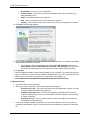
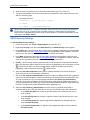
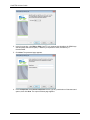
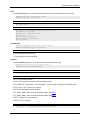
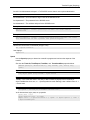
5. You must accept the server’s certificate when prompted during a connection attempt, otherwise
the client will not connect as desired.
6. Verify that your certificate has not expired. Check your Trusted List.
7. Copy the connection log to a text file or email to assist in troubleshooting when contacting your
FTP or Web service provider or the Globalscape support team.
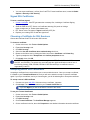
SSL Connection Mechanisms
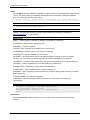
Not all FTP servers that support SSL connections do so correctly or in strict compliance to proposed or
approved standards.
Various FTP-over-SSL implementations have been proposed over the past few years. Most do not
conform to RFC–2228 or are at odds with the latest IETF (Internet Engineering Task Force) drafts.
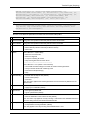
Typical Implementations include:
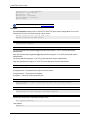
Implicit TLS/SSL - This is an SSL connection over a dedicated port (990) registered with the IANA. This
approach, while quite common, is not favored by the IETF. CuteFTP supports this implementation for
broader compatibility.
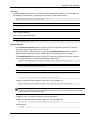
Explicit "AUTH SSL" - This is an SSL connection over a standard port (21) using "AUTH SSL" or "AUTH
TLS-P" to negotiate the protection mechanism. AUTH TLS-P implicitly sets the protection mechanism and
is therefore in direct disagreement with RFC 2228. CuteFTP does support AUTH SSL, and subsequently
sets the protection mechanism explicitly using the PROT command and its approved arguments.
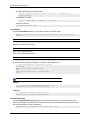
Explicit "AUTH TLS" - This is an SSL v3.1 connection over a standard port (21) and explicitly setting the
protection mechanism. This is the version that best adheres to RFC 2228, "FTP Security Extensions."
This version is supported by CuteFTP and is selected by default when you establish a new SSL
connection.
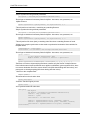
Apart from those mentioned above, CuteFTP does not connect to servers requiring "AUTH TLS-P" or
other deprecated SSL connection mechanisms.
Unable to Connect to Titan FTP Server when Using SSL
You must use encryption for every session for every new transfer by disabling the reuse of cached
sessions for data connection.
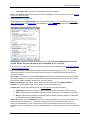
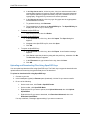
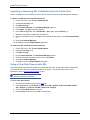
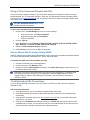
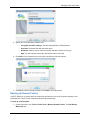
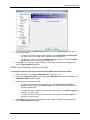
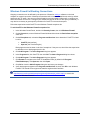
To require encryption of every session for every new transfer
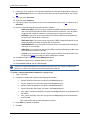
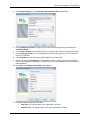
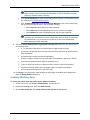
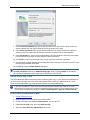
1. On the main menu, click Tools > Global Options (or press ALT+F7).
2. Expand the Security node, then click SSL Security. The SSL Security options appear.
3. Clear the Reuse cached session for data connection (required by some servers) check box
to require encryption of every session for every new transfer, then click OK.
106