1
Transferring Files and Folders
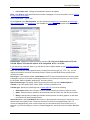
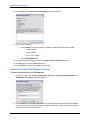
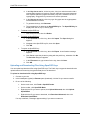
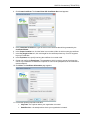
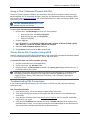
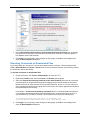
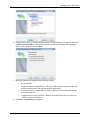
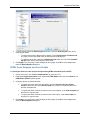
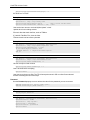
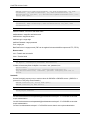
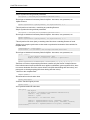
•
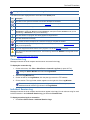
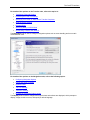
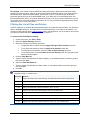
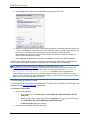
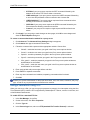
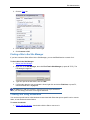
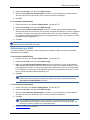
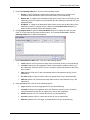
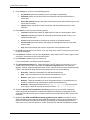
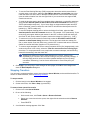
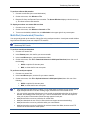
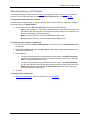
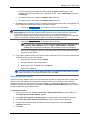
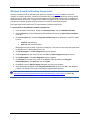
Disconnect and close program - Close all connections and close CuteFTP after all
transfers are complete.
•
Disconnect from Internet - Close the dial-up connection automatically after all transfers
are complete.
•
Shut Down Computer - Close all connections, close CuteFTP, close the dial-up
connection, and shut down the computer after all transfers are complete.
•
Log Off - Log the current user off the computer automatically after all transfers are
complete.
4. Click Apply if you are going to make changes to other pages; click OK to save changes and
close the Global Options dialog box.
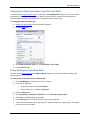
Preserving the Local Time Stamp
You can configure CuteFTP to keep a downloaded file's time stamp the same on the local computer as it
is on the server and keep an uploaded file's time stamp the same on the server as it is on the local
computer.
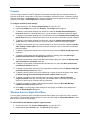
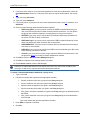
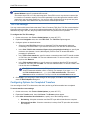
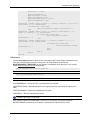
To specify time stamp settings
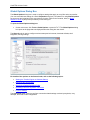
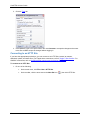
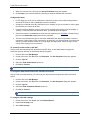
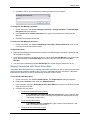
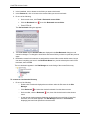
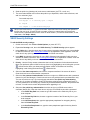
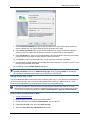
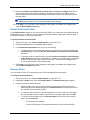
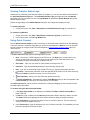
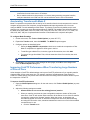
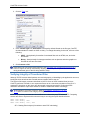
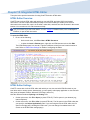
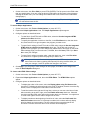
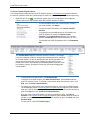
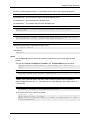
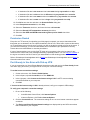
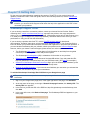
1. On the main menu, click Tools > Global Options (or press ALT+F7).
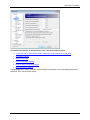
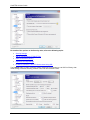
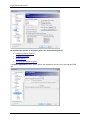
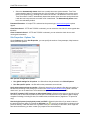
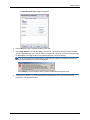
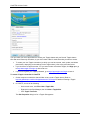
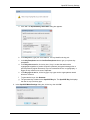
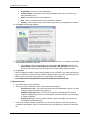
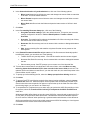
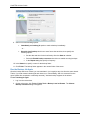
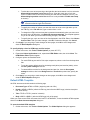
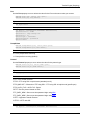
2. Expand the Transfer node, then click Events. The Events options appear.
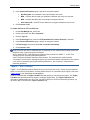
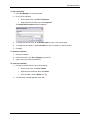
3. Select the Preserve remote time stamp for downloaded files check box to keep a downloaded
file's time stamp the same on the local computer as it is on the server. Clear the check box to
allow the local computer to give downloaded files a new time stamp.
4. Select the Preserve the local time stamp for uploaded files if the server allows MFMT check
box to keep an uploaded file's time stamp the same on the server as it is on the local computer.
Clear the check box to allow the server to give uploaded files a new time stamp.
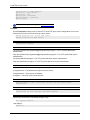
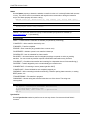
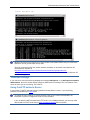
The FTP command MODIFICATION TIME (MDTM) can be used to determine when a file
on the server was last modified. The Internet Engineering Task Force (IETF) does not
endorse using MDTM to modify a remote file's time stamp; however, quite a few servers
support it. CuteFTP attempts the command when requested and reports errors in the log
(if any).
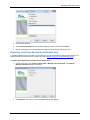
5. Click Apply if you are going to make changes to other pages; click OK to save changes and
close the Global Options dialog box.
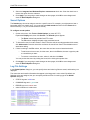
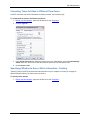
Resuming Transfers
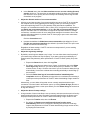
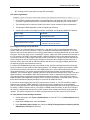
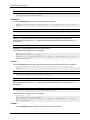
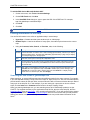
CuteFTP automatically attempts to resume interrupted transfers caused by lossy connection, serverkicked users, a slow server, and so on. CuteFTP does not auto-resume interrupted transfers when the
remote server is unreachable (i.e., there is no connection available, the server is down, or for any other
reason). In those situations, you must manually resume the transfer.
In you have not shut down and restarted CuteFTP since the interruption took place, CuteFTP
assumes that the transfer is within its original context and attempts to resume it from the point it left
off. If the transfer is no longer in the original context, CuteFTP prompts you to overwrite the
destination file; that is, to start over. You can set up overwrite rules to tailor such situations to your
specific needs.
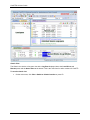
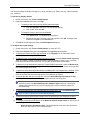
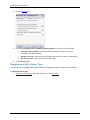
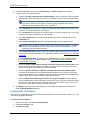
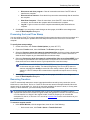
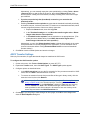
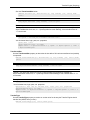
To resume a stopped transfer
•
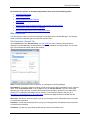
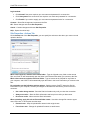
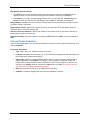
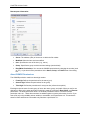
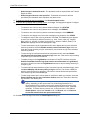
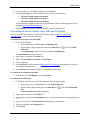
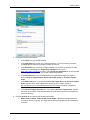
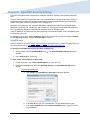
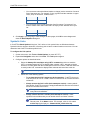
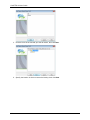
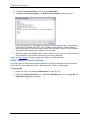
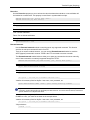
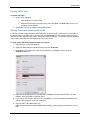
In the Queue Window, click the stopped item, then do one of the following:
o
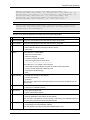
On the main menu, click Tools > Queue > Transfer Selected.
131